# Cross-Account Access via CloudFormation

{% hint style="info" %}
There are multiple ways to deploy AWS roles to provide Dropzone visibility into your environment. See [the AWS documentation](https://docs.dropzone.ai/integrations/alert/aws_alert) for more info.
{% endhint %}

Dropzone provides CloudFormation Templates (CFTs) that assist you in creating the IAM Role you need to integrate with Dropzone. The new role includes a custom trust policy, an AWS-managed ReadOnlyAccess policy, and an inline policy granting specific permissions for secure and streamlined Dropzone operations.

There are two CFTs available:

| Name             | CFT Link                                                                                                              | Purpose                                                                                                                                                                                                                        |
| ---------------- | --------------------------------------------------------------------------------------------------------------------- | ------------------------------------------------------------------------------------------------------------------------------------------------------------------------------------------------------------------------------ |
| ReadOnly         | [link](https://dropzone-public.s3.us-west-2.amazonaws.com/cloud-formation-templates/DropzoneAWSRole_ReadOnly.yaml)    | This policy provides read-only access to all your AWS resources. Use this if you do not want to edit your role if more permissions are required in the future.                                                                 |
| Minimum ReadOnly | [link](https://dropzone-public.s3.us-west-2.amazonaws.com/cloud-formation-templates/DropzoneAWSRole_MinReadOnly.yaml) | This policy provides read-only access to only those AWS resources currently needed by Dropzone. Use this if you are prepared to edit your Policies in the future if Dropzone adds new functionality that requires more access. |

Both create a Custom Trust Policy that ensures secure role assumption by Dropzone, using the provided External ID and User ARN.

The current Minimum ReadOnly access list is as follows:

| Policy                           |
| -------------------------------- |
| `AWSCloudTrail_ReadOnlyAccess`   |
| `AmazonEC2ReadOnlyAccess`        |
| `AmazonGuardDutyReadOnlyAccess`  |
| `AmazonRoute53ReadOnlyAccess`    |
| `AmazonS3OutpostsReadOnlyAccess` |
| `AmazonS3ReadOnlyAccess`         |
| `AmazonSSMReadOnlyAccess`        |
| `IAMReadOnlyAccess`              |

## Find the Dropzone IAM Role Information

* Navigate to your Dropzone AI tenant home page e.g. https\://*mycompany*.dropzone.app
* In the bottom left hand corner, click Settings > Integrations

<figure><img src="https://435022081-files.gitbook.io/~/files/v0/b/gitbook-x-prod.appspot.com/o/spaces%2FmBVcKuiytGCsIDpL70BC%2Fuploads%2Fgit-blob-b3f07f902b1402dadc7abbd8bb62f9c204547390%2Fui-integrations-dropdown.png?alt=media" alt=""><figcaption><p>Integrations Dropdown</p></figcaption></figure>

* Click "Available"

<figure><img src="https://435022081-files.gitbook.io/~/files/v0/b/gitbook-x-prod.appspot.com/o/spaces%2FmBVcKuiytGCsIDpL70BC%2Fuploads%2Fgit-blob-434641ec6d4e45051842f86164f485d6bd289424%2Fapp_system_integrations_available.png?alt=media" alt=""><figcaption><p>Click Available</p></figcaption></figure>

* In the Search bar, search AWS, then click "Configure"

<figure><img src="https://435022081-files.gitbook.io/~/files/v0/b/gitbook-x-prod.appspot.com/o/spaces%2FmBVcKuiytGCsIDpL70BC%2Fuploads%2Fgit-blob-bc995f6fbed5d8fa7fd457df842b1e95c9eaf561%2Fapp_system_integrations_available_aws.png?alt=media" alt=""><figcaption><p>The AWS Tile</p></figcaption></figure>

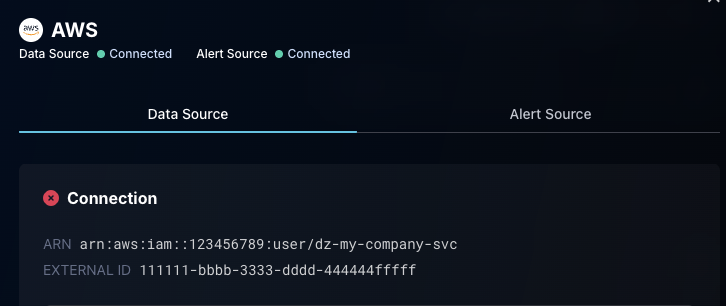
* Under the "Connection" section, record the `ARN` and `EXTERNAL ID` values, for use later in the AWS CloudFormation UI

<figure><img src="https://435022081-files.gitbook.io/~/files/v0/b/gitbook-x-prod.appspot.com/o/spaces%2FmBVcKuiytGCsIDpL70BC%2Fuploads%2Fgit-blob-1101499742fe461ba1de69b7b23e34563c7b5060%2Fui-aws-connection-info.png?alt=media" alt="" width="296"><figcaption><p>The AWS Connection Information</p></figcaption></figure>

## Running the CloudFormation Template

You will need to repeat these instructions for each account you want to be visible to Dropzone.

* Log into your AWS account
* Go to the CloudFromation console, <https://console.aws.amazon.com/cloudformation/>
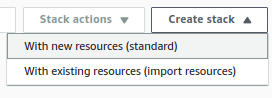
* Click on "Create Stack" > "With new resources (standard)"

<figure><img src="https://435022081-files.gitbook.io/~/files/v0/b/gitbook-x-prod.appspot.com/o/spaces%2FmBVcKuiytGCsIDpL70BC%2Fuploads%2Fgit-blob-6d3734fc55e6d1709994c63b842fc24833a06bab%2Faws-cft-00-b.png?alt=media" alt=""><figcaption><p>Create Stack Button</p></figcaption></figure>

{% hint style="warning" %}
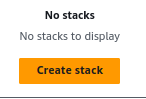
If this is your first stack, then the option will not have "With new resources"

<img src="https://435022081-files.gitbook.io/~/files/v0/b/gitbook-x-prod.appspot.com/o/spaces%2FmBVcKuiytGCsIDpL70BC%2Fuploads%2Fgit-blob-665b27fc36c87b223605976f1c083c49d06a1cb0%2Faws-cft-00-a.png?alt=media" alt="Create Stack Button" data-size="original">
{% endhint %}

* In the "Prerequisite - Prepare template" section, select "Choose an exiting template"
* In the "Specify template" section, select "Amazon S3 URL"
* In the "Amazon S3 URL" field, input the link to the CFT you've chosen to use (e.g. ReadOnly) from the table at the top of this document
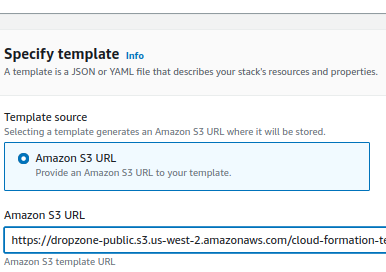
<figure><img src="https://435022081-files.gitbook.io/~/files/v0/b/gitbook-x-prod.appspot.com/o/spaces%2FmBVcKuiytGCsIDpL70BC%2Fuploads%2Fgit-blob-89641455f46459b5dd21ed66c9b271cd5dd1b209%2Faws-cft-01.png?alt=media" alt=""><figcaption><p>Template specification</p></figcaption></figure>

* Click "Next"
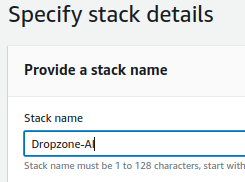
* Enter a "Stack name", e.g. "Dropzone-AI"

<figure><img src="https://435022081-files.gitbook.io/~/files/v0/b/gitbook-x-prod.appspot.com/o/spaces%2FmBVcKuiytGCsIDpL70BC%2Fuploads%2Fgit-blob-7b6edbee65e4f10551b996c5534cde18857dee9d%2Faws-cft-04.png?alt=media" alt=""><figcaption><p>Stack Name</p></figcaption></figure>

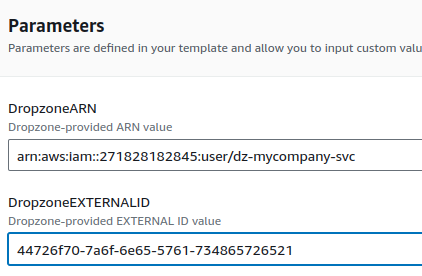
* In the Parameters section fill out the information you gathered from the Dropzone UI

<figure><img src="https://435022081-files.gitbook.io/~/files/v0/b/gitbook-x-prod.appspot.com/o/spaces%2FmBVcKuiytGCsIDpL70BC%2Fuploads%2Fgit-blob-99973c7f65eb3b73a39aeba03a1523b329531e7c%2Faws-cft-06.png?alt=media" alt=""><figcaption><p>Stack Paramaters</p></figcaption></figure>

* Click "Next"
* On the "Configure stack options" page click "Next"
* On the "Review and create" page click "Submit"

<figure><img src="https://435022081-files.gitbook.io/~/files/v0/b/gitbook-x-prod.appspot.com/o/spaces%2FmBVcKuiytGCsIDpL70BC%2Fuploads%2Fgit-blob-c4d940bd9a417c8ef12f9c510883eb1b92eca4c7%2Faws-cft-02.png?alt=media" alt=""><figcaption><p>Create the stack via the Submit button</p></figcaption></figure>

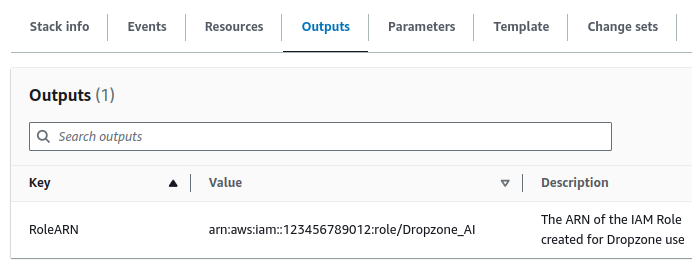
* Once the stack creation is complete, click Outputs
* Record the RoleARN value shown for use later in the Dropzone UI where it will referred to as "Role ARNs"

<figure><img src="https://435022081-files.gitbook.io/~/files/v0/b/gitbook-x-prod.appspot.com/o/spaces%2FmBVcKuiytGCsIDpL70BC%2Fuploads%2Fgit-blob-e7ab16028b5fa1cbb3142aa72a366980c50a9359%2Faws-cft-05.png?alt=media" alt=""><figcaption><p>Output Role ARN</p></figcaption></figure>

* If you have additional AWS accounts, repeat the process for each of them

Once done, you may move onto configuring the Dropzone Data and Alert Sources described in [the AWS documentation](https://docs.dropzone.ai/integrations/alert/aws_alert)