For the complete documentation index, see llms.txt. This page is also available as Markdown.

SentinelOne

The Dropzone AI Platform integrates with SentinelOne, an endpoint cybersecurity platform that protects against various types of threats. Integrating SentinelOne with Dropzone allows Dropzone to automatically investigate security incidents in your SentinelOne environment.

Create a Service User and API Key

SentinelOne requires an API key from a Service User with Viewer Access to enable.

To obtain an API Key, do the following:

  • Log in to the SentinelOne Management Console

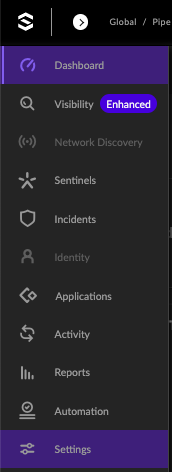
  • In the left navigation bar of the SentinelOne dashboard, click "Settings"

Settings
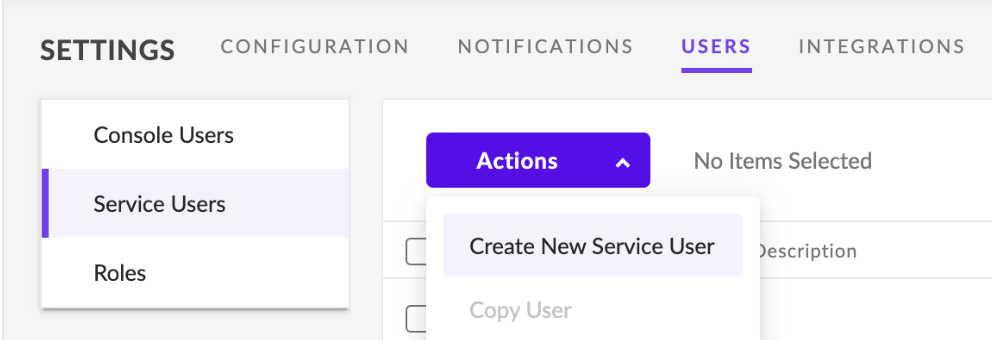
  • Navigate to Users > Service Users

  • Click the Actions dropdown, then click "Create New Service User"

Create New Service User
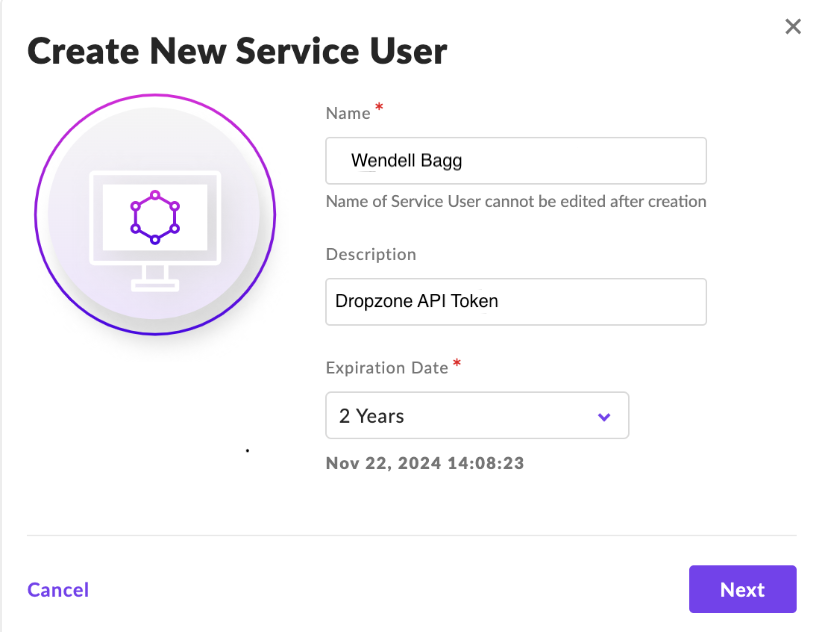
  • Enter the Name, Description, and Expiration Date, then click "Next"

Enter information
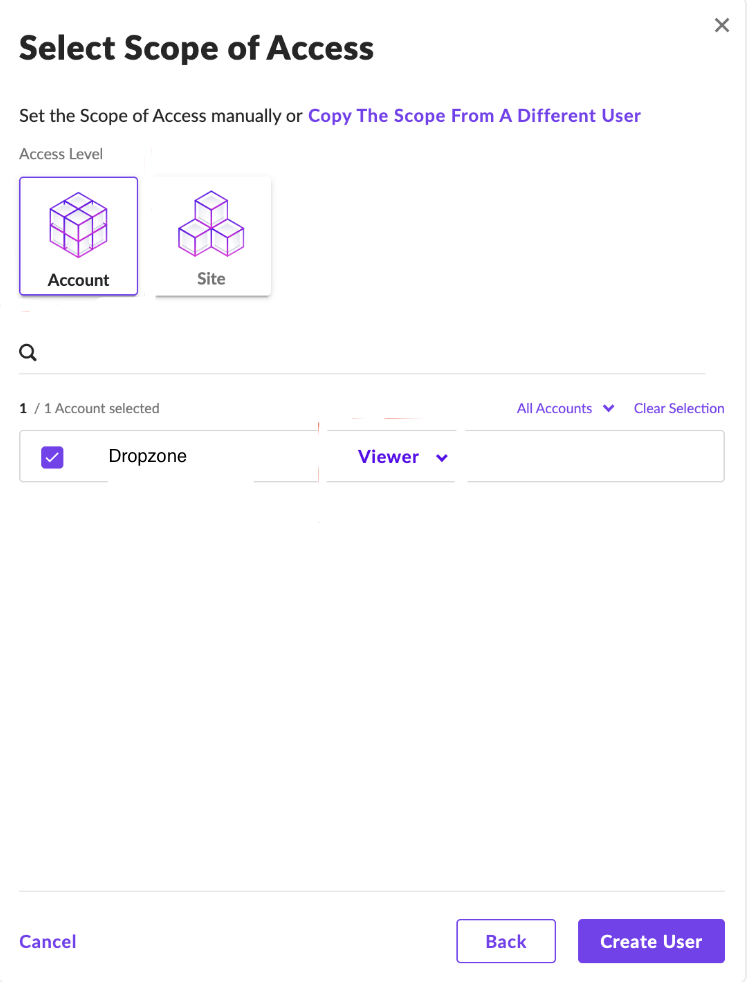
  • Under Access Level, select "Account." Select the newly generated account and set the role to Viewer

Assign roles to the new Account
  • Click "Create User"

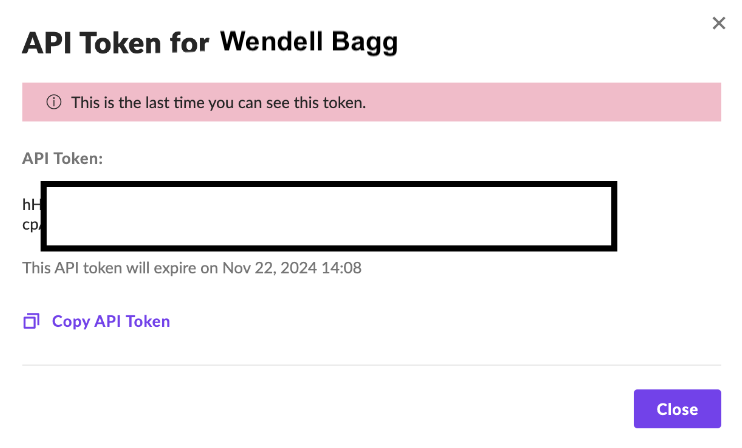
  • Copy the API Token shown for use later in the Dropzone UI where it is called "API Token"

Copy API Token

Enable SentinelOne

To enable the Alert Source integration, you'll need the following information:

Dropzone Field
Source

SentinelOne Hostname

Your SentinelOne Hostname, e.g. usea1-123.sentinelone.net

API Token

The API token value you copied earlier

To enable the Alert Source integration, do the following:

  • Navigate to your Dropzone AI tenant home page e.g. https://mycompany.dropzone.app

  • In the bottom left hand corner, navigate to Settings > Integrations

Integrations Dropdown
  • Click "Library"

If you have previously integrated this application, click "Configured"

Click Library
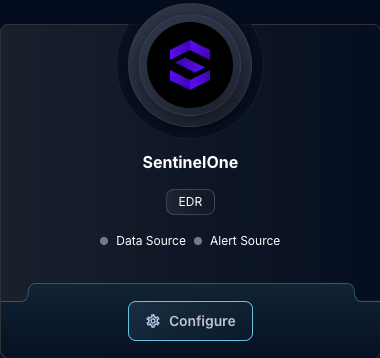
  • In the Search bar, search SentinelOne, then click "Configure"

The SentinelOne Tile
  • Under the Alert Source header, input your SentinelOne hostname and API Token

The SentinelOne Alert Source Configuration (pt 1)
  • If you wish to treat each of your sites in SentinelOne as separate tenants, check the box labeled "Multi-tenant environment" and click "Add Item." Then input the site IDs for each of the sites you wish Dropzone to be able to analyze

The SentinelOne Alert Source Configuration (pt 2)
  • Under "Incident types," check the incident types you want Dropzone to investigate alerts for

  • Under "Incident status," check the incident statuses you want Dropzone to investigate alerts for

  • Under "Log Ingestion delay," input your desired log ingestion delay in minutes

The SentinelOne Alert Source Configuration (pt 3)
  • If you wish, you may exclude threats from investigation by threat name regex. To do so, click "Add Item" in the "Threat Name Regexes" section and input your exclusions

The SentinelOne Alert Source Configuration (pt 4)
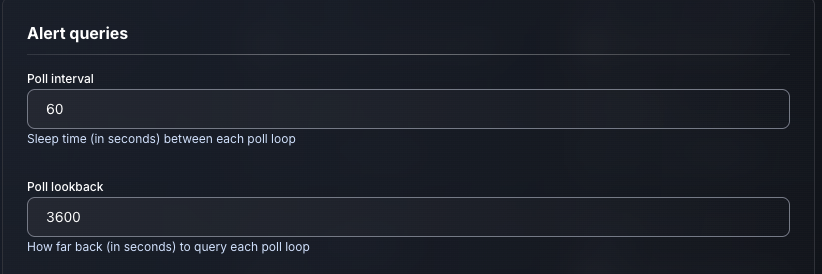
  • Input your desired poll interval and lookback

The SentinelOne Alert Source Configuration (pt 5)
  • If you wish to further filter alerts using the Python CEL package, check the box labeled "Use advanced filtering"

  • Input your CEL expression, then select whether to include or exclude alerts matching that filter. Add each filter individually using the "Add Item" button

  • Contact your Dropzone AI support representative for more information about this feature

The SentinelOne Alert Source Configuration (pt 6)
  • Click "Test & Save" to finish

If you have any errors or questions, engage your Dropzone AI support representative.

Last updated

Was this helpful?