# Google Workspace

The Dropzone AI platform integrates with Google Workspace APIs for ingesting alerts such as phishing reports and enriching investigations with data from Google Workspace such as directory information. This document describes how to set up API credentials and install them into the Dropzone platform.

## Integration Overview

To enable these integrations you will perform the following actions:

* Enable domain-wide delegation in Google Workspace
* Create a Google Workspace admin role
* Select integration parameters, such as which alert types to sync

The Dropzone platform has a dedicated service account for your organization. This service account uses [domain-wide delegation](https://support.google.com/a/answer/162106) to gain access to specific API scopes within your organization.

## Enable Domain-Wide Delegation

To grant access to the Google service account used by your Dropzone platform, do the following:

* Navigate to your Dropzone AI tenant home page e.g. https\://*mycompany*.dropzone.app
* In the bottom left hand corner, navigate to Settings > Integrations

<figure><img src="https://435022081-files.gitbook.io/~/files/v0/b/gitbook-x-prod.appspot.com/o/spaces%2FmBVcKuiytGCsIDpL70BC%2Fuploads%2Fgit-blob-b3f07f902b1402dadc7abbd8bb62f9c204547390%2Fui-integrations-dropdown.png?alt=media" alt=""><figcaption><p>Integrations Dropdown</p></figcaption></figure>

* Click "Available"

<figure><img src="https://435022081-files.gitbook.io/~/files/v0/b/gitbook-x-prod.appspot.com/o/spaces%2FmBVcKuiytGCsIDpL70BC%2Fuploads%2Fgit-blob-434641ec6d4e45051842f86164f485d6bd289424%2Fapp_system_integrations_available.png?alt=media" alt=""><figcaption><p>Click Available</p></figcaption></figure>

* In the Search bar, search Google Workspace, then click "Configure"

<figure><img src="https://435022081-files.gitbook.io/~/files/v0/b/gitbook-x-prod.appspot.com/o/spaces%2FmBVcKuiytGCsIDpL70BC%2Fuploads%2Fgit-blob-032320ecc491bf33bc3d0acb54d31de8d992920f%2Fapp_system_integrations_available_Google_Workspace.png?alt=media" alt=""><figcaption><p>The Google Workspace Tile</p></figcaption></figure>

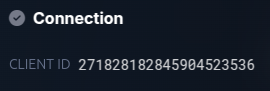
* Record the "CLIENT ID" field which will be used in the Google Admin interface

<figure><img src="https://435022081-files.gitbook.io/~/files/v0/b/gitbook-x-prod.appspot.com/o/spaces%2FmBVcKuiytGCsIDpL70BC%2Fuploads%2Fgit-blob-6e3c0bb9d767814c9bb081cdbbaa68009392fa19%2Fui-googleworkspace-data-source-client-id.png?alt=media" alt=""><figcaption><p>Copy the CLIENT ID</p></figcaption></figure>

Next, enable the Dropzone AI application domain-wide delegation access to your Google Workspace environment.

As a full Google Workspace admin, do the following:

* Navigate to your [admin workspace](https://admin.google.com)
* In the sidebar, navigate to Security > Access and Data Control > API Controls
* At the bottom, click [Manage Domain Wide Delegation](https://admin.google.com/ac/owl/domainwidedelegation)
* Click "Add New" API Client
* Enter the Client ID in the pop up
  * This is the \~21 digit number you recorded from the Dropzone UI earlier
* Grant access to the following scopes by copy/pasting them into the "OAuth Scopes" line one-by-one
  * <https://www.googleapis.com/auth/apps.alerts>
  * <https://www.googleapis.com/auth/gmail.readonly>
  * <https://www.googleapis.com/auth/drive.readonly>
    * Required when enabling the optional Google Drive Query feature
  * <https://www.googleapis.com/auth/admin.directory.user.readonly>
  * <https://www.googleapis.com/auth/admin.reports.audit.readonly>
  * <https://www.googleapis.com/auth/admin.reports.usage.readonly>
  * <https://www.googleapis.com/auth/admin.directory.group.readonly>
* Click "Authorize" to finish

## Choose or Create a Google Workspace Admin Account

Dropzone uses the Google Workspace Admin API to find information from your environment using a user within your org that has an Admin Role with necessary privileges.

{% hint style="info" %}
The user you select could be a real human or a dedicated integration user. We suggest the latter to assure that personnel changes do not affect your integration. The integration user does not need a Google Workspace license, so it may be a free ["Cloud Identity"](https://support.google.com/cloudidentity/answer/7319251) user.
{% endhint %}

Note that Dropzone may request more permissions in the future as we add features.

{% hint style="info" %}
Regardless of which privileges you enable for your admin role, the Dropzone platform is restricted to the scopes that you granted in the "Set Up Domain Wide Delegation" section above.
{% endhint %}

To create and associate the new role, do the following:

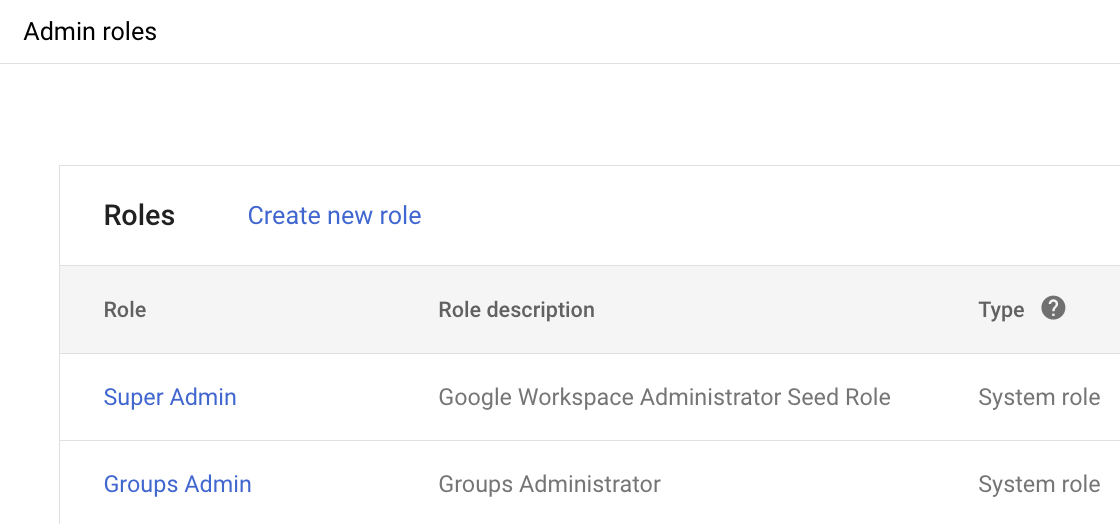
* Navigate to [Account > Admin Roles](https://admin.google.com/ac/roles) > Create New Role

<figure><img src="https://435022081-files.gitbook.io/~/files/v0/b/gitbook-x-prod.appspot.com/o/spaces%2FmBVcKuiytGCsIDpL70BC%2Fuploads%2Fgit-blob-d825b00f157b8b2a90ca0ac4b3a060d925d2c909%2Fgoogleworkspace-create-new-role.png?alt=media" alt="" width="375"><figcaption><p>Create new Google Workspace Role</p></figcaption></figure>

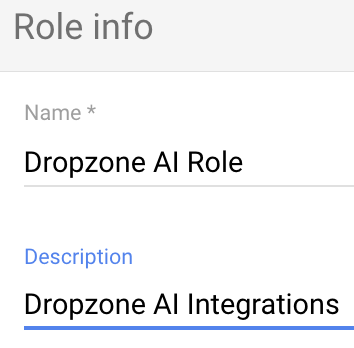
* Name the role something memorable, such as "Dropzone AI Role." Input a description, such as "Dropzone AI integrations," then click "Continue"

<figure><img src="https://435022081-files.gitbook.io/~/files/v0/b/gitbook-x-prod.appspot.com/o/spaces%2FmBVcKuiytGCsIDpL70BC%2Fuploads%2Fgit-blob-46027c47d177f4692be77a81976d7305ef2be69b%2Fgoogleworkspace-create-new-role-next.png?alt=media" alt="" width="177"><figcaption><p>Name the new Role</p></figcaption></figure>

* You'll now be on the "Select Privileges" page
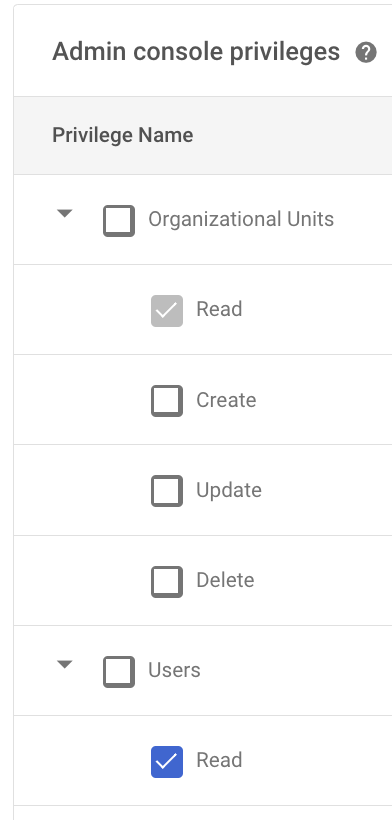
* On this page enable the following:
  * Admin console privileges
    * Organizational Units > Read
    * Users > Read
    * Google Vault > Manage Audits
    * Gmail > Email log search
    * Gmail > Access Admin Quarantine
    * Gmail > Access Restricted Quarantines
    * Security Center > "This user has full ..." > Audit and Investigation > View
    * Security Center > "This user has full ..." > Audit and Investigation > View sensitive content
    * Security Center > Activity Rules > View
    * Security Center > Activity Rules > Manage
    * Alert Center > Full access
    * DLP > View DLP rule
    * DLP > Manage DLP rule
    * Reports
  * Admin API privileges
    * Organizational Units > Read
    * Users > Read
    * Groups > Read
    * Reports

<figure><img src="https://435022081-files.gitbook.io/~/files/v0/b/gitbook-x-prod.appspot.com/o/spaces%2FmBVcKuiytGCsIDpL70BC%2Fuploads%2Fgit-blob-fd3460b2b37d8b780a437192340ae20d6bf7f2f3%2Fgoogleworkspace-create-new-role-perms.png?alt=media" alt="" width="196"><figcaption><p>Enable permissions</p></figcaption></figure>

* Once done, click "Continue"

{% hint style="warning" %}
There are two sections of this user interface, the "Admin Console Privileges" at top and "Admin API Privileges" further down the page; make sure you configure all the permissions from both sections.
{% endhint %}

* Assign the new role to a Google Workspace user:
  * Go to <https://admin.google.com>
  * In the sidebar, navigate to [Account > Admin Roles](https://admin.google.com/ac/roles)
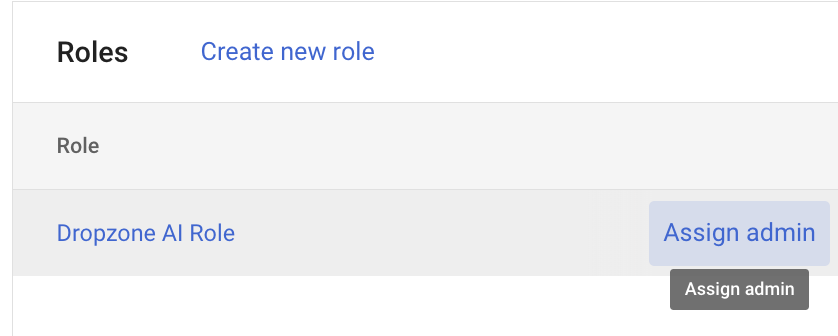
  * Hover over the role you created and click "Assign Admin"

<figure><img src="https://435022081-files.gitbook.io/~/files/v0/b/gitbook-x-prod.appspot.com/o/spaces%2FmBVcKuiytGCsIDpL70BC%2Fuploads%2Fgit-blob-24c214e9a8284ef512f9c0d5c89230bd8b4d6639%2Fgoogleworkspace-assign-admin.png?alt=media" alt="" width="375"><figcaption><p>Assign admin option</p></figcaption></figure>

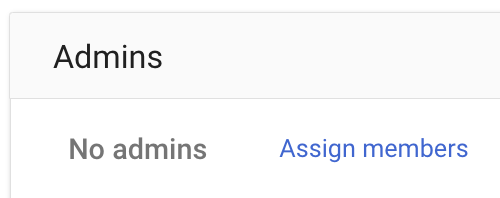
* Click "Assign Members" to add the role to the user you want for the Dropzone integration
  * Pick an existing admin or an account you created specifically for the Dropzone integration

<figure><img src="https://435022081-files.gitbook.io/~/files/v0/b/gitbook-x-prod.appspot.com/o/spaces%2FmBVcKuiytGCsIDpL70BC%2Fuploads%2Fgit-blob-9d53521a816d8ac1ec8c426e530d67fcc6ec687d%2Fgoogleworkspace-assign-admin-next.png?alt=media" alt="" width="250"><figcaption><p>Assign an admin to the role</p></figcaption></figure>

## Enable Google Workspace

The Alert source integration allows Dropzone AI to pull alerts from Exchange Online and Microsoft Defender for investigation. Dropzone can investigate phishing emails via multiple mechanisms. An overview of them is shown below.

| Method                           | Notes                                                                                                                                                                                                                   | Requirements                                                                                                                                                                                         | Configuration                                                                                         |
| -------------------------------- | ----------------------------------------------------------------------------------------------------------------------------------------------------------------------------------------------------------------------- | ---------------------------------------------------------------------------------------------------------------------------------------------------------------------------------------------------- | ----------------------------------------------------------------------------------------------------- |
| Google Workspace Phishing Alerts | Dropzone processes Google Workspace phishing alerts. \[Google phishing alerts may take up to 4 hours to appear]\(<https://support.google.com/a/answer/9104586> after users click the "Report Phishing" button in Gmail) | None - this is a built-in Google Workspace capability                                                                                                                                                | Leave "Enable mailbox-based phishing analysis" unchecked                                              |
| Dedicated phishing mailbox       | Dropzone polls a dedicated Google Workspace account for phishing emails to analyze                                                                                                                                      | You must instruct your employees to forward suspected emails to a dedicated email box, or have a third-party reporting tool (typically a Gmail add-on) that creates the emails in the target mailbox | Check "Enable mailbox-based phishing analysis" and fill out "Phishing Processing via Mailbox" section |

To enable the Alert Source integration, you'll need the following information:

| Dropzone Field | Source                                                     |
| -------------- | ---------------------------------------------------------- |
| Admin Email    | The email address of the admin in the new Dropzone AI role |
| Customer ID    | Your Google Workspace customer id                          |

The Customer ID can be found can be found at admin.google.com > Account > Account Settings (<https://admin.google.com/ac/accountsettings>) or in the output of `gam info domain`. It's typically a \~9 character string starting with `C`.

To enable the Alert Source integration, do the following:

* Navigate to your Dropzone AI tenant home page e.g. https\://*mycompany*.dropzone.app
* In the bottom left hand corner, navigate to Settings > Integrations

<figure><img src="https://435022081-files.gitbook.io/~/files/v0/b/gitbook-x-prod.appspot.com/o/spaces%2FmBVcKuiytGCsIDpL70BC%2Fuploads%2Fgit-blob-b3f07f902b1402dadc7abbd8bb62f9c204547390%2Fui-integrations-dropdown.png?alt=media" alt=""><figcaption><p>Integrations Dropdown</p></figcaption></figure>

* Click "Available"

<figure><img src="https://435022081-files.gitbook.io/~/files/v0/b/gitbook-x-prod.appspot.com/o/spaces%2FmBVcKuiytGCsIDpL70BC%2Fuploads%2Fgit-blob-434641ec6d4e45051842f86164f485d6bd289424%2Fapp_system_integrations_available.png?alt=media" alt=""><figcaption><p>Click Available</p></figcaption></figure>

* In the Search bar, search Google Workspace, then click "Configure"

<figure><img src="https://435022081-files.gitbook.io/~/files/v0/b/gitbook-x-prod.appspot.com/o/spaces%2FmBVcKuiytGCsIDpL70BC%2Fuploads%2Fgit-blob-032320ecc491bf33bc3d0acb54d31de8d992920f%2Fapp_system_integrations_available_Google_Workspace.png?alt=media" alt=""><figcaption><p>The Google Workspace Tile</p></figcaption></figure>

* Under the Alert Source heading, input the "Admin Email" and "Customer ID"

<figure><img src="https://435022081-files.gitbook.io/~/files/v0/b/gitbook-x-prod.appspot.com/o/spaces%2FmBVcKuiytGCsIDpL70BC%2Fuploads%2Fgit-blob-3ce002b6d467b9692f223131bb5245dd621c1a64%2Fapp_system_integrations_available_googleworkspace_alert_1.png?alt=media" alt=""><figcaption><p>The Google Workspace Alert Source configuration (pt 1)</p></figcaption></figure>

* If you wish, you may input [Google Workspace alert types](https://developers.google.com/workspace/admin/alertcenter/reference/alert-types) to exclude from Dropzone's investigation. To do so, under the "Alert types to exclude" section, click "Add Item," then input the alert types

<figure><img src="https://435022081-files.gitbook.io/~/files/v0/b/gitbook-x-prod.appspot.com/o/spaces%2FmBVcKuiytGCsIDpL70BC%2Fuploads%2Fgit-blob-e385f264866ccce3299f54326c912f93af20d7d2%2Fapp_system_integrations_available_googleworkspace_alert_2.png?alt=media" alt=""><figcaption><p>The Google Workspace Alert Source configuration (pt 2)</p></figcaption></figure>

If you wish to utilize Google Workspace Phishing Alerts, you do not need to perform any extra steps, and may proceed to inputting your desired poll interval and lookback.

If you want to process phishing emails from a dedicated mailbox, do the following:

* In the "Phishing Account Email Address" section, enter the email address of your dedicated phishing account
* If you wish for only some of the messages in this phishing account to be processed, input a [Gmail filter](https://support.google.com/mail/answer/6579?hl=en)
  * For example, some third-party tools may modify the subject to include "Phishing Alert," in which case you can use a Gmail filter like `subject:"Phishing Alert"` to limit processing to these messages
* If you use a third-party tool that includes the original email as an attachment then check the "Prefer RFC822 message attachment, when present" button

<figure><img src="https://435022081-files.gitbook.io/~/files/v0/b/gitbook-x-prod.appspot.com/o/spaces%2FmBVcKuiytGCsIDpL70BC%2Fuploads%2Fgit-blob-177a28f6d865229bfd7c8c367bd6952db691fbf2%2Fapp_system_integrations_available_googleworkspace_alert_3.png?alt=media" alt=""><figcaption><p>The Google Workspace Alert Source configuration (pt 3)</p></figcaption></figure>

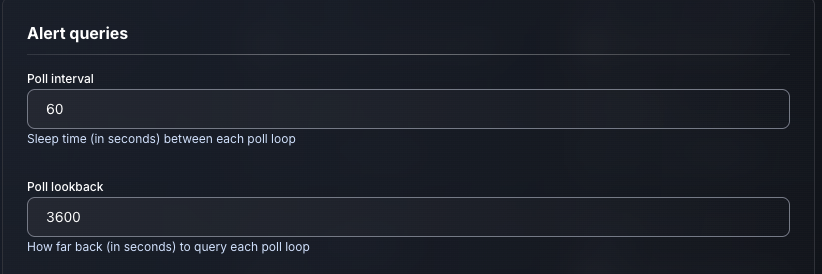
* Once you are done selecting your Phishing Ingest Mechanism, input your desired poll interval and lookback

<figure><img src="https://435022081-files.gitbook.io/~/files/v0/b/gitbook-x-prod.appspot.com/o/spaces%2FmBVcKuiytGCsIDpL70BC%2Fuploads%2Fgit-blob-4c7c977f3a0c4b3fa3b995cc63d202cbbf10219d%2Fapp_system_integrations_available_googleworkspace_alert_4.png?alt=media" alt=""><figcaption><p>The Google Workspace Alert Source configuration (pt 4)</p></figcaption></figure>

* Click "Test & Save" to finish

You should begin ingesting alerts immediately.

If you have any errors engage your Dropzone AI support representative.