Splunk
The Dropzone AI Platform integrates with Splunk Enterprise, a SIEM tool. Dropzone can perform analysis of Splunk-generated alerts, and/or use Splunk data as part of investigation analysis. Many customers ingest other alert sources into Splunk (e.g. IDPs) and integrate Dropzone into Splunk rather than the source systems.
Dropzone communicates to Splunk Enterprise using the Dropzone Connector.
There are two methods to integrate with Dropzone AI: creating a Splunk User or configuring an API token. To create an API token, follow instructions in Splunk's documentation.
Create a Splunk User
To create a Splunk user, do the following:
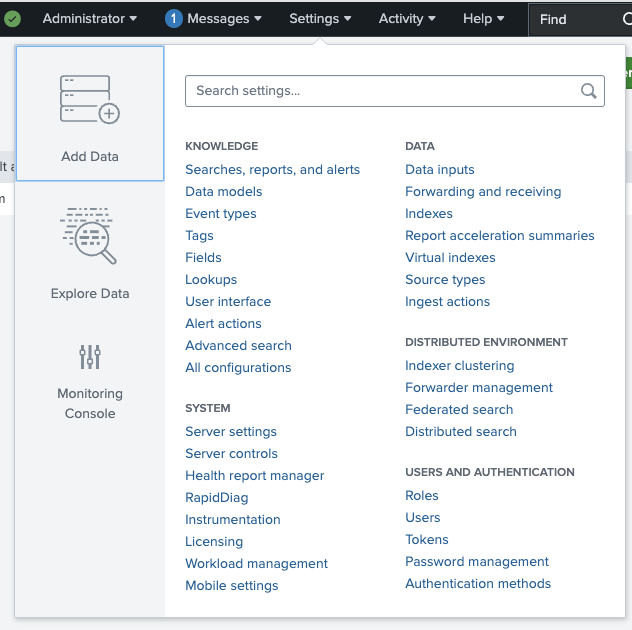
In the Home Menu of Splunk Enterprise, navigate to Settings > Users

Click "New User"

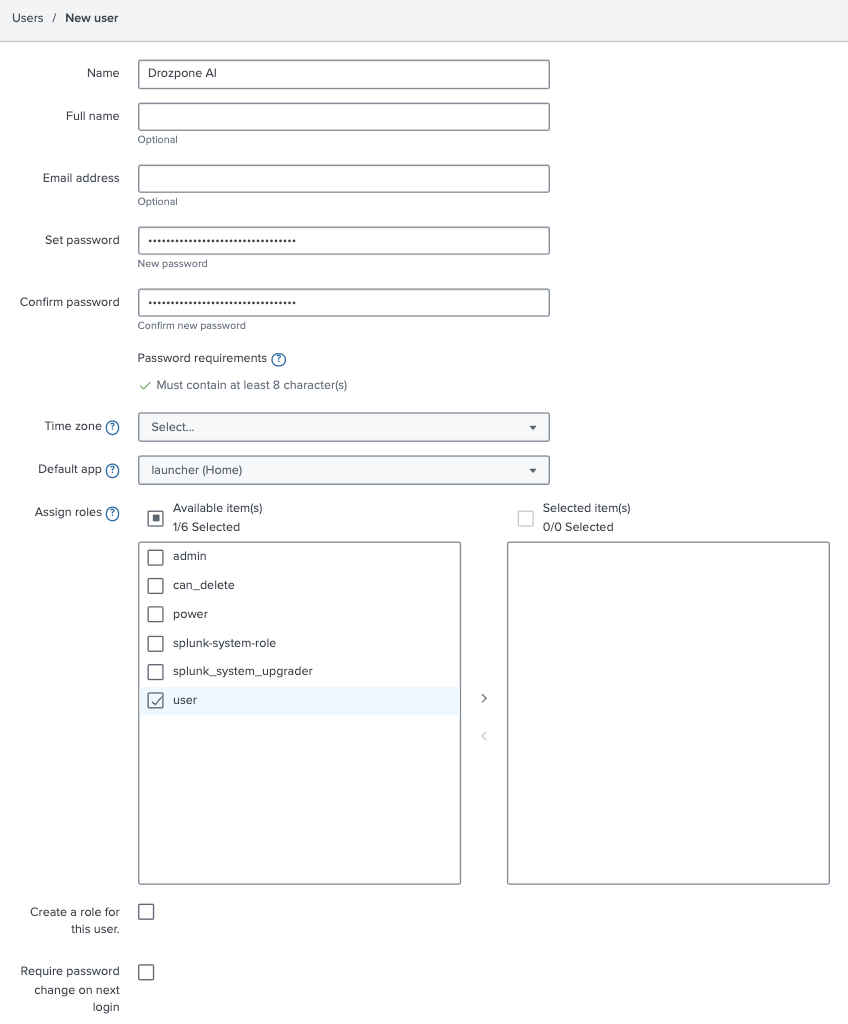
Name the user something memorable, such as Dropzone AI, and create a password. Save them for use later in the Dropzone UI where they are called "Username" and "Password" respectively
In the "Assign Roles" section, assign the user the "User" role
You may need to add capabilities to this role depending on the level of access you want Dropzone to have. If you would like to limit the indexes Dropzone has access to, you will need to create a custom role with inherited permissions from the user role. See the Splunk documentation for more information on creating custom roles.
If two-factor authentication is enabled, provide the Duo username

Click "Create"

Enable Splunk
To enable the Alert Source integration, you'll need the following information:
Server
The hostname or IP address of your Splunk server, e.g splunk.corp.example.net
Password
The username of the Splunk user you created earlier
Password
The password of the Splunk user you created earlier
If you chose to create an API token instead of a Splunk user, you will need to use the API token instead.
To enable the Alert Source integration, do the following:
Navigate to your Dropzone AI tenant home page e.g. https://mycompany.dropzone.app
In the bottom left hand corner, navigate to Settings > Integrations

Click "Available"

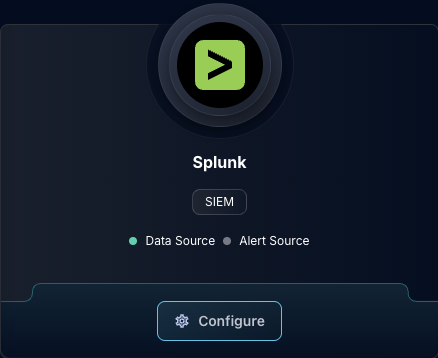
In the Search bar, search Splunk, then click "Configure"

Input your Splunk Server and port

If you created a Splunk User, under "Authentication Method," select Password. If you created an API token, select Token

Input your authentication details

In the "Alert Queries" section, under "Splunk Alert Search," you must input a Splunk SPL search query to identify alerts to investigate
Input your desired poll interval and lookback

Click "Test & Save" to finish
If using Splunk Enterprise Security, configure the following:
ES Macro – Select
notablefor ES 8.0+ ormc_incidentsfor ES 7.0 and earlierEnabled Severities – Select at least one severity level to investigate
Title Exclusion Patterns (optional) – Exclude notable events whose rule title or search name matches any of the configured regex patterns. For example,
TEST-excludes alerts such asTEST-Rule-Name. Use(?i)TEST-for case-insensitive matching

If you have any errors or questions, engage your Dropzone AI support representative.
Last updated
Was this helpful?