> For the complete documentation index, see [llms.txt](https://docs.dropzone.ai/llms.txt). Markdown versions of documentation pages are available by appending `.md` to page URLs; this page is available as [Markdown](https://docs.dropzone.ai/api.md).
# API
## Dropzone API
You can interact with your Dropzone instance via API for various actions, such as managing alerts and investiagtions, context memory, and response actions.
API key creation is available to Dropzone "Admin" users.
## Managing Keys
* Navigate to your Dropzone AI tenant home page e.g. https\://*mycompany*.dropzone.app
* In the bottom left hand corner, navigate to Settings > API Keys
API Keys Dropdown
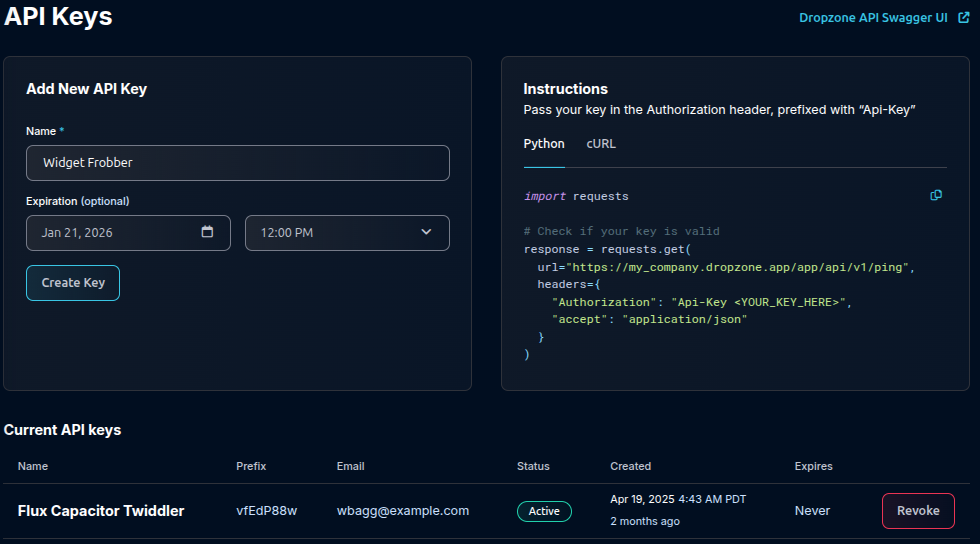
You'll now be on the API Keys page. From here you can see existing keys, create new ones, and revoke existing ones.
The API Keys Page
## Creating Keys
* Find the "Add New API Key" section in the upper left
* Give your new key a name and optional expiration date
* Hit Create Key
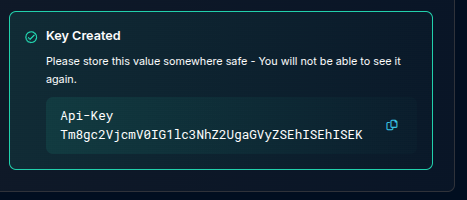
* Store your API key value somewhere safe - you will not be able to see it again
Key is generated
{% hint style="warning" %}
The `Api-Key` prefix is part of your api key - be sure it is included in the `Authorization` header, e.g.
```bash
curl -L \
--url '/app/api/v1/ping' \
--header 'Authorization: Api-Key Tm8gc2Vcm...' \
--header 'Accept: */*'
...
```
{% endhint %}
## Swagger API UI
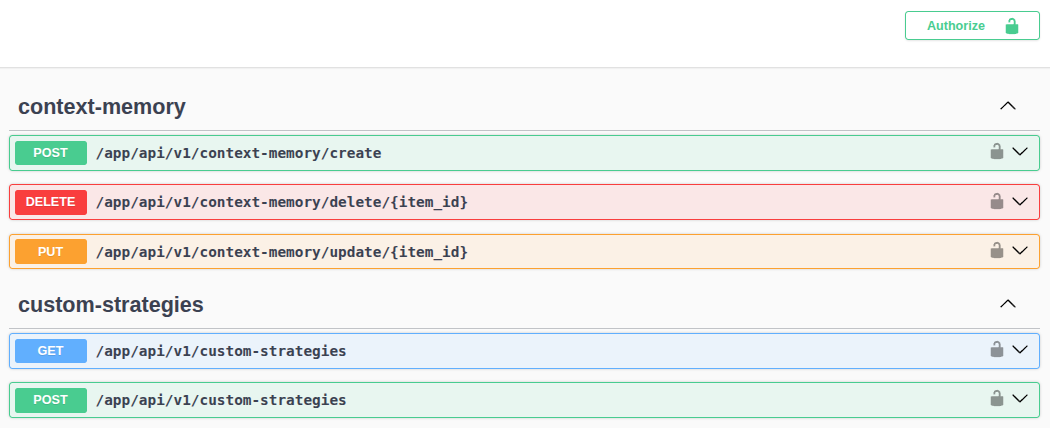
You can view the API spec from within the Dropzone UI via a [Swagger UI](https://swagger.io/tools/swagger-ui/), and even make API calls directly by using your API key in the Swagger interface.
From the main API key page, click "Dropzone API Swagger UI" link in the upper right
The Swagger UI Link
This will open a new tab with the Swagger UI.
The Swagger UI
## Online API Documentation
The pages in this section detail the APIs for Dropzone AI. Note that these documents may lag product functionality - see the Swagger UI (Settings > API > Dropzone Swagger UI link) for the official list of APIs available to you.