> For the complete documentation index, see [llms.txt](https://docs.dropzone.ai/llms.txt). Markdown versions of documentation pages are available by appending `.md` to page URLs; this page is available as [Markdown](https://docs.dropzone.ai/integrations/remediator.md).
# Remediator Integrations
## Remediator + Automatic Containment
Remediators are an additional function that you can add to existing integrations, or enable independently. Enabling Remediators will allow you to use Containment Actions in future investigations generated by the Remediator, such as suspending a suspicious user until further investigation.
## Setting up Remediator
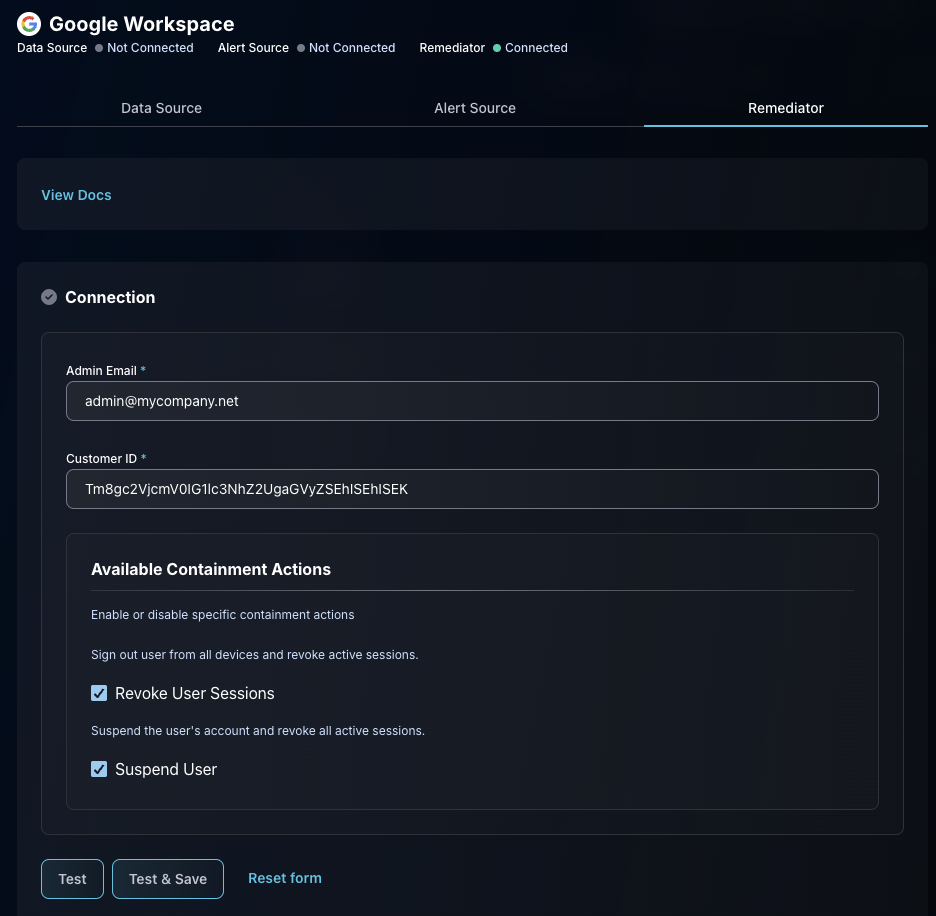
Remediator configuration is performed in the integration configuration along with Alert and Data Sources. In the "Available Containment Actions" section you may choose to enable or disable specific containment actions for the Remediator. Doing so will allow you to utilize these containment actions when responding to future investigations.
Click "Test & Save" to finish.
Example: Google Workspace Remediator section
{% hint style="warning" %}
When saving your Containment Action configuration, Dropzone only tests that read permissions are working, as testing write access could cause unintended negative side effects in your environment. Be sure to double check that Dropzone has the required permissions to avoid errors when running Containment Actions.
{% endhint %}
### Remediator in Investigation UI
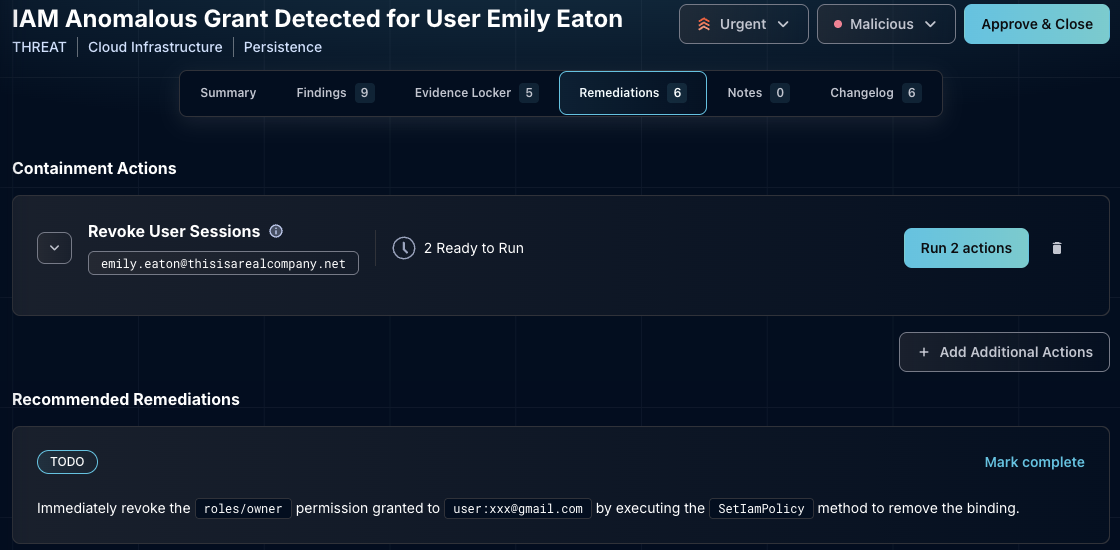
Once you have enabled your Remediator, Dropzone will surface 1-click Containment Actions to you based on the enabled Containment Actions and the relevant entities in the alert for all future investigations.
The Containment Actions are shown on the Remediations tab for each investigation, and a summary is viewable on the Investigation Summary page. A list of suggested Containment Actions is included in the "Recommended Remediations" section of the Remediator page.
Example investigation
Containment Actions are grouped by their category and entity.
* Category: what the containment action is, such as "Revoke User Sessions" or "Suspend User"
* Entity: what the containment is acting on, such as the User
{% hint style="success" %}
If there is a specific category of Containment Action you'd like us to include that we do not yet feature, please engage our Customer Success team.
{% endhint %}
To manually add a Containment Action, do the following:
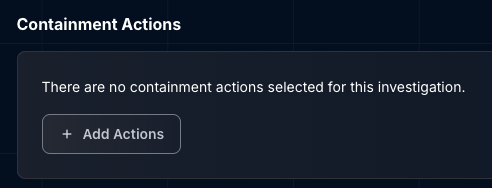
* Under the "Containment Action" heading, click "+ Add Actions"
Add a Containment action
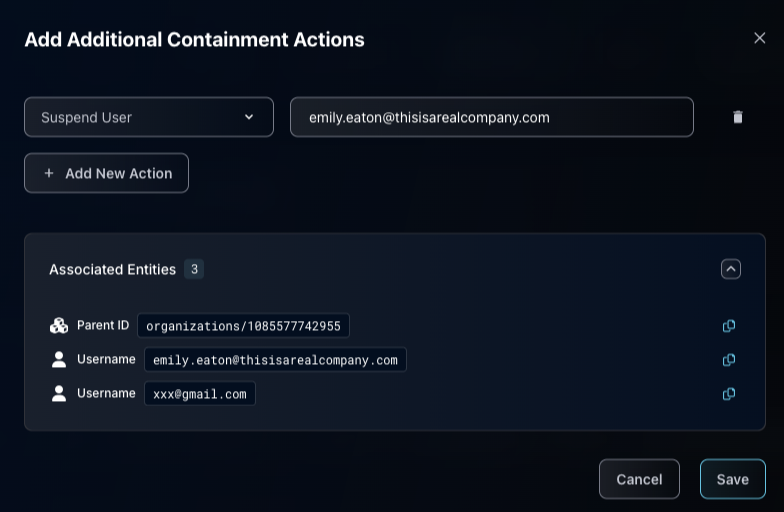
* In the Category field, select what containment action you wish to perform, e.g. "Suspend User"
* In the Entity field, input the entity you want to apply the action to, e.g. the user "Emily Eaton"
* Continue adding containment actions until done by clicking "+ Add New Action"
* Click "Save"
Click Save
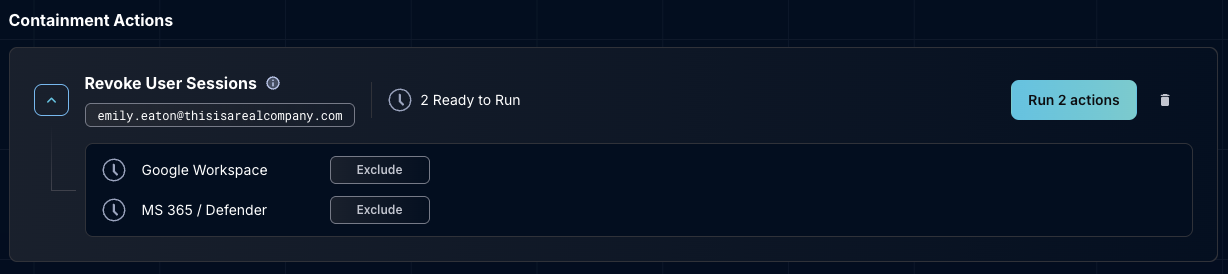
Containment Actions will run automatically as a group across every integrated remediator. For many action categories, it makes sense to run across all integrations (e.g. when suspending a user across all integrated accounts). For others, you may wish for only one integration to succeed for the specific entity.
To exclude integrations from running the Containment Action, do the following:
* Click the arrow on the left of the Containment Action name
* Locate the Remediator you wish to exclude and click "Exclude"
Exclude Remediators
To apply the Containment Action, once you are done excluding Remediators, click "Run"
Once the group is run, you can retry specific actions that fail. You can also undo specific actions, provided the category allows the undo function. Not all categories allow undo; for instance, actions like revoking user sessions are not reversible.
If you have any errors, contact our Customer Success team.