Palo Alto Cortex

Palo Alto Cortex XSIAM/XDR

The Dropzone AI Platform integrates with the Palo Alto Cortex platform to monitor endpoints, gather data from cloud, network and identity sources, as well as analyze alerts.

Create an API Key

Palo Alto Cortex requires an API key to enable. You’ll need access to a Cortex user account with the ability to generate and manage API keys. If you don’t have the necessary permissions, please get in touch with your Cortex administrator for assistance.

To obtain an API Key, do the following:

  • Log in to your Palo Cortex console

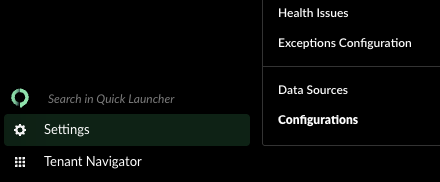
  • In the bottom left corner, navigate to Settings > Configurations

Click Configurations
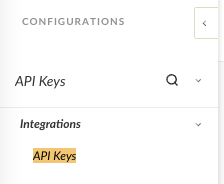
  • In the Search bar, input "API Keys," then click "API Keys"

  • In the upper right, click "+ New Key"

Add New Key
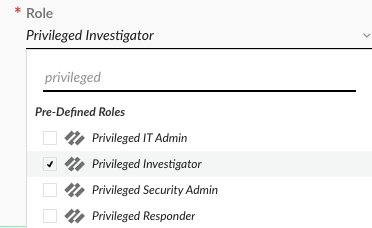
  • Under "Role," assign the API Key the Privileged Investigator role

If you wish to allow Dropzone to use the Automatic Scanning feature in its Data Source integration, you will need to create a custom user role with additional permissions. See the "Create a Custom User Role" section for information.

Assign the Privileged Investigator role
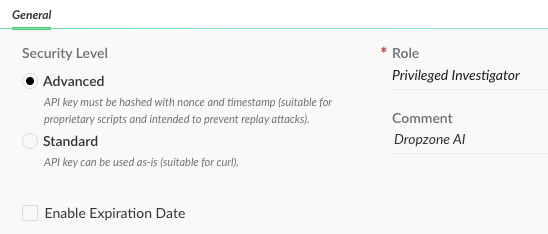
  • Under "Comment," name the API key something memorable, such as "Dropzone AI"

  • Select your desired Security Level: Advanced or Standard

The Advanced API key hashes the key using a nonce, a random string, and a timestamp to prevent replay attacks. Dropzone does not require the advanced security level.

  • If you wish to assign the key an expiration date, check the box labeled "Enable Expiration Date" and input your desired expiration date

Assign the Privileged Investigator role

  • In the bottom left corner, click "Generate"

Click Generate
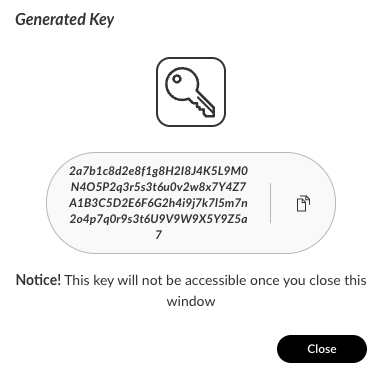
  • Copy the API Key shown for use later in the Dropzone UI where it is called "API Key"

Copy the API Key
  • In the API Keys table, locate the ID number for the newly generated API Key. Copy it for use later in the Dropzone UI where it is called "API Key ID"

Copy the API Key
  • In the top right hand corner, click "Copy API URL"

Copy the API URL
  • Save the URL for use later in the Dropzone UI where it is called "API FQDN"

Create a Custom User Role

To create a custom role in Palo Alto Cortex, do the following:

  • Navigate to Settings > Configurations

Click "Configurations"
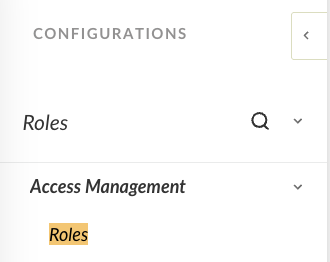
  • In the search bar, search Roles

Search "Roles"
  • In the upper left, click "+ New Role"

Click "New Role"
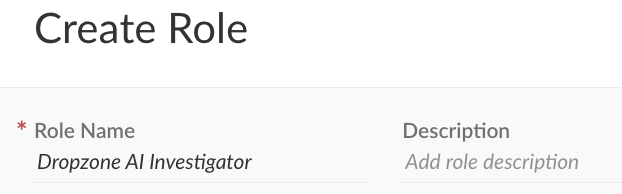
  • Under "Role Name," name the Role something memorable, such as Dropzone AI Investigator

Name the Role
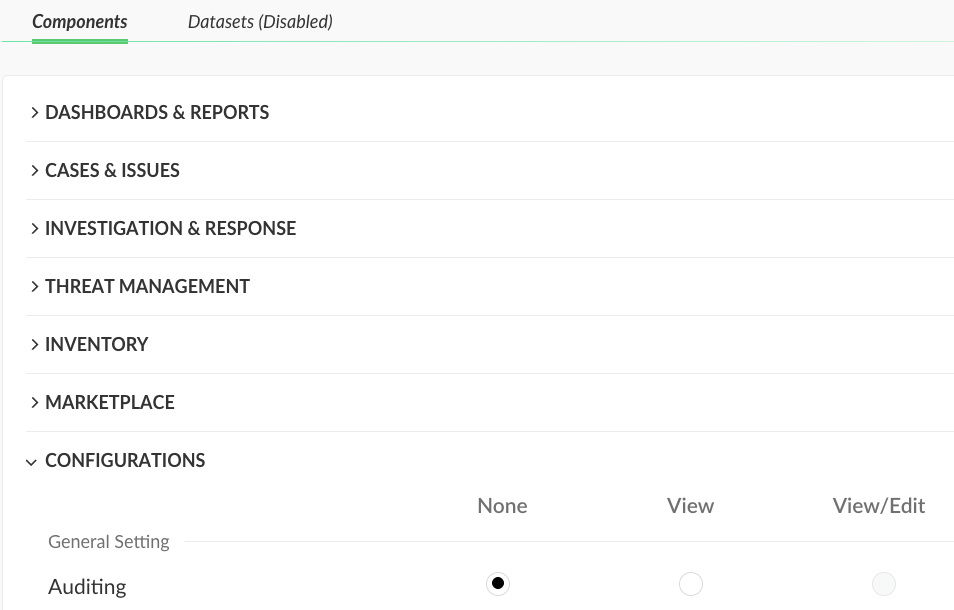
  • In the "Components" section, click the arrow next to "Configurations"

Click "Configurations"
  • Assign the Role the following permissions:

    • Data Management: View/Edit

    • Public API: View

Assign the Role permissions
  • In the bottom left corner, click "Save"

Generate the Role
  • When creating your API key, assign it both the Privileged Investigator Role and the custom role

Enable Palo Alto XSIAM

To enable the Alert Source integration, you will need the following information:

Dropzone Field
Source

API FQDN

The API URL you copied earlier

API Key ID

The API key ID value you copied earlier

API Key

The API key value you generated earlier

  • Navigate to your Dropzone AI tenant home page e.g. https://mycompany.dropzone.app

  • In the bottom left hand corner, navigate to Settings > Integrations

Integrations Dropdown
  • Click "Available"

Click Available
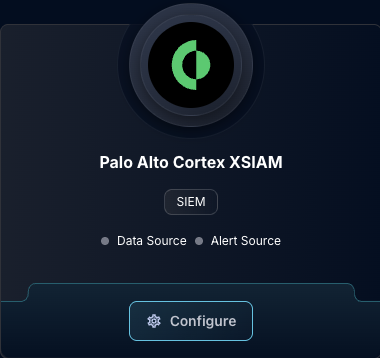
  • In the Search bar, search Palo Alto Cortex XSIAM, then click "Configure"

The Palo Alto Cortex XSIAM tile
  • Under the Alert Source heading, input the API FQDN, API Key ID, and API Key

  • Select your authentication method

This must be the same as the security level you configured for the API key generated earlier.

The Palo Alto Cortex XSIAM Alert Configuration (pt 1)
  • Under "Enabled Severities," select the severity levels you wish Dropzone to ingest

  • Under "Enabled Types," select whether you wish to ingest alerts, cases, and/or incidents

The Palo Alto Cortex XSIAM Alert Configuration (pt 2)
  • Under "Incident Statuses," select which incident statuses you wish Dropzone to ingest

The Palo Alto Cortex XSIAM Alert Configuration (pt 3)
  • If you wish, you may further filter your alerts, incidents and cases. To do so, under "Description Regex Filters," click "Add Item" and input a custom regex pattern to filter results. In the "Description Filter Mode," choose whether to include or exclude items matching the filters. For further information on this feature, engage your Dropzone representative

The Palo Alto Cortex XSIAM Alert Configuration (pt 4)
  • Input your desired log ingestion delay, poll interval and poll lookback

The Palo Alto Cortex XSIAM Alert Configuration (pt 5)
  • Click "Test & Save" to finish

If you have any errors, engage your Dropzone AI support representative.

Enable Palo Alto Cortex XDR

To enable the Alert Source integration, you will need the following information:

Dropzone Field
Source

API FQDN

The API URL you copied earlier

API Key ID

The API key ID value you copied earlier

API Key

The API key value you generated earlier

  • Navigate to your Dropzone AI tenant home page e.g. https://mycompany.dropzone.app

  • In the bottom left hand corner, navigate to Settings > Integrations

Integrations Dropdown
  • Click "Available"

Click Available
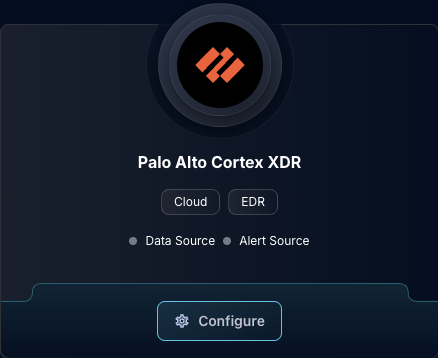
  • In the Search bar, search Palo Alto Cortex XDR, then click "Configure"

The Palo Alto Cortex XDR tile
  • Under the Alert Source heading, input the API FQDN, API Key ID, and API Key

  • Select your desired log ingestion delay (in minutes)

The Palo Alto Cortex XDR alert configuration (pt 1)
  • Under "Enabled Incident Types," choose whether to ingest alerts and/or incidents from Cortex XDR

  • Under "Enabled Severities," select the severity levels you want Dropzone to investigate alerts for

The Palo Alto Cortex XDR Alert Configuration (pt 2)
  • Under "Incident Statuses," select which incident statuses you wish Dropzone to ingest

The Palo Alto Cortex XDR Alert Configuration (pt 3)
  • Input your desired Poll interval and lookback

Click "Test & Save" to finish
  • Click "Test & Save" to finish

If you have any errors, engage your Dropzone AI support representative.

Last updated

Was this helpful?