> For the complete documentation index, see [llms.txt](https://docs.dropzone.ai/llms.txt). Markdown versions of documentation pages are available by appending `.md` to page URLs; this page is available as [Markdown](https://docs.dropzone.ai/integrations/alert/aws_alert.md).
# Amazon Web Services (AWS)
## Amazon Web Services (AWS)
The Dropzone AI platform integrates with Amazon Web Services (AWS) APIs for ingesting alerts (AWS GuardDuty) and enriching investigations with data from AWS such as CloudWatch.
Dropzone creates a separate IAM role for each customer. This document describes how to enable the Dropzone role to access your AWS environment and configure the Dropzone platform.
### Integration Overview
To enable these integrations you will perform the following actions:
* Enable Cross-Account Access
* Create an IAM role in your account(s)
* Attach policies to the role
* Enable the Dropzone Data Source
* Enable the Dropzone Alert Source
The Dropzone platform has a dedicated IAM role for your organization. You enable cross-account access for this IAM to gain access to specific roles within your AWS accounts.
{% hint style="info" %}
These instructions will work for any account, but you may have different methods for applying them, for example if you are using Control Tower or deploying changes via Infrastructure as Code.
{% endhint %}
You must complete these steps for all AWS accounts you wish accessible by Dropzone.
### Enable Cross-Account Access
You need to enable Dropzone to acces your AWS environments for it to pull alerts and run investigations. There are several ways you can achieve this:
| Toolset | Documentation | Description |
| --------------------------------------- | -------------------------------------------------------------------------- | ---------------------------------------------------------------------------------------------------------------------------------------------------------------------------------------------------------------------------------------- |
| Set up roles via the Management Console | [documentation](/integrations/alert/aws_alert/aws-console_alert.md) | Set up roles and create policies in the AWS Console. Several manual steps, highly documented |
| Set up Role Chaining | [documentation](/integrations/alert/aws_alert/aws-role-chain_alert.md) | Use a central Hub role to access multiple accounts via a consistent role pattern |
| Use AWS CloudFormation | [documentation](/integrations/alert/aws_alert/aws-cloudformation_alert.md) | Set up roles by running Dropzone's CFTs and copy/pasting in a small number of values |
| Use Infrastructure-as-Code / CLI / etc | see your provider's information | You can create your own IaC by looking at the role and policy information in the [management console](/integrations/alert/aws_alert/aws-console_alert.md) documentation. Dropzone does not provide any pre-canned IaC code at this time. |
The following policies are required for full Dropzone functionality:
| Policy |
| -------------------------------- |
| `AWSCloudTrail_ReadOnlyAccess` |
| `AmazonEC2ReadOnlyAccess` |
| `AmazonGuardDutyReadOnlyAccess` |
| `AmazonRoute53ReadOnlyAccess` |
| `AmazonS3OutpostsReadOnlyAccess` |
| `AmazonS3ReadOnlyAccess` |
| `AmazonSSMReadOnlyAccess` |
| `IAMReadOnlyAccess` |
Be sure to use one of the above options to enable the cross-account access before moving on to enabling the integrations.
## Enable Amazon Web Services
The Alert source integration allows Dropzone AI to pull alerts from AWS GuardDuty for investigation.
You'll need the following information:
| Dropzone Field | Source |
| -------------- | ------------------------------------------------------ |
| Default Region | The AWS region you run most of your services in |
| Role ARNs | The ARNs of the AWS roles you created in your accounts |
* Navigate to your Dropzone AI tenant home page e.g. https\://*mycompany*.dropzone.app
* In the left side bar, navigate to Platform Settings > Integrations
Integrations Dropdown
* Click "Library"
{% hint style="info" %}
If you have previously integrated this application, click "Configured"
{% endhint %}
Click Library
* In the Search bar, search AWS, then click "Configure"
The AWS Tile
* Under the Alert Source heading, enter an AWS region into the "Default Region" field, such as "us-west-1"
{% hint style="success" %}
This should be the region that the majority of your monitored resources live in
{% endhint %}
* Unless using role chaining, leave the Hub Role ARN field blank
* Under "Role ARNs," click "Add Item," then input the role ARNs that you created earlier. Input each role ARN individually
The AWS Alert Source configuration (pt 1)
* Under "Minimum Severity Level," select the minimum alert severity level you want Dropzone to investigate alerts for
* If you wish to allow Dropzone to investigate alerts that have been archived, check the box next to "Include Archived Alerts"
* If you wish, you may exclude AWS GuardDuty alerts by [finding type](https://docs.aws.amazon.com/guardduty/latest/ug/guardduty_finding-types-active.html). To do so, under the AWS "GuardDuty Alert Exclusions" section, click "Add Item." Then input the alert type you wish to exclude in the form of a string
The AWS Alert configuration (pt 2)
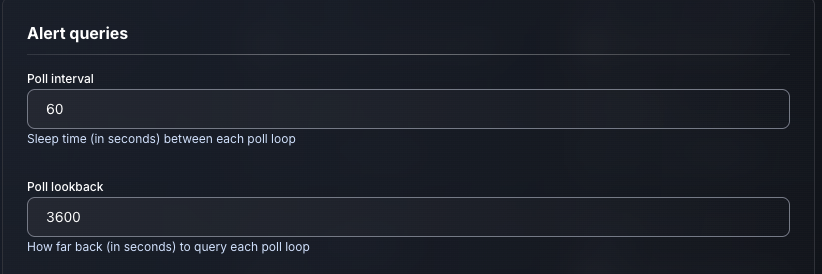
* Input your desired poll interval and poll lookback
The AWS Alert configuration (pt 3)
* If you wish to further filter alerts using the Python [CEL](https://python-common-expression-language.readthedocs.io/en/stable/tutorials/cel-language-basics/) package, check the box labeled "Use advanced filtering"
* Input your CEL expression, then select whether to include or exclude alerts matching that filter. Add each filter individually using the "Add Item" button
* Contact our Customer Success team for more information about this feature
The AWS Alert configuration (pt 4)
* Click "Test & Save" to finish
If you have any errors contact our Customer Success team.