> For the complete documentation index, see [llms.txt](https://docs.dropzone.ai/llms.txt). Markdown versions of documentation pages are available by appending `.md` to page URLs; this page is available as [Markdown](https://docs.dropzone.ai/integrations/alert/qradar_alert.md).

# QRadar

{% hint style="info" %}
QRadar is an SIEM integration. SIEM integrations are used to perform analysis of any SIEM generated alerts, and/or to use generated data as part of investigation analysis.
{% endhint %}

The Dropzone platform integrates with the [IBM QRadar](https://www.ibm.com/qradar) security SIEM. Many customers ingest other alert sources into QRadar (e.g. IDPs) and integrate Dropzone into QRadar rather than the source systems.

## Create an API Key

QRadar requires an API key to enable.

To obtain an API Key, do the following:

* In the upper bar in the QRadar Homepage, click "Admin"

<figure><img src="/files/6dmFO3Z2QFsPKz6BJAMt" alt=""><figcaption><p>Navigate to Admin</p></figcaption></figure>

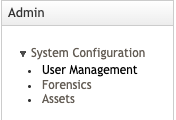
* In the left hand bar, navigate to System Configuration > User Management

<figure><img src="/files/MZOVRnFwlcvQ2kOluTCg" alt=""><figcaption><p>Navigate to User Management</p></figcaption></figure>

* Click on "Authorized Services"

<figure><img src="/files/DakVBUOLTuVkek3ks4pu" alt=""><figcaption><p>Click on "Authorized Services"</p></figcaption></figure>

* In the window that pops up, click "Add"

<figure><img src="/files/BHzz3AbKAZ0ctwmZKCpG" alt=""><figcaption><p>Click "Add"</p></figcaption></figure>

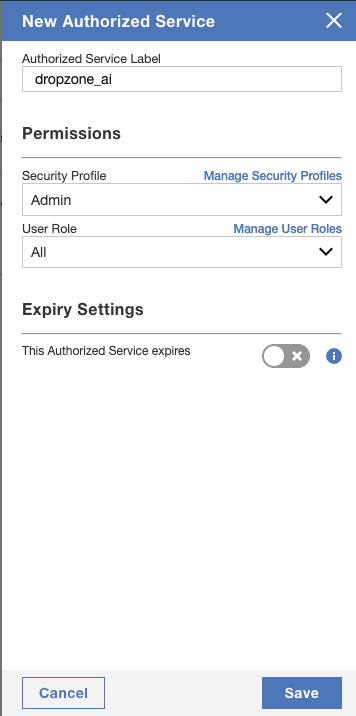
* Under "Authorized Service Label," label the key something memorable, such as "dropzone\_ai"
* Select an Admin security profile
* Under "User Role, select "All"
* Under "Expiry Settings," assign an expiration date if you choose

{% hint style="info" %}
For conveniences sake, we recommend not assigning an expiration date for this API key, to prevent having to create a new one.
{% endhint %}

\* Click "Save"

<figure><img src="/files/0VsWFJB1J9WEM2yu58Da" alt=""><figcaption><p>Fill out token details</p></figcaption></figure>

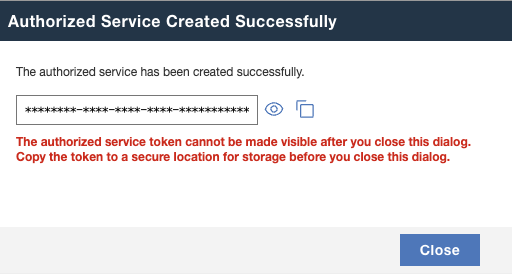
* Store the authorized service token in a safe location for use later in the Dropzone UI where it will be called "API-Key"

<figure><img src="/files/kqZSOXcxjLRAjjFE4qZM" alt=""><figcaption><p>Copy the API-Key</p></figcaption></figure>

## Enable QRadar

To enable the Alert Source integration, you will need the following information:

| Dropzone Field | Source                                                                       |
| -------------- | ---------------------------------------------------------------------------- |
| Server         | The same as your servername in your QRadar url, eg *myserver*/console/qradar |
| Port           | The standard html port, 443                                                  |
| API-Key        | The authorized service token value you generated earlier                     |

* Navigate to your Dropzone AI tenant home page e.g. https\://*mycompany*.dropzone.ai
* In the bottom left hand corner, navigate to Settings > Integrations

<figure><img src="/files/zN02u3HObDaemUY8E1kD" alt=""><figcaption><p>Integrations Dropdown</p></figcaption></figure>

* Click "Available"

<figure><img src="/files/brI7n2Ux40Tk0jTwBCVh" alt=""><figcaption><p>Click Available</p></figcaption></figure>

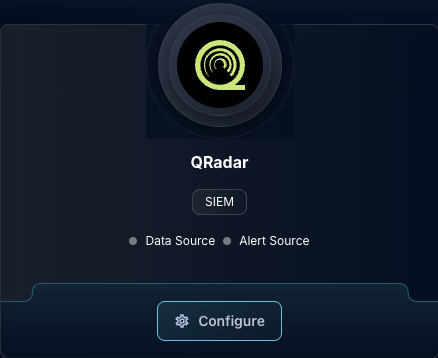
* In the Search bar, search QRadar, then click "Configure"

<figure><img src="/files/gdUYVF4rXtNBcvhSpE6U" alt=""><figcaption><p>The QRadar Tile</p></figcaption></figure>

* Under the Alert Source header, if your QRadar integration is behind an [On-premise Dropzone Connector](https://docs.dropzone.ai/platform/settings/connector), select your connector from the dropdown
* Input the Server, Port, and API-Key

<figure><img src="/files/MJKTLysMGjQCgw9ImcBK" alt=""><figcaption><p>The QRadar Alert Source Configuration (pt 1)</p></figcaption></figure>

* Under "Enabled QRadar Offense Statuses," check the box for each [offense status](https://www.ibm.com/docs/en/qradar-on-cloud?topic=management-offense-retention) you wish Dropzone to investigate alerts for

<figure><img src="/files/gFRZNTo2mD6jsoE2Gx5K" alt=""><figcaption><p>The QRadar Alert Source Configuration (pt 2)</p></figcaption></figure>

* Under "Title Exclusions," you may choose to exclude alerts by title. To do so, click "Add Item," then input a list of [Python regexes](https://docs.python.org/3/library/re.html) of the titles of the alerts you wish to exclude

<figure><img src="/files/JZ0awyvzlMm3TPWFVQWz" alt=""><figcaption><p>The QRadar Alert Source Configuration (pt 3)</p></figcaption></figure>

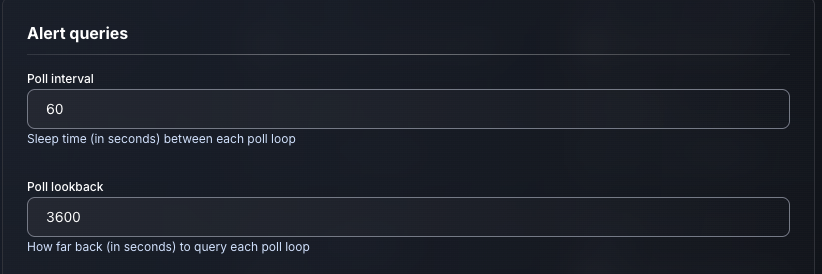
* Input your desired poll interval and lookback

<figure><img src="/files/EbxJMIbYnSnzbZd7V2Da" alt=""><figcaption><p>The QRadar Alert Source Configuration (pt 4)</p></figcaption></figure>

* If you wish to further filter alerts using the Python [CEL](https://python-common-expression-language.readthedocs.io/en/stable/tutorials/cel-language-basics/) package, check the box labeled "Use advanced filtering"
* Input your CEL expression, then select whether to include or exclude alerts matching that filter. Add each filter individually using the "Add Item" button
* Contact your Dropzone AI support representative for more information about this feature

<figure><img src="/files/infLIQONnAkvK8XGXOi4" alt=""><figcaption><p>The QRadar Alert Source Configuration (pt 5)</p></figcaption></figure>

* Click "Test & Save" to finish