Panther is an SIEM integration. SIEM integrations are used to perform analysis of any SIEM generated alerts, and/or to use generated data as part of investigation analysis.
The Dropzone platform integrates with the Panther security SIEM. Many customers ingest other alert sources into Panther (e.g. IDPs) and integrate Dropzone into Panther rather than the source systems.
Create an API Key
Panther requires an API key to enable.
To obtain an API Key, do the following:
Navigate to your Panther homepage
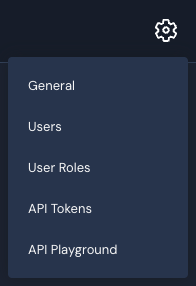
Click on the gear icon in the top right corner
Select "API Tokens"
Select API Tokens
Record the API URL located at the top of the page for use later in the Dropzone UI where it is called "Panther URL"
API URL
Click on "Create New Token"
Grant the token the following permissions:
Permission
Purpose
Manage Alerts
(optional) Allows Dropzone to add investigations results as Panther comments
Read Alerts
Allows Access to alert information
View Rules
Allows viewing the log rules setup in Panther
Query Data Lake
Allows listing and issuing Data Explorer & Indicator Search queries
View Log Sources
Allows viewing the Log sources setup
Read User Info
Allows access to user information related to your Panther resources
Click "Create API Token" at the bottom of the page
Create API Token
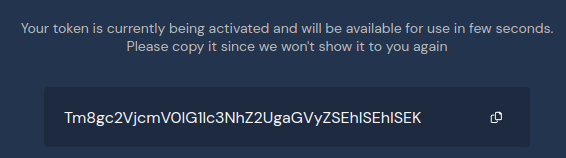
Record the value for use later in the Dropzone UI where it is called "API key"
Record the API Token
This value is not shown after you leave this page — be sure to record it immediately.
Click "Done"
Enable The Dropzone Alert Source Integration
To enable the Alert Source integration, do the following:
Navigate to your Dropzone AI tenant home page e.g. https://mycompany.dropzone.app
In the bottom left hand corner, navigate to Settings > Integrations
Integrations Dropdown
Click "Available"
Click Available
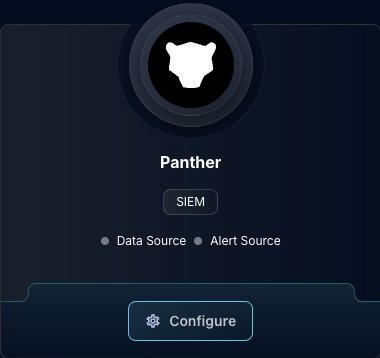
In the Search bar, search Panther, then click "Configure"
The Panther Tile
Under the Alert Source heading, input the Panther URL and the API key
The Panther Alert Source Configuration (pt 1)
In the "Enabled alert statuses for ingestion" section, check the alert statuses you want Dropzone to be able to investigate
The "Closed" status in the Dropzone UI is shown as "Invalid" in the Panther UI.
The Panther Alert Source Configuration (pt 2)
Check the severity levels you want to ingest
The Panther Alert Source Configuration (pt 3)
Select a duration in minutes for alert deduplication. See the Panther alert deduplication documentation for more info. A value of 15 is reasonable
If you wish, you may use an alert filter by setting "Detection ID regex filter"
When a regex is put in this field Dropzone will only ingest alerts whose origin ID matches the regular expression
Example origin IDS: AWS.Root.Activity, Okta.AdminRoleAssigned, GCP.GKE.Kubernetes.Cron.Job.Created.Or.Modified