# Palo Alto Networks Firewall

{% hint style="success" %}
This is a separate from the "Palo Alto Cortex XDR" cloud and EDR data and alert source.
{% endhint %}

The Dropzone AI Platform integrates with Palo Alto Networks Firewall, a leading next-generation firewall solution. Integrating Palo Alto with Dropzone allows Dropzone to automatically investigate security incidents by analyzing network traffic data within the firewall ecosystem. Additionally, Dropzone can assess threat logs from Palo Alto Firewall, enabling deeper investigations into potential attacks and enhancing proactive threat detection and response.

## Integrations Overview

To enable these integrations you will perform the following actions:

* Create an Admin with Read Only permissions
* Generate an API key

## Create an Admin Role Profile

* At the top of your Palo Alto account, navigate to Device

<figure><img src="https://435022081-files.gitbook.io/~/files/v0/b/gitbook-x-prod.appspot.com/o/spaces%2FmBVcKuiytGCsIDpL70BC%2Fuploads%2Fgit-blob-171ebbadcb7befa4381bc9da3258c13377e22bbf%2Fpalo-alto-1.png?alt=media" alt=""><figcaption><p>Navigate to Device</p></figcaption></figure>

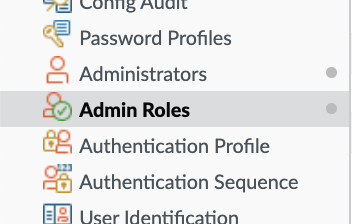
* In the left sidebar, navigate to Admin Roles

<figure><img src="https://435022081-files.gitbook.io/~/files/v0/b/gitbook-x-prod.appspot.com/o/spaces%2FmBVcKuiytGCsIDpL70BC%2Fuploads%2Fgit-blob-446d05b1027c98cb54f9cd6e8d8e8a2fa6d04b39%2Fpalo-alto-2.png?alt=media" alt=""><figcaption><p>Navigate to Admin Roles</p></figcaption></figure>

* In the bottom left corner, click "Add"

<figure><img src="https://435022081-files.gitbook.io/~/files/v0/b/gitbook-x-prod.appspot.com/o/spaces%2FmBVcKuiytGCsIDpL70BC%2Fuploads%2Fgit-blob-a30a4df80e64fa81f1f7bc35838c7d8bd12d2355%2Fpalo-alto-3.png?alt=media" alt=""><figcaption><p>Click "Add"</p></figcaption></figure>

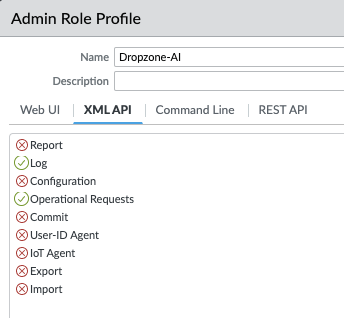
* Click XML API and enable the Log and Operational Requests permissions
* Name the Admin Role Profile something memorable, such as "Dropzone-AI"
* Click "OK"

<figure><img src="https://435022081-files.gitbook.io/~/files/v0/b/gitbook-x-prod.appspot.com/o/spaces%2FmBVcKuiytGCsIDpL70BC%2Fuploads%2Fgit-blob-57c9ce6dcc556b18b7fb8535a50c69ff638f9280%2Fpalo-alto-4.png?alt=media" alt=""><figcaption><p>Generate a new Admin Role Profile</p></figcaption></figure>

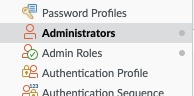
* In the left sidebar, navigate to Administrators

<figure><img src="https://435022081-files.gitbook.io/~/files/v0/b/gitbook-x-prod.appspot.com/o/spaces%2FmBVcKuiytGCsIDpL70BC%2Fuploads%2Fgit-blob-80bf0e96734776de38c64c7b2566533d22b5e098%2Fpalo-alto-5.png?alt=media" alt=""><figcaption><p>Navigate to Administrators</p></figcaption></figure>

* In the bottom corner, click "Add"

<figure><img src="https://435022081-files.gitbook.io/~/files/v0/b/gitbook-x-prod.appspot.com/o/spaces%2FmBVcKuiytGCsIDpL70BC%2Fuploads%2Fgit-blob-a30a4df80e64fa81f1f7bc35838c7d8bd12d2355%2Fpalo-alto-3.png?alt=media" alt=""><figcaption><p>Click "Add"</p></figcaption></figure>

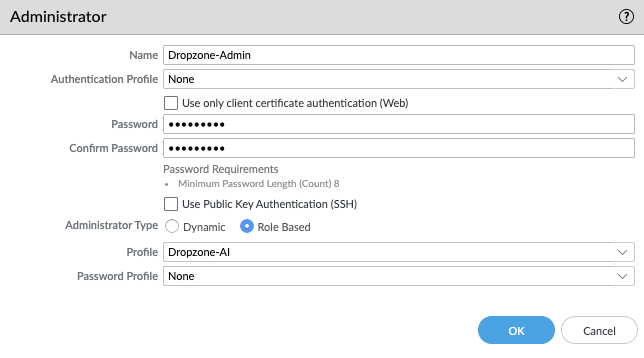
* Name the new administrator something memorable, such as "Dropzone-Admin", and create a memorable password. Be sure to save these, as they will be used later to generate the API token
* Assign the administrator the "Role Based" type
* In "Profile", select the name of the profile you just created
* Click "Ok"

<figure><img src="https://435022081-files.gitbook.io/~/files/v0/b/gitbook-x-prod.appspot.com/o/spaces%2FmBVcKuiytGCsIDpL70BC%2Fuploads%2Fgit-blob-5a12e835b5d95e25ae203f1a04cdf6c1fb0457c2%2Fpalo-alto-6.png?alt=media" alt=""><figcaption><p>Create a new Administrator</p></figcaption></figure>

* In the top corner, click "Commit"

<figure><img src="https://435022081-files.gitbook.io/~/files/v0/b/gitbook-x-prod.appspot.com/o/spaces%2FmBVcKuiytGCsIDpL70BC%2Fuploads%2Fgit-blob-bff622d3f6b54edae9e337759e38903aa80d21a2%2Fpalo-alto-7.png?alt=media" alt=""><figcaption><p>Commit your changes</p></figcaption></figure>

## Generate an API Key

To obtain an API Key, do the following:

* Using the administrative credentials you just generated, SSH into the Palo Alto firewall
* Run the following commands:

```
https://<FIREWALL_IP>/api/?type=keygen&user=<USERNAME>
```

```
curl -k http(s)://<host>:<port>/api/\?type\=keygen\&user\=<user>\&password\=<password>
```

* Copy the API key generated and store it in a safe location for use later in the Dropzone UI where it is called "API key"
* For further information, see the Palo Alto [API documentation](https://docs.paloaltonetworks.com/pan-os/11-0/pan-os-panorama-api/get-started-with-the-pan-os-xml-api/get-your-api-key)

## Enable Palo Alto Networks Firewall

To enable the Alert Source integration, you will need the following information:

| Dropzone Field | Source                                                                        |
| -------------- | ----------------------------------------------------------------------------- |
| Server         | The same as your company server url in Palo Alto, eg https\://<111.22.33.444> |
| API Key        | The API key value you generated earlier                                       |

* Navigate to your Dropzone AI tenant home page e.g. https\://*mycompany*.dropzone.app
* In the bottom left hand corner, click Settings > Integrations

<figure><img src="https://435022081-files.gitbook.io/~/files/v0/b/gitbook-x-prod.appspot.com/o/spaces%2FmBVcKuiytGCsIDpL70BC%2Fuploads%2Fgit-blob-b3f07f902b1402dadc7abbd8bb62f9c204547390%2Fui-integrations-dropdown.png?alt=media" alt=""><figcaption><p>Integrations Dropdown</p></figcaption></figure>

* Click "Available"

<figure><img src="https://435022081-files.gitbook.io/~/files/v0/b/gitbook-x-prod.appspot.com/o/spaces%2FmBVcKuiytGCsIDpL70BC%2Fuploads%2Fgit-blob-434641ec6d4e45051842f86164f485d6bd289424%2Fapp_system_integrations_available.png?alt=media" alt=""><figcaption><p>Click Available</p></figcaption></figure>

* In the Search bar, search Palo Alto Networks Firewall, then click "Configure"

<figure><img src="https://435022081-files.gitbook.io/~/files/v0/b/gitbook-x-prod.appspot.com/o/spaces%2FmBVcKuiytGCsIDpL70BC%2Fuploads%2Fgit-blob-03375746e94625f3eb2968b0a823f36560e2d770%2Fapp_system_integrations_available_Palo_Alto_Networks.png?alt=media" alt=""><figcaption><p>The Palo Alto Networks Firewall Tile</p></figcaption></figure>

* Under the Alert Source heading, if your Palo Alto integration is behind an [On-premise Dropzone Connector](https://docs.dropzone.ai/platform/settings/connector), select your connector from the dropdown
* Input the Server and the API Key

<figure><img src="https://435022081-files.gitbook.io/~/files/v0/b/gitbook-x-prod.appspot.com/o/spaces%2FmBVcKuiytGCsIDpL70BC%2Fuploads%2Fgit-blob-d9384cfaa5ea7f82a281a00cbed52f3d4bd4e047%2Fapp_system_integrations_available_paloalto_config_alert_1.png?alt=media" alt=""><figcaption><p>The Palo Alto Alert configuration (pt 1)</p></figcaption></figure>

* Under "Filter on Severity," select the severity levels of alerts you wish for Dropzone AI to investigate

<figure><img src="https://435022081-files.gitbook.io/~/files/v0/b/gitbook-x-prod.appspot.com/o/spaces%2FmBVcKuiytGCsIDpL70BC%2Fuploads%2Fgit-blob-18ee539f074e2171e394b8c1c1efdd0337b172b8%2Fapp_system_integrations_available_paloalto_config_alert_2.png?alt=media" alt=""><figcaption><p>The Palo Alto Alert configuration (pt 2)</p></figcaption></figure>

* In the "Threat Name" section, you may input an array of Python regex patterns to include or exclude specific threats by [name](https://docs.paloaltonetworks.com/ngfw/administration/monitoring/use-syslog-for-monitoring/syslog-field-descriptions/threat-log-fields). To do so, select whether to exlude or include the listed threat names, then click "Add Item" and input the array

<figure><img src="https://435022081-files.gitbook.io/~/files/v0/b/gitbook-x-prod.appspot.com/o/spaces%2FmBVcKuiytGCsIDpL70BC%2Fuploads%2Fgit-blob-1dc00a4204143706edf087c1b13ee6b1164c6435%2Fapp_system_integrations_available_paloalto_config_alert_3.png?alt=media" alt=""><figcaption><p>The Palo Alto Alert configuration (pt 3)</p></figcaption></figure>

* Under "Filter on Action," select which [action types](https://docs.paloaltonetworks.com/ngfw/administration/monitoring/use-syslog-for-monitoring/syslog-field-descriptions/threat-log-fields#id83052cb2-4798-4f9c-abf8-e0b929ce7a3b) you want Dropzone to investigate

<figure><img src="https://435022081-files.gitbook.io/~/files/v0/b/gitbook-x-prod.appspot.com/o/spaces%2FmBVcKuiytGCsIDpL70BC%2Fuploads%2Fgit-blob-fb52f8bf992226f704b6feb2e9b4a3ff7efce1a2%2Fapp_system_integrations_available_paloalto_config_alert_4.png?alt=media" alt=""><figcaption><p>The Palo Alto Alert configuration (pt 4)</p></figcaption></figure>

* Under "Threat Category," select the [threat categories](https://docs.paloaltonetworks.com/advanced-threat-prevention/administration/threat-prevention/threat-signature-categories) you want Dropzone to investigate

<figure><img src="https://435022081-files.gitbook.io/~/files/v0/b/gitbook-x-prod.appspot.com/o/spaces%2FmBVcKuiytGCsIDpL70BC%2Fuploads%2Fgit-blob-18d6055bbaeb16838e73adc72f6c4abbda973b9b%2Fapp_system_integrations_available_paloalto_config_alert_5.png?alt=media" alt=""><figcaption><p>The Palo Alto Alert configuration (pt 5)</p></figcaption></figure>

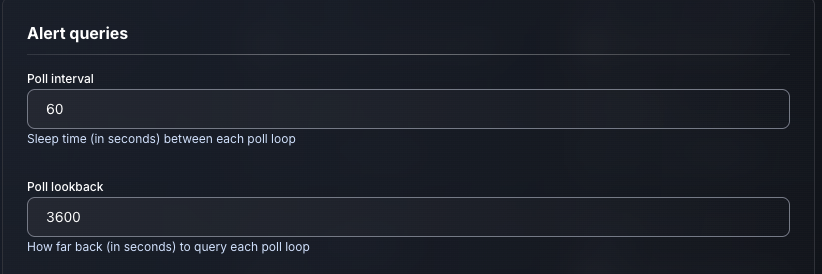
* Input your desired Poll interval and lookback

<figure><img src="https://435022081-files.gitbook.io/~/files/v0/b/gitbook-x-prod.appspot.com/o/spaces%2FmBVcKuiytGCsIDpL70BC%2Fuploads%2Fgit-blob-dac11b8e045d529e3e62a006e434abf9ab9380ab%2Fapp_system_integrations_available_paloalto_config_alert_6.png?alt=media" alt=""><figcaption><p>The Palo Alto Alert configuration (pt 6)</p></figcaption></figure>

* Click "Test & Save" to finish

If you have any errors, engage your Dropzone AI support representative.