# Datadog

{% hint style="info" %}
Datadog is an SIEM integration. SIEM integrations are used to perform analysis of any SIEM generated alerts, and/or to use generated data as part of investigation analysis.
{% endhint %}

The Dropzone platform integrates with the [Datadog](https://www.datadoghq.com/) security SIEM. Many customers ingest other alert sources into DataDog (e.g. IDPs) and integrate Dropzone into DataDog rather than the source systems.

## Create an API Key and Application Key

Datadog requires both an API Key and an Application Key to enable.

To obtain an API Key, do the following:

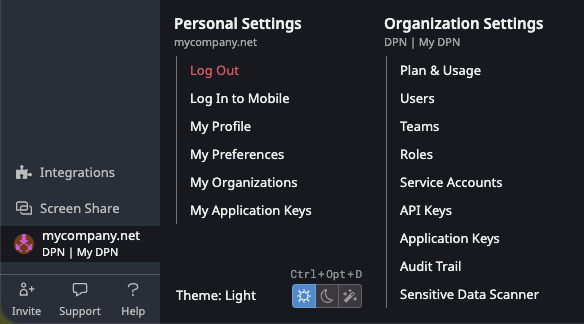
* In the bottom left hand corner of your Datadog Dashboard, click on your organization icon
* Navigate to Organization Settings > API Keys

<figure><img src="https://435022081-files.gitbook.io/~/files/v0/b/gitbook-x-prod.appspot.com/o/spaces%2FmBVcKuiytGCsIDpL70BC%2Fuploads%2Fgit-blob-2dc1ab99e9a4a2064312617aac2045d4a50f136e%2Fdatadog-integration-1.png?alt=media" alt=""><figcaption><p>Navigate to API Keys</p></figcaption></figure>

* Click "New Key"

<figure><img src="https://435022081-files.gitbook.io/~/files/v0/b/gitbook-x-prod.appspot.com/o/spaces%2FmBVcKuiytGCsIDpL70BC%2Fuploads%2Fgit-blob-5b703ca1e823b84517591f73cf44733c8d638890%2Fdatadog-integration-2.png?alt=media" alt=""><figcaption><p>Click "New Key"</p></figcaption></figure>

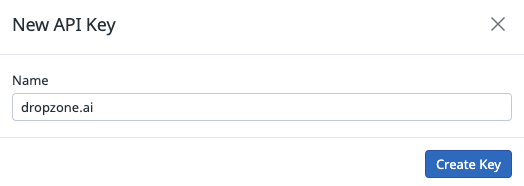
* Name your token something memorable, such as "dropzone.ai," then click "Create Key"

<figure><img src="https://435022081-files.gitbook.io/~/files/v0/b/gitbook-x-prod.appspot.com/o/spaces%2FmBVcKuiytGCsIDpL70BC%2Fuploads%2Fgit-blob-a241bb1e09e0da62b02899c2b62150c487ef358f%2Fdatadog-integration-3.png?alt=media" alt=""><figcaption><p>Create Key</p></figcaption></figure>

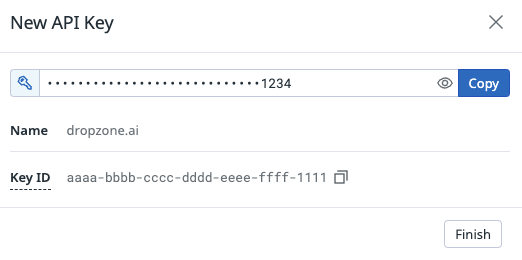
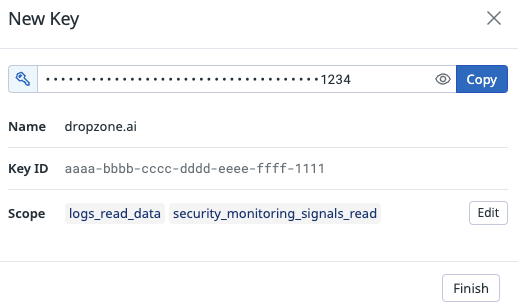
* Copy the key generated for use later in the Dropzone UI where it is called "API Key," then click "Finish"

<figure><img src="https://435022081-files.gitbook.io/~/files/v0/b/gitbook-x-prod.appspot.com/o/spaces%2FmBVcKuiytGCsIDpL70BC%2Fuploads%2Fgit-blob-6ff2bea8a7aa43288d1c7f448f4b01772a124b0a%2Fdatadog-integration-4.png?alt=media" alt=""><figcaption><p>Copy the key</p></figcaption></figure>

To obtain an Application Key, do the following:

* In the bottom left hand corner of your Datadog Dashboard, click on your organization icon
* Navigate to Organization Settings > Application Keys

<figure><img src="https://435022081-files.gitbook.io/~/files/v0/b/gitbook-x-prod.appspot.com/o/spaces%2FmBVcKuiytGCsIDpL70BC%2Fuploads%2Fgit-blob-2dc1ab99e9a4a2064312617aac2045d4a50f136e%2Fdatadog-integration-1.png?alt=media" alt=""><figcaption><p>Navigate to Application Keys</p></figcaption></figure>

* Click "New Key"

<figure><img src="https://435022081-files.gitbook.io/~/files/v0/b/gitbook-x-prod.appspot.com/o/spaces%2FmBVcKuiytGCsIDpL70BC%2Fuploads%2Fgit-blob-5b703ca1e823b84517591f73cf44733c8d638890%2Fdatadog-integration-2.png?alt=media" alt=""><figcaption><p>Click "New Key"</p></figcaption></figure>

* Name the key something memorable, such as "dropzone.ai," then click "Create Key"

<figure><img src="https://435022081-files.gitbook.io/~/files/v0/b/gitbook-x-prod.appspot.com/o/spaces%2FmBVcKuiytGCsIDpL70BC%2Fuploads%2Fgit-blob-a241bb1e09e0da62b02899c2b62150c487ef358f%2Fdatadog-integration-3.png?alt=media" alt=""><figcaption><p>Create Key</p></figcaption></figure>

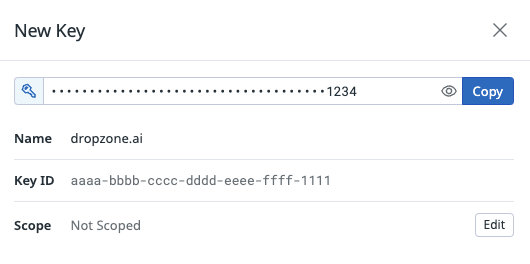
* In the "Scope" section, select "Edit"

<figure><img src="https://435022081-files.gitbook.io/~/files/v0/b/gitbook-x-prod.appspot.com/o/spaces%2FmBVcKuiytGCsIDpL70BC%2Fuploads%2Fgit-blob-39df3337a7f5d5609551b09cdbda4a33eb62f346%2Fdatadog-integration-5.png?alt=media" alt=""><figcaption><p>Edit Scopes</p></figcaption></figure>

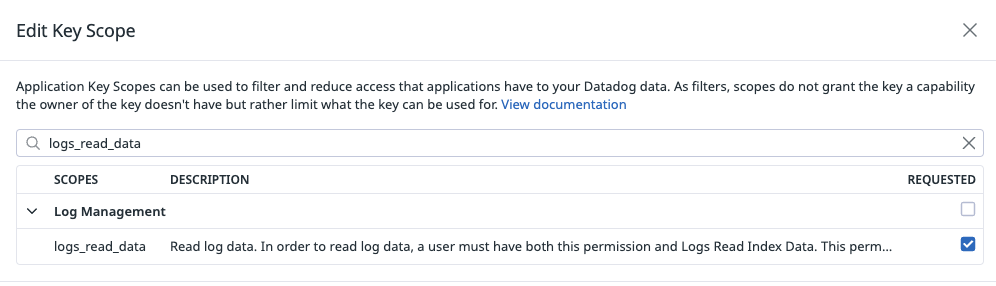
* Assign the key the following scopes, then click "Save":
  * logs\_read\_data
  * security\_monitoring\_signals\_read

<figure><img src="https://435022081-files.gitbook.io/~/files/v0/b/gitbook-x-prod.appspot.com/o/spaces%2FmBVcKuiytGCsIDpL70BC%2Fuploads%2Fgit-blob-c5fb8877adf7bb9b87ea8e48233a24ce6465a5a9%2Fdatadog-integration-6.png?alt=media" alt=""><figcaption><p>Assign scopes</p></figcaption></figure>

* Copy the key generated for use later in the Dropzone UI where it is called "Application Key," then click "Finish"

<figure><img src="https://435022081-files.gitbook.io/~/files/v0/b/gitbook-x-prod.appspot.com/o/spaces%2FmBVcKuiytGCsIDpL70BC%2Fuploads%2Fgit-blob-b547c3c94c8a62fbf8fba66128688f7dce1bffd2%2Fdatadog-integration-7.png?alt=media" alt=""><figcaption><p>Copy the key</p></figcaption></figure>

## Enable Datadog

To enable the Data Source integration, you will need the following information:

| Dropzone Field  | Source                                                                    |
| --------------- | ------------------------------------------------------------------------- |
| API Key         | The API key value you generated earlier                                   |
| Application Key | The Application key value you generated earlier                           |
| Datadog site    | The same as your url in Datadog, eg datadoghq.com, us3.datadoghq.com, etc |

* Navigate to your Dropzone AI tenant home page e.g. https\://*mycompany*.dropzone.app
* In the bottom left hand corner, navigate to Settings > Integrations

<figure><img src="https://435022081-files.gitbook.io/~/files/v0/b/gitbook-x-prod.appspot.com/o/spaces%2FmBVcKuiytGCsIDpL70BC%2Fuploads%2Fgit-blob-b3f07f902b1402dadc7abbd8bb62f9c204547390%2Fui-integrations-dropdown.png?alt=media" alt=""><figcaption><p>Integrations Dropdown</p></figcaption></figure>

* Click "Available"

<figure><img src="https://435022081-files.gitbook.io/~/files/v0/b/gitbook-x-prod.appspot.com/o/spaces%2FmBVcKuiytGCsIDpL70BC%2Fuploads%2Fgit-blob-434641ec6d4e45051842f86164f485d6bd289424%2Fapp_system_integrations_available.png?alt=media" alt=""><figcaption><p>Click Available</p></figcaption></figure>

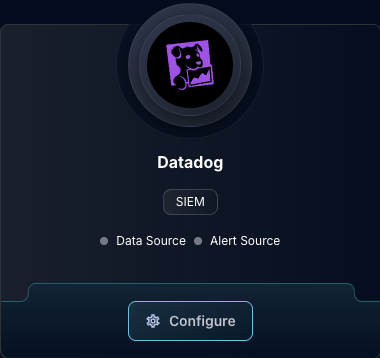
* In the Search bar, search Datadog, then click "Configure"

<figure><img src="https://435022081-files.gitbook.io/~/files/v0/b/gitbook-x-prod.appspot.com/o/spaces%2FmBVcKuiytGCsIDpL70BC%2Fuploads%2Fgit-blob-f05f7d54931cda1462fe393706b3548b69e2c89e%2Fapp_system_integrations_available_datadog.png?alt=media" alt=""><figcaption><p>The Datadog Tile</p></figcaption></figure>

* Under the Alert Source heading, input the API Key, Application Key, and your Datadog site

<figure><img src="https://435022081-files.gitbook.io/~/files/v0/b/gitbook-x-prod.appspot.com/o/spaces%2FmBVcKuiytGCsIDpL70BC%2Fuploads%2Fgit-blob-47052668f7497bf90c0cc172809b517917b19ea1%2Fapp_system_integrations_available_datadog_config_alert_1.png?alt=media" alt=""><figcaption><p>The Datadog Alert Source Configuration (pt 1)</p></figcaption></figure>

* In the "Enabled Severities" section, choose the severity levels of alerts you want Dropzone to investigate
* Under "Enabled Sources," check the box for each known Datadog Security Monitoring Signal source you want to retrieve signals for

<figure><img src="https://435022081-files.gitbook.io/~/files/v0/b/gitbook-x-prod.appspot.com/o/spaces%2FmBVcKuiytGCsIDpL70BC%2Fuploads%2Fgit-blob-3f0a48ef9d8a298d805212cccc60a3881c861610%2Fapp_system_integrations_available_datadog_config_alert_2.png?alt=media" alt=""><figcaption><p>The Datadog Alert Source Configuration (pt 2)</p></figcaption></figure>

* In the "Signal Rule Filters" section, you may choose Datadog [security signal names](https://docs.datadoghq.com/security/application_security/security_signals/#signals-explorer-columns) to include/exclude from searches. To do so, click "Add Item," then input the signals you wish to filter. Under "Rule Filter Mode," select whether to include or exclude those signals from investigation

<figure><img src="https://435022081-files.gitbook.io/~/files/v0/b/gitbook-x-prod.appspot.com/o/spaces%2FmBVcKuiytGCsIDpL70BC%2Fuploads%2Fgit-blob-59ff02031479f87524199ecbe88055bc753f6348%2Fapp_system_integrations_available_datadog_config_alert_3.png?alt=media" alt=""><figcaption><p>The Datadog Alert Source Configuration (pt 3)</p></figcaption></figure>

* In the "Excluded Tags," you may exclude [tags](https://docs.datadoghq.com/getting_started/tagging/) from analysis. To do so, click "Add Item," then input the tag Field Name (or "Key") and Value. Continue adding tags until done

<figure><img src="https://435022081-files.gitbook.io/~/files/v0/b/gitbook-x-prod.appspot.com/o/spaces%2FmBVcKuiytGCsIDpL70BC%2Fuploads%2Fgit-blob-9527f12882b1f797c31b118dc9ddd9bef0039400%2Fapp_system_integrations_available_datadog_config_alert_4.png?alt=media" alt=""><figcaption><p>The Datadog Alert Source Configuration (pt 4)</p></figcaption></figure>

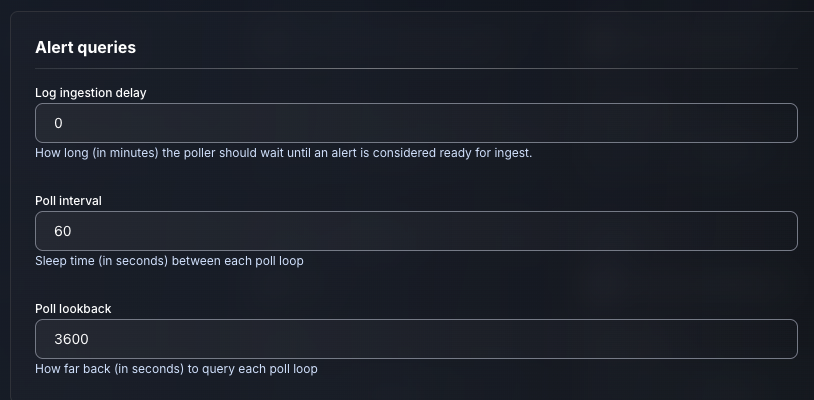
* Input your desired log ingestion delay, poll interval and lookback

<figure><img src="https://435022081-files.gitbook.io/~/files/v0/b/gitbook-x-prod.appspot.com/o/spaces%2FmBVcKuiytGCsIDpL70BC%2Fuploads%2Fgit-blob-15d363282c410354a2782af9c936a50c337fc2f6%2Fapp_system_integrations_available_datadog_config_alert_5.png?alt=media" alt=""><figcaption><p>The Datadog Alert Source Configuration (pt 5)</p></figcaption></figure>

* Click "Test & Save" to finish

If you have any errors engage your Dropzone AI support representative.