Check Point Harmony Email & Collaboration
This is a beta feature that requires manual enablement by Dropzone support for your tenant. The integration will not be visible in the Dropzone UI until it has been enabled. Please contact your Dropzone AI support representative before attempting to set up this integration.
The Dropzone AI platform integrates with Check Point Harmony Email & Collaboration APIs. This document describes how to set up OAuth credentials in the Check Point Infinity Portal and install them into the Dropzone platform.
Integration Overview
To enable this integration you will perform the following actions:
Create OAuth credentials (API key) in the Check Point Infinity Portal
Install the credentials into your Dropzone tenant
Configure integration parameters, such as poll interval and lookback
The integration automatically ingests the following email security alert types from Check Point Harmony:
phishing- Phishing email alertsmalware- Malware email alertssuspicious_phishing- Suspicious phishing email alertssuspicious_malware- Suspicious malware email alertsanomaly- Admin-blacklisted emails and other anomalies
Create an API Key
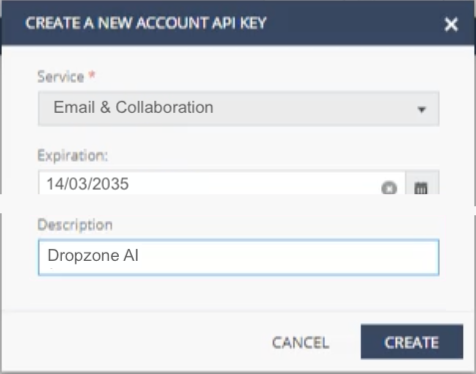
To create an Account API Key in the Check Point Infinity Portal, do the following:
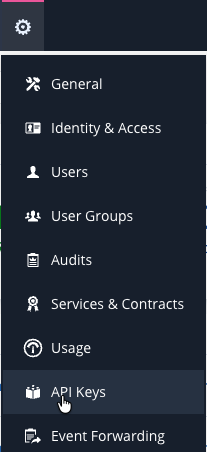
In the Infinity Portal, go to ⚙️ > API Keys

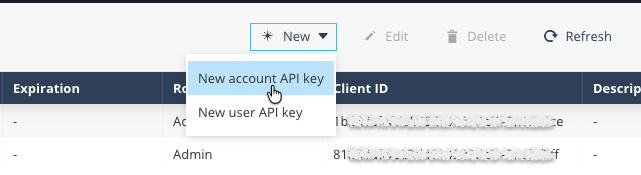
Click New > New account API key

In the Create a New API Key window, select a Service
Select Email & Collaboration

In the Expiration field, select an expiration date and time for the API Key
The expiration date and time chosen is up to the customer.
Note that this process must be repeated to continue using the integration when the API Key expires.
Optional - In the Description field, enter a description for the API Key (e.g., "Dropzone AI Integration Key")
Click Create
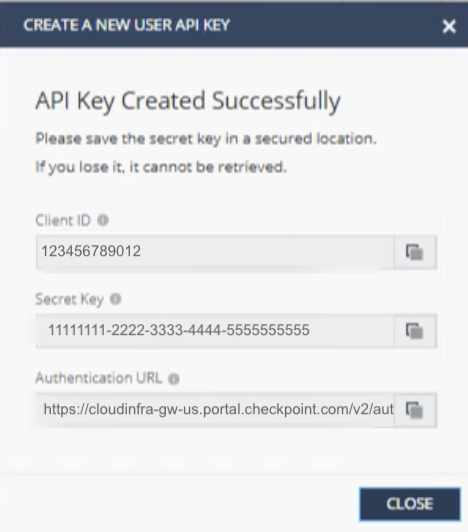
The Infinity Portal generates a new API Key.
Copy these values and keep them in a safe place:
Client ID - The Identifier for your account and for the client service that uses this API key
Secret Key - The secret key that goes along with the Client ID, used by the integration to make API calls to your Check Point account
Authentication URL - The URL address used to authenticate API requests
You can always obtain the Client ID from the API Keys table, but you cannot retrieve the Secret Key or Authentication URL after the Create a New API Key window is closed. Record all three values before you leave the page.
Enable Check Point Harmony
The Alert source integration allows Dropzone AI to pull alerts from Check Point Harmony Email & Collaboration for investigation.
You'll need the following information:
Client ID
The "Client ID" value you copied earlier
Secret Key
The "Secret Key" value you copied earlier
Authentication URL (API Endpoint)
The "Authentication URL (API Endpoint)" value you copied earlier
To enable the Alert Source integration, do the following:
Navigate to your Dropzone AI tenant home page e.g. https://mycompany.dropzone.app
In the bottom left hand corner, navigate to Settings > Integrations

Click "Available"

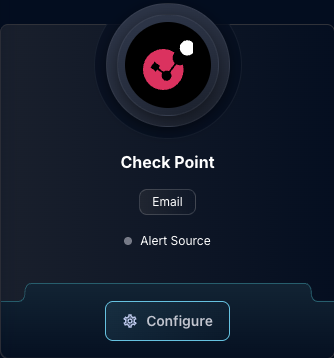
In the Search bar, search "Check Point", then click "Configure"

Under the Alert Source header, input the Client ID, Secret Key, and Authentication URL (API Endpoint)

Under "Enabled Severities", select which severity levels to ingest from Check Point Harmony:
Critical
High
Medium
Low
Lowest
Under "Enabled States", select which event states to ingest from Check Point Harmony:
Pending
Detected
Remediated
Exception
Dismissed

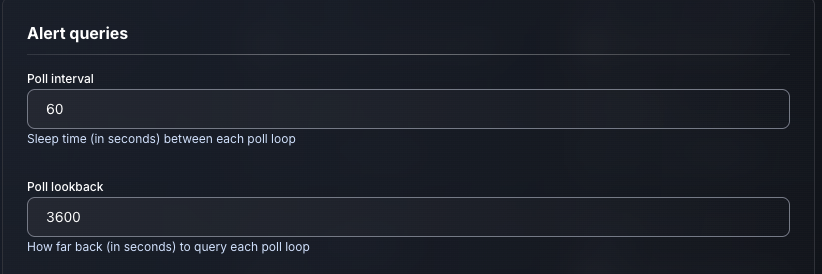
The section under Alert queries allows for customization of polling settings. The default settings are generally sufficient.
Log Ingestion Delay: Wait time before an alert is considered ready for ingestion (default: 5 minutes)
Poll Interval: Sleep time between poll loops (default: 60 seconds, minimum: 30 seconds)
Poll Lookback: How far back to query each poll loop (default: 3600 seconds / 1 hour)

Click "Test & Save" to finish
You should begin ingesting alerts immediately.
If you have any errors engage your Dropzone AI support representative.
Additional Resources
Last updated
Was this helpful?