# CrowdStrike

{% hint style="info" %}
Note that this is separate from the "CrowdStrike Falcon Intelligence" Threat intelligence data source.
{% endhint %}

The Dropzone AI platform integrates with the CrowdStrike APIs. This document describes how to set up API credentials and install them into the Dropzone platform.

## Integration Overview

To enable these integrations you will perform the following actions:

* Create API credentials in the CrowdStrike dashboard
* Install the credentials into your Dropzone tenant (Data Source and Alert Source)
* Select integration parameters, such as which alert types to sync

## Create an API Key

* As an Admin, go to your CrowdStrike dashboard, e.g. https\://*falcon.us-#*.crowdstrike.com/
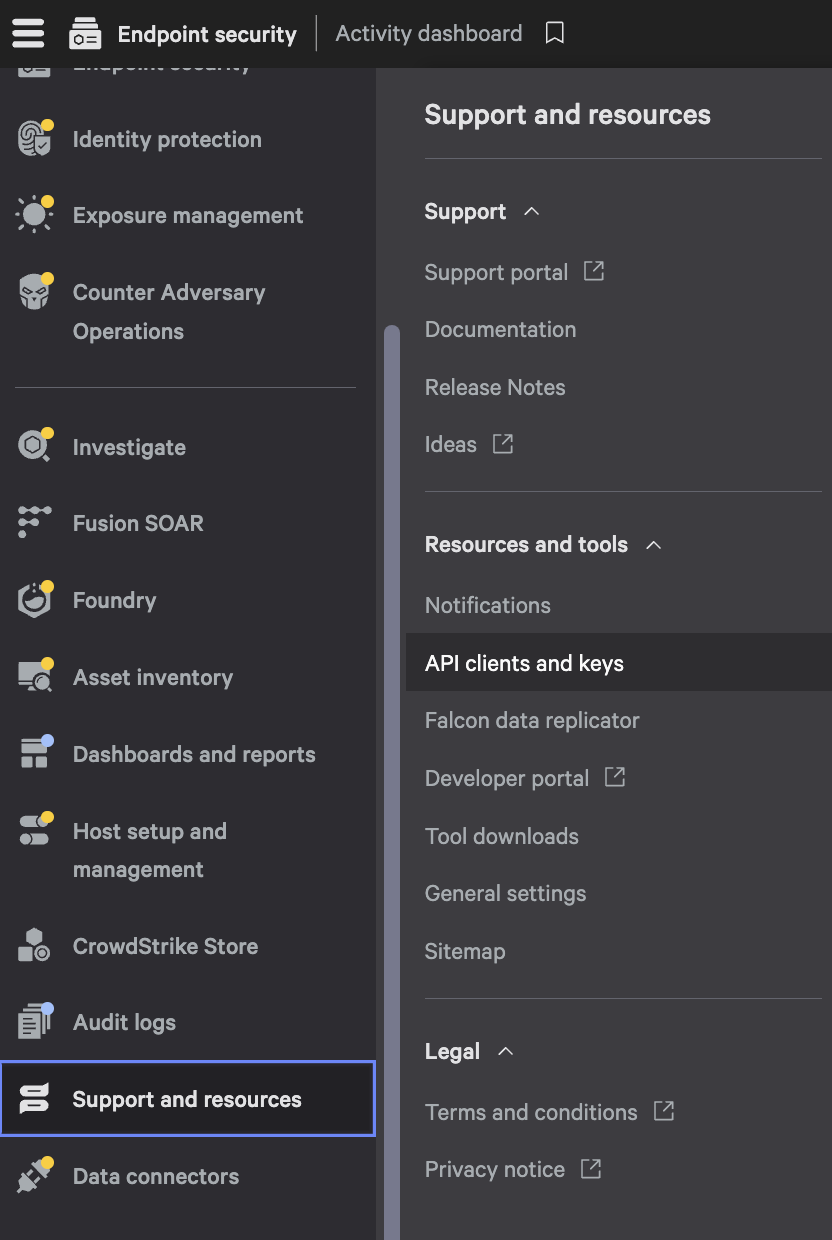
* From the menu in the upper left, navigate to Support and Resources > API clients and keys

<figure><img src="https://435022081-files.gitbook.io/~/files/v0/b/gitbook-x-prod.appspot.com/o/spaces%2FmBVcKuiytGCsIDpL70BC%2Fuploads%2Fgit-blob-0874ca9dd7f547a67301d352a6da764054b1fad9%2Fcrwd-api-clients-and-keys.png?alt=media" alt="" width="375"><figcaption><p>Click API clients and keys</p></figcaption></figure>

* On the right, click "Create API Client"

<figure><img src="https://435022081-files.gitbook.io/~/files/v0/b/gitbook-x-prod.appspot.com/o/spaces%2FmBVcKuiytGCsIDpL70BC%2Fuploads%2Fgit-blob-8f8d4ead39fbac604186f6b0bf05d3f13a6dd2f1%2Fcrwd-create-api-client-button.png?alt=media" alt=""><figcaption><p>Create API Client</p></figcaption></figure>

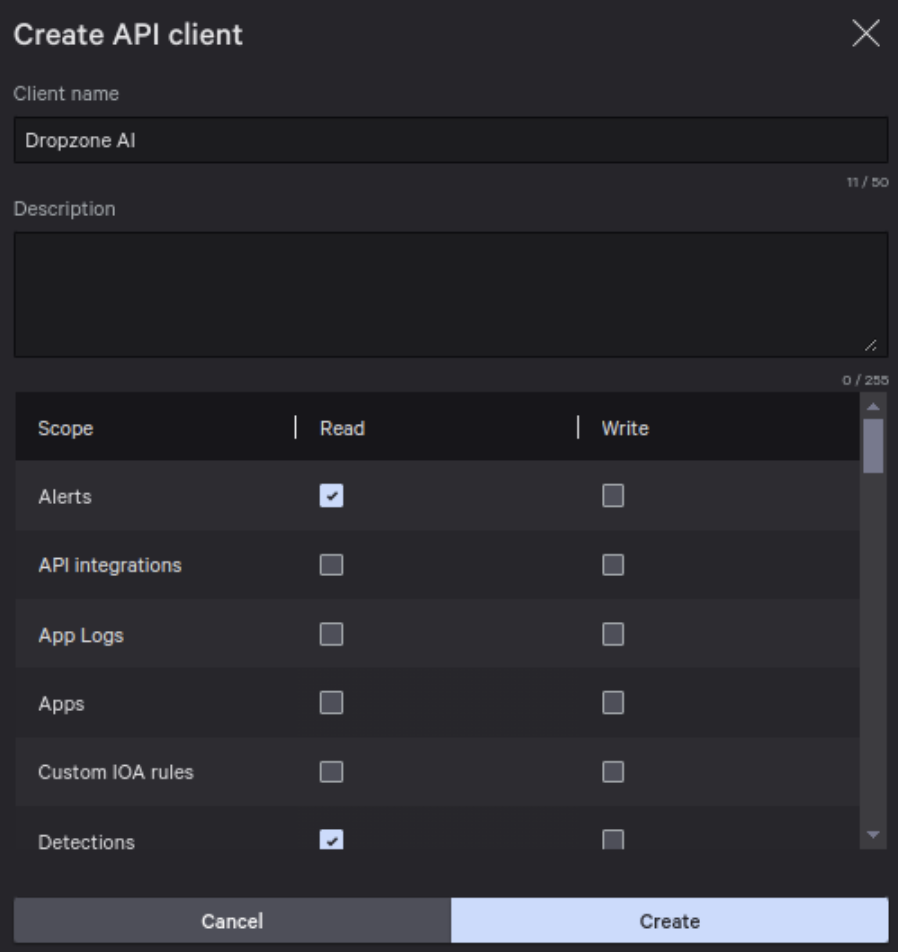
* On the "Create API Client" page, input "Dropzone AI" in the client name field. Under "Description," write "Dropzone AI Integration Key"

<figure><img src="https://435022081-files.gitbook.io/~/files/v0/b/gitbook-x-prod.appspot.com/o/spaces%2FmBVcKuiytGCsIDpL70BC%2Fuploads%2Fgit-blob-99d4c97d7cd423202f1219b28681518b0009fab8%2Fcrwd-api-client-screen.png?alt=media" alt=""><figcaption><p>Create API Client Screen</p></figcaption></figure>

* Enable the following scopes:

| Scope                         | Read | Write | Used By                   |
| ----------------------------- | ---- | ----- | ------------------------- |
| Alerts                        | ✓    |       | Alert Source, Data Source |
| API Integrations              | ✓    |       | Alert Source, Data Source |
| Cases                         | ✓    | ✓     | Alert Source              |
| Detections                    | ✓    |       | Alert Source, Data Source |
| Hosts                         | ✓    |       | Data Source               |
| NGSIEM                        | ✓    | ✓     | Data Source               |
| Incidents                     | ✓    |       | Alert Source, Data Source |
| Quarantined Files             | ✓    |       | Data Source               |
| Real Time Response            | ✓    | ✓     | Data Source               |
| Event Streams                 | ✓    |       | Data Source               |
| Threatgraph                   | ✓    |       | Data Source               |
| Identity Protection Entities  | ✓    |       | Data Source               |
| Identity Protection Timeline  | ✓    |       | Data Source               |
| Identity Protection GraphQL   |      | ✓     | Data Source               |
| Sandbox (Falcon Intelligence) | ✓    | ✓     | Data Source               |

{% hint style="info" %}
Some of these scopes are only necessary for the Data Source integration. If you don't intend to perform that integration, you may ignore them.
{% endhint %}

* Write permission details
  * `Cases`: Write permissions are only required when used in Response Actions
  * `NGSIEM`: Write permissions are required when NextGen SIEM is enabled in order to execute NGSIEM queries ([docs](https://www.falconpy.io/Service-Collections/NGSIEM.html#startsearchv1))
  * `Real Time Response`: Write permissions are required when File Retrieval is enabled ([docs](https://www.falconpy.io/Service-Collections/Real-Time-Response.html#rtr_executeactiverespondercommand))
    * Dropzone *only* uses Real Time Response to perform `get <file>` commands
  * `Identity Protection GraphQL`: Write permissions are required when Identity Protection is enabled in order to execute queries for user directory information ([docs](https://www.falconpy.io/Service-Collections/Identity-Protection.html#api_preempt_proxy_post_graphql))
  * `Sandbox (Falcon Intelligence`: Write permissions are only required when File Detonation is enabled in order to upload collected or attached files in the Falcon Sandbox
* When done, click "Create"
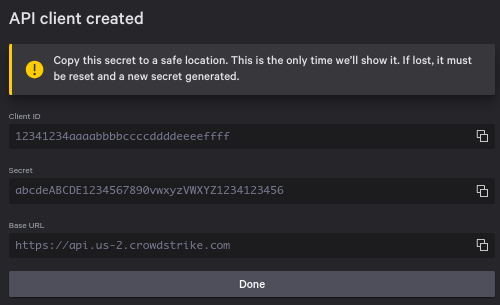
* Copy the Client ID and Secret for use later in the Dropzone UI where they are called "Client ID" and "Client Secret" respectively

<figure><img src="https://435022081-files.gitbook.io/~/files/v0/b/gitbook-x-prod.appspot.com/o/spaces%2FmBVcKuiytGCsIDpL70BC%2Fuploads%2Fgit-blob-fed5377f36cb868284b092fca325518a0b91b92c%2Fcrwd-api-client-created.png?alt=media" alt=""><figcaption><p>Copy your API Credentials</p></figcaption></figure>

## Enable Crowdstrike

The Alert source integration allows Dropzone AI to pull alerts from CrowdStrike for investigation.

You'll need the following information:

| Dropzone Field | Source                                   |
| -------------- | ---------------------------------------- |
| Client ID      | The "Client ID" value you copied earlier |
| Client Secret  | The "Secret" value you copied earlier    |

To enable the Alert Source integration, do the following:

* Navigate to your Dropzone AI tenant home page e.g. https\://*mycompany*.dropzone.app
* In the bottom left hand corner, navigate to Settings > Integrations

<figure><img src="https://435022081-files.gitbook.io/~/files/v0/b/gitbook-x-prod.appspot.com/o/spaces%2FmBVcKuiytGCsIDpL70BC%2Fuploads%2Fgit-blob-b3f07f902b1402dadc7abbd8bb62f9c204547390%2Fui-integrations-dropdown.png?alt=media" alt=""><figcaption><p>Integrations Dropdown</p></figcaption></figure>

* Click "Available"

<figure><img src="https://435022081-files.gitbook.io/~/files/v0/b/gitbook-x-prod.appspot.com/o/spaces%2FmBVcKuiytGCsIDpL70BC%2Fuploads%2Fgit-blob-434641ec6d4e45051842f86164f485d6bd289424%2Fapp_system_integrations_available.png?alt=media" alt=""><figcaption><p>Click Available</p></figcaption></figure>

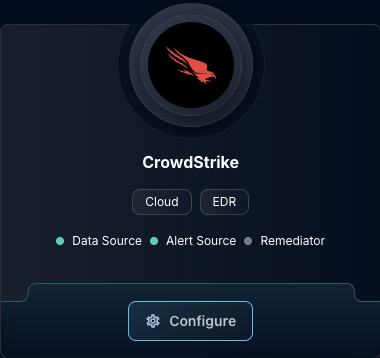
* In the Search bar, search CrowdStrike, then click "Configure"

<figure><img src="https://435022081-files.gitbook.io/~/files/v0/b/gitbook-x-prod.appspot.com/o/spaces%2FmBVcKuiytGCsIDpL70BC%2Fuploads%2Fgit-blob-71cbedb7e2ec74658110772d3fbbee76753568cc%2Fapp_system_integrations_available_CrowdStrike.png?alt=media" alt=""><figcaption><p>The Crowdstrike Tile</p></figcaption></figure>

{% hint style="success" %}
Make sure you're using the EDR CrowdStrike tile, not the "CrowdStrike Falcon Intelligence" Threat Intelligence tile.
{% endhint %}

* Under the Alert Source header, input the Client ID and Client Secret. If you use a non-default URL for the CrowdStrike API, configure the API Base URL as well

<figure><img src="https://435022081-files.gitbook.io/~/files/v0/b/gitbook-x-prod.appspot.com/o/spaces%2FmBVcKuiytGCsIDpL70BC%2Fuploads%2Fgit-blob-1d2b2c5698f6ccb3759674f3669b1c973dc4bae7%2Fapp_system_integrations_available_crowdstrike_alert_config_1.png?alt=media" alt=""><figcaption><p>The CrowdStrike Alert Source Configuration (pt 1)</p></figcaption></figure>

* If you wish to enable endpoint detection, check the box labeled "Enable Endpoint Detection." Then select the severity levels you want Dropzone to investigate alerts for
* Under Exlusions, you may choose to exclude alerts by display name. To do so, click "Add Item," then input a list of [Python regexes](https://docs.python.org/3/library/re.html) of the alerts you wish to exclude

<figure><img src="https://435022081-files.gitbook.io/~/files/v0/b/gitbook-x-prod.appspot.com/o/spaces%2FmBVcKuiytGCsIDpL70BC%2Fuploads%2Fgit-blob-a273cd354923abea058925cc149877bc63bc31b5%2Fapp_system_integrations_available_crowdstrike_alert_config_2.png?alt=media" alt=""><figcaption><p>The CrowdStrike Alert Source Configuration (pt 2)</p></figcaption></figure>

* If you wish to enable Dropzone to investigate specific endpoint incidents, check the box labeled "Enable Endpoint Incidents." Then select the incident statuses you want Dropzone to investigate alerts for
* Enter the minimum incident score you want Dropzone to investigate alerts for

Crowdstrike utilizes an incident scoring system to indicate the severity and potential impact of an incident. The numbers range from 0 (no risk) to 100 (critical risk). If you wish for Dropzone to be able to investigate all alerts, choose 0 as the minimum incident score.

<figure><img src="https://435022081-files.gitbook.io/~/files/v0/b/gitbook-x-prod.appspot.com/o/spaces%2FmBVcKuiytGCsIDpL70BC%2Fuploads%2Fgit-blob-7b2c01fe37a1d37e425936d003334eee9157ca95%2Fapp_system_integrations_available_crowdstrike_alert_config_3.png?alt=media" alt=""><figcaption><p>The CrowdStrike Alert Source Configuration (pt 3)</p></figcaption></figure>

* If you wish to enable CloudStrike's [Next-Gen SIEM](https://developer.crowdstrike.com/docs/ng-siem/), check the box labeled "Enable Next-gen SIEM." Then select the severity levels you want Dropzone to investigate alerts for
* Under "Next-Gen SIEM Alert Exlusions," you may choose to exclude alerts by display name. To do so, click "Add Item," then input a list of regexes to exclude alerts

<figure><img src="https://435022081-files.gitbook.io/~/files/v0/b/gitbook-x-prod.appspot.com/o/spaces%2FmBVcKuiytGCsIDpL70BC%2Fuploads%2Fgit-blob-4c28707ce441faa053d21579b63d8d92afc0e752%2Fapp_system_integrations_available_crowdstrike_alert_config_4.png?alt=media" alt=""><figcaption><p>The CrowdStrike Alert Source Configuration (pt 4)</p></figcaption></figure>

* If you wish to enable Dropzone to investigate [identity protection alerts](https://www.crowdstrike.com/wp-content/uploads/2021/06/CrowdStrike-Falcon-Identity-Protection-Modules_DataSheet.pdf), check the box labeled "Enable Identity Protection Alerts." Then select the severity levels you want Dropzone to investigate alerts for

<figure><img src="https://435022081-files.gitbook.io/~/files/v0/b/gitbook-x-prod.appspot.com/o/spaces%2FmBVcKuiytGCsIDpL70BC%2Fuploads%2Fgit-blob-dc5ee6a1560a79d0004aec23da0ea4f81ec1a862%2Fapp_system_integrations_available_crowdstrike_alert_config_5.png?alt=media" alt=""><figcaption><p>The CrowdStrike Alert Source Configuration (pt 5)</p></figcaption></figure>

* Input your desired poll interval and lookback

<figure><img src="https://435022081-files.gitbook.io/~/files/v0/b/gitbook-x-prod.appspot.com/o/spaces%2FmBVcKuiytGCsIDpL70BC%2Fuploads%2Fgit-blob-273c01d57c1ea982689490bad664d753d1f9bbad%2Fapp_system_integrations_available_crowdstrike_alert_config_6.png?alt=media" alt=""><figcaption><p>The CrowdStrike Alert Source Configuration (pt 6)</p></figcaption></figure>

* Click "Test & Save" to finish

You should begin ingesting alerts immediately.

If you have any errors engage your Dropzone AI support representative.