Proofpoint

Proofpoint

Dropzone AI integrates with Proofpointarrow-up-right, an email-based security solution that analyzes and classifies emails to blocks ransomware and other email-based threats. Dropzone AI can ingest alerts from Proofpoint TAParrow-up-right (Targeted Attack Protection) and Proofpoint TRAParrow-up-right (Threat Response Auto-Pull).

Proofpoint TAP

Proofpoint TAP requires TAP service credentials to enable.

To obtain your TAP service credentials, do the following:

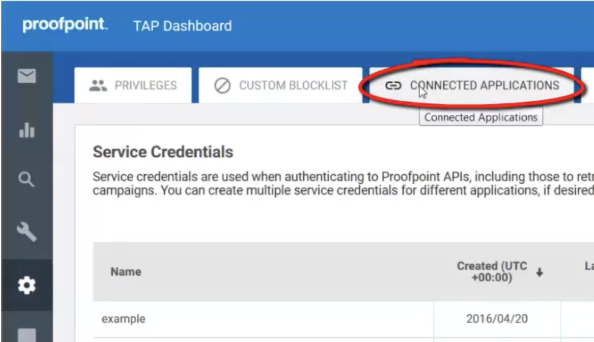
Navigate to Connected Applications
  • Click "Create New Credentials"

Create New Credentials
  • Name the credentials something memorable, such as Dropzone AI, and click "Generate"

Generate the credentials
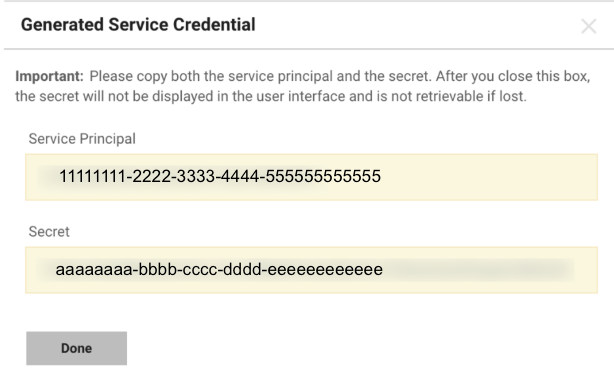
  • Copy the Service Principal and Secret shown for use later in the Dropzone UI where they are called "TAP Service Principal" and "TAP Secret" respectively

Copy the credentials
  • Click "Done"

Proofpoint TRAP

Proofpoint TRAP requires Threat Protection credentials to enable.

To obtain your Threat Protection credentials, do the following:

  • As an administrative user, log into your Proofpoint Threat Protection consolearrow-up-right

  • Navigate to System Settings > Customization > API Keys

  • Next to "API Keys," click the (+) icon

  • Name the key something memorable, such as "Dropzone AI"

  • Check "Enabled," then click “Save”

  • Copy the API and API secret shown for use later in the Dropzone UI where they are called "Threat Protection API Key" and "Threat Protection API Secret," respectively

Enable Proofpoint

To enable the Alert Source integration, you will need the following information:

Dropzone Field
Source

TAP Service Principle & Secret

The Service Principle and Secret values generated earlier

TAP API URL

Your base TAP API host URL, e.g. https://tap-api-v2.proofpoint.com

Threat Protection API Key & Secret

The API Key and Secret values generated earlier

Threat Protection API URL

Your base TRAP API host URL, e.g. https://threatprotection-api.proofpoint.com

To enable the Alert Source integration, do the following:

  • Navigate to your Dropzone AI tenant home page e.g. https://mycompany.dropzone.app

  • In the bottom left hand corner, click Settings > Integrations

Integrations Dropdown
  • Click "Available"

Click Available
  • In the Search bar, search Proofpoint, then click "Configure"

The Proofpoint Tile
  • To enable Dropzone to ingest TAP Alerts, check the box labeled "Ingest TAP Alerts"

  • Input the TAP Service Principle, Secret, and API URL

The Proofpoint Alert Configuration (pt 1)
  • In the TAP Ingestion Settings section, select the types of alert eventsarrow-up-right you want Dropzone to ingest

  • If you want Dropzone to be able to investigate the emails associated with TAP alerts, check the box labeled "Investigate Phishing Emails"

circle-info

This feature requires the Microsoft 365/Defender integrationarrow-up-right to be enabled.

  • If you want to Dropzone to be able to investigate threats associated with Proofpoint alerts, check the box labeled "Investigate Threats"

The Proofpoint Alert Configuration (pt 2)
  • To enable Dropzone to ingest TRAP Incidents, check the box labeled "Ingest TRAP Incidents"

  • Input the Threat Protection API Key, Secret, and URL

The Proofpoint Alert Configuration (pt 3)
  • To exclude closed incidents from Dropzone's analysis, check the box labeled "Skip Closed Incidents"

  • To analyze email messages under quarantine, check the box labeled "Analyze clicked messages in MS Quarantine"

circle-info

This feature requires the Microsoft 365/Defender integrationarrow-up-right to be enabled.

The Proofpoint Alert Configuration (pt 4)
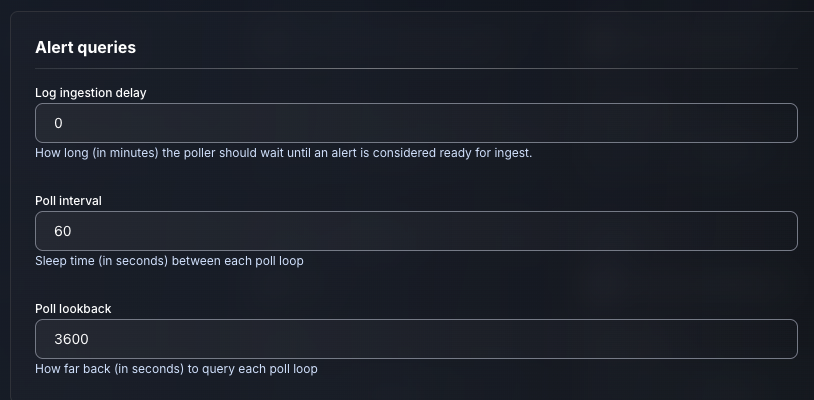
  • Input your desired log ingestion delay, poll interval and poll lookback

The Proofpoint Alert Configuration (pt 5)
  • Click "Test & Save" to finish

If you have any errors or questions, engage your Dropzone AI support representative.

Last updated

Was this helpful?