# Google GCP

The Dropzone AI platform integrates with GCP (Google Cloud Platform) APIs for ingesting alerts and enriching investigations with data from GCP such as VM and service account information. This document describes how to set up API credentials and install them into the Dropzone platform.

## Integration Overview

To enable these integrations you will perform the following actions:

* Determine which section of your GCP environment to enable Dropzone visibility
* Grant IAM access to the Dropzone service account
* Enable the Alert and Data sources

## Determine Dropzone Visibilty Scope

Dropzone requires some IAM access to query your GCP environment.

You will later be granting the Dropzone service account access to a portion of your GCP environment, at either a folder level or for the whole organization.

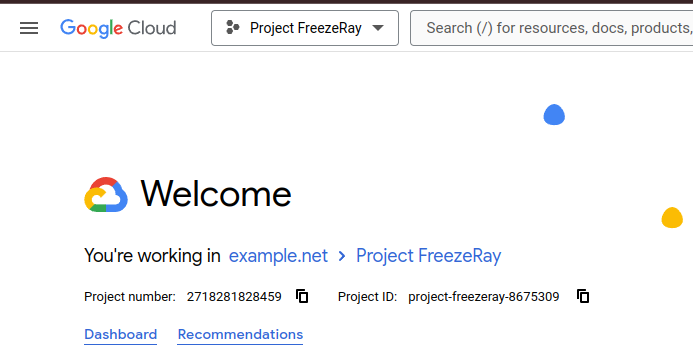
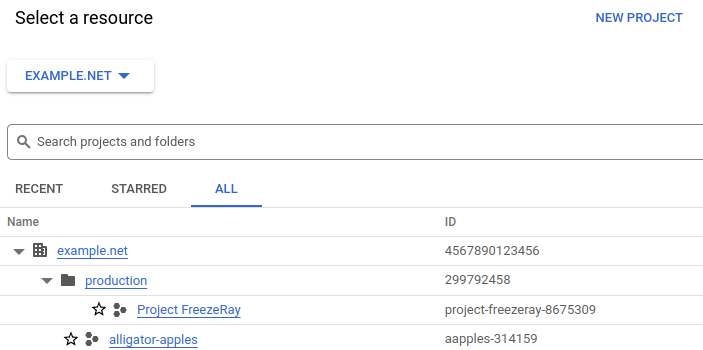
For example, in the screenshot below, if you were to grant access via the `production` folder then Dropzone would have access to the `Project FreezeRay` project, and any other folders or projects you add to `production` in the future. However, it would not be available to `alligator-apples`. If you grant access via the top level org, `example.net` then it would apply to all folders and projects going forward.

<figure><img src="https://435022081-files.gitbook.io/~/files/v0/b/gitbook-x-prod.appspot.com/o/spaces%2FmBVcKuiytGCsIDpL70BC%2Fuploads%2Fgit-blob-6c993071532b8c9f107e8324afe369b1c198f520%2Fgcp-console-03.png?alt=media" alt=""><figcaption><p>Resource Selection</p></figcaption></figure>

When enabling the integration you will be supplying the ID of the top level folder or organization, and Dropzone will recurse through all objects thereunder when making Data Source queries.

When you've chosen your folder or org, record the ID value for use later in the Dropzone UI where it is called "Parent Resource"."

## Identify your service account email address

To obtain the email address of your Dropzone service account, do the following:

* Navigate to your Dropzone AI tenant home page e.g. https\://*mycompany*.dropzone.app
* In the bottom left hand corner, navigate to Settings > Integrations

<figure><img src="https://435022081-files.gitbook.io/~/files/v0/b/gitbook-x-prod.appspot.com/o/spaces%2FmBVcKuiytGCsIDpL70BC%2Fuploads%2Fgit-blob-b3f07f902b1402dadc7abbd8bb62f9c204547390%2Fui-integrations-dropdown.png?alt=media" alt=""><figcaption><p>Integrations Dropdown</p></figcaption></figure>

* Click "Available"

<figure><img src="https://435022081-files.gitbook.io/~/files/v0/b/gitbook-x-prod.appspot.com/o/spaces%2FmBVcKuiytGCsIDpL70BC%2Fuploads%2Fgit-blob-434641ec6d4e45051842f86164f485d6bd289424%2Fapp_system_integrations_available.png?alt=media" alt=""><figcaption><p>Click Available</p></figcaption></figure>

* In the Search bar, search GCP, then click "Configure"

<figure><img src="https://435022081-files.gitbook.io/~/files/v0/b/gitbook-x-prod.appspot.com/o/spaces%2FmBVcKuiytGCsIDpL70BC%2Fuploads%2Fgit-blob-a893fe9af85d768b0c82632d2d1e664a2240a0db%2Fapp_system_integrations_available_gcp.png?alt=media" alt=""><figcaption><p>The GCP Tile</p></figcaption></figure>

* Record the "SERVICE ACCOUNT EMAIL" field for use in the GCP Console interface

<figure><img src="https://435022081-files.gitbook.io/~/files/v0/b/gitbook-x-prod.appspot.com/o/spaces%2FmBVcKuiytGCsIDpL70BC%2Fuploads%2Fgit-blob-1807d20eab7dc763831697acec1874bafe0c9cc0%2Fui-gcp-data-source-service-account.png?alt=media" alt="" width="320"><figcaption><p>SERVICE ACCOUNT EMAIL</p></figcaption></figure>

## Grant GCP Access to Dropzone Service Account

* Go to the GCP cloud console at <https://console.cloud.google.com>

<figure><img src="https://435022081-files.gitbook.io/~/files/v0/b/gitbook-x-prod.appspot.com/o/spaces%2FmBVcKuiytGCsIDpL70BC%2Fuploads%2Fgit-blob-61bf6ef31d43021ccd2772c284509f1a28b747ae%2Fgcp-console-00.png?alt=media" alt=""><figcaption><p>Project Dropdown</p></figcaption></figure>

* Click the current project dropdown
* Click "All"
* Select the organization or the folder you've chosen for Dropzone visibility

<figure><img src="https://435022081-files.gitbook.io/~/files/v0/b/gitbook-x-prod.appspot.com/o/spaces%2FmBVcKuiytGCsIDpL70BC%2Fuploads%2Fgit-blob-6c993071532b8c9f107e8324afe369b1c198f520%2Fgcp-console-03.png?alt=media" alt=""><figcaption><p>Resource Selection</p></figcaption></figure>

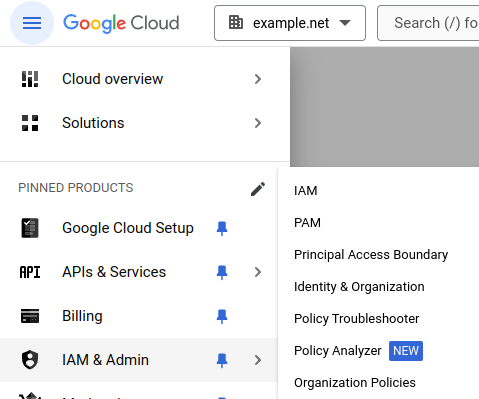
* From the left menu, navigate to IAM & Admin > IAM

<figure><img src="https://435022081-files.gitbook.io/~/files/v0/b/gitbook-x-prod.appspot.com/o/spaces%2FmBVcKuiytGCsIDpL70BC%2Fuploads%2Fgit-blob-fe76d071ffc869a4b864d64f9864e940d7328bb0%2Fgcp-console-02.png?alt=media" alt=""><figcaption><p>IAM &#x26; Admin Menu</p></figcaption></figure>

* Under "New principals," input the email address you copied earlier from the Dropzone UI "SERVICE ACCOUNT EMAIL"

<figure><img src="https://435022081-files.gitbook.io/~/files/v0/b/gitbook-x-prod.appspot.com/o/spaces%2FmBVcKuiytGCsIDpL70BC%2Fuploads%2Fgit-blob-dc566cab6e4ba234e6f57d7475dd6a2ca95c65ac%2Fgoogle-gcp-add-principles.png?alt=media" alt=""><figcaption><p>Input the email address from the Dropzone UI Service Account Email</p></figcaption></figure>

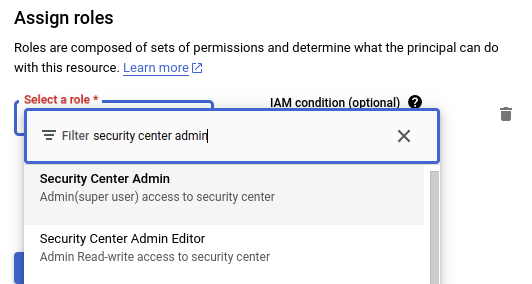
* Click "Select a role"

<figure><img src="https://435022081-files.gitbook.io/~/files/v0/b/gitbook-x-prod.appspot.com/o/spaces%2FmBVcKuiytGCsIDpL70BC%2Fuploads%2Fgit-blob-bcc6bd3e6737c99906279ccf792d4bf957f9ec48%2Fgoogle-gcp-assign-roles.png?alt=media" alt=""><figcaption></figcaption></figure>

* Add the following roles:

| Role Name                                                                                                         | Purpose                                    | Used By                  |
| ----------------------------------------------------------------------------------------------------------------- | ------------------------------------------ | ------------------------ |
| [Security Center Admin Viewer](https://cloud.google.com/iam/docs/understanding-roles#securitycenter.adminViewer)  | View GCP entity details and configurations | Alert Source Integration |
| [Browser](https://cloud.google.com/iam/docs/understanding-roles#browser)                                          | View GCP resources                         | Data Source Integration  |
| [Cloud Asset Viewer](https://cloud.google.com/iam/docs/understanding-roles#cloudasset.viewer)                     | View cloud assets                          | Data Source Integration  |
| [Compute Viewer](https://cloud.google.com/iam/docs/understanding-roles#compute.viewer)                            | View compute resources                     | Data Source Integration  |
| [Folder Viewer](https://cloud.google.com/iam/docs/understanding-roles#resourcemanager.folderViewer)               | View folders                               | Data Source Integration  |
| [Logs Viewer](https://cloud.google.com/iam/docs/understanding-roles#logging.viewer)                               | View GCP logs                              | Data Source Integration  |
| [Organization Role Viewer](https://cloud.google.com/iam/docs/understanding-roles#iam.roleViewer)\*                | View organization roles                    | Data Source Integration  |
| [Organization Viewer](https://cloud.google.com/iam/docs/understanding-roles#resourcemanager.organizationViewer)\* | View organization resources                | Data Source Integration  |
| [Private Logs Viewer](https://cloud.google.com/iam/docs/understanding-roles#logging.privateLogViewer)             | View private logs                          | Data Source Integration  |
| [Security Reviewer](https://cloud.google.com/iam/docs/understanding-roles#iam.securityReviewer)                   | Review security configurations             | Data Source Integration  |
| [Storage Object Viewer](https://cloud.google.com/iam/docs/understanding-roles#storage.objectViewer)               | View storage objects                       | Data Source Integration  |
| [Tag Viewer](https://cloud.google.com/iam/docs/understanding-roles#resourcemanager.tagViewer)                     | View tags                                  | Data Source Integration  |

\* These roles should only be included if the top-level parent is an organization.

{% hint style="info" %}
Some of these roles are only necessary for the Data Source integration. If you don't intend to perform that integration, you may ignore them.
{% endhint %}

* Continue adding roles via the "Add another role" button until complete

<figure><img src="https://435022081-files.gitbook.io/~/files/v0/b/gitbook-x-prod.appspot.com/o/spaces%2FmBVcKuiytGCsIDpL70BC%2Fuploads%2Fgit-blob-d452bd5a6a4de7daae0d9ec63b87df6b196775b8%2Fgcp-console-05.png?alt=media" alt=""><figcaption><p>Add another role</p></figcaption></figure>

* Click "Save"

## Enable GCP

The Alert Source integration allows Dropzone AI to pull alerts from GCP for investigation.

You'll need the following information:

| Dropzone Field  | Source                                                        |
| --------------- | ------------------------------------------------------------- |
| Parent Resource | The ID of the org or folder where you granted Dropzone access |

To enable the Alert Source integration, do the following:

* Navigate to your Dropzone AI tenant home page e.g. https\://*mycompany*.dropzone.app
* In the bottom left hand corner, navigate to Settings > Integrations

<figure><img src="https://435022081-files.gitbook.io/~/files/v0/b/gitbook-x-prod.appspot.com/o/spaces%2FmBVcKuiytGCsIDpL70BC%2Fuploads%2Fgit-blob-b3f07f902b1402dadc7abbd8bb62f9c204547390%2Fui-integrations-dropdown.png?alt=media" alt=""><figcaption><p>Integrations Dropdown</p></figcaption></figure>

* Click "Available"

<figure><img src="https://435022081-files.gitbook.io/~/files/v0/b/gitbook-x-prod.appspot.com/o/spaces%2FmBVcKuiytGCsIDpL70BC%2Fuploads%2Fgit-blob-434641ec6d4e45051842f86164f485d6bd289424%2Fapp_system_integrations_available.png?alt=media" alt=""><figcaption><p>Click Available</p></figcaption></figure>

* In the Search bar, search GCP, then click "Configure"

<figure><img src="https://435022081-files.gitbook.io/~/files/v0/b/gitbook-x-prod.appspot.com/o/spaces%2FmBVcKuiytGCsIDpL70BC%2Fuploads%2Fgit-blob-a893fe9af85d768b0c82632d2d1e664a2240a0db%2Fapp_system_integrations_available_gcp.png?alt=media" alt=""><figcaption><p>The GCP Tile</p></figcaption></figure>

* Under the Alert Source heading, input the "Parent Resource" ID
* Select the "Parent Resource Type" that matches the resource you've selected

<figure><img src="https://435022081-files.gitbook.io/~/files/v0/b/gitbook-x-prod.appspot.com/o/spaces%2FmBVcKuiytGCsIDpL70BC%2Fuploads%2Fgit-blob-bd859955692a83617b45624130259ac0af9fb0f1%2Fapp_system_integrations_available_gcp_alert_config_1.png?alt=media" alt=""><figcaption><p>The GCP Alert Source configuration (pt 1)</p></figcaption></figure>

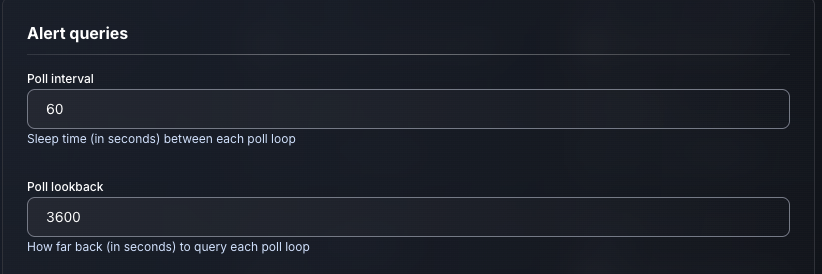
* Input your desired poll interval and lookback

<figure><img src="https://435022081-files.gitbook.io/~/files/v0/b/gitbook-x-prod.appspot.com/o/spaces%2FmBVcKuiytGCsIDpL70BC%2Fuploads%2Fgit-blob-ce5c731e8ed0029ca3e9ae4779e009d10656ba37%2Fapp_system_integrations_available_gcp_alert_config_2.png?alt=media" alt=""><figcaption><p>The GCP Alert Source configuration (pt 2)</p></figcaption></figure>

* Click "Test & Save" to finish

You should begin ingesting alerts immediately.

If you have any errors or questions, engage your Dropzone AI support representative.