Cato Networks

Cato Networks

The Dropzone platform integrates with Cato Networksarrow-up-right, a cloud-native Secure Access Service Edge (SASE) platform that provides capabilities such as SD-WAN, secure web gateway (SWG), firewall-as-a-service (FWaaS), zero trust network access (ZTNA), and cloud access security broker (CASB).

By integrating with Cato Networks, Dropzone AI can leverage network and VPN telemetry to enhance security investigations by analyzing network traffic associated with alerts, identifying devices behind IP addresses, and correlating user and VPN activity across the environment.

Obtain Account ID and API Key

Cato Networks requires an Account ID and an API key to enable. You will need access to an account administrator with the Editor privilege to generate keys.

To locate your Account ID, do the following:

  • Log in to your Cato Networks account

  • In the URL, locate the four-digit integer and copy it for use later in the Dropzone UI where it is called "Account ID"

The Account ID

To generate an API key, do the following:

  • In the upper banner of your Cato Networks homepage, click "Administration"

Navigate to "Administration"
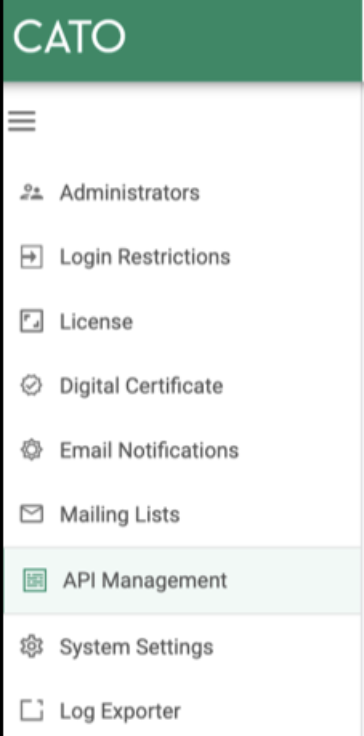
  • In the right, click "API Management"

Click "API Management"
  • Click "* New"

Click New
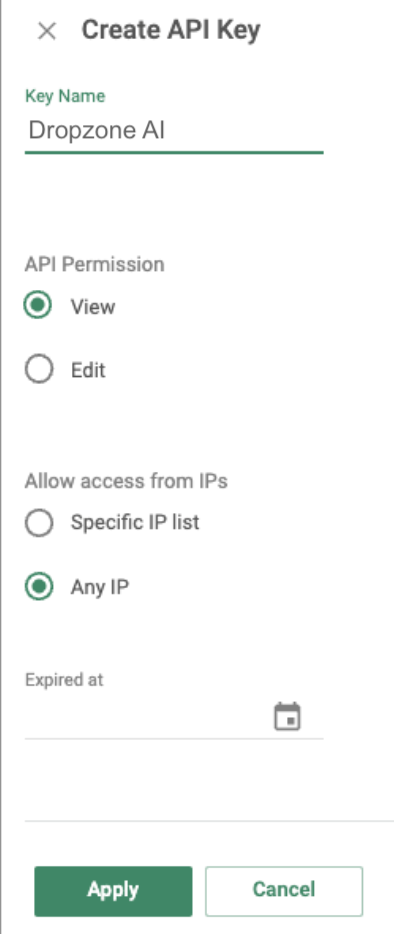
  • Name the API key something memorable, such as Dropzone AI

  • Under "API Permission," click "View"

  • Under "Allow access from IPs," click "Any IP"

  • If you wish, assign the API key an expiration date

  • Click "Apply"

Create New API Key
  • Copy the API key shown for use later in the Dropzone UI where it is called "API Key"

Enable Cato Networks

To enable the Dara Source integration, you will need the following information:

Dropzone Field
Source

Cato Networks API FQDN

The FQDN of your Cato Networks API instance, e.g. api.catonetworks.com

Account ID

The Account ID value you copied earlier

API Key

The API key value you copied earlier

  • Navigate to your Dropzone AI tenant home page e.g. https://mycompany.dropzone.app

  • In the bottom left hand corner, navigate to Settings > Integrations

Integrations Dropdown
  • Click "Available"

Click Available
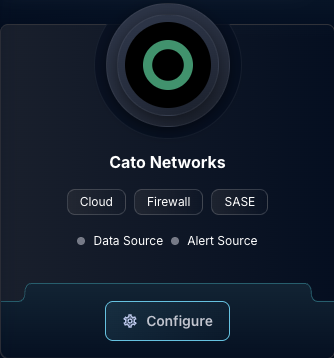
  • In the Search bar, search Cato Networks, then click "Configure"

The Cato Networks tile
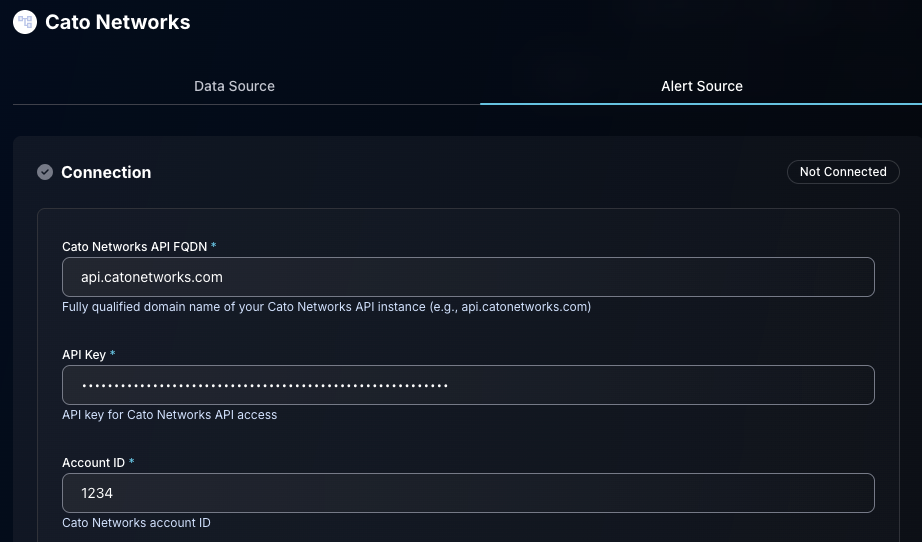
  • Under the Alert Source heading, input the Cato Networks API FQDN, Account ID and API Key

The Cato Networks Data Configuration (pt 1)
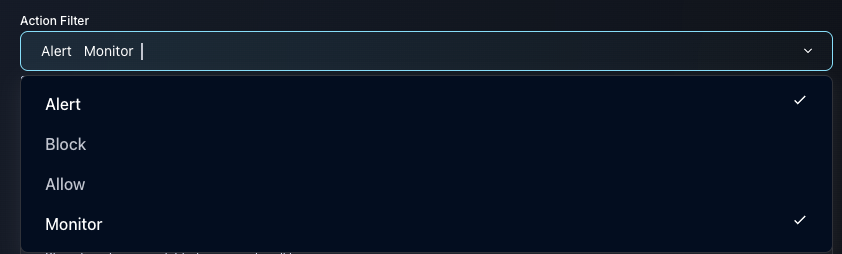
  • In the Action Filter section, select the events you want Dropzone to ingest

circle-info

Cato Networks assigns actions to each event that occurs in your account, which Dropzone then uses to filter. For more information, click herearrow-up-right

The Cato Networks Data Configuration (pt 2)
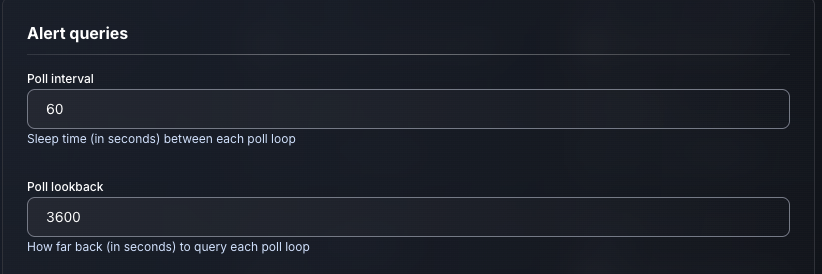
  • Input your desired poll interval and lookback

  • Click "Test & Save" to finish

The Cato Networks Data Configuration (pt 3)

If you have any errors engage your Dropzone AI support representative.

Last updated

Was this helpful?