Stellar Cyber

The Dropzone AI Platform integrates with Stellar Cyberarrow-up-right, an AI powered SecOps platform offering security solutions such as SIEM, Network Detection & Response (NDR), Identity Threat Detection & Response (ITDR), and User Behavior Entity Analytics (UEBA). Dropzone can perform analysis cases and alerts from the Stellar Cyber Connect API, and/or use Stellar Cyber data as part of investigation analysis.

Integration Overview

To enable these integrations you will perform the following actions:

  • Create an API token

  • Install the credentials into your Dropzone tenant

  • Select integration parameters, such as which alert types to sync

Create an API key

Stellar Cyber requires an API key to enable. To create an API key with the necessary permissions, the user must have Root scope and Super Admin privileges.

If you have access to a user with Root scope and Super Admin privileges, do the following:

  • As a user with the Edit User privilege, log into your Stellar Cyber instance

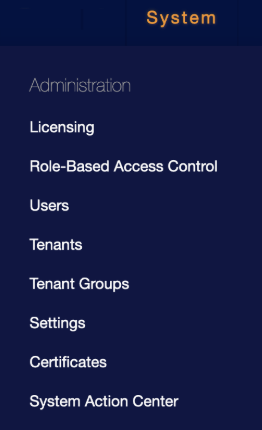
  • In the menu bar, click "System"

Click "System"
  • Navigate to Administration > Users

Click "Users"
  • Under the Users tab, locate a user with Root scope and Super Admin privileges

  • Copy the email address for use later in the Dropzone UI where it is called "User Email Address"

The User List
  • Under "Actions," click the Edit button

  • In the API Access section, click "Generate New Token"

  • Copy the token shown for use later in the Dropzone UI where it is called "Access Token"

Generate the Access Token

If you do not already have a user with those privileges, do the following:

  • As a user with the Add User privilege, log into your Stellar Cyber instance

  • Navigate to System > Administration > Users

  • Under the Users tab, click "+ Create"

Create User
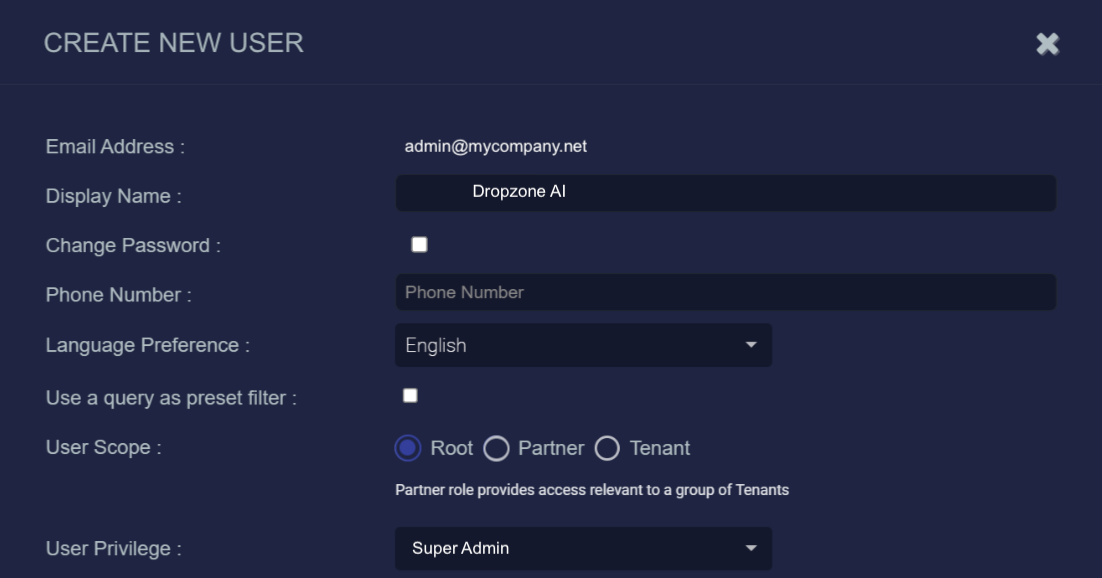
  • Input an email address for the User. Copy the value for use later in the Dropzone UI where it is called "User Email Address"

circle-info

Stellar Cyber requires a unique email address for all its users. We recommend creating a dedicated email address for this user, rather than using an existing company email.

  • Name the user something memorable, such as Dropzone AI

  • Create a password for the user

  • Next to "User Scope," click "Root"

  • Next to "User Privilege," select "Super Admin"

Fill out the User Details
  • In the API Access section, click "Generate New Token"

  • Copy the token shown for use later in the Dropzone UI where it is called "API Key"

circle-info

If you do not copy the token when the user is created, you will need to generate a new token.

Generate the Access Token

Enable Stellar Cyber

To enable the Alert Source integration, you'll need the following information:

Dropzone Field
Source

Instance Domain

Your Stellar Cyber server hostname (e.g. https://myserver.stellarcyber.cloud)

User Email Address

The email address of the Stellar Cyber user you created/used earlier

Access Token

The "Access Token" value you generated earlier

To enable the Alert Source integration, do the following:

  • Navigate to your Dropzone AI tenant home page e.g. https://mycompany.dropzone.app

  • In the bottom left hand corner, navigate to Settings > Integrations

Integrations Dropdown
  • Click "Available"

Click Available
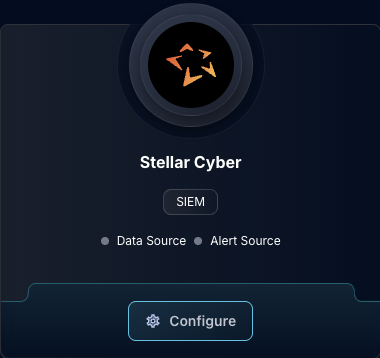
  • In the Search bar, search Stellar Cyber, then click "Configure"

The Stellar Cyber Tile
  • Under the Alert Source heading, input the instance domain, user email address, and access token

The Stellar Cyber Alert Source Configuration (pt 1)
  • In the StellarCyber Alerts section, you may input an array of Python regex patterns to include or exclude specific alertsarrow-up-right by name. To do so, select whether to exlude or include the listed threat names, then click "Add Item" and input the array. Continue adding arrays until done.

The Stellar Cyber Alert Source Configuration (pt 2)
The Stellar Cyber Alert Source Configuration (pt 3)
The Stellar Cyber Alert Source Configuration (pt 4)
  • In the "Custom Filtering" section, you may input an array of Python regex patterns to include or exclude specific cases by name. To do so, check the box labeled "Enable Custom Filtering," select whether to exlude or include the listed threat names, then click "Add Item" and input the array. Continue adding arrays until done.

The Stellar Cyber Alert Source Configuration (pt 5)
  • To limit Dropzone's access to specific tenantsarrow-up-right within Stellar Cyber, check the box labeled "Manually Specify Tenant IDs," then click "Add Item." Input the Tenant IDarrow-up-right you want Dropzone to investigate alerts for. Continue adding Tenant IDs until done.

The Stellar Cyber Alert Source Configuration (pt 6)
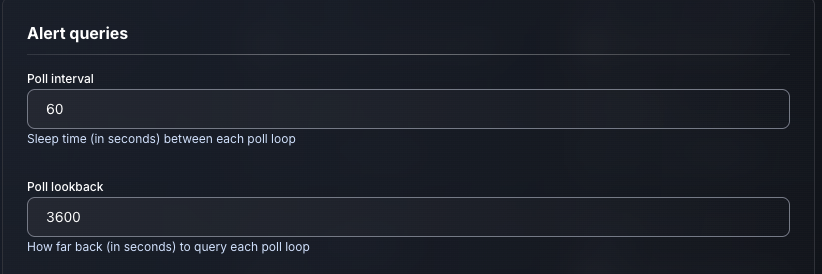
  • Input your desired poll interval and lookback

The Stellar Cyber Alert Source Configuration (pt 7)
  • Click "Test & Save" to finish

If you have any errors or questions, engage your Dropzone AI support representative.

Last updated

Was this helpful?