# Microsoft 365 Exchange Online Management

{% hint style="info" %}
This configuration is only required if you are using Dropzone AI to analyze Quarantined Emails in Microsoft Defender for Office 365.
{% endhint %}

To enable Office 365 Exchange Online Management, you must first install Dropzone Certificate Credentials.

Some Dropzone actions use x509 certificate based authentication, for example retrieving quarantined emails during phishing analysis. In this section we will set up the Dropzone certificate as trusted by Microsoft.

{% hint style="info" %}
Each Dropzone tenant uses a unique Dropzone certificate for maximum security.
{% endhint %}

* Navigate to your Dropzone AI tenant home page e.g. https\://*mycompany*.dropzone.app
* In the bottom left hand corner, click Settings > Integrations

<figure><img src="https://435022081-files.gitbook.io/~/files/v0/b/gitbook-x-prod.appspot.com/o/spaces%2FmBVcKuiytGCsIDpL70BC%2Fuploads%2Fgit-blob-b3f07f902b1402dadc7abbd8bb62f9c204547390%2Fui-integrations-dropdown.png?alt=media" alt=""><figcaption><p>Integrations Dropdown</p></figcaption></figure>

* Click "Available"

<figure><img src="https://435022081-files.gitbook.io/~/files/v0/b/gitbook-x-prod.appspot.com/o/spaces%2FmBVcKuiytGCsIDpL70BC%2Fuploads%2Fgit-blob-434641ec6d4e45051842f86164f485d6bd289424%2Fapp_system_integrations_available.png?alt=media" alt=""><figcaption><p>Click Available</p></figcaption></figure>

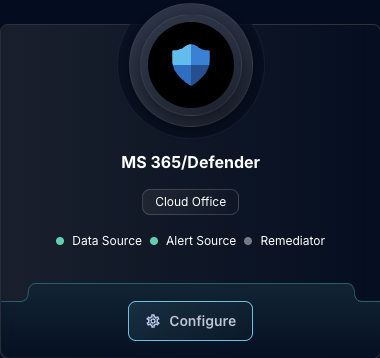
* In the Search bar, search MS 365/Defender, then click "Configure"
* Under "Connection", click "*mycompany*.dropzone.app.crt" and download the file

<figure><img src="https://435022081-files.gitbook.io/~/files/v0/b/gitbook-x-prod.appspot.com/o/spaces%2FmBVcKuiytGCsIDpL70BC%2Fuploads%2Fgit-blob-c66cbd0e66f3b724169eb5db8a5029d64fd7da9d%2Fms365_dropzone_certificate.png?alt=media" alt=""><figcaption><p>Download your Dropzone certificate</p></figcaption></figure>

* Return to the Application Overview for your new application
  * <https://entra.microsoft.com>
  * Applications > App Registration > All Applications > Dropzone AI
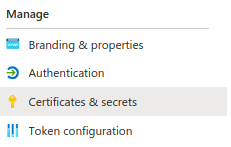
* In the left side bar, click "Certificates & Secrets"

<figure><img src="https://435022081-files.gitbook.io/~/files/v0/b/gitbook-x-prod.appspot.com/o/spaces%2FmBVcKuiytGCsIDpL70BC%2Fuploads%2Fgit-blob-8b29cca22965578a2391a0f4fb7de56674a7b584%2Foffice-365-exchange-online-05.png?alt=media" alt=""><figcaption><p>Certificates &#x26; Secrets</p></figcaption></figure>

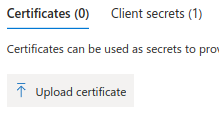
* Navigate to Certificates, then click "Upload Certificate"

<figure><img src="https://435022081-files.gitbook.io/~/files/v0/b/gitbook-x-prod.appspot.com/o/spaces%2FmBVcKuiytGCsIDpL70BC%2Fuploads%2Fgit-blob-f29694458d3505d93ecec0db6a32e74692f43385%2Foffice-365-exchange-online-02.png?alt=media" alt=""><figcaption><p>Upload Certificate</p></figcaption></figure>

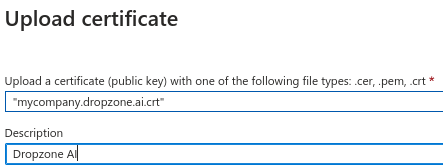
* Select the certificate file you downloaded from the Dropzone UI earlier
* For description, use "Dropzone AI"

<figure><img src="https://435022081-files.gitbook.io/~/files/v0/b/gitbook-x-prod.appspot.com/o/spaces%2FmBVcKuiytGCsIDpL70BC%2Fuploads%2Fgit-blob-d001cff9df44d12af804055b8018a2b2754fd786%2Foffice-365-exchange-online-03.png?alt=media" alt=""><figcaption><p>Upload Certificate File</p></figcaption></figure>

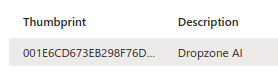
You should now see the certificate in the UI, including a 'thumbprint' (a cryptographic hash of the certificate.)

<figure><img src="https://435022081-files.gitbook.io/~/files/v0/b/gitbook-x-prod.appspot.com/o/spaces%2FmBVcKuiytGCsIDpL70BC%2Fuploads%2Fgit-blob-6da497f7479da2d388ae3859348fa2f3fbabe684%2Foffice-365-exchange-online-04.png?alt=media" alt=""><figcaption><p>Certificate installed</p></figcaption></figure>

Once you have installed your Dropzone credentials, you may assign the Office 365 Exchange Online Management permissions. To do so, do the following:

* In the left sidebar, return the API permissions page
* Click "Add a permission"
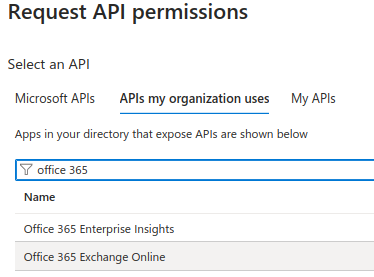
* Select "APIs my organization uses"
* Type "Office 365 Exchange Online" in the search bar

<figure><img src="https://435022081-files.gitbook.io/~/files/v0/b/gitbook-x-prod.appspot.com/o/spaces%2FmBVcKuiytGCsIDpL70BC%2Fuploads%2Fgit-blob-cbc0b68c4c2c394bce234d8f7a03be9eb9d8e3f0%2Foffice-365-exchange-online-00.png?alt=media" alt=""><figcaption><p>Office 365 Exchange Online</p></figcaption></figure>

* Click "Application permissions"

Add the following permissions:

| Permission             | Purpose           |
| ---------------------- | ----------------- |
| `Exchange.ManageAsApp` | Read file details |

* Once done selecting all the permissions, click "Add permissions"
* Click "Grant admin consent for \[mycompany.net]"
* Click "Yes"

### Create and Authorize Service Account

Next we need to run PowerShell commands to grant permissions. You may use whatever PowerShell environment you prefer. The examples below were performed using Azure's interactive Cloud Shell. You may find some of the [Microsoft Azure Documentation](https://learn.microsoft.com/en-us/powershell/azure/authenticate-interactive?view=azps-13.0.0) useful.

* Open your powershell environment
  * For example go to <https://portal.azure.com> and click on the Cloud Shell icon

<figure><img src="https://435022081-files.gitbook.io/~/files/v0/b/gitbook-x-prod.appspot.com/o/spaces%2FmBVcKuiytGCsIDpL70BC%2Fuploads%2Fgit-blob-1f5fab3e47b0757486fa17ffadca3db6786b3cac%2Fazure-cloud-shell.png?alt=media" alt=""><figcaption><p>Azure Cloud Shell Icon</p></figcaption></figure>

* Connect to Entra ID and get information about the application we configured. The value for the `-AppID` parameter is the "Application (Client) ID" you recorded earlier

  ```
  PowerShell 7.4.5

  # Connect to "AzureAD"
  PS /home/wbagg> <b>Connect-AzureAD</b>
  VERBOSE: Authenticating to Azure ...
  VERBOSE: Building your Azure drive ...
  Loading personal and system profiles took 8788ms.

  # Run the following to get the object-id of our application, replacing
  # application-id with the actual Application (Client) ID of our new app
  #
  #    PS /home/wbagg> <b>Get-AzADServicePrincipal -AppID "<application-id>" | Select-Object DisplayName, AppId, Id | Format-List
  # 
  # For example:
  PS /home/wbagg> <b>Get-AzADServicePrincipal -AppID aaaaaaaa-1111-2222-3333-444444444444 | Select-Object DisplayName, AppId, Id | Format-List

  DisplayName : Dropzone AI
  AppId       : aaaaaaaa-1111-2222-3333-444444444444
  Id          : 44726f70-7a6f-6e65-5761-734865726521

  ```
* Note this `Id` field which we'll use in the next command, which we refer to as the `object-spid` (Service Principal ID)
* Connect to Exchange Online and Create an Exchange Online Service Principal for our Application

```
# Connect to ExchangeOnline
PS /home/wbagg> Connect-ExchangeOnline

# Run the following to create the service principal, replacing
# application-id and object-spid from the earlier values
#
#    PS /home/wbagg> New-ServicePrincipal -AppId "<application-id>" -ObjectId "<object-spid>" -DisplayName "Dropzone AI"
#
# for example
PS /home/wbagg> New-ServicePrincipal -AppId "aaaaaaaa-1111-2222-3333-444444444444" -ObjectId "44726f70-7a6f-6e65-5761-734865726521" -DisplayName "Dropzone AI"

DisplayName    ObjectId                               AppId
-----------    --------                               -----
Dropzone AI    44726f70-7a6f-6e65-5761-734865726521   aaaaaaaa-1111-2222-3333-444444444444
```

* Lastly, we assign Transport Hygiene Exchange Role to our Application

```
# Run the following to enable the Transport Hygiene role, replacing the
# application-id with the actual Application (Client) ID of our new app
#
#    PS /> New-ManagementRoleAssignment -App "application-id" -Role "Transport Hygiene"
#
PS /> New-ManagementRoleAssignment -App "aaaaaaaa-1111-2222-3333-444444444444" -Role "Transport Hygiene"

Name                           Role                RoleAssigneeName       RoleAssigneeType   AssignmentMethod   EffectiveUserName
----                           ----                ----------------       ----------------   ----------------   -----------------
Transport Hygiene-44726f70...  Transport Hygiene   ba0efd83-6465-48a...   ServicePrincipal   Direct

```

### Locate Organization ID

* Sign into [Entra home](https://entra.microsoft.com/#home) as an administrator
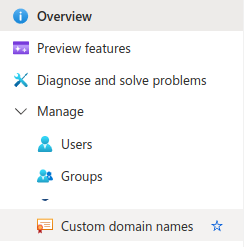
* In the left navigation, select Manage > Custom domain names

<figure><img src="https://435022081-files.gitbook.io/~/files/v0/b/gitbook-x-prod.appspot.com/o/spaces%2FmBVcKuiytGCsIDpL70BC%2Fuploads%2Fgit-blob-66212e91304bafb2f93c3b6382fd382d8b5e1893%2Fentra-custom-domain-names-menu.png?alt=media" alt=""><figcaption><p>Azure Custom Domain Names</p></figcaption></figure>

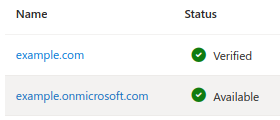
* In the domain list you'll find one that ends in `.onmicrosoft.com`. Record this domain for use later in the Dropzone UI where it is called "Organization ID"

<figure><img src="https://435022081-files.gitbook.io/~/files/v0/b/gitbook-x-prod.appspot.com/o/spaces%2FmBVcKuiytGCsIDpL70BC%2Fuploads%2Fgit-blob-2bfb7ef162bee1af5017f1c5939dd0a824a7b7a2%2Fentra-custom-domain-names-list.png?alt=media" alt=""><figcaption><p>Azure Custom Domain Names List</p></figcaption></figure>