Microsoft 365 / Microsoft Defender

Microsoft 365 / Microsoft Defender

The Dropzone AI platform integrates with Entra ID, Exchange Online, and Microsoft Defender via the Microsoft Graph API. This document describes how to set up API credentials and install them into the Dropzone platform.

Integration Overview

To enable these integrations you will perform the following actions:

  • Register a new application in Microsoft Entra Admin Center

  • Locate your Client ID, Tenant ID, and create a Client Secret

  • Enable Dropzone Certificate Credentials

  • Assign necessary API permissions to the application

  • Install the credentials into your Dropzone tenant (Data Source and Alert Source)

  • Select integration parameters, such as which alert types to sync

See the Microsoft Integrations page for instructions on how to register a new application, locate your Client ID and Tenant ID, and create a Client Secret.

Set Application Permissions

General instructions on how to assign API permissions to the application can be found in the Microsoft Integrations page.

MS 365/MS Defender can utilize the following APIs:

API
Purpose

Microsoft Graph

Required for the integration to function

Microsoft Cloud Apps Security.

Required to query investigations from Microsoft Cloud Apps. When enabled, Dropzone is able to analyze cloud apps events

Windows Defender ATP - Live Response.

Required to extract quarantined files from Defender alerts. When enabled, Dropzone is able to independently analyze the files which will improve conclusion accuracy

Office 365 Exchange Online Management

Required to enable Office 365 Exchange Online Management, specifically to support retrieving quarantined emails during phishing analysis

Microsoft Graph Permissions

  • In the API permissions page, click "Add a permission"

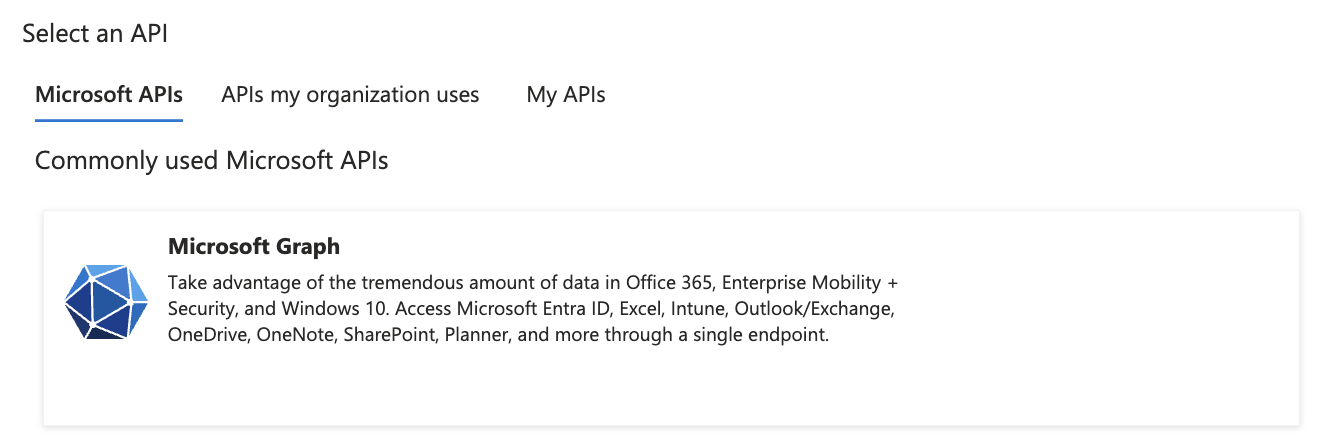
  • Under the Microsoft API header, select "Microsoft Graph"

Select Microsoft Graph
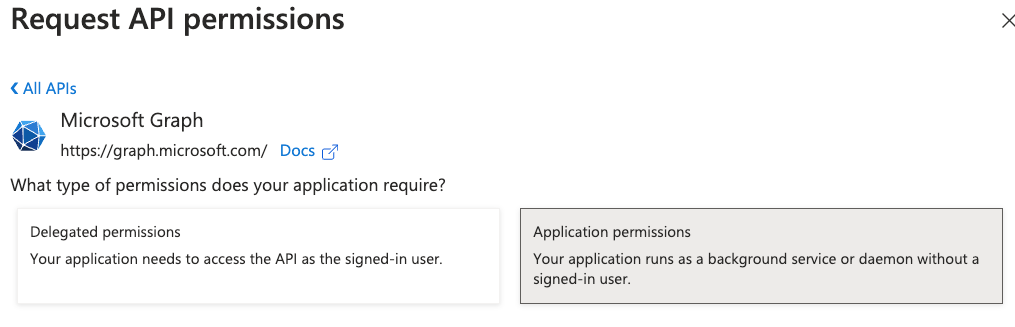
  • Click "Application Permissions"

Select Application Permissions

Add the following permissions:

Permission
Purpose
Used By

AuditLog.Read.All

Retrieve audit information such as user MFA and administrator access status, for alert investigation and chat

Data Source Integration, Alert Source Integration - Microsoft Entra ID Protection

Calendars.Read

Allow access to Microsoft Calendar, for use in investigations to determine user OOO / travel status

Data Source Integration - Calendar Features

Calendars.ReadBasic.All

Retrieve basic calendar information for use in investigations to determine user OOO / travel status

Data Source Integration - Calendar Features

MailboxSettings.Read

Retrieve mailbox settings, such as OOO or vacation status

Data Source Integration - Calendar Features

Presence.Read.All

Retrieves presence information, such as availability status, location, etc

Data Source Integration - Calendar Features

Directory.Read.All

Retrieve directory information such as users, group membership, directory roles, etc, for alert investigation and chat

Data Source Integration

Mail.Read

Retrieve phishing emails for analysis; retrieve phishing alerts in some configurations

Alert Source and Data Source Integrations

ThreatHunting.Read.All

Investigating Microsoft Defender alerts

Alert Source Integration

SecurityAlert.Read.All

Pulling Microsoft Defender alerts

Alert Source Integration

SecurityIncident.Read.All

Pulling Microsoft Defender alerts

Alert Source Integration

ThreatSubmission.Read.All

Pulling Phishing Alerts

Alert Source Integration

IdentityRiskEvent.Read.All

Pulling Microsoft Entra ID Risk information

Alert Source Integration - Microsoft Entra ID Protection

IdentityRiskyUser.Read.All

Pulling Microsoft Entra ID Risk information

Alert Source Integration - Microsoft Entra ID Protection

IdentityRiskyServicePrincipal.Read.All

Pulling Microsoft Entra ID Risk information

Alert Source Integration - Microsoft Entra ID Protection

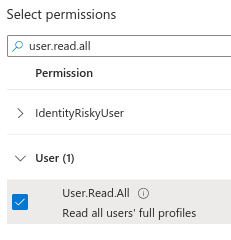
User.Read.All

Allow Dropzone to read all user profile properties when investigating suspicious alerts

Remediator Integration

User.RevokeSessions.All

Allow Dropzone to revoke user sessions of users indicated in suspicious alerts

Remediator Integration

User.EnableDisableAccount.All

Allow Dropzone to suspend accounts indicated in suspicious alerts

Remediator Integration

Example - adding the "User.Read.All" permission

  • Once done selecting all the permissions, click "Add permissions"

Some of these permissions are only necessary for the Data Source and Remediator integrations. If you don't intend to perform those integrations, you may ignore them.

Enabling Dropzone's Data Source Calendar Features is optional. Enabling Dropzone's Alert Source Microsoft Entra ID Protection feature is optional.

  • Click "Grant admin consent for [mycompany.net]"

Grant admin consent
  • Click "Yes"

Grant admin consent

Microsoft Cloud Apps Security Permissions

  • In the API permissions page, click "Add a permission"

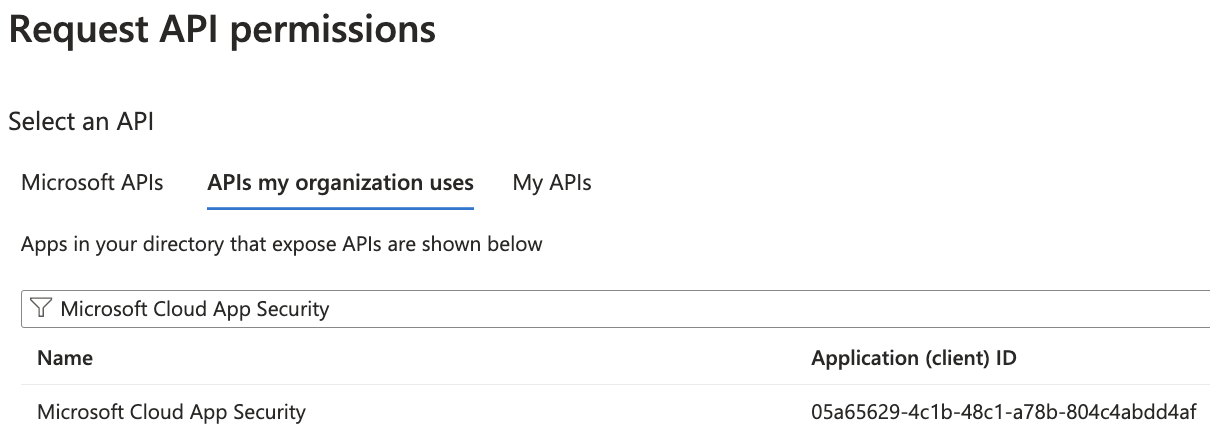
  • Navigate to "APIs my organization uses"

  • Type "Microsoft Cloud App Security" in the search bar

Microsoft Cloud App Security
  • Click "Microsoft Cloud App Security"

  • Click "Application permissions"

Add the following permissions:

Permission
Purpose

investigation.read

Read Cloud App investigations

  • Once done selecting all the permissions, click "Add permissions"

  • Click "Grant admin consent for [mycompany.net]"

  • Click "Yes"

Windows Defender ATP - Live Response

  • In the API permissions page, click "Add a permission"

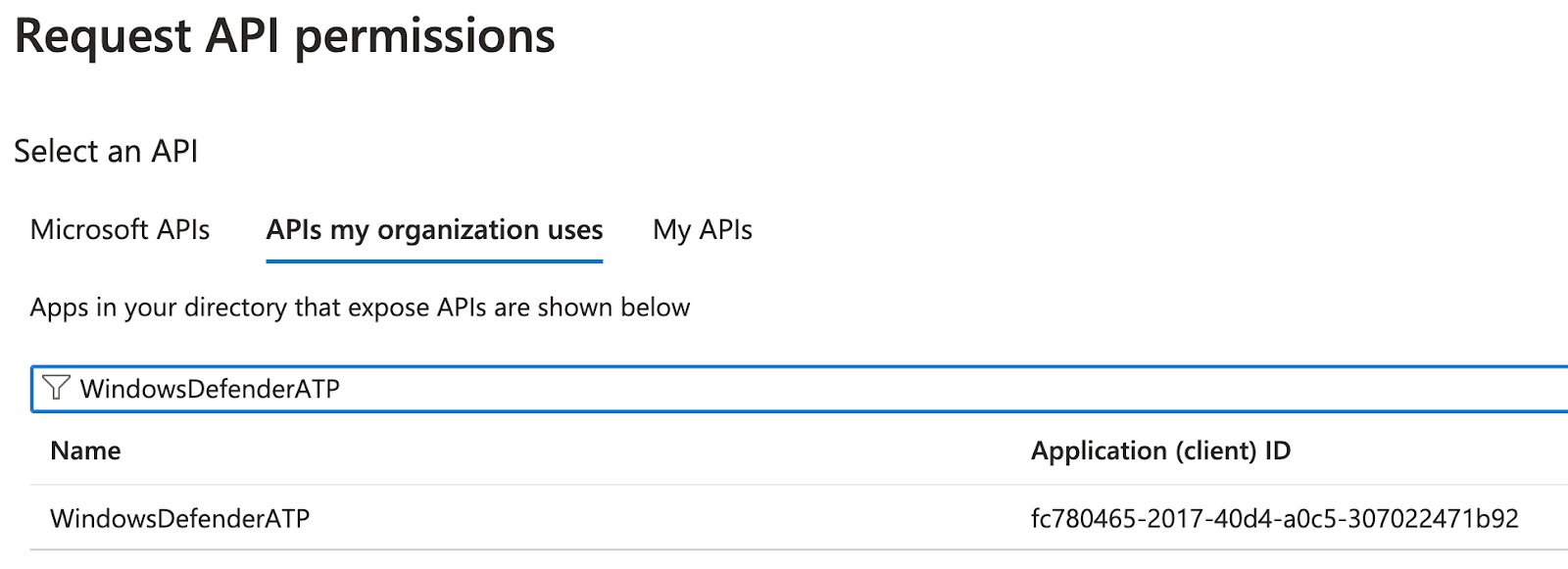
  • Navigate to "APIs my organization uses"

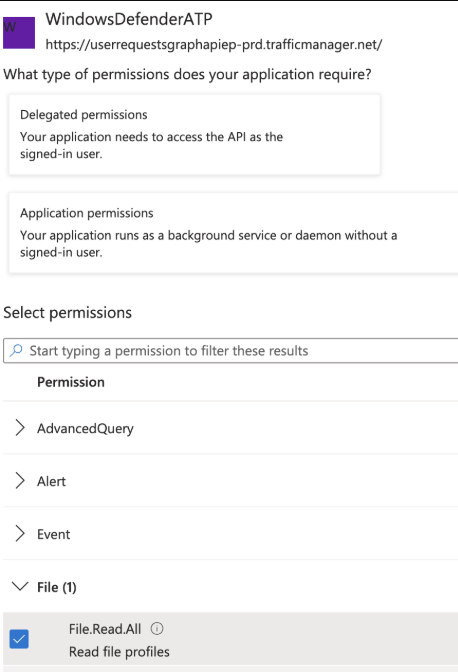
  • Type "WindowsDefenderATP" in the search bar

WindowsDefenderATP
  • Click "WindowsDefenderATP"

  • Click "Application permissions"

Add the following permissions:

Permission
Purpose

File.Read.All

Read file profiles. Note that this is different from the "Files.Read.All" permission

Library.Manage

Extract quarantined files for analysis

Machine.LiveResponse

Extract quarantined files for analysis

Machine.Read.All

Read machine details

Example - adding the "File.Read.All" permission
  • Once done selecting all the permissions, click "Add permissions"

  • Click "Grant admin consent for [mycompany.net]"

  • Click "Yes"

Locate Organization ID

  • Sign into Entra home as an administrator

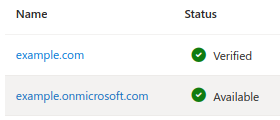
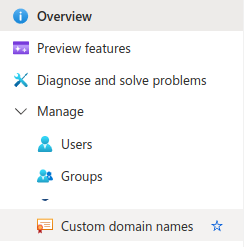
  • In the left navigation, select Manage > Custom domain names

Azure Custom Domain Names
  • In the domain list you'll find one that ends in .onmicrosoft.com. Record this domain for use later in the Dropzone UI where it is called "Organization ID"

Azure Custom Domain Names List

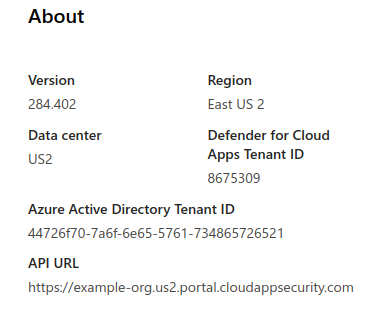
Locate Cloud Apps Information

Defender Cloud Apps API URL

Record the "API URL" for use later in the Dropzone UI where it is called "Portal URL".

Enable Microsoft 365/Microsoft Defender

The Alert Source integration allows Dropzone AI to pull alerts from Exchange Online and Microsoft Defender for investigation.

You'll need the following information:

Dropzone Field
Source

Client ID

The "Application (client) ID" you copied earlier

Tenant ID

The "Directory (tenant) ID" you copied earlier

Client Secret

The client secret "value" you copied earlier

Organization ID

The "Organization ID" you copied earlier

To enable the Alert Source integration, do the following:

  • Navigate to your Dropzone AI tenant home page e.g. https://mycompany.dropzone.app

  • In the bottom left hand corner, click Settings > Integrations

Integrations Dropdown
  • Click "Available"

Click Available
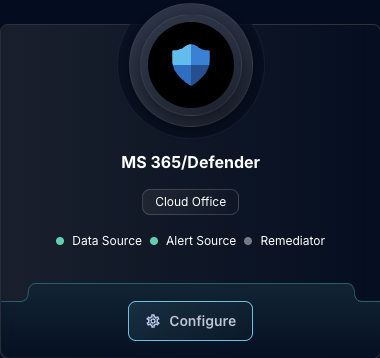
  • In the Search bar, search MS 365/Defender, then click "Configure"

The Microsoft 365/Defender Source Tile
  • Under the Alert Source heading, input the Client ID, Tenant ID, and Client Secret

  • Select your Microsoft cloud environment from the dropdown

  • Input your chosen log-ingestion delay

The Microsoft 365/Defender Alert Configuration (pt 1)
  • Select whether you want to ingest alerts or incidents from Microsoft Defender

  • Select which Microsoft Defender Detection Sources you wish to allow Dropzone to investigate alerts/incidents from

The Microsoft 365/Defender Alert Configuration (pt 2)
  • In the "Enabled Alert Severity Levels" section, select the severity levels of alerts you want Dropzone to investigate

  • In the "Enabled Status Filters" section, select the incident statuses you want Dropzone to investigate

The Microsoft 365/Defender Alert Configuration (pt 3)
  • To enable Dropzone to ingest Microsoft Email Alerts, check the box labeled "Email Threat Submissions"

  • If you wish to exclude emails from analysis, select the categories of emails you want Dropzone to ignore (e.g. Allowed by Policy, Allowed Due To User Override, etc)

The Microsoft 365/Defender Alert Configuration (pt 4)
The Microsoft 365/Defender Alert Configuration - Entra ID (pt 1)
  • Under "Risk levels," you may select the levels of risk you want Dropzone to investigate from the dropdown

The Microsoft 365/Defender Alert Configuration - Entra ID (pt 2)
  • Under "Risk states," you may select the states of risk you want Dropzone to investigate from the dropdown

The Microsoft 365/Defender Alert Configuration - Entra ID (pt 3)
  • If you wish for Dropzone to use a specified mailbox for Phishing Analysis, check the box labeled "Enable Mailbox-based Phishing Analysis"

  • Input the email address for your phishing account

  • Input any desired filters

The Microsoft 365/Defender Alert Configuration (pt 5)
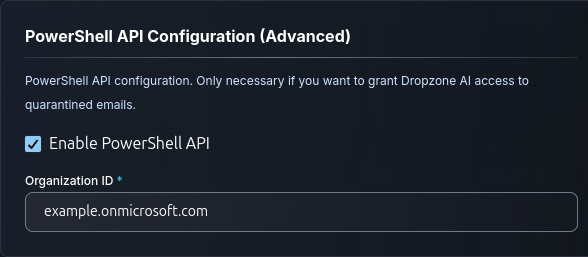
  • If you wish to enable Dropzone to retrieve quarantined emails for phishing analysis, check the box labeled "Enable PowerShell API" in the PowerShell API Configuration section. Enter the Organization ID you saved earlier (which should end in .onmicrosoft.com)

The Microsoft 365/Defender Alert Configuration (pt 6)
  • In the Defender Alert and Incident Exclusions, you may further customize your MS Defender alerts by checking the boxes labeled "Prelude Security," "Custom File Exclusion," and "Title Exclusion"

The Microsoft 365/Defender Alert Configuration (pt 7)
  • If you wish to customize your ingestion of Data Loss Prevention alerts, in the DLP Enforcement Mode section, select a DLP enforcement mode to filter the layers by. If you do not select an enforcement mode, all DLP alerts will be ingested

The Microsoft 365/Defender Alert Configuration (pt 7)
  • If you wish to enable Dropzone to ingest MS Defender incidents in stages to reduce data volume, check the box labeled "Enable Paginated Queries," then input your desired paginated query page size

  • Input your desired poll interval and lookback

The Microsoft 365/Defender Alert Configuration (pt 8)
  • If you wish to further filter alerts using the Python CEL package, check the box labeled "Use advanced filtering"

  • Input your CEL expression, then select whether to include or exclude alerts matching that filter. Add each filter individually using the "Add Item" button

The Microsoft 365/Defender Alert Configuration (pt 9)
  • Click "Test & Save" to finish

Click Test & Save

You should begin ingesting alerts immediately.

If you have any errors engage your Dropzone AI support representative.

Last updated

Was this helpful?