> For the complete documentation index, see [llms.txt](https://docs.dropzone.ai/llms.txt). Markdown versions of documentation pages are available by appending `.md` to page URLs; this page is available as [Markdown](https://docs.dropzone.ai/integrations/alert/ms_alert/ms365_email_group.md).
# Microsoft Security Group
The Dropzone platform can ingest email and phishing alerts from cross-organizational email accounts. If you wish to restrict the access of Dropzone's analysis, you can create a dedicated mail-enabled security group and create an Application Access Policy which restricts access to a finite and enumerated list of mailboxes
## Create a Mail-Enabled Security Group
* Navigate to your [Microsoft Exchange Admin Center](https://admin.exchange.microsoft.com/#/)
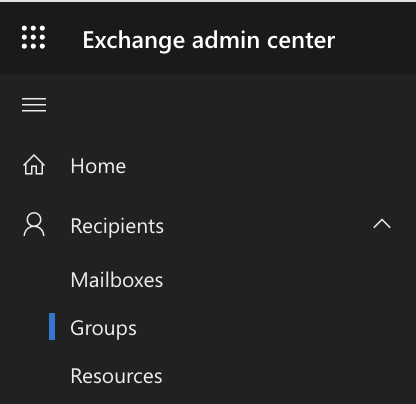
* In the left sidebar, navigate to Recipients > Groups
Click "Groups"
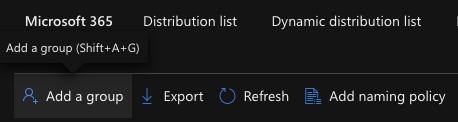
* Click "Add a group"
Add a Group
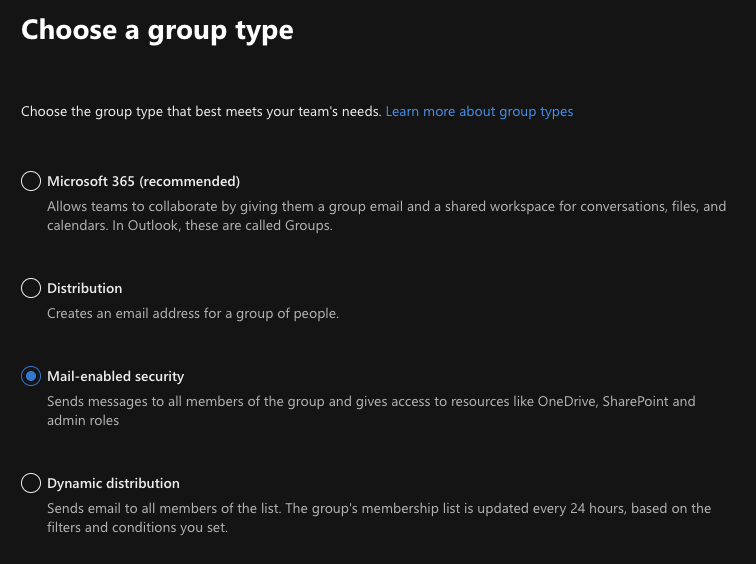
* Select "Mail-enabled security," then click "Next"
Click "Mail-enabled Security"
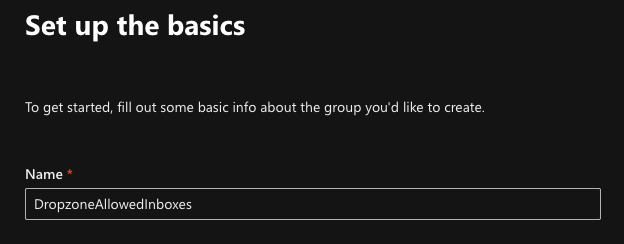
* Name the group something memorable, such as "DropzoneAllowedInboxes," then click "Next"
Assign a group name
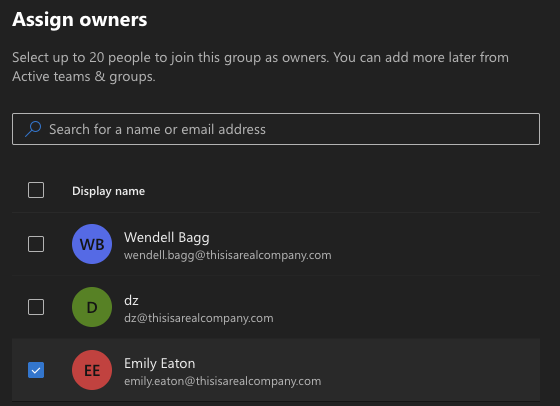
* Click "+ Assign Owners" and assign your desired owner from the list, then click "Add"
Assign an owner
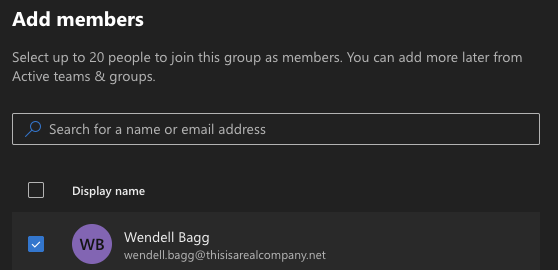
* Click "+ Add Members" and add your desired members. Members will receive all emails sent to this email address, and will be able to send emails to it for Dropzone to analyze
Add group members
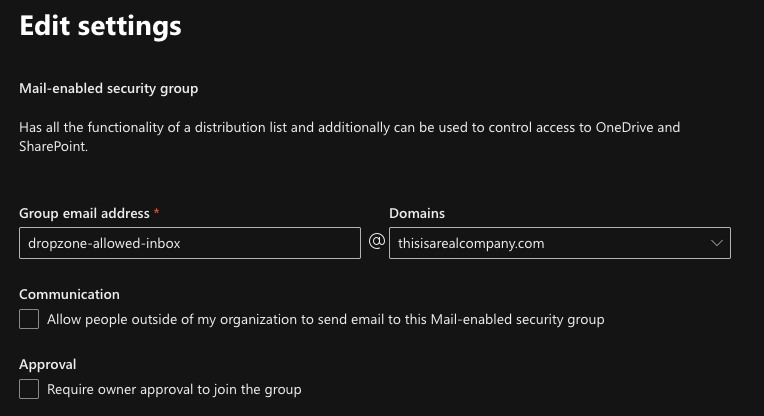
* In the "Edit Settings" section, create a memorable group email address, such as ""
* If you want people outside of your organization to be able to send emails to the group, check the box under "Communication"
* For added security, you may check the box under "Approval" to require owner permission to join the group
Configure the group email address
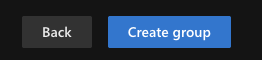
* Click "Next," then click "Create Group"
Create the group
See Microsoft's [documentation](https://learn.microsoft.com/en-us/exchange/recipients-in-exchange-online/manage-mail-enabled-security-groups) for more information
## Create an Application Access Restriction Policy
* Follow steps on the [Microsoft Integrations](https://gitlab.com/dropzone-ai/docs-gitbook/-/tree/main/docs.dropzone.ai/integrations/alert/ms_alert/readme.md) page to create a new application in Microsoft Entra Admin Center (or use an existing application)
* Record your Client ID
* Navigate to your [Exchange Admin Center](https://admin.cloud.microsoft/exchange#/)
* In the upper right, click the terminal icon
The terminal icon
* If you are not on Powershell, click "Switch to Powershell"
* Connect to Exchange Online by inputting the following code:
`Connect-ExchangeOnline`
* Input the following restriction policy
{% hint style="info" %}
Be sure to replace the AppID variable with the Client ID copied earlier and the GroupEmail variable with email address you just created
{% endhint %}
````$appid
$GroupEmail = "dropzone-allowed-inboxes@mycompany.net"
New-ApplicationAccessPolicy -AppId $AppId `
-PolicyScopeGroupId $GroupEmail `
-AccessRight RestrictAccess `
-Description "Restricts Dropzone to specific inboxes only"```
* To test that Dropzone can only access the desired mailboxes, input the following code:
```Test-ApplicationAccessPolicy -AppId $AppId -Identity "allowed-mailbox@example.com"```
```Test-ApplicationAccessPolicy -AppId $AppId -Identity "any-other-mailbox@example.com"```
Allowed mailboxes should result in Granted, while denied mailboxes should return Denied
If you have any errors, contact our Customer Success team.
````