> For the complete documentation index, see [llms.txt](https://docs.dropzone.ai/llms.txt). Markdown versions of documentation pages are available by appending `.md` to page URLs; this page is available as [Markdown](https://docs.dropzone.ai/integrations/communicator/msteams.md).

# Microsoft Teams

{% hint style="info" %}
Microsoft Teams is a Communicator Integration. Communicator Integrations allow Dropzone to ask questions of your employee base and use their responses to improve the quality of analysis.
{% endhint %}

Dropzone uses a Microsoft Teams Bot and an Azure AD Application to communicate directly with people in your organization.

Dropzone supports two configuration methods: automated and manual.

## Automated Setup (Recommended)

For the most reliable setup experience, contact your Dropzone support representative to request our automated deployment script. This script handles all Azure and Teams configuration automatically, including:

* Azure Bot creation and configuration
* Azure AD App Registration with required permissions
* Teams app creation and deployment
* Automatic app installation policies

The script will provide you with the exact credentials needed for Dropzone configuration.

### Automated Setup Results

When the automated script completes successfully, it will provide you with the following credentials:

* MS Teams Bot App ID: Application (client) ID for your bot
* MS Teams Bot App Secret: Client secret for your bot
* MS Graph Tenant ID: Azure AD tenant ID

The script also creates a Teams app package (`teams_app.zip`) for you to upload to your organization's app catalog. Proceed to the "Publish the application in Teams Admin Center" section for instructions on how to do so.

## Manual Setup

Manual setup is available if automated setup is not possible for your organization. This process involves several steps in Azure and Microsoft Teams. Follow the instructions below carefully.

## Manual Setup Instructions

To enable the Microsoft Teams Communicator manually, you will perform the following actions:

1. Create an Azure Bot and configure it for Microsoft Teams
2. Configure your Azure AD App Registration with the required API permissions
3. Create a Teams App in the Developer Portal
4. Publish the Teams App to your organization's app catalog
5. Collect the necessary credentials for Dropzone configuration

## Azure Portal & Azure AD Setup

### Create the Azure Bot

* Go to your Azure [Portal](https://portal.azure.com)
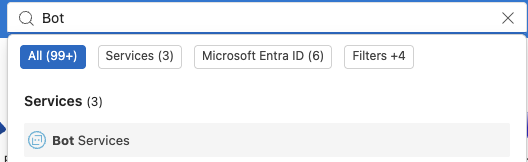
* In the search bar, search "Bot Services" and click it

<figure><img src="/files/8sNuyBt9XwQVaq9fAi39" alt=""><figcaption></figcaption></figure>

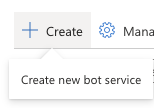
* Click "Create"

<figure><img src="/files/KaD4xbuBUZ4z4stLSCBQ" alt=""><figcaption></figcaption></figure>

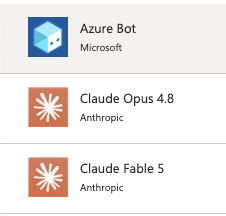
* Click "Azure Bot" or go directly to <https://portal.azure.com/#create/Microsoft.AzureBot>

<figure><img src="/files/tzt2aOKrtoQh4dEHb1B1" alt=""><figcaption></figcaption></figure>

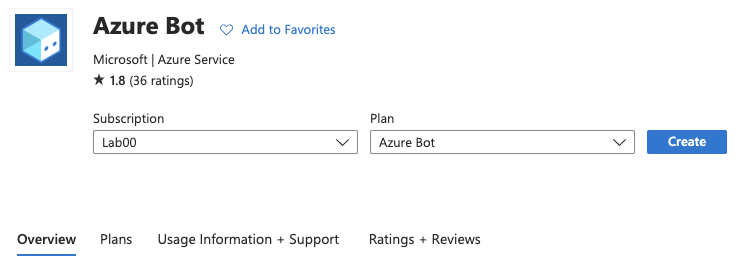
* Select your subscription
* Click "Create"

<figure><img src="/files/X0Fzk1ud9slwNz8F7Fnx" alt=""><figcaption></figcaption></figure>

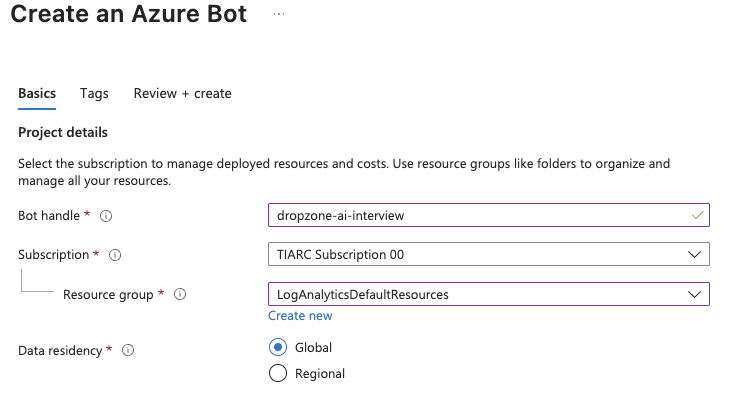
* Name the bot something memorable, such as "dropzone-ai-interviewer"
* Select your Azure subscription
* Add the bot to your desired resource group, or create a new one
* Select your data residency

<figure><img src="/files/JkEFvEqGkeco5qAbCTMa" alt=""><figcaption><p>Input the bot details (pt 1)</p></figcaption></figure>

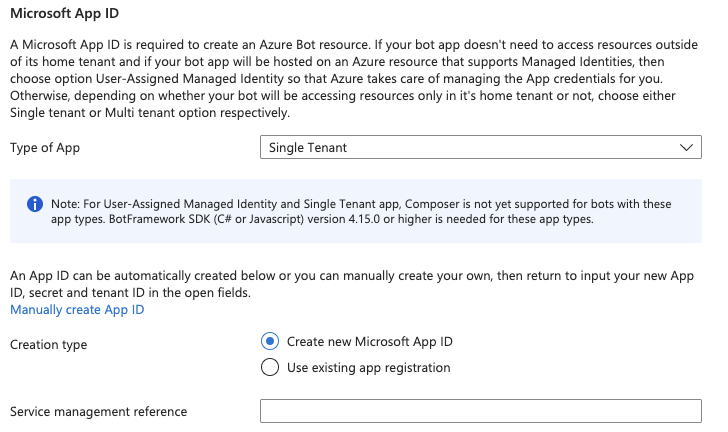
* In the "Microsoft App ID" section, select "Single Tenant"
* Click "Create new Microsoft App ID"

<figure><img src="/files/sE6EpUAtfuHcJbbffvUc" alt=""><figcaption><p>Input the bot details (pt 2)</p></figcaption></figure>

* In the bottom left corner, click "Review + create"
* Click "Create"

<figure><img src="/files/AP984ETWWQKz2jZ5F0AJ" alt=""><figcaption><p>Create the bot</p></figcaption></figure>

### Configure the Bot Channels

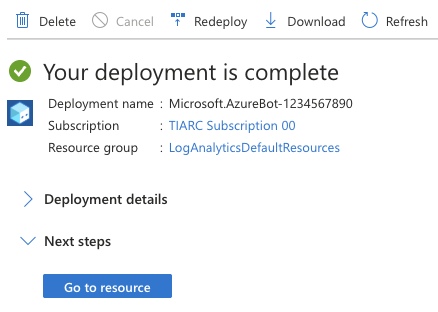
* Once the Azure Bot resource is deployed, navigate to it
* Under "Next steps," click "Go to resource"

<figure><img src="/files/68cpZqjWtVmIP7JnrM4R" alt=""><figcaption></figcaption></figure>

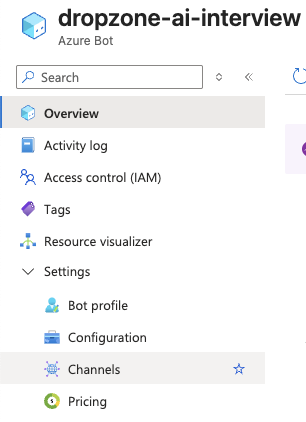
* In the left sidebar, navigate to Settings > Channels

<figure><img src="/files/ozDZEBofllq4IQtninIl" alt=""><figcaption><p>Click "Channels"</p></figcaption></figure>

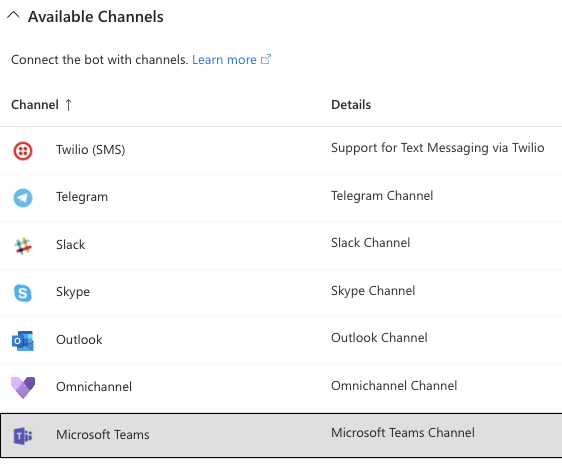
* Under "Available Channels," click "Microsoft Teams"

<figure><img src="/files/dxpWmjLvHwMvwKEBAH12" alt=""><figcaption><p>Microsoft Teams</p></figcaption></figure>

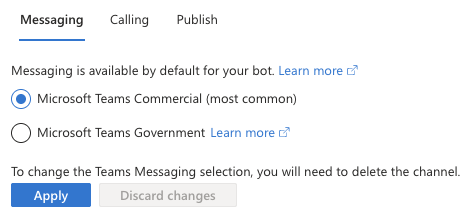
* Select your Microsoft Teams channel type
* Click "Apply"

<figure><img src="/files/hhY4BY8QBLWq2Vuwctqw" alt=""><figcaption></figcaption></figure>

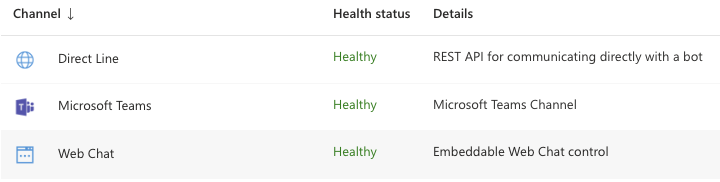
* In the Channel page, it should be shown as `Running` or `Healthy`

<figure><img src="/files/6MxDv2lhjoJ1l5AiHMvh" alt=""><figcaption><p>Example - successful channel configuration</p></figcaption></figure>

* In the left sidebar, navigate to Settings > Configuration
* Under "Messaging endpoint, input your Dropzone webhook endpoint, e.g. https\://*mycompany*.dropzone.app/interviewer/webhooks/ingest/msteams

<figure><img src="/files/UehHLgW0MTjnf6jBXQ67" alt=""><figcaption><p>Input your messaging endpoint</p></figcaption></figure>

* Copy the Microsoft APP ID and Tenant ID for use later in the Dropzone UI where they are called "Microsoft APP ID" and "MS Graph Tenant ID," respectively
* Next to Microsoft App ID, click "Manage Password"

<figure><img src="/files/IQA1Yq2vL8rYq4tEr2tF" alt=""><figcaption><p>Copy the integration details</p></figcaption></figure>

You should now be on the "Certificates & Secrets" page for your new Azure AD App Registration

* Click "+ New client secret"

<figure><img src="/files/d6ok0sbEAoBj8jL6SlaL" alt=""><figcaption></figcaption></figure>

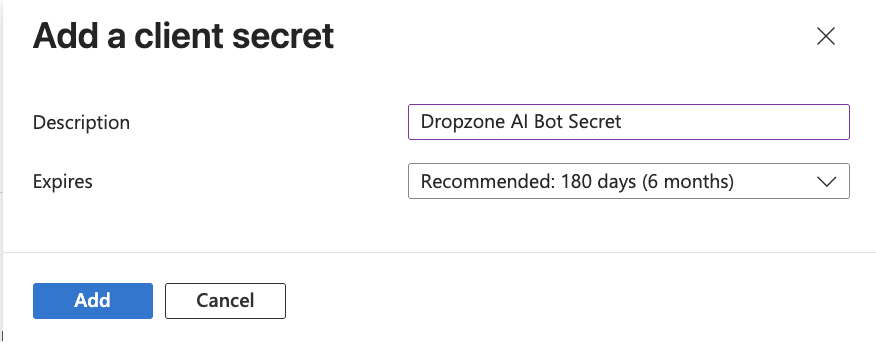
* Enter a description for the client secret, such as "Dropzone AI Bot Secret," and choose an appropriate expiration date. Click "Add"

{% hint style="warning" %}
Your Dropzone integration will stop working when the client secret expires. Consider setting a calendar reminder to update the key prior to expiration. For convenience's sake, we recommend picking a longer expiration date, to limit the number of times the client secret must be updated.
{% endhint %}

<figure><img src="/files/ESvT50sLMVwmsXlZ153D" alt=""><figcaption><p>Create the client secret</p></figcaption></figure>

* Under "Value," copy the Client Secret Value for use later in the Dropzone UI, where it is called "MS Teams Bot APP ID"

{% hint style="danger" %}
This value is not shown after you leave this page - be sure to record it immediately.
{% endhint %}

<figure><img src="/files/motEIRFuU57UvTvGo5jd" alt=""><figcaption><p>Copy the client secret</p></figcaption></figure>

## Configure the Application's API permissions

* In the left sidebar of the App Registration, navigate to Manage > API permissions
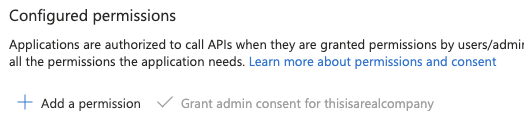
* In the API permissions page, click "Add a permission"

<figure><img src="/files/rXzZgATOsjV7OApuxizn" alt=""><figcaption></figcaption></figure>

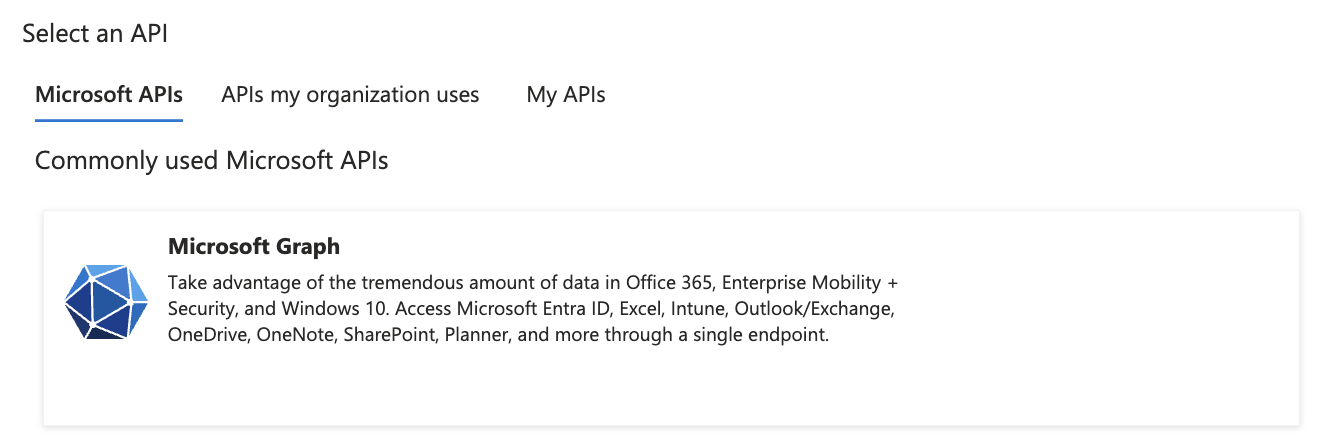
* Under the Microsoft API header, select "Microsoft Graph"

<figure><img src="/files/7ucvU7fOJt0pTZQNDMws" alt=""><figcaption><p>Select Microsoft Graph</p></figcaption></figure>

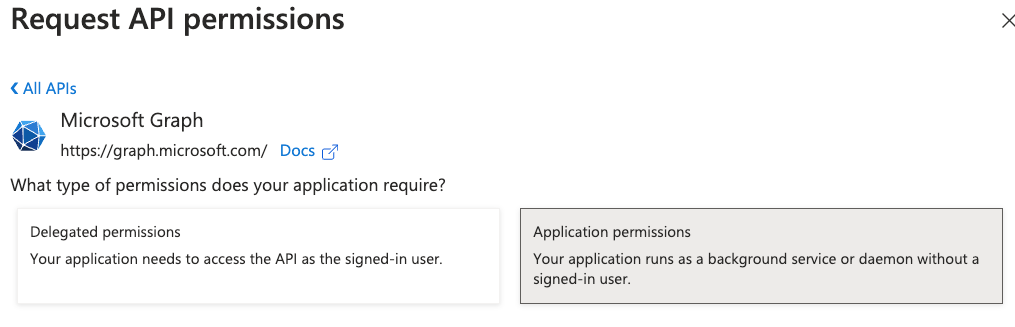
* Click "Application Permissions"

<figure><img src="/files/oSiXAegQZauD3wcHDF3q" alt=""><figcaption><p>Select Application Permissions</p></figcaption></figure>

Add the following permissions:

| Permission                                    | Purpose                                                                                                                                              |
| --------------------------------------------- | ---------------------------------------------------------------------------------------------------------------------------------------------------- |
| AppCatalog.Read.All                           | Allows the Chatbot to read apps in the app catalogs                                                                                                  |
| Chat.Create                                   | Allows the Chatbot to create chats                                                                                                                   |
| Chat.Read.All                                 | Allows the Chatbot to read all 1-to-1 or group chat messages in Microsoft Teams                                                                      |
| TeamsAppInstallation.ReadWriteForTeam.All     | Allows the Chatbot to read, install, upgrade, and uninstall Teams apps in any team. Does not give the ability to read application-specific settings  |
| TeamsAppInstallation.ReadWriteForUser.All     | Allows the Chatbot to read, install, upgrade, and uninstall Teams apps for any user. Does not give the ability to read application-specific settings |
| TeamsAppInstallation.ReadWriteSelfForChat.All | Allows the Chatbot to read, install, upgrade, and uninstall itself for any chat                                                                      |
| TeamsAppInstallation.ReadWriteSelfForTeam.All | Allows the Chatbot to read, install, upgrade, and uninstall itself in any team                                                                       |
| TeamsAppInstallation.ReadWriteSelfForUser.All | Allows the Chatbot to read, install, upgrade, and uninstall itself to any user                                                                       |
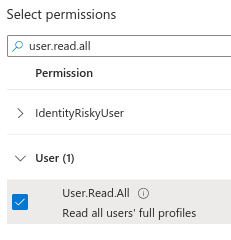
| User.Read.All                                 | Allows the Chatbot to read user profiles                                                                                                             |

<figure><img src="/files/UpR006DSi2UIYDblppvh" alt=""><figcaption><p>Example - adding the "User.Read.All" permission</p></figcaption></figure>

* Once done selecting all the permissions, click "Add permissions"
* Click "Grant admin consent for \[mycompany.net]"

{% hint style="info" %}
If you are not an Azure AD administrator, have one grant access for you.
{% endhint %}

<figure><img src="/files/nKTcgGobOtW8J851R42c" alt=""><figcaption><p>Grant admin consent</p></figcaption></figure>

* Click "Yes"

<figure><img src="/files/6t1bTqpO5FLj1cjlgnEu" alt=""><figcaption><p>Grant admin consent</p></figcaption></figure>

## Teams Developer Portal & Admin Center Setup

### Create/Configure Teams App in Developer Portal

* Go to the [Teams Developer Portal](https://dev.teams.microsoft.com/home)
* Click "Create a new app"

<figure><img src="/files/EyjdP6sr7x2svmigh9Ng" alt=""><figcaption></figcaption></figure>

* Name it something memorable, such as "Dropzone AI Interviewer," then click "Create"

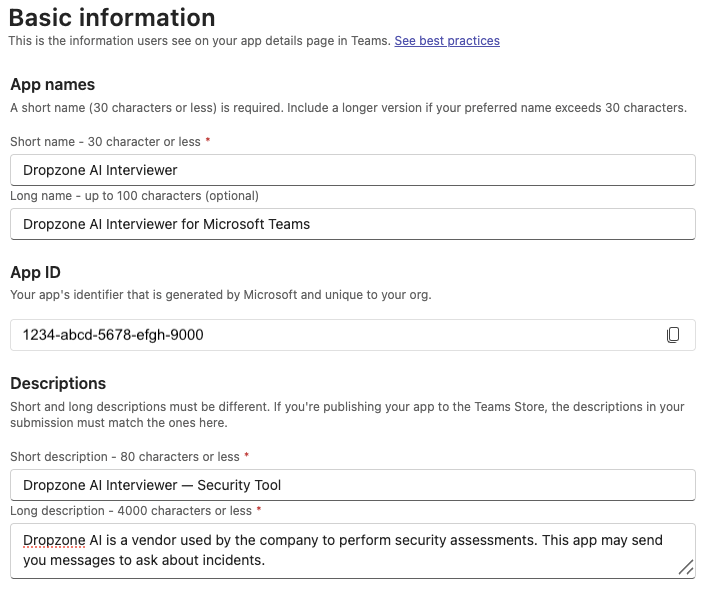
In the Basic Information Page, configure the app as follows:

* Short name: Dropzone AI Interviewer
* Long name: Dropzone AI Interviewer for Microsoft Teams
* Short description: Dropzone AI Interviewer — Security Tool
* Long description: Dropzone AI is a vendor used by the company to perform security assessments. This app may send you messages to ask about incidents.

<figure><img src="/files/CZhkdkdDFwD8FSj7zKGK" alt=""><figcaption><p>Configure the application details (pt 1)</p></figcaption></figure>

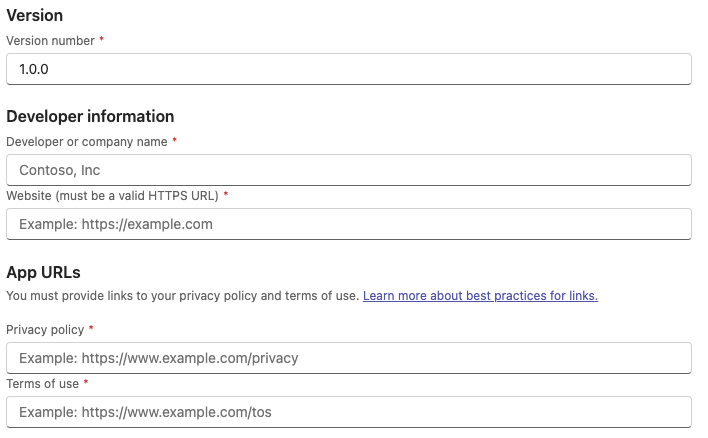
* Version: The current [version](https://learn.microsoft.com/en-us/officeupdates/teams-app-versioning) of Microsoft teams you're using
* Developer information: You may input your own details or use Dropzone's (e.g. Dropzone AI and <https://dropzone.ai>)
* APP URLs: Input links to your privacy policy and terms of use

<figure><img src="/files/9QuvJ33swwyq73BXLdqk" alt=""><figcaption><p>Configure the application details (pt 2)</p></figcaption></figure>

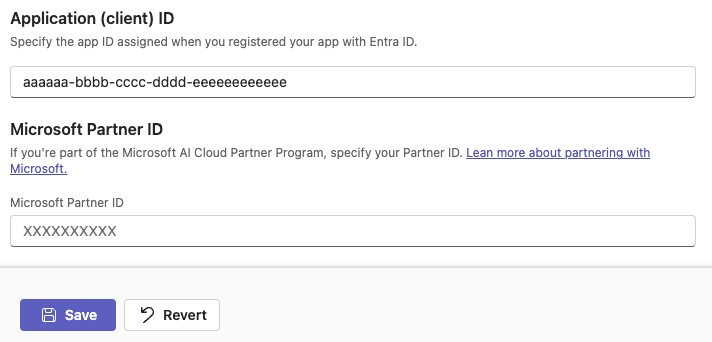
* Application (client) ID: Input the Application (client) ID you copied earlier
* Click "Save"

<figure><img src="/files/oCuEeJ0N0eeVRQx9pDlt" alt=""><figcaption><p>Configure the application details (pt 3)</p></figcaption></figure>

{% hint style="info" %}
If you wish, you can upload a logo for your application. We recommend using one of the following Dropzone logos:

* <https://go.dropzone.ai/img/logos/logomark-transparent-color-192px-96px.png>
* <https://go.dropzone.ai/img/logos/logomark-transparent-color-32px.png>

To do so, in the left sidebar, navigate to Branding, click "Color Icon" and upload your desired logo.
{% endhint %}

* In the left sidebar, navigate to App Features
* Click "Bot"

<figure><img src="/files/LIJf8Po9Ix99FhDcS52o" alt=""><figcaption></figcaption></figure>

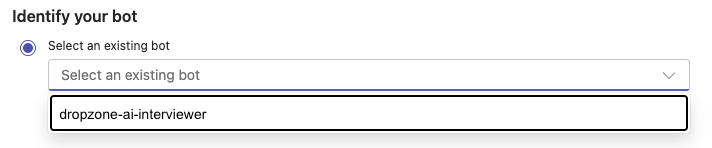
* Select the existing Azure bot you created

{% hint style="info" %}
You may use **App validation** to double-check that Teams will accept your app.
{% endhint %}

<figure><img src="/files/uGnPfFuOhTyNP6uBP9e8" alt=""><figcaption></figcaption></figure>

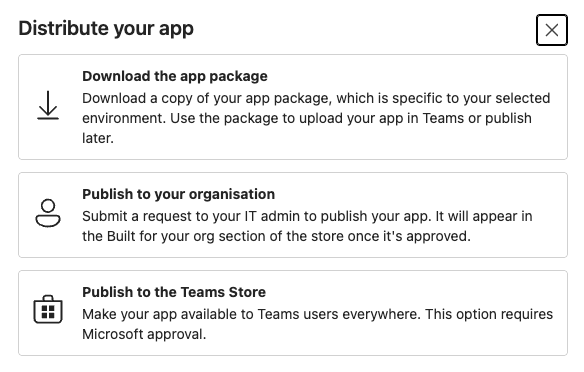
* In the top right, click "Distribute"
* Select either "Download the app package" or "Publish to your organization"

<figure><img src="/files/k5jpL7n1dwPICuX2qAgM" alt=""><figcaption><p>Pick your distribution method</p></figcaption></figure>

### Publish the application in Teams Admin Center

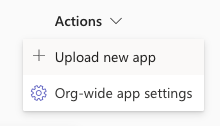
* Navigate to your [Teams Admin Center - Manage Apps](https://admin.teams.microsoft.com/policies/manage-apps) page as a Teams Administrator (or have an administrator perform these steps for you)
* If you downloaded the app package, in the upper right click Actions > Upload new app
* Upload the zip file you just downloaded

<figure><img src="/files/ITxt3WatHP3XPzy2elwj" alt=""><figcaption></figcaption></figure>

* If you chose to publish to your organization, search for your app in the Developer Portal
* Select the app from the list
* Click "Publish," then "Confirm"

## Enable Microsoft Teams Integration

To enable the communicator integration, you will need the following information:

| Dropzone Field          | Source                                             |
| ----------------------- | -------------------------------------------------- |
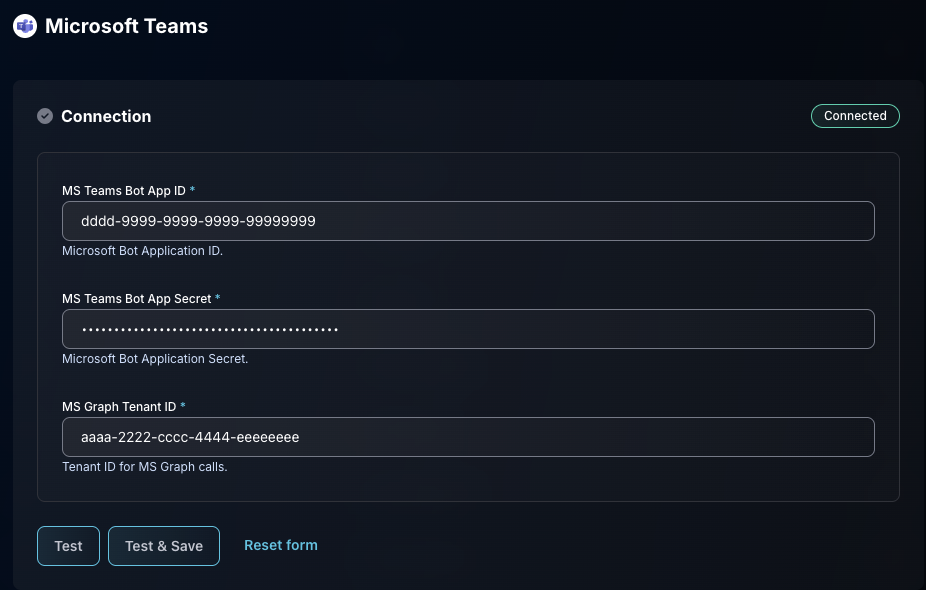
| MS Teams Bot App ID     | The Microsoft App ID value you copied earlier      |
| MS Teams Bot App Secret | The Client Secret value you copied earlier         |
| MS Graph Tenant ID      | The Directory (tenant) ID value you copied earlier |

{% hint style="info" %}
If you used the automated script, it will provide these exact credentials at the end of the setup process. You can also locate your Directory (tenant) ID in the overview page of your application.
{% endhint %}

To enable the integration, do the following:

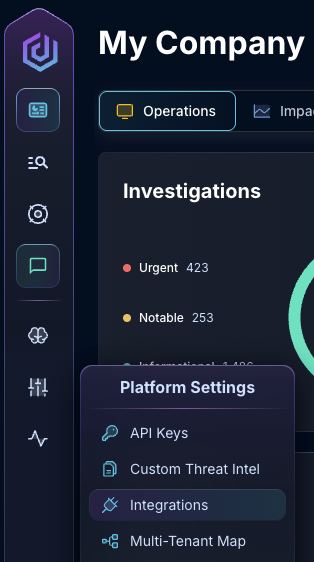
* Navigate to your Dropzone AI tenant home page e.g. https\://*mycompany*.dropzone.app
* In the bottom left hand corner, navigate to Settings > Integrations

<figure><img src="/files/zN02u3HObDaemUY8E1kD" alt=""><figcaption><p>Integrations Dropdown</p></figcaption></figure>

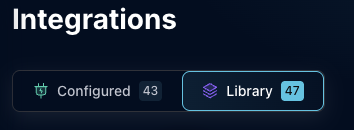
* Click "Library"

{% hint style="info" %}
If you have previously integrated this application, click "Configured"
{% endhint %}

<figure><img src="/files/QySQeLXXUC5SLjaXyamH" alt=""><figcaption><p>Click Library</p></figcaption></figure>

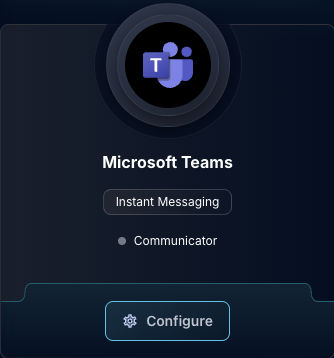
* In the Search bar, search Microsoft Teams, then click "Configure"

<figure><img src="/files/20ErW1kBsRxRh4pBmzbQ" alt=""><figcaption><p>The Microsoft Teams Tile</p></figcaption></figure>

* Input the Bot App ID, Bot App Secret, and MS Graph Tenant ID

<figure><img src="/files/qlLDTiugQyGrpXb12NhZ" alt=""><figcaption><p>The Microsoft Teams configuration</p></figcaption></figure>

* Click "Test & Save" to finish

### Enable Microsoft Teams in Interviewer Configuration

After successfully configuring and saving the Microsoft Teams communicator credentials, set it as the active interviewer for desired scenarios:

* Navigate to your Dropzone AI tenant home page e.g. https\://*mycompany*.dropzone.app
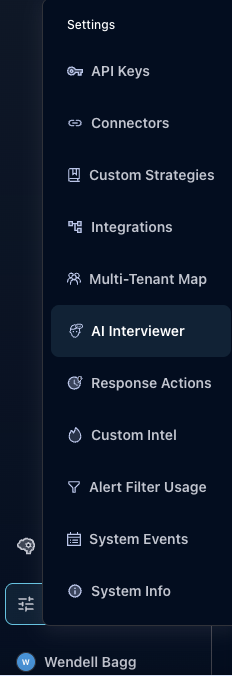
* In the bottom left hand corner, navigate to Settings > AI Interviewer

<figure><img src="/files/bTDhnYKdwOdUi3MwSoi2" alt=""><figcaption><p>Settings Dropdown</p></figcaption></figure>

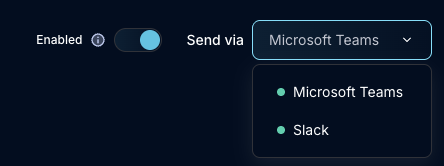
* In the right corner of the Interviewer Configuration page, select the dropdown
* Select "Microsoft Teams"
* Ensure the toggle switch next to Microsoft Teams is enabled (blue and toggled to the right)

<figure><img src="/files/8rJS41ypqJi4s4YAbcY0" alt=""><figcaption><p>Interviewer Configuration</p></figcaption></figure>

This will activate Microsoft Teams as a communicator for initiating interviews based on your configured scenarios.

## Troubleshooting

If you encounter any issues during setup or when configuring the integration in Dropzone:

* Double-check all credentials and configuration steps above
* Ensure all required permissions are granted and show as **Granted for \[Your Organization]**
* If you see errors in Teams or Azure, consult the [Microsoft Teams documentation](https://learn.microsoft.com/en-us/microsoftteams/platform/) or [Azure Bot Service documentation](https://learn.microsoft.com/en-us/azure/bot-service/)
* For persistent issues, contact your Dropzone AI support representative
* For manual setup issues, consider switching to the automated script for a more reliable experience