# Dropzone Connector Installation

{% hint style="success" %}
Before proceeding, see the [Dropzone Connector Overview](/platform/settings/connector.md) for more information about when you would require the Dropzone Connector in your environment.
{% endhint %}

## Enabling the Private Network Connector Client <a href="#enable" id="enable"></a>

Running the Private Network Connector Client requires a machine that meets the following requirements:

* System
  * has Docker Engine (Docker CE) installed
  * capable of running x86\_64 Linux docker containers
  * has at least 1 GB of available memory
  * has at least 1 GB of available disk space
  * has access to at least one CPU core
    * assure it is not running on a system that will 'steal' CPU; doing so will introduce instability
* Network
  * can reach the resources (e.g. splunk) you want available for Dropzone integrations
  * can connect outbound port 443 to the connector server
    * the connector server is the same as your tenant name with `-connector` after the first component. For example if your tenant is https\://*mycompany*.dropzone.app then your connector server is *mycompany*-connector.dropzone.app port 443
  * has access to DNS that can look up your tenant DNS name and internal resources
* Availability
  * is up 24x7

This may be a machine dedicated to this container, or a multi-use resource that meets your security policy.

Henceforth we will call this machine the `connector-client-host`.

To install the Private Network Connector Client, do the following:

* Navigate to your Dropzone AI tenant home page e.g. https\://*mycompany*.dropzone.app
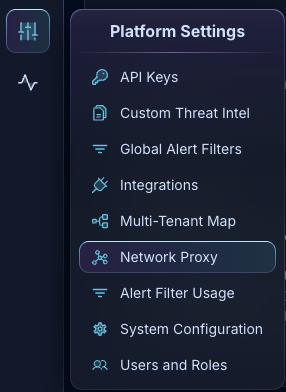
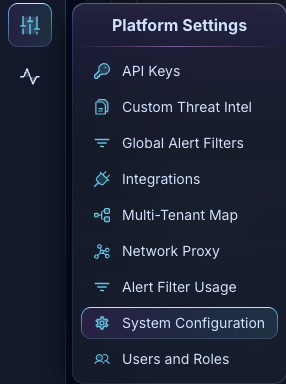
* Navigate to Settings > System Info

<figure><img src="/files/VDXkATwTwQqJXyMlAtxf" alt="" width="169"><figcaption><p>Settings > System Info Dropdown</p></figcaption></figure>

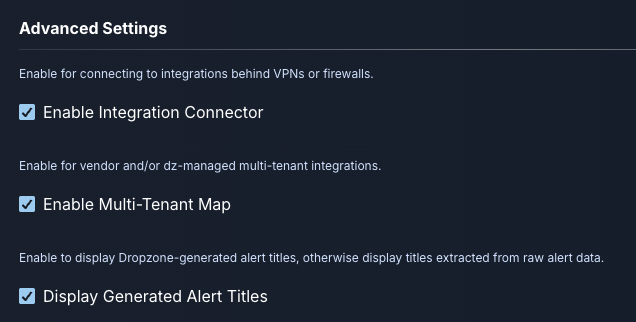
* Under Advanced Settings, check the box labeled "Enable Integration Connector"

<figure><img src="/files/iMqYEg01dfksHE5xeCnm" alt="" width="169"><figcaption><p>Click Enable Integration Connector</p></figcaption></figure>

* In the bottom left, click "Save"

<figure><img src="/files/47E9w59oJJf6n9riWGMB" alt="" width="169"><figcaption><p>Enable the Integration Connector</p></figcaption></figure>

* Once done, navigate to Settings > Connectors

<figure><img src="/files/et9hKsRhGTjaRqlS3klh" alt="" width="169"><figcaption><p>System > Connectors Dropdown</p></figcaption></figure>

* On the "Main" connector tile, click "Configure"

<figure><img src="/files/awYToLDmWtf13hgkQoSV" alt="" width="276"><figcaption><p>"Main" Connector Tile</p></figcaption></figure>

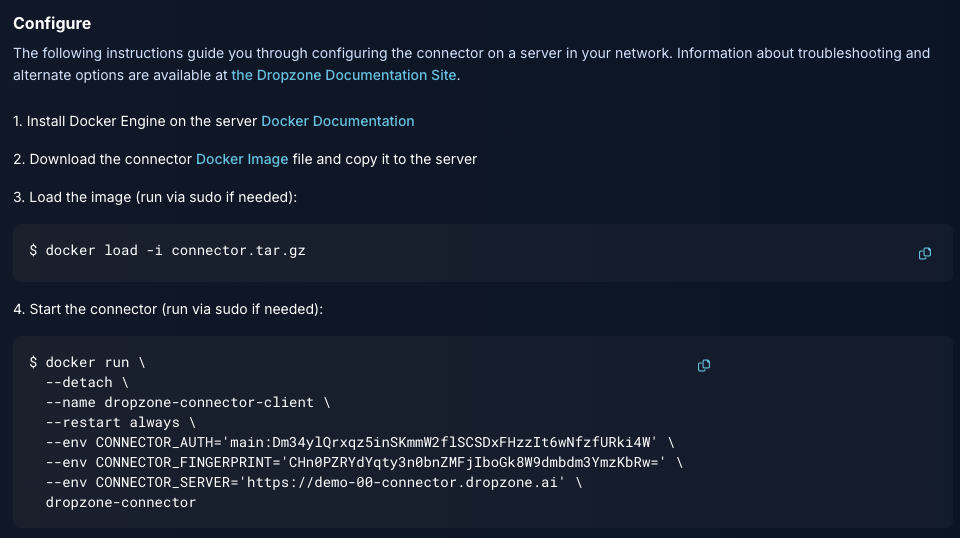
* The configuration drawer will slide out from the right hand side

<figure><img src="/files/LgZMCDdzuvEM42BIiagB" alt="" width="375"><figcaption><p>"Main" Connector Configuration</p></figcaption></figure>

* Download the Private Network Connector Client docker image by clicking on the link
* Upload the Private Network connector Docker image to the connector-client-host, e.g. via `scp`
* Load the docker image on the connector-client-host

  ```bash
  connector-client-host$ sudo docker load -i connector.tar.gz

  # Or, if sudo is not needed
  connector-client-host$ docker load -i connector.tar.gz
  ```
* Copy the command in the Dropzone UI and run it on the connector-client-host:

  ```bash
  connector-client-host$ sudo docker run --detach --name connector --env OPTIONS='--auth ...

  # Or if sudo is not needed
  connector-client-host$ docker run --detach --name connector --env OPTIONS='--auth ...
  ```
* Verify the connector is running by using `docker ps`

  ```bash
  connector-client-host$ docker ps
  CONTAINER ID IMAGE     COMMAND      CREATED         STATUS       NAMES
  1c92972436d9 connector "/app/init"  3 seconds ago   Up 2 seconds dropzone-connector-client
  ```
* Click Close
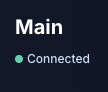
* Refresh the page and you should see that `Main` is now in "Connected" state:

<figure><img src="/files/tzeVmYGyHgmYPmZe2Ew9" alt="" width="268"><figcaption><p>Main Now Connected</p></figcaption></figure>

When enabling Data and Alert sources that need on-prem access, be sure to specify this Private Network Connector Client.

## Alternate Launch Options

The Dropzone UI System > Connector page provides a default `docker run` command that will work for most scenarios. This section describes alternate options for your `docker run` that may be appropriate for your environment.

### Outbound HTTP Proxy

The Dropzone connector supports using an outbound HTTP proxy, such as [Squid](https://www.squid-cache.org/), a setup for locked down DMZs for example.

To use an explicit HTTP proxy, update the `docker run` provided by the Dropzone UI by passing the `HTTPS_PROXY` flag into the environment:

```bash

## Send the outbound tunnel request via http://proxy.example.com:3128 
## Replace with your actual proxy url/port
##
$ docker run ... --env HTTPS_PROXY=http://proxy.example.com:3128 ...
```

You will need to configure your proxy to allow outbound `CONNECT` to the host *tenant*-connector.dropzone.app port 443.

## Troubleshooting

The following troubleshooting steps may be useful in conjunction with your Dropzone support team.

### Restarting the Private Network Connector Container

It is always safe to delete and relaunch the connector, for example if it does not come back properly after a reboot or system failure.

```bash
$ docker stop connector
$ docker rm connector
$ docker run ...    <-- command you got from the Dropzone interface
```

### Testing Internal Connectivity

The connector service runs in a docker container on a host in your network. If it is unable to reach to your internal systems then you will get an error when configuring your integration in the Dropzone UI such as `Error 111 - Connection Refused`.

#### Test from the Host

Testing from the host where you're running the connector is sufficient in almost all cases. Using tools such as `curl`, `telnet`, netcat (`nc`, `ncat`, etc), or `openssl` are good ways to test any network ACLs that may be preventing your traffic.

Examples:

```bash
# See if splunk is available
$ curl -k -v https://our-splunk.example.com

# Same, showing certificate
$ openssl sclient -connect our-splunk.example.com:443

# just test the port is open or not
$ telnet our-splunk.example.com:443
$ nc our-splunk.example.com:443
```

#### Test From Inside the Connector

It's possible your docker host can reach your targets, but the connector container cannot. this could be caused by DNS inconsistencies, or having an IP address range for your connector network (traditionally 172.17.0.0/16) that overlaps your target's networks. In these cases, it may be helpful to test from within the connector container directly.

The Dropzone connector container has a very minimal configuration and does not include tools such `curl`, `telnet`, netcat (`nc`, `ncat`, etc), however it does include `openssl` which can be used to help troubleshoot.

Here is an example of making a `curl`-like request for <https://www.example.com>:

```bash

$ host="www.example.com"
$ printf "GET / HTTP/1.0\nHost: $host\n\n" | \
    docker exec -i dropzone-connector-client   \
    openssl s_client -connect $host:443 -servername $host -quiet
```

If you see the expected HTML output, then the connector has network connectivity to the target.

### Testing Outbound Network Connectivity

If the connector fails to connect there could be a network issue or an IPS device that is preventing it from establishing the websocket connection. Running the following from the host where the connector runs can help identify this situation:

```bash
# the first part of your tenant hostname, e.g. "mycompany"
# if your tenant is https://mycompany.dropzone.app
$ tenant=mytenant

$ curl --http1.1 -i -N \
    -A "Go-http-client/1.1" \
    -H "Connection: Upgrade" \
    -H "Upgrade: websocket" \
    -H "Host: $tenant-connector.dropzone.app:443" \
    -H "Sec-WebSocket-Key: AAAAAAAAAAAAAAAAAAAAAA==" \
    -H "Sec-WebSocket-Protocol: chisel-v3" \
    -H "Sec-WebSocket-Version: 13" \
    "https://$tenant-connector.dropzone.app:443"
```

When successful, you should see an HTTP handshake and websocket upgrade like this:

```
HTTP/1.1 101 Switching Protocols
Upgrade: websocket
Connection: Upgrade
Sec-WebSocket-Accept: ICX+Yqv66kxgM0FcWaLWlFLwTAI=

SSH-chisel-v3-server
```

{% hint style="success" %}
If your network requires an HTTP Proxy for outbound connectivity to the connector server, add an `-x` option to your `curl` command above. For example if you use squid on squid.example.com port 3128, you'd add `-x squid.example.com:3128` to the command.
{% endhint %}

Any device along the path that is interfering will likely provide feedback when this command is run.

### EDR/Firewall/IPS Considerations

The Dropzone Connector Client establishes outbound encrypted connections to your Dropzone SaaS environment which contain reverse tunnels to your on-prem systems. Unfortunately, because this traffic pattern can resemble a Command and Control (C2) client/server setup, some EDR, firewall, or networking tools may flag or block this traffic.

{% hint style="warning" %}
If the connector is mysteriously not working, check to see if your EDR is blocking the container process, or if an upstream network device is interfering with the connections.
{% endhint %}

Your security tools should allow you to allowlist the Connector Client binary or associated network traffic. Make the related changes and it should be able to support a reliable connection for your on prem services.

## Connector Healthchecks

The default Dropzone Private Network Connector Client `docker run` command is set to automatically restart the container if it fails. However here are additional ways you can healthcheck the container.

### External Healthcheck

From outside the container you can use `curl` or other web tools to hit the `/ping` endpoint. For example, assuming the connector has received IP address 172.17.0.3, you would use the following

```bash
$ curl -i 172.17.0.3:8000/ping
HTTP/1.1 204 No Content
Date: Sat, 19 Apr 2025 11:43:00 GMT
Server: Python/3.11 aiohttp/3.12.13
```

Similarly, you could use `nsenter` to run `curl` from your host within the container network:

```bash
$ sudo nsenter -t $(docker inspect --format '{{ .State.Pid }}' dropzone-connector-client ) -n  curl -v http://127.0.0.1:8000/ping`
```

### Internal Healthcheck

From within the container (e.g. if you are using `docker compose`) you can use `python` to healthcheck the `/ping` endpoint.

```bash
python3 -c "import http.client, sys; c=http.client.HTTPConnection('127.0.0.1',8000,timeout=5); c.request('GET','/ping'); sys.exit(0 if c.getresponse().status==204 else 1)"`
```

## Upgrading the Private Network Connector Client

Dropzone updates the connector client infrequently to improve reliability, performance, or security.

Follow these steps to upgrade.

* Identify the machine where you are currently running the connector (henceforth called "connector-client-host")
* Follow the steps in [Enabling the Private Network Connector Client](#enable) above to but not including running the new container
  * Download the connector docker image
  * Copy the image to your connector-client-host
  * Load the docker image (but do not run it yet)
* Log into the connector-client-host (e.g. via `ssh`)
* Permanently stop the old Dropzone connector container
  * If you followed the default `docker run` instructions then it will be named `dropzone-connector-client`, but you may have named it differently

```bash
# Verify it not running
$ docker ps | grep dropzone
CONTAINER ID  IMAGE                COMMAND          NAMES
44726f707a6f  dropzone-connector   "/app/main.py"   dropzone-connector-client

# Stop and remove it
$ docker stop dropzone-connector-client
$ docker rm dropzone-connector-client

# Verify it is not running
$ docker ps | grep dropzone
CONTAINER ID  IMAGE                COMMAND          NAMES
```

* Start the new connector container by copy/pasting the command from your Dropzone UI
  * This is described above in [Enabling the Private Network Connector Client](#enable)

## Disabling the Private Network Connector Client

You may disable the Private Network Connector Client at any time. This is typically done when you are migrating the Connector Client to a different host virtual machine.

{% hint style="warning" %}
Disabling your Private Network Connector Client will prevent the Dropzone platform from reaching your "on-prem" services. You should only disable it when migrating to a new Connector Client host, or when no longer needed such as at the end of your POC or contract.
{% endhint %}

To disable it, simply run the necessary `docker` commands.

```bash
# Stop and remove it
$ docker stop dropzone-connector-client
$ docker rm dropzone-connector-client

# Verify it is not running
$ docker ps | grep dropzone
CONTAINER ID  IMAGE                COMMAND          NAMES
```

As soon as the container is stopped the remote access is instantly terminated.

You can verify by going to System > Connectors and you should see "Not connected"

<figure><img src="/files/awYToLDmWtf13hgkQoSV" alt="" width="276"><figcaption><p>Connector now Disconnected</p></figcaption></figure>

***

If you have any errors engage your Dropzone AI support representative.


---

# Agent Instructions: Querying This Documentation

If you need additional information that is not directly available in this page, you can query the documentation dynamically by asking a question.

Perform an HTTP GET request on the current page URL with the `ask` query parameter:

```
GET https://docs.dropzone.ai/platform/settings/connector/connector-installation.md?ask=<question>
```

The question should be specific, self-contained, and written in natural language.
The response will contain a direct answer to the question and relevant excerpts and sources from the documentation.

Use this mechanism when the answer is not explicitly present in the current page, you need clarification or additional context, or you want to retrieve related documentation sections.