> For the complete documentation index, see [llms.txt](https://docs.dropzone.ai/llms.txt). Markdown versions of documentation pages are available by appending `.md` to page URLs; this page is available as [Markdown](https://docs.dropzone.ai/integrations/remediator/ms365_remediator.md).
# Microsoft 365 / Microsoft Defender
## Microsoft 365 / Microsoft Defender
The Dropzone AI platform integrates with Entra ID, Exchange Online, and Microsoft Defender via the Microsoft Graph API. The MS Remediator integration allows Dropzone to initiate Containment Actions during investigations. See the [Remediator](https://docs.dropzone.ai/overview/remediator-automaticcontainment) documentation for more information.
## Integrations Overview
To enable these integrations, you must perform the following actions:
* Register a new application in Microsoft Entra Admin Center
* Locate your Client ID, Tenant ID, and create a Client Secret
* Enable Dropzone Certificate Credentials
* Assign necessary API permissions to the application
See the [Microsoft 365 Data Source](https://docs.dropzone.ai/integrations/data/ms/ms365) page for instructions on how to complete these actions.
### Enable Microsoft 365/Microsoft Defender
To enable the Remediator integration, you'll need the following information:
| Dropzone Field | Source |
| -------------- | ------------------------------------------------ |
| Client ID | The "Application (client) ID" you copied earlier |
| Tenant ID | The "Directory (tenant) ID" you copied earlier |
| Client Secret | The client secret "value" you copied earlier |
To enable the Remediator integration, do the following:
* Navigate to your Dropzone AI tenant home page e.g. https\://*mycompany*.dropzone.app
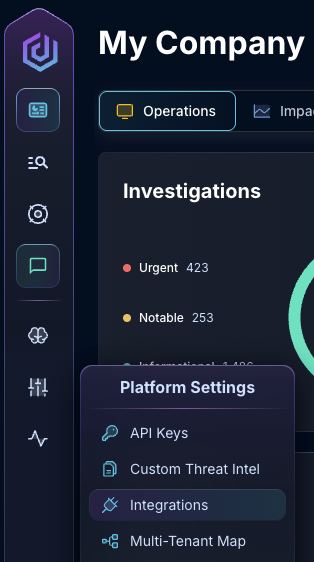
* In the left side bar, navigate to Platform Settings > Integrations
Integrations Dropdown
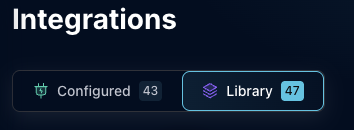
* Click "Library"
{% hint style="info" %}
If you have previously integrated this application, click "Configured"
{% endhint %}
Click Library
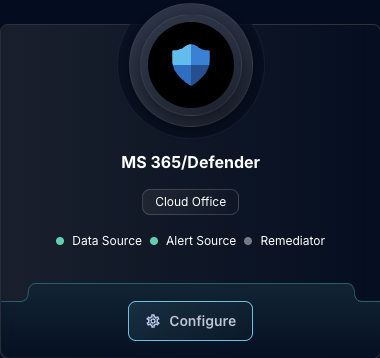
* In the Search bar, search MS 365/Defender, then click "Configure"
The Microsoft 365/Defender Source Tile
* Under the Remediator heading, input the Client ID, Tenant ID, and Client Secret
* In the "Available Containment Actions" section, check the Containment Actions you wish to enable Dropzone to perform
Configure the Remediator Integration
* Click "Test & Save" to finish
{% hint style="warning" %}
Dropzone does not test that your permissions have been configured correctly when running Remediator Containment Actions. Be sure to double check that your configuration is correct and up to date.
{% endhint %}
If you have any errors contact our Customer Success team.