> For the complete documentation index, see [llms.txt](https://docs.dropzone.ai/llms.txt). Markdown versions of documentation pages are available by appending `.md` to page URLs; this page is available as [Markdown](https://docs.dropzone.ai/integrations/data/zscaler_data.md).
# ZScaler (Beta)
{% hint style="warning" %}
This is integration is currently in Beta. At this point in its development, any attempts to integrate with it will return a success, regardless of whether the information entered is accurate or not. For more information about our beta integrations, engage our Customer Success team.
{% endhint %}
The Dropzone platform integrates with [ZScaler](https://www.zscaler.com/company/about-zscaler), a cloud-based security platform offering services such as cloud firewalls, data loss prevention, zero trust network access (ZTNA), and automated threat inspections.
## Create an API Client
ZScaler requires API credentials to enable.
To obtain API credentials, do the following:
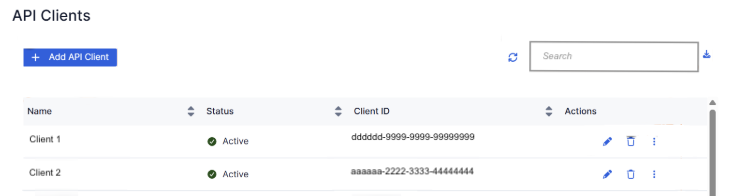
* Navigate to Administration > API Configuration > OneAPI > API Clients
* Click "Add API Client"
The API Clients page
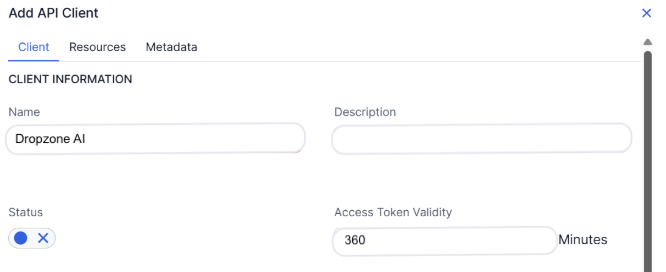
* Name the key something memorable, such as "Dropzone AI"
* Click the box under "Status" to enable the API Client
* Select an expiration period for the access token
Assign the client details
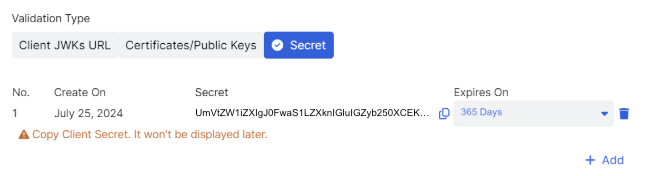
* Under the Client Authentication header, select the "Secret" validation type
* Click "Add"
* Assign the secret an expiration date
{% hint style="info" %}
To reduce the number of times you need to perform this integration, we recommend selecting the maximum duration of 365 days.
{% endhint %}
* Copy the secret shown for use later in the Dropzone UI, where it is called "Client Secret"
Copy the API Key details
* Click "Save"
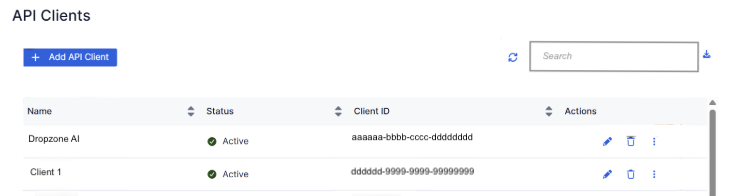
* In the API Clients page, copy the Client ID of your new token for use later in the Dropzone UI, where it is called "Client ID"
The API Clients page
Once your API Client has been generated, you must also authenticate your API Client in ZScaler's OneAPI, to verify your client's identity. To do so, enter the following code into your request payload:
```
POST /oauth2/v1/token HTTP/1.1
Host: .zslogin.net
Content-Type: application/x-www-form-urlencoded
{
"grant_type": "client_credentials",
"client_id": "",
"client_secret": "",
"audience": "https://api.zscaler.com"
}
```
See ZScaler's [authentication](https://automate.zscaler.com/docs/getting-started/getting-started#authenticating) documentation for more information.
## Enable ZScaler
To enable the Data Source integration, you will need the following information:
| Dropzone Field | Source |
| -------------- | ------------------------------------------------------------------------------- |
| Client ID | The Client ID value you generated earlier |
| Client Secret | The Client Secret value you generated earlier |
| Vanity Domain | The domain name of your organization, e.g. https\://\.zslogin.net |
| Cloud | Your Cloud environment, e.g. zscalerone, zscloud, etc |
* Navigate to your Dropzone AI tenant home page e.g. https\://*mycompany*.dropzone.app
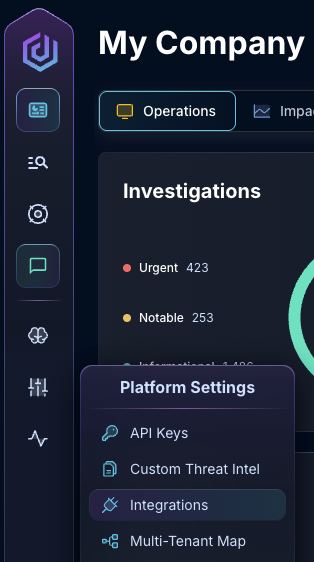
* In the left side bar, navigate to Platform Settings > Integrations
Integrations Dropdown
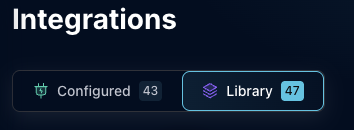
* Click "Library"
{% hint style="info" %}
If you have previously integrated this application, click "Configured"
{% endhint %}
Click Library
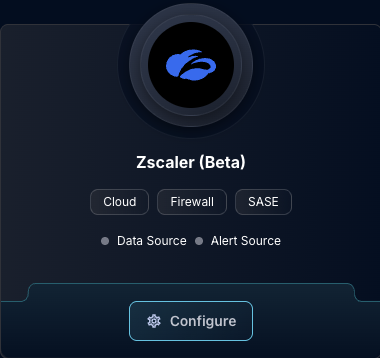
* In the Search bar, search ZScaler, then click "Configure"
The ZScaler Tile
* Under the Data Source header, input the Client ID, Client Secret, and Vanity Domain
* Select your cloud environment from the dropdown
The ZScaler Data Source Configuration
* Click "Test & Save" to finish
If you have any errors contact our Customer Success team.