> For the complete documentation index, see [llms.txt](https://docs.dropzone.ai/llms.txt). Markdown versions of documentation pages are available by appending `.md` to page URLs; this page is available as [Markdown](https://docs.dropzone.ai/integrations/data/wiz_data.md).
# Wiz
## Wiz
The Dropzone AI platform integrates with Wiz APIs to ingest security findings and enrich investigations with context from [Wiz](https://www.wiz.io/about) such as cloud configurations, vulnerabilities, and exposure data.
### Integrations Overview
To enable these integrations you will perform the following actions:
* Locate your Tenant Region
* Create a new Wiz service account
### Tenant Region
Contact your Wiz/Dropzone Customer Success team for instructions on how to locate your Wiz Tenant Data Center. Copy the value for use later in the Dropzone UI where it is called the Wiz Tenant Region.
### Create a Wiz service account
Follow instructions on Wiz's [documentation site](https://docs.wiz.io/wiz-docs/docs/dropzone-ai-api-integration) to set up an API integration, or contact your Wiz/Dropzone Customer Success team.
You must create a Wiz service account with the following API scopes:
* read:cloud\_configuration
* read:data\_findings
* read:data\_resource\_file\_explorer
* read:detections
* read:excessive\_access\_findings
* read:forensics\_metadata
* read:issues
* read:network\_exposure
* read:resources
* read:vulnerabilities
`read:forensics_metadata` is required to load Sensor Forensics Collection tabs when a webhook includes a forensics trigger ID. `read:forensics_settings` is not a substitute.
Once you are done, be sure to copy the Client ID and Client Secret values for use later in the Dropzone UI where they are called "Client ID" and "Client Secret," respectively.
## Enable Wiz
To enable the Data Source integration, you'll need the following information:
| Dropzone Field | Source |
| ----------------- | ---------------------------------------------------------------------------------------- |
| Wiz Environment | Your Wiz [Environment](https://www.wiz.io/environments), e.g. commercial, gov cloud, etc |
| Wiz Tenant Region | The Wiz Tenant Region value copied earlier |
| Client ID | The Client ID value copied earlier |
| Client Secret | The Client Secret value copied earlier |
To enable the Data Source integration, do the following:
* Navigate to your Dropzone AI tenant home page e.g. https\://*mycompany*.dropzone.app
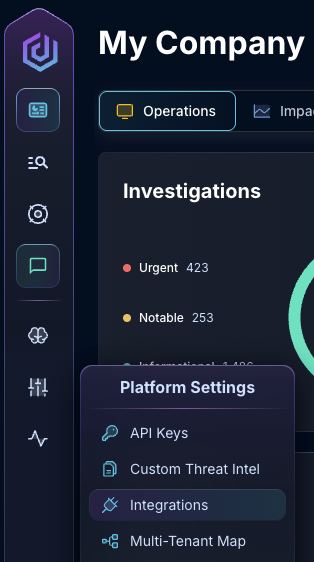
* In the left side bar, navigate to Platform Settings > Integrations
Integrations Dropdown
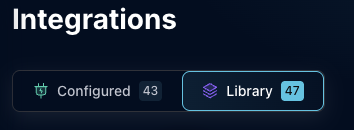
* Click "Library"
{% hint style="info" %}
If you have previously integrated this application, click "Configured"
{% endhint %}
Click Library
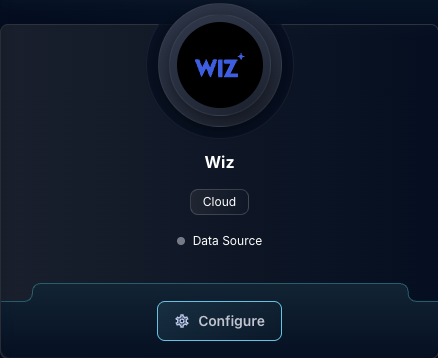
* In the Search bar, search Wiz, then click "Configure"
The Wiz Tile
* Under the Data Source heading, select your Wiz environment type
* Input the Wiz Tenant Region, Client ID, and Client Secret
The Wiz Data Source Configuration
* Click "Test & Save" to finish
If you have any errors contact our Customer Success team.