> For the complete documentation index, see [llms.txt](https://docs.dropzone.ai/llms.txt). Markdown versions of documentation pages are available by appending `.md` to page URLs; this page is available as [Markdown](https://docs.dropzone.ai/integrations/data/upwind_data.md).
# Upwind (Beta)
## Upwind (Beta)
The Dropzone AI platform integrates with the Upwind Management API to enrich investigations with context from [Upwind](https://www.upwind.io/), such as runtime threat detections, vulnerabilities, cloud configuration findings, and cloud inventory.
### Integrations Overview
To enable this integration you will perform the following actions:
* Locate your Upwind region and organization ID
* Create an Upwind API credential with read-only access
{% hint style="info" %}
Exact console navigation and labels may vary accross Upwind versions. See Upwind's [documentation site](https://docs.upwind.io/) for the most up-to-date information.
{% endhint %}
### Region and Organization ID
Your Upwind organization is hosted in one region: US, EU, or ME. If you are unsure which, contact your Upwind representative.
To locate your Organization ID, do the following:
* Log in to your Upwind Console
* In the bottom left corner, click "Settings"
* Navigate to Access Management > Credentials (or navigate to the [Credentials page](https://console.upwind.io/settings?mainPageTab=Credentials) directly
* Locate the Organization ID displayed in the upper left of the page
Your organization ID should look like `org_Xk9mPq7RtYwN2vLs`.
### Create an Upwind API credential
You need the Settings Editor and Access Management Admin roles in Upwind to create credentials. A credential can never have more access than the member who creates it.
* In the Upwind Console, navigate to Settings > Access Management > Credentials
* Click "Generate Credential"
* Select API as the credential type
* Name the credential something memorable, such as `dropzone-ai`
* Under "Scope," select "Global Scope"
{% hint style="info" %}
Dropzone cannot see resources outside the credential's scope. If you wish to limit its access to specific resources and accounts, you can create a custom scope under Access Management > Scopes. This may inhibit Dropzone's functionality and performance.
{% endhint %}
* Assign the "Global Reader" role
{% hint style="info" %}
If you prefer narrower access, assign the following roles instead of Global Reader: `Threats Reader`, `Vulnerabilities Reader`, `Configurations Reader`, `API Security Reader`, and `Identities Reader`.
You can change a credential's roles later from its side pane in the Credentials tab. Changes apply to new tokens, so they take effect within 24 hours or with the next "Test & Save".
{% endhint %}
* Click "Generate"
* Copy the Client ID and Client Secret for use later in the Dropzone UI. The Client Secret value will only be shown once
* Click "Save"
## Enable Upwind
To enable the Data Source integration, you'll need the following information:
| Dropzone Field | Source |
| --------------- | --------------------------------------------- |
| Region | Your Upwind region: US, EU, or ME |
| Organization ID | The Upwind organization ID copied earlier |
| Client ID | The Client ID value you generated earlier |
| Client Secret | The Client Secret value you generated earlier |
To enable the Data Source integration, do the following:
* Navigate to your Dropzone AI tenant home page e.g. https\://*mycompany*.dropzone.app
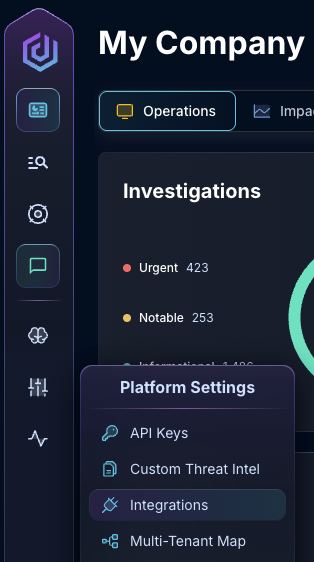
* In the left side bar, navigate to Platform Settings > Integrations
Integrations Dropdown
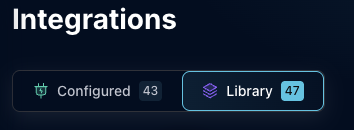
* Click "Library"
{% hint style="info" %}
If you have previously integrated this application, click "Configured"
{% endhint %}
Click Library
* In the Search bar, search Upwind, then click "Configure"
* Under the Data Source heading, select your region and input the Organization ID, Client ID, and Client Secret
* Click "Test & Save" to finish
### Troubleshooting
"Test & Save" checks that the credential can authenticate and read each area of the Upwind API that Dropzone uses.
* **Upwind rejected the client credentials**: check the Client ID, Client Secret, and region. A credential only works in the region your organization is hosted in.
* **The Upwind credential cannot read threat stories (missing: threats:ListStories)**: the credential is missing the Threats Reader permission. Edit the credential's roles to add Global Reader, or at least Threats Reader.
If you have any other errors engage our Customer Success team.