
> For the complete documentation index, see [llms.txt](https://docs.dropzone.ai/llms.txt). Markdown versions of documentation pages are available by appending `.md` to page URLs; this page is available as [Markdown](https://docs.dropzone.ai/integrations/data/swimlane-ti.md).

# Swimlane Threat Intelligence

The Dropzone AI Platform integrates with [Swimlane Turbine](https://swimlane.com/swimlane-turbine/), an AI automation security platform. Integrating Swimlane with Dropzone allows Dropzone to access Swimlane's threat intelligence, automatically respond to security incidents, and enrich investigation and incident response.

## Integration Overview

To enable these integrations you will perform the following actions:

* Configure your role-based access (or create a designated Dropzone user)
* Obtain a Personal Access Token
* Enable the Data source within your Dropzone tenant

## Role Based Access Control - Create a Dropzone User

Swimlane Turbine uses [Role-Based Access Control](https://docs.swimlane.com/90kk-role-based-access-control-rbac). You will need access to a user with read access permissions to the [application](https://docs.swimlane.com/applications-applets) and all [fields](https://docs.swimlane.com/select-fields-and-assign-field-properties) within the application you want Dropzone to have access to. See [here](https://docs.swimlane.com/application-permissions) for more information.

Alternatively, you may create a designated Dropzone AI user by doing the following:

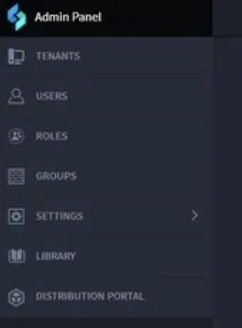
* As an administrator, open the admin panel, then select "Users"

<figure><img src="/files/zkFLO0y9ElFm446dojjn" alt=""><figcaption></figcaption></figure>

* Click "+ Add User"

<figure><img src="/files/xYBIcmwHt1ThnuswpB6B" alt=""><figcaption><p>Add User</p></figcaption></figure>

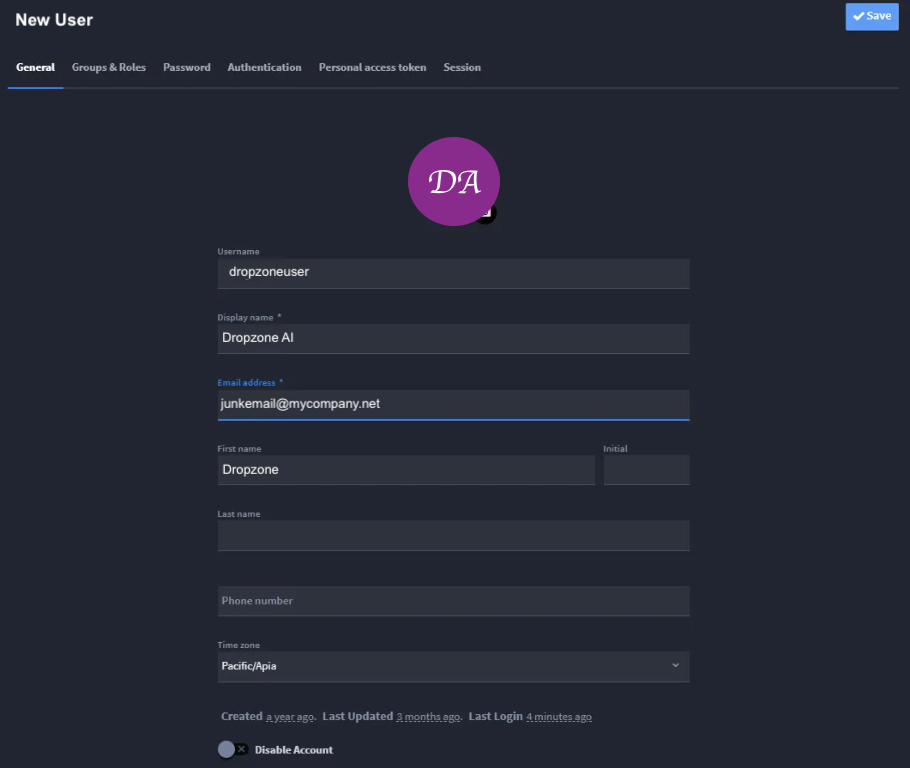
* Name the user something memorable, such as "DropzoneAI"
* Enter the first name, last name, username, display name, and email

<figure><img src="/files/Hm684LouhArbdKyjSylr" alt=""><figcaption><p>Configure the new user</p></figcaption></figure>

* In the Password tab, input a password or have one be autogenerated upon creation
* Record the username and password for use later in the Dropzone UI where they will be called "username" and "password," respectively

{% hint style="info" %}
If you plan to create a personal access token, you may skip this step.
{% endhint %}

* Exempt the Dropzone user from forced SSO
* In the Groups & Roles tab, assign the user read permissions into the tenants you want Dropzone to have access to
* Click "Save"

See Swimlane's [User Management documentation](https://docs.swimlane.com/users) for more information.

## Obtain Personal Access Token

To obtain a Personal Access Token, do the following:

* As an administrator, open the admin panel, then select "Users"

<figure><img src="/files/zkFLO0y9ElFm446dojjn" alt=""><figcaption></figcaption></figure>

* Locate the new Dropzone AI user (or a user you want Dropzone to use for access) and click them
* In the personal access token tab, click "Generate Token"
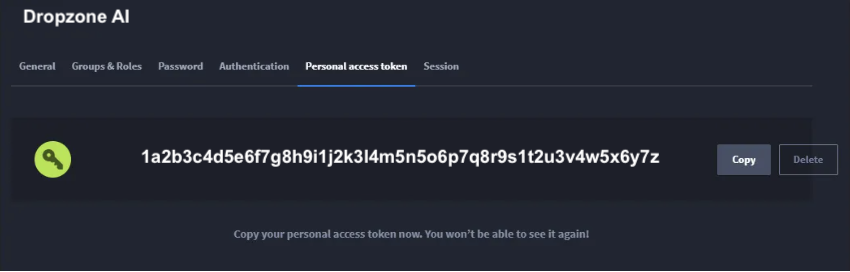
* Copy the token shown for use later in the Dropzone UI, where it is called "Personal Access Token"

<figure><img src="/files/66dvFng1c8nN4SHA0A2g" alt=""><figcaption><p>Copy the personal access token</p></figcaption></figure>

## Enable SentinelOne

To enable the Data Source integration, you'll need the following information:

| Dropzone Field                                                                                 | Source                                                                                                                                                                                    |
| ---------------------------------------------------------------------------------------------- | ----------------------------------------------------------------------------------------------------------------------------------------------------------------------------------------- |
| Swimlane Host URL                                                                              | Your Swimlane Host name, e.g. <https://swimlane.example.gov>                                                                                                                              |
| Personal Access Token                                                                          | The Access token value you copied earlier                                                                                                                                                 |
| Username/Password                                                                              | Your username/password, used in place of a Personal Access token                                                                                                                          |
| TI App name                                                                                    | The name of the Swimlane [application](https://docs.swimlane.com/applications-applets) you want Dropzone to access                                                                        |
| IOC [Field Name](https://docs.swimlane.com/select-fields-and-assign-field-properties)          | The display name of the field in the application that contains the indicators of compromise (e.g. hashes, URLs, or IPs linked to the incident) you want Dropzone to use for investigation |
| IOC Subtype [Field Name](https://docs.swimlane.com/select-fields-and-assign-field-properties)  | The display name of the field that contains the machine-readable subtype used to route automation (e.g. ipv4\_public, sha256, domain)                                                     |
| IOC Category [Field Name](https://docs.swimlane.com/select-fields-and-assign-field-properties) | The display name of the field that holds the human-readable IOC category used to select enrichment sources (e.g. IP Address, FileHash, Domain)                                            |
| Status [Field Name](https://docs.swimlane.com/select-fields-and-assign-field-properties)       | The display name of the field that indicates when threat intelligence enrichment is complete, e.g. Analysis Complete                                                                      |

To enable the Data Source integration, do the following:

* Navigate to your Dropzone AI tenant home page e.g. https\://*mycompany*.dropzone.app
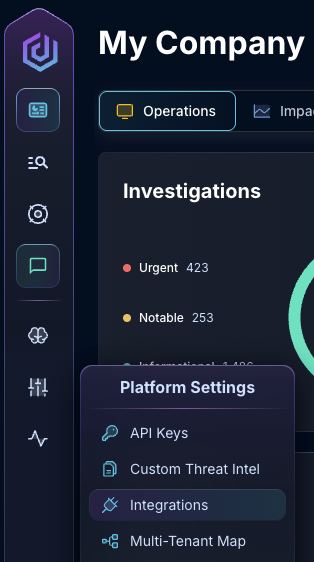
* In the bottom left hand corner, navigate to Settings > Integrations

<figure><img src="/files/zN02u3HObDaemUY8E1kD" alt=""><figcaption><p>Integrations Dropdown</p></figcaption></figure>

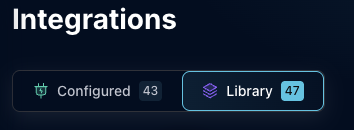
* Click "Library"

{% hint style="info" %}
If you have previously integrated this application, click "Configured"
{% endhint %}

<figure><img src="/files/QySQeLXXUC5SLjaXyamH" alt=""><figcaption><p>Click Library</p></figcaption></figure>

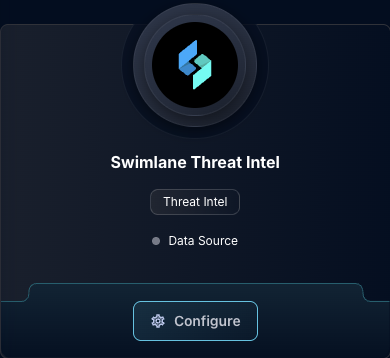
* In the Search bar, search Swimlane Threat Intel, then click "Configure"

<figure><img src="/files/6fE8KHxlmpi0N3NYq2os" alt=""><figcaption><p>The Swimlane Threat Intel Tile</p></figcaption></figure>

* Input the Swimlane Host URL, Personal Access Token (or Username/Password), and the TI App Name

<figure><img src="/files/76xjKTB1l4F5cAKhBkfh" alt=""><figcaption><p>The Swimlane Threat Intel Data Source Configuration (pt 1)</p></figcaption></figure>

* To guide Dropzone's threat intelligence enrichment, input the IOC Field Name, IOC Subtype Field Name, IOC Category Field Name, and Status Field Name
* Input the value of the status field when enrichment is complete, e.g `Yes`, `Complete`, or `Finished`

<figure><img src="/files/xhn8MZ1DNkWTDby6hDsJ" alt=""><figcaption><p>The Swimlane Threat Intel Data Source Configuration (pt 2)</p></figcaption></figure>

* Check the box labeled "Create Record if Not Found" to enable Dropzone to create a Swimlane [record](https://docs.swimlane.com/lookup-and-create-references-within-records) if it cannot locate the IOC in question. This will trigger Swimlane's automation to run [TI queries](https://docs.swimlane.com/swimlane-intelligence-native-action)

{% hint style="info" %}
This feature is only available if the service account you're using has edit access to the application. Contact your Dropzone Support Representative for more information.
{% endhint %}

* Check the box labeled "Verify SSL" to verify SSL certificates when doing investigation
* Enter your desired poll timeout and poll interval

<figure><img src="/files/xhn8MZ1DNkWTDby6hDsJ" alt=""><figcaption><p>The Swimlane Threat Intel Data Source Configuration (pt 2)</p></figcaption></figure>

* Click "Test & Save" to finish

If you have any errors or questions, engage your Dropzone AI support representative.