# Splunk

{% hint style="info" %}
Splunk is an SIEM integration. SIEM integrations are used to perform analysis of any SIEM generated alerts, and/or to use generated data as part of investigation analysis.
{% endhint %}

The Dropzone platform integrates with the [Splunk](https://www.splunk.com/en_us/products/enterprise-security-essentials.html) security SIEM. Many customers ingest other alert sources into Splunk (e.g. IDPs) and integrate Dropzone into Splunk rather than the source systems.

Dropzone communicates to Splunk Enterprise using the [Dropzone Connector](https://gitlab.com/dropzone-ai/docs-gitbook/-/blob/main/docs.dropzone.ai/docs/overview/connector.md).

There are two methods to integrate with Dropzone AI: creating a Splunk User or configuring an API token. To create an API token, follow instructions in [Splunk's documentation](https://help.splunk.com/en/splunk-cloud-platform/administer/manage-users-and-security/9.3.2411/authenticate-into-the-splunk-platform-with-tokens/set-up-authentication-with-tokens).

## Create a Splunk User

To create a Splunk user, do the following:

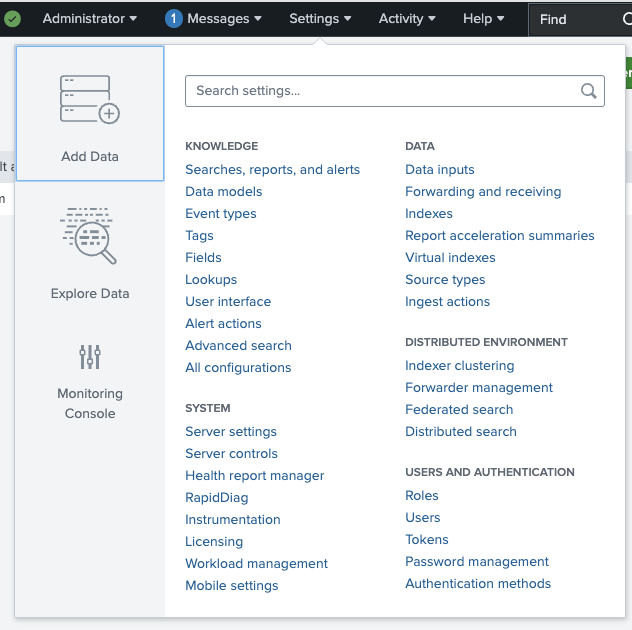
* In the Home Menu of Splunk Enterprise, navigate to Settings > Users

<figure><img src="/files/xpNHjuLFVjR8ss9WpqrT" alt=""><figcaption><p>Navigate to Users</p></figcaption></figure>

* Click "New User"

<figure><img src="/files/qthYYQ6NP2RzXDVoWDz9" alt=""><figcaption><p>Click New User</p></figcaption></figure>

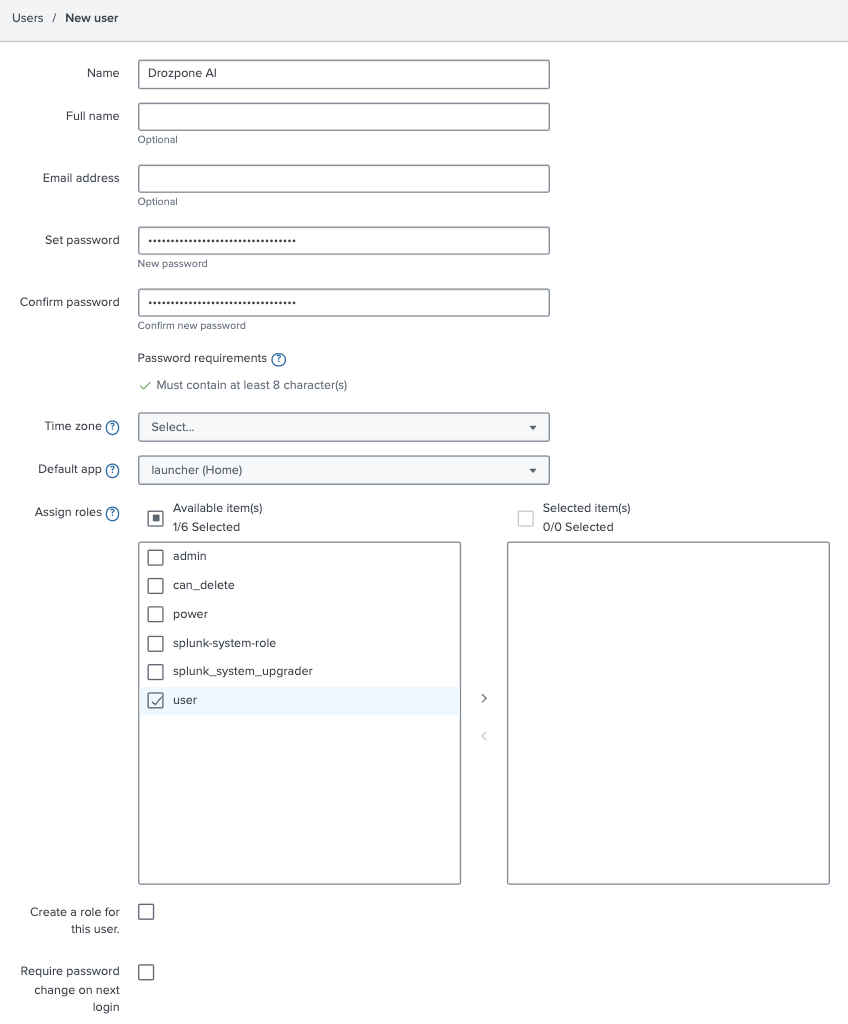
* Name the user something memorable, such as Dropzone AI, and create a password. Save them for use later in the Dropzone UI where they are called "Username" and "Password" respectively
* In the "Assign Roles" section, assign the user the "User" role

{% hint style="info" %}
You may need to add [capabilities](https://docs.splunk.com/Documentation/Splunk/9.4.2/Security/Rolesandcapabilities) to this role depending on the level of access you want Dropzone to have. If you would like to limit the indexes Dropzone has access to, you will need to create a custom role with inherited permissions from the user role. See the Splunk [documentation](https://docs.splunk.com/Documentation/Splunk/9.4.2/Security/Addandeditroles) for more information on creating custom roles.
{% endhint %}

* If two-factor authentication is enabled, provide the Duo username

<figure><img src="/files/FORygmjDpIW4VG6A3zxu" alt=""><figcaption><p>Fill out fields for New User</p></figcaption></figure>

* Click "Create"

<figure><img src="/files/B8QEyWGOUPJrbBEQAZ9k" alt=""><figcaption><p>Create new user</p></figcaption></figure>

## Enable Splunk

To enable the Data Source integration, you'll need the following information:

| Dropzone Field | Source                                                                        |
| -------------- | ----------------------------------------------------------------------------- |
| Server         | The hostname or IP address of your Splunk server, e.g splunk.corp.example.net |
| Password       | The username of the Splunk user you created earlier                           |
| Password       | The password of the Splunk user you created earlier                           |

{% hint style="info" %}
If you chose to create an API token instead of a Splunk user, you will need to use the API token instead.
{% endhint %}

To enable the Data Source integration, do the following:

* Navigate to your Dropzone AI tenant home page e.g. https\://*mycompany*.dropzone.app
* In the bottom left hand corner, navigate to Settings > Integrations

<figure><img src="/files/zN02u3HObDaemUY8E1kD" alt=""><figcaption><p>Integrations Dropdown</p></figcaption></figure>

* Click "Available"

<figure><img src="/files/brI7n2Ux40Tk0jTwBCVh" alt=""><figcaption><p>Click Available</p></figcaption></figure>

* In the Search bar, search Splunk, then click "Configure"

<figure><img src="/files/ushCYadMYSP1AUge9mM3" alt=""><figcaption><p>The Splunk Tile</p></figcaption></figure>

* Input your Splunk Server and port

<figure><img src="/files/X4hqX8HCfvJv3lQEIx9c" alt=""><figcaption><p>The Splunk Data Source Configuration (pt 1)</p></figcaption></figure>

* If you created a Splunk User, under "Authentication Method," select Password. If you created an API token, select Token

<figure><img src="/files/zpc4n5O4pZS7JPeER6F6" alt=""><figcaption><p>The Splunk Data Source Configuration (pt 2)</p></figcaption></figure>

* Input your authentication details

<figure><img src="/files/fPI4vaH5P3mIAL4DWwIW" alt=""><figcaption><p>The Splunk Data Source Configuration (pt 3)</p></figcaption></figure>

* If you wish for Dropzone to only investigate specific indexes, click "Add Item" in the Index Allow List section. Input the list of Splunk [indexes](https://docs.splunk.com/Documentation/Splunk/9.4.2/Indexer/Aboutindexesandindexers) you want Dropzone to investigate. Otherwise, leave blank

<figure><img src="/files/e1203HdgVPxexi9UYtQD" alt=""><figcaption><p>The Splunk Data Source Configuration (pt 4)</p></figcaption></figure>

* Under "Max Concurrent Queries," input the maximum number of [concurrent queries](https://help.splunk.com/en/splunk-cloud-platform/administer/admin-manual/10.1.2507/configure-search-settings-in-splunk-cloud-platform/set-limits-for-concurrent-scheduled-searches) your Splunk deployment can support. If you do not know this number, see [here](https://splunk.my.site.com/customer/s/article/Search-Concurrency-The-maximum-number-of-concurrent-has-been-reached) for more information
* If you wish to reduce average scan times, check the box labeled "Enable Smart Grouping" to allow Dropzone to automatically group sourcetypes by shared prefixes

<figure><img src="/files/2pOajZGUwEQLOhYXbgkT" alt=""><figcaption><p>The Splunk Data Source Configuration (pt 5)</p></figcaption></figure>

* If you want to further customize Dropzone's query configuration, check the box next to "Enable" in the "Advanced: Query Configuration" section. Then input your desired index selection tips, query tips, query examples, and [macro](https://docs.splunk.com/Documentation/Splunk/9.4.2/Knowledge/Usesearchmacros) configuration

<figure><img src="/files/hYHSwFKtPuxXAdbBEm8H" alt=""><figcaption><p>The Splunk Data Source Configuration (pt 6)</p></figcaption></figure>

* Click "Test & Save" to finish

If you have any errors or questions, engage your Dropzone AI support representative.


---

# Agent Instructions: Querying This Documentation

If you need additional information that is not directly available in this page, you can query the documentation dynamically by asking a question.

Perform an HTTP GET request on the current page URL with the `ask` query parameter:

```
GET https://docs.dropzone.ai/integrations/data/splunk_data.md?ask=<question>
```

The question should be specific, self-contained, and written in natural language.
The response will contain a direct answer to the question and relevant excerpts and sources from the documentation.

Use this mechanism when the answer is not explicitly present in the current page, you need clarification or additional context, or you want to retrieve related documentation sections.