# ServiceNow

## ServiceNow

Dropzone AI integrates with [ServiceNow](https://www.servicenow.com/now-platform.html), a cloud-based platform that provides digital workflow automation. Dropzone supports two methods of authentication for this integration: Basic and OAuth Inbound.

{% hint style="info" %}
If you wish to use Basic authentication, you may skip to the "Enable ServiceNow" section of this document.
{% endhint %}

### Create an OAuth Application User

To grant Dropzone access to [tables](https://www.servicenow.com/docs/r/washingtondc/api-reference/rest-apis/c_TableAPI.html) for use in analysis, you will need to add a user (either a dedicated Dropzone User or another user) to an [access control list](https://www.servicenow.com/docs/r/platform-security/access-control/exploring-access-control-list.html). Alternatively, you may use an administrative user as your OAuth Application User, which will allow Dropzone access to most organizational data and tables.

{% hint style="info" %}
If you choose to use an admin user, you may skip to the "Create an OAuth Inbound Integration" section of this document.
{% endhint %}

\### Create a New Role

To create a new role, do so, do the following:

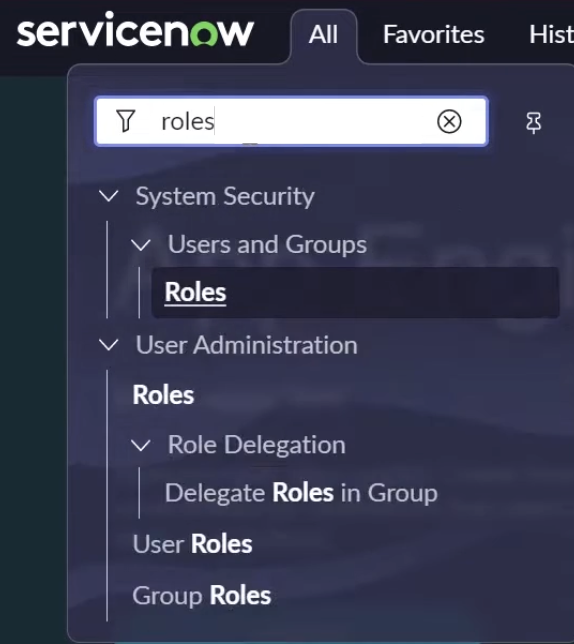
* In the top bar of the ServiceNow home page, click "All"
* In the search bar, navigate to System Security > Users and Groups > Roles

<figure><img src="https://435022081-files.gitbook.io/~/files/v0/b/gitbook-x-prod.appspot.com/o/spaces%2FmBVcKuiytGCsIDpL70BC%2Fuploads%2Fgit-blob-b03b2465cb1e0cfb068feb6301b8167df8a9b777%2Fservicenow-1.png?alt=media" alt=""><figcaption><p>Navigate to Roles</p></figcaption></figure>

* Click "New"

<figure><img src="https://435022081-files.gitbook.io/~/files/v0/b/gitbook-x-prod.appspot.com/o/spaces%2FmBVcKuiytGCsIDpL70BC%2Fuploads%2Fgit-blob-fcffb5ddc96160d5d9ddbd026aed05bc93fb34ff%2Fservicenow-2.png?alt=media" alt=""><figcaption></figcaption></figure>

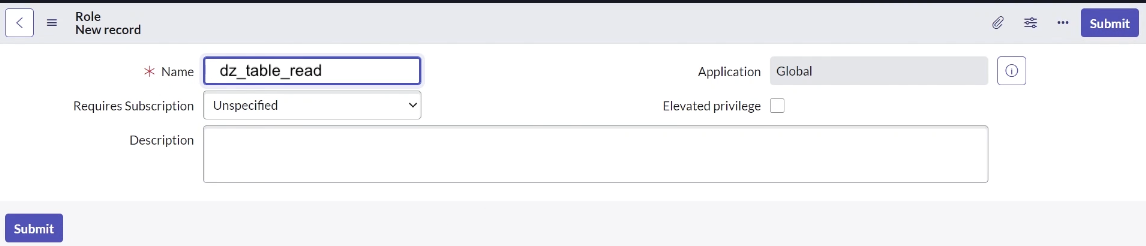
* Name the role something memorable, such as "dz\_table\_read"
* Click "Submit"

<figure><img src="https://435022081-files.gitbook.io/~/files/v0/b/gitbook-x-prod.appspot.com/o/spaces%2FmBVcKuiytGCsIDpL70BC%2Fuploads%2Fgit-blob-52a188f2e2ebde14bb8a36d0a2f3b2d5c4e67fef%2Fservicenow-3.png?alt=media" alt=""><figcaption><p>Create a new role</p></figcaption></figure>

#### Create an Access Control List

To create an ACL, do the following:

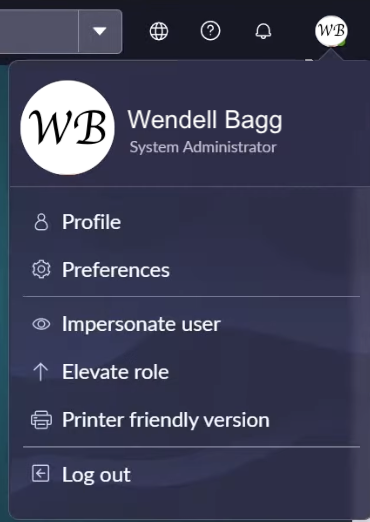
* In the upper right corner, click your icon
* Click "Elevate Role"

<figure><img src="https://435022081-files.gitbook.io/~/files/v0/b/gitbook-x-prod.appspot.com/o/spaces%2FmBVcKuiytGCsIDpL70BC%2Fuploads%2Fgit-blob-17c59d7b565b5d05b3b89066bf2fae734c753b60%2Fservicenow-4.png?alt=media" alt=""><figcaption><p>Elevate your role</p></figcaption></figure>

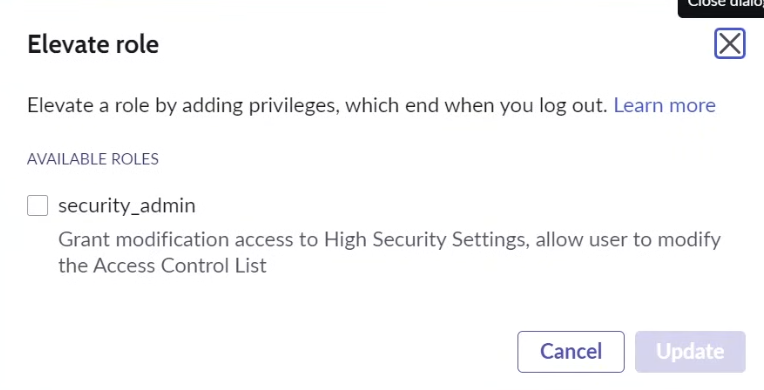
* Select security\_admin

<figure><img src="https://435022081-files.gitbook.io/~/files/v0/b/gitbook-x-prod.appspot.com/o/spaces%2FmBVcKuiytGCsIDpL70BC%2Fuploads%2Fgit-blob-c4df733bb491f807f43e774eb9a0d81aefd2ce3e%2Fservicenow-5.png?alt=media" alt=""><figcaption></figcaption></figure>

{% hint style="info" %}
For more information on elevated roles, see [ServiceNow's documentation](https://www.servicenow.com/docs/r/platform-security/c_ElevatedPrivilege.html)
{% endhint %}

* Navigate to All > System Security > Access Control (ACL)
* Click "New"

<figure><img src="https://435022081-files.gitbook.io/~/files/v0/b/gitbook-x-prod.appspot.com/o/spaces%2FmBVcKuiytGCsIDpL70BC%2Fuploads%2Fgit-blob-fcffb5ddc96160d5d9ddbd026aed05bc93fb34ff%2Fservicenow-2.png?alt=media" alt=""><figcaption></figcaption></figure>

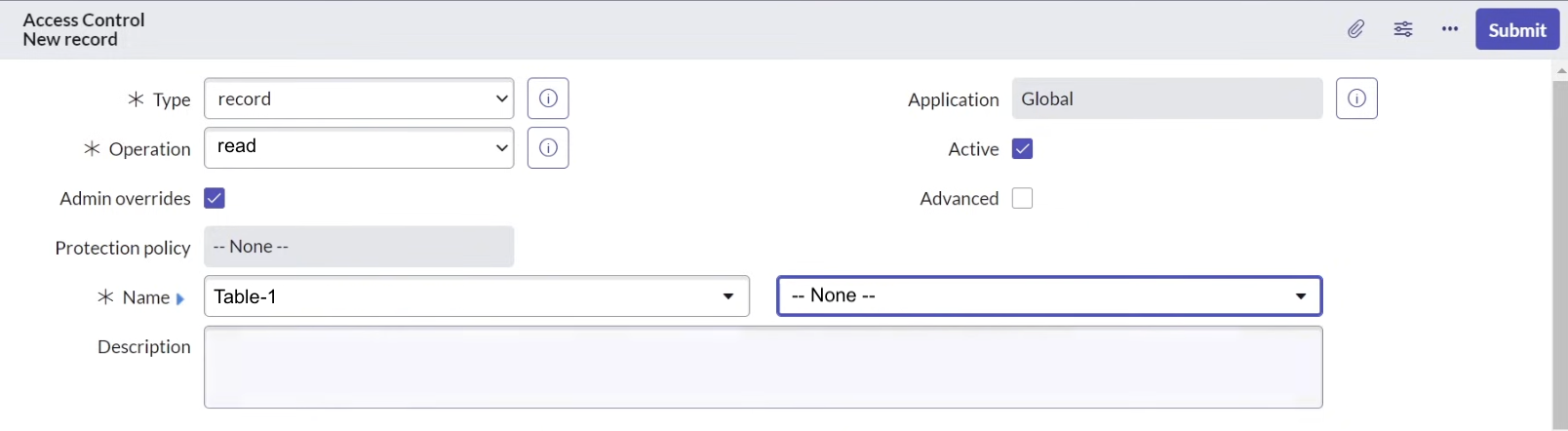
* Under "Operation," select "read"
* Under "Name," input a table you want Dropzone to have read access to

<figure><img src="https://435022081-files.gitbook.io/~/files/v0/b/gitbook-x-prod.appspot.com/o/spaces%2FmBVcKuiytGCsIDpL70BC%2Fuploads%2Fgit-blob-a4d177d01c997d8e81ebd026fe4ecf051887033c%2Fservicenow-6.png?alt=media" alt=""><figcaption><p>Assign the ACL scope</p></figcaption></figure>

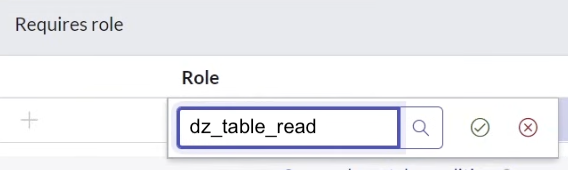
* Under "Role," input the role you created earlier, e.g. dz\_table\_read

<figure><img src="https://435022081-files.gitbook.io/~/files/v0/b/gitbook-x-prod.appspot.com/o/spaces%2FmBVcKuiytGCsIDpL70BC%2Fuploads%2Fgit-blob-dec2faad7ae0bd55f83cc57c4cca662bc42b450f%2Fservicenow-7.png?alt=media" alt=""><figcaption><p>Input the new role</p></figcaption></figure>

* Click "Submit"

<figure><img src="https://435022081-files.gitbook.io/~/files/v0/b/gitbook-x-prod.appspot.com/o/spaces%2FmBVcKuiytGCsIDpL70BC%2Fuploads%2Fgit-blob-1dc511703adc4fe634d8a4e65366e8a49ead6bd9%2Fservicenow-8.png?alt=media" alt=""><figcaption></figcaption></figure>

Repeat for every table you want Dropzone to have access to

#### Assign the ACL to the Role

* Navigate back to Roles
* Click on the role you just created
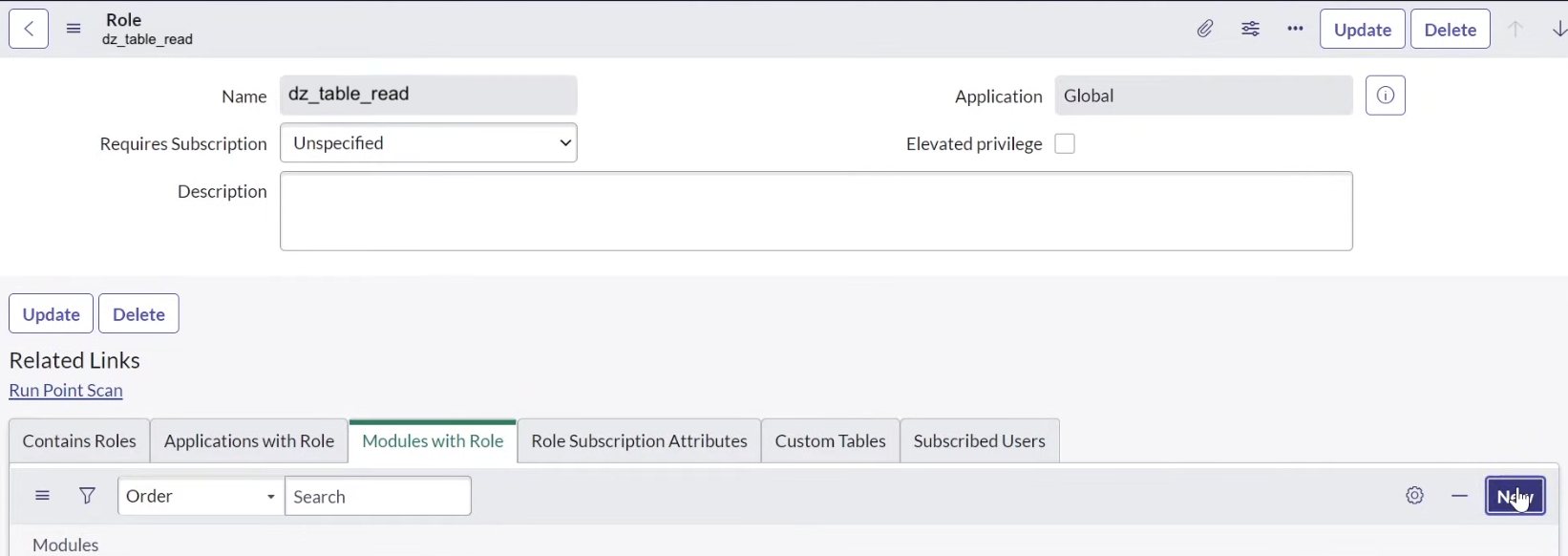
* In the "Modules with Role" section, click "New"

<figure><img src="https://435022081-files.gitbook.io/~/files/v0/b/gitbook-x-prod.appspot.com/o/spaces%2FmBVcKuiytGCsIDpL70BC%2Fuploads%2Fgit-blob-2ff8a84f737eec85ae432527497fc4c3a9fdcfc7%2Fservicenow-9.png?alt=media" alt=""><figcaption></figcaption></figure>

* Name the record with the name of the table in question
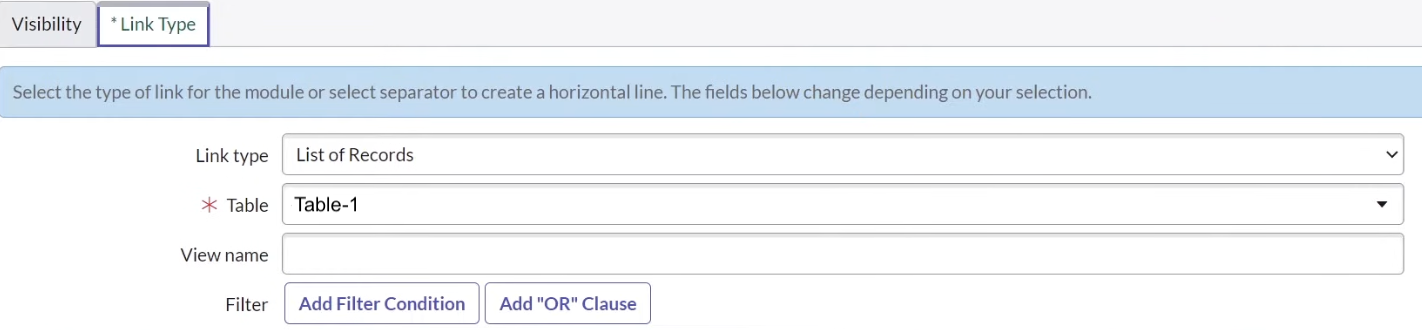
* Click "Link Type"
* Under "Table," select your desired table

<figure><img src="https://435022081-files.gitbook.io/~/files/v0/b/gitbook-x-prod.appspot.com/o/spaces%2FmBVcKuiytGCsIDpL70BC%2Fuploads%2Fgit-blob-6a0a678d9fea802b97364240a9c9e96f062aac28%2Fservicenow-11.png?alt=media" alt=""><figcaption></figcaption></figure>

* Click "Submit"

Repeat for every table you want Dropzone to have access to

#### Create a Group

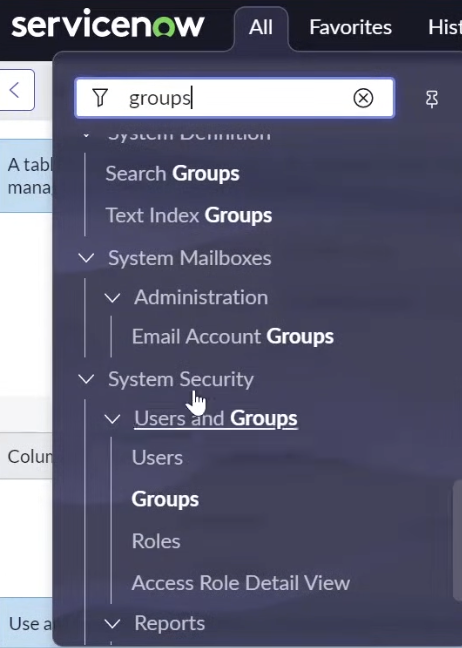
* Navigate to All > System Security > Users and Groups > Groups

<figure><img src="https://435022081-files.gitbook.io/~/files/v0/b/gitbook-x-prod.appspot.com/o/spaces%2FmBVcKuiytGCsIDpL70BC%2Fuploads%2Fgit-blob-2ed1a54b2cbdf5e2cca5a532717c2b983dad3060%2Fservicenow-13.png?alt=media" alt=""><figcaption></figcaption></figure>

* Click "New"

<figure><img src="https://435022081-files.gitbook.io/~/files/v0/b/gitbook-x-prod.appspot.com/o/spaces%2FmBVcKuiytGCsIDpL70BC%2Fuploads%2Fgit-blob-fcffb5ddc96160d5d9ddbd026aed05bc93fb34ff%2Fservicenow-2.png?alt=media" alt=""><figcaption></figcaption></figure>

* Name the role something memorable, such as "Dropzone AI"
* Assign yourself (or a dedicated Dropzone User) as the manager
* Click "Submit"

<figure><img src="https://435022081-files.gitbook.io/~/files/v0/b/gitbook-x-prod.appspot.com/o/spaces%2FmBVcKuiytGCsIDpL70BC%2Fuploads%2Fgit-blob-ba2f6f45c7eb92ad25d2a2eee87a05f1380f7914%2Fservicenow-14.png?alt=media" alt=""><figcaption></figcaption></figure>

* Click "Group Members"
* Click "Edit"

<figure><img src="https://435022081-files.gitbook.io/~/files/v0/b/gitbook-x-prod.appspot.com/o/spaces%2FmBVcKuiytGCsIDpL70BC%2Fuploads%2Fgit-blob-569da085e5f241abb0b4e614f0cb6e7275549272%2Fservicenow-15.png?alt=media" alt=""><figcaption></figcaption></figure>

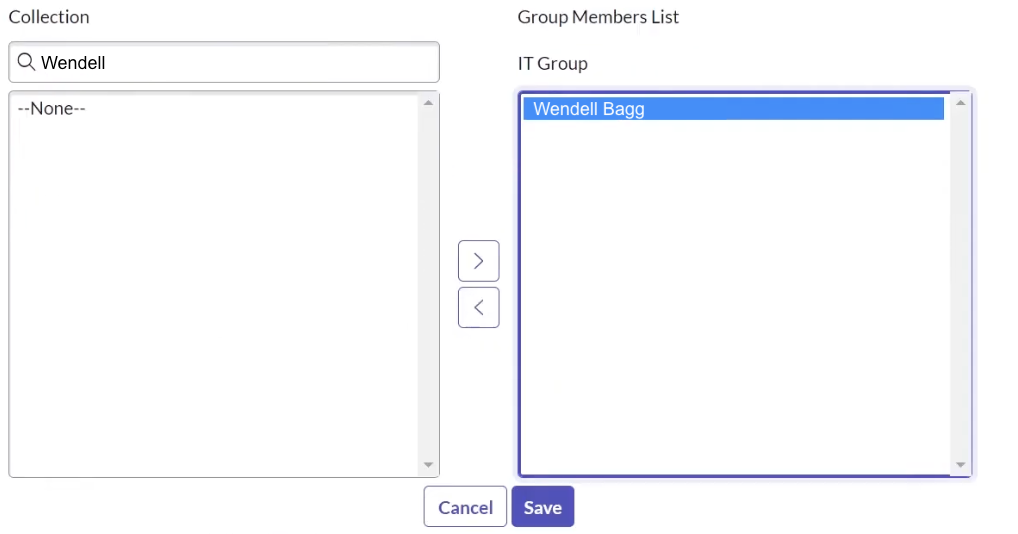
* In the search bar under "Collection," add yourself (or a dedicated Dropzone User)
* Click the `>` then click "Save"

<figure><img src="https://435022081-files.gitbook.io/~/files/v0/b/gitbook-x-prod.appspot.com/o/spaces%2FmBVcKuiytGCsIDpL70BC%2Fuploads%2Fgit-blob-85b97154a3200d80ed812e6d521c995ff43da609%2Fservicenow-16.png?alt=media" alt=""><figcaption></figcaption></figure>

* In the "Roles" section, click "Edit"

<figure><img src="https://435022081-files.gitbook.io/~/files/v0/b/gitbook-x-prod.appspot.com/o/spaces%2FmBVcKuiytGCsIDpL70BC%2Fuploads%2Fgit-blob-bd020bfd9ecfde25e8b5c5b95fadaae5f4de282d%2Fservicenow-17.png?alt=media" alt=""><figcaption></figcaption></figure>

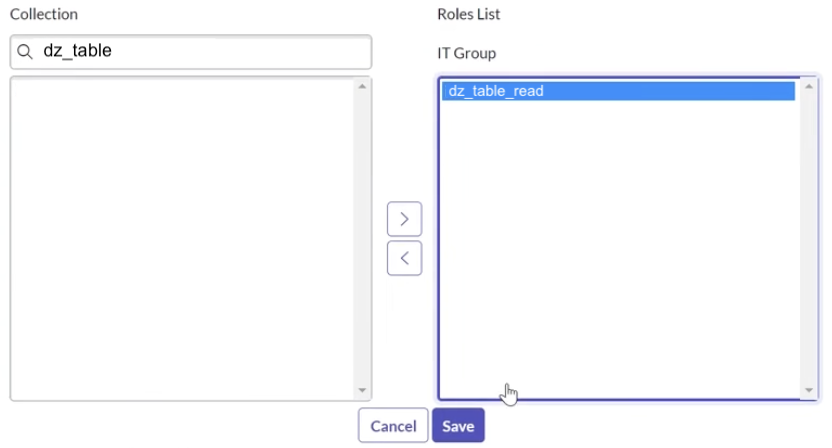
* In the search bar under "Collection," add the role you created earlier
* Click the `>` then click "Save"

<figure><img src="https://435022081-files.gitbook.io/~/files/v0/b/gitbook-x-prod.appspot.com/o/spaces%2FmBVcKuiytGCsIDpL70BC%2Fuploads%2Fgit-blob-c3ec989ac05b3a316c3e1a0f70d8e7116eb23b3d%2Fservicenow-18.png?alt=media" alt=""><figcaption></figcaption></figure>

The user associated with this group will be used as the OAuth Application User.

## Create an OAuth Inbound Integration

ServiceNow requires a Client ID and Client Secret to enable. To manage OAuth integrations, you must have access to a user with one of the following roles: oauth\_admin mi\_admin admin

To obtain a Client ID and Secret, do the following:

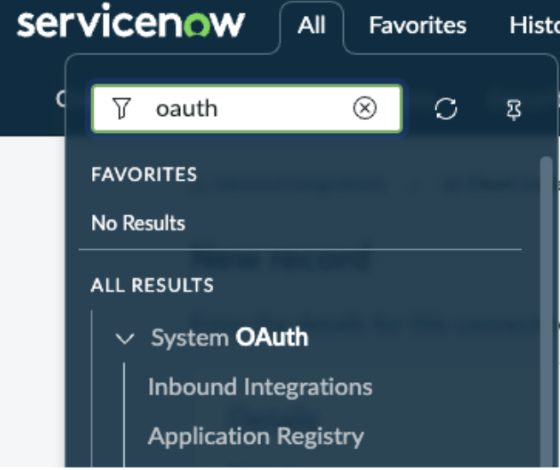
* Navigate to All > System OAuth > Inbound Integrations

<figure><img src="https://435022081-files.gitbook.io/~/files/v0/b/gitbook-x-prod.appspot.com/o/spaces%2FmBVcKuiytGCsIDpL70BC%2Fuploads%2Fgit-blob-704b8e798efb3468bbfa98b2297c0e4788e0c256%2Fservicenow-19.png?alt=media" alt=""><figcaption><p>Navigate to Inbound Integrations</p></figcaption></figure>

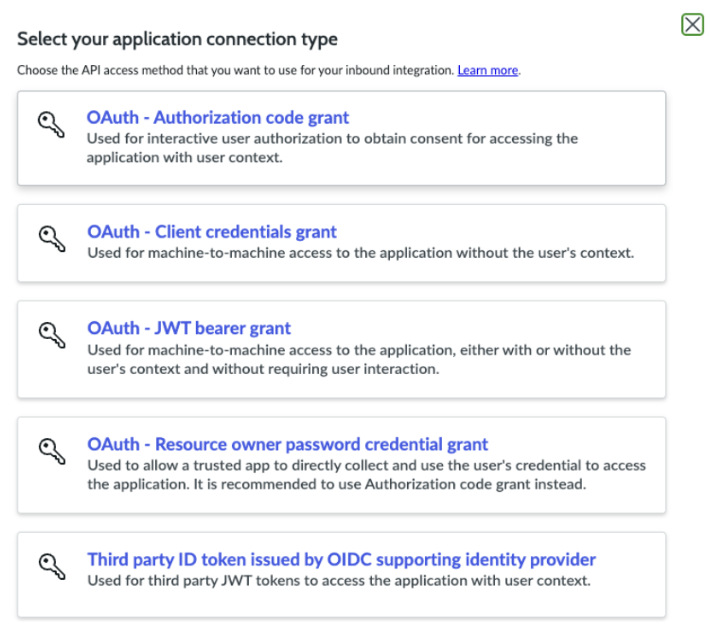
* In the upper right, click "New Integration"
* Select "OAuth - Client Credentials Grant"

<figure><img src="https://435022081-files.gitbook.io/~/files/v0/b/gitbook-x-prod.appspot.com/o/spaces%2FmBVcKuiytGCsIDpL70BC%2Fuploads%2Fgit-blob-a4ef9f24d21df5ee1b267cf41f053d843b513517%2Fservicenow-20.png?alt=media" alt=""><figcaption></figcaption></figure>

* Name the client something memorable, such as "Dropzone AI"
* Under OAuth Application User, select the user you assigned earlier
* In the "Auth Scopes" section, click "Create auth scope"

<figure><img src="https://435022081-files.gitbook.io/~/files/v0/b/gitbook-x-prod.appspot.com/o/spaces%2FmBVcKuiytGCsIDpL70BC%2Fuploads%2Fgit-blob-3d123b5ccf851b6a8a3ee0919d7900208091bb58%2Fservicenow-21.png?alt=media" alt=""><figcaption></figcaption></figure>

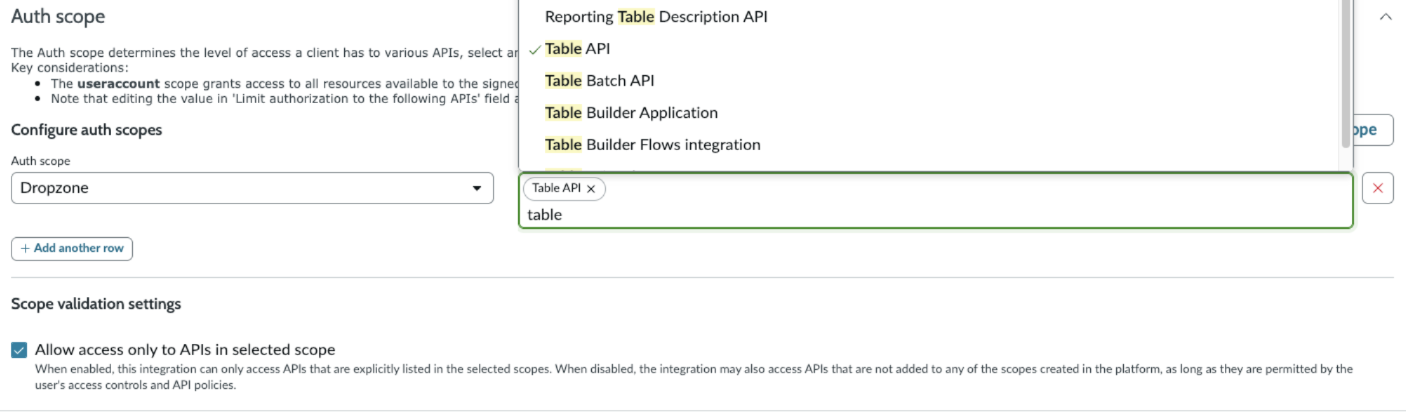
* Name the scope something memorable, such as "Dropzone"
* Assign the integration the Table API scope

<figure><img src="https://435022081-files.gitbook.io/~/files/v0/b/gitbook-x-prod.appspot.com/o/spaces%2FmBVcKuiytGCsIDpL70BC%2Fuploads%2Fgit-blob-e0b58ef4dfc013bfd423bf94a0d36945f644dc92%2Fservicenow-22.png?alt=media" alt=""><figcaption><p>Add the Table API scope</p></figcaption></figure>

* Click "Submit"
* Copy the Client ID and Client secret generated for use later in the Dropzone UI where they are called "Client ID" and "Client Secret" respectively

### Enable ServiceNow

To enable the Data Source integration, you will need the following information:

| Dropzone Field | Source                                                                                 |
| -------------- | -------------------------------------------------------------------------------------- |
| Instance URL   | Your ServiceNow instance URL, e.g. yourcompany.service-now\.com                        |
| Username       | The username of the admin user you are using. Only used for basic authentication       |
| Password       | The password for the aforementioned user's account. Only used for basic authentication |
| Client ID      | The Client ID value generated earlier                                                  |
| Client Secret  | The Client Secret value generated earlier                                              |

To enable the Data Source integration, do the following:

* Navigate to your Dropzone AI tenant home page e.g. https\://*mycompany*.dropzone.app
* In the bottom left hand corner, navigate to Settings > Integrations

<figure><img src="https://435022081-files.gitbook.io/~/files/v0/b/gitbook-x-prod.appspot.com/o/spaces%2FmBVcKuiytGCsIDpL70BC%2Fuploads%2Fgit-blob-b3f07f902b1402dadc7abbd8bb62f9c204547390%2Fui-integrations-dropdown.png?alt=media" alt=""><figcaption><p>Integrations Dropdown</p></figcaption></figure>

* Click "Available"

<figure><img src="https://435022081-files.gitbook.io/~/files/v0/b/gitbook-x-prod.appspot.com/o/spaces%2FmBVcKuiytGCsIDpL70BC%2Fuploads%2Fgit-blob-434641ec6d4e45051842f86164f485d6bd289424%2Fapp_system_integrations_available.png?alt=media" alt=""><figcaption><p>Click Available</p></figcaption></figure>

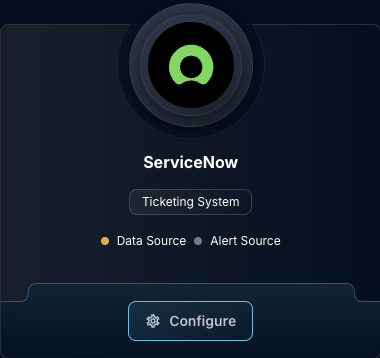
* In the Search bar, search ServiceNow, then click "Configure"

<figure><img src="https://435022081-files.gitbook.io/~/files/v0/b/gitbook-x-prod.appspot.com/o/spaces%2FmBVcKuiytGCsIDpL70BC%2Fuploads%2Fgit-blob-9ff1945198024a4685ba8fa2563d950abcca009c%2Fapp_system_integrations_available_servicenow.png?alt=media" alt=""><figcaption><p>The ServiceNow Tile</p></figcaption></figure>

* Under the Data Source heading, input the Instance URL and select your method of authentication from the dropdown

<figure><img src="https://435022081-files.gitbook.io/~/files/v0/b/gitbook-x-prod.appspot.com/o/spaces%2FmBVcKuiytGCsIDpL70BC%2Fuploads%2Fgit-blob-0f75d3b02d7eb1e8080053d19643ed941f3d5618%2Fapp_system_integrations_available_servicenow_data_config-1.png?alt=media" alt=""><figcaption><p>The ServiceNow Data Source Configuration (pt 1)</p></figcaption></figure>

* If you selected Basic, input the username and password

<figure><img src="https://435022081-files.gitbook.io/~/files/v0/b/gitbook-x-prod.appspot.com/o/spaces%2FmBVcKuiytGCsIDpL70BC%2Fuploads%2Fgit-blob-0a60abcc5e0f5403a489ed8f1f1cb621ea56884a%2Fapp_system_integrations_available_servicenow_data_config-2.png?alt=media" alt=""><figcaption><p>The ServiceNow Data Source Configuration (pt 2)</p></figcaption></figure>

* If you selected OAuthInbound, input the Client ID and Secret

<figure><img src="https://435022081-files.gitbook.io/~/files/v0/b/gitbook-x-prod.appspot.com/o/spaces%2FmBVcKuiytGCsIDpL70BC%2Fuploads%2Fgit-blob-66e7e72c37fd4d1c3160e468c9fafb5f2a74f51c%2Fapp_system_integrations_available_servicenow_data_config-3.png?alt=media" alt=""><figcaption><p>The ServiceNow Data Source Configuration (pt 3)</p></figcaption></figure>

* In the "Table and Query Pairs" section, you must add the [ServiceNow tables](https://www.servicenow.com/docs/r/washingtondc/api-reference/rest-apis/c_TableAPI.html) you want Dropzone to access
* To do so, input the name of the table (such as "incident" or "asset") in the Table Name section
* Under "Encoded Query," input a ServiceNow [encoded query string](https://www.servicenow.com/docs/r/platform-user-interface/c_EncodedQueryStrings.html)
* Click "Add Item" to add more tables

<figure><img src="https://435022081-files.gitbook.io/~/files/v0/b/gitbook-x-prod.appspot.com/o/spaces%2FmBVcKuiytGCsIDpL70BC%2Fuploads%2Fgit-blob-ec86f466e5bcc8a8c5026ca0d50cdac93198da07%2Fapp_system_integrations_available_servicenow_data_config-4.png?alt=media" alt=""><figcaption><p>The ServiceNow Data Source Configuration (pt 4)</p></figcaption></figure>

* Click "Test & Save" to finish

If you have any errors or questions, engage your Dropzone AI support representative.