> For the complete documentation index, see [llms.txt](https://docs.dropzone.ai/llms.txt). Markdown versions of documentation pages are available by appending `.md` to page URLs; this page is available as [Markdown](https://docs.dropzone.ai/integrations/data/panther_data.md).
# Panther
{% hint style="info" %}
Panther is an SIEM integration. SIEM integrations are used to perform analysis of any SIEM generated alerts, and/or to use generated data as part of investigation analysis.
{% endhint %}
The Dropzone platform integrates with the [Panther](https://panther.com) security SIEM. Many customers ingest other alert sources into Panther (e.g. IDPs) and integrate Dropzone into Panther rather than the source systems.
## Create an API Key
Panther requires an API key to enable.
To obtain an API Key, do the following:
* Navigate to your Panther homepage
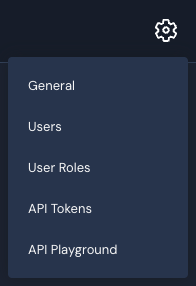
* Click on the gear icon in the top right corner
* Select "API Tokens"
Select API Tokens
* Record the API URL located at the top of the page for use later in the Dropzone UI where it is called "Panther URL"
API URL
* Click on "Create New Token"
* Grant the token the following permissions:
| Permission | Purpose |
| ---------------- | ---------------------------------------------------------------------------- |
| Manage Alerts | (optional) Allows Dropzone to add investigations results as Panther comments |
| Read Alerts | Allows Access to alert information |
| View Rules | Allows viewing the log rules setup in Panther |
| Query Data Lake | Allows listing and issuing Data Explorer & Indicator Search queries |
| View Log Sources | Allows viewing the Log sources setup |
| Read User Info | Allows access to user information related to your Panther resources |
* Click "Create API Token" at the bottom of the page
Create API Token
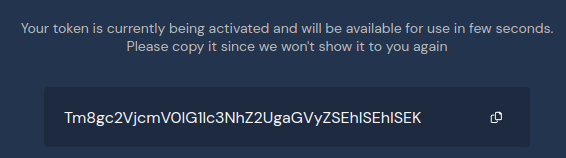
* Record the value for use later in the Dropzone UI where it is called "API key"
Record the API Token
* Click "Done"
## Enable Panther
To enable the Data Source integration, do the following:
* Navigate to your Dropzone AI tenant home page e.g. https\://*mycompany*.dropzone.app
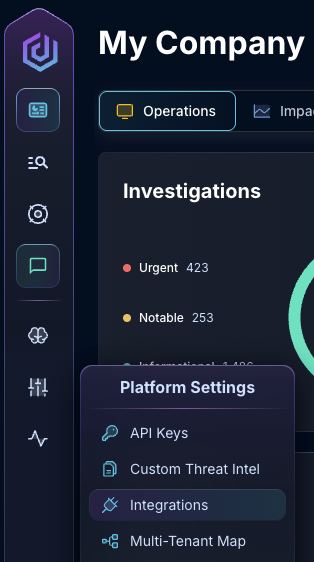
* In the left side bar, navigate to Platform Settings > Integrations
Integrations Dropdown
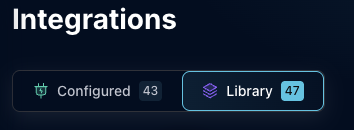
* Click "Library"
{% hint style="info" %}
If you have previously integrated this application, click "Configured"
{% endhint %}
Click Library
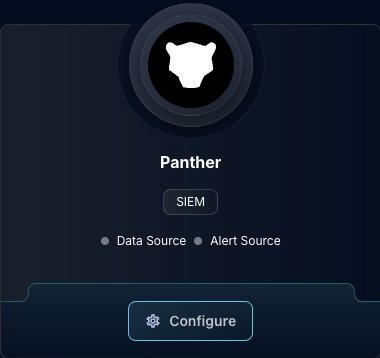
* In the Search bar, search Panther, then click "Configure"
The Panther Tile
* Under the Data Source heading, input the Panther URL link and the API key
The Panther Data Source Configuration
* Click "Test & Save" to finish
{% hint style="info" %}
The Panther API token activation is not instantaneous. If the connection fails initially try again after a few minutes.
{% endhint %}
If you have any errors contact our Customer Success team.