Palo Alto Cortex
Palo Alto Cortex XSIAM/XDR
The Dropzone AI Platform integrates with the Palo Alto Cortex platform to monitor endpoints, gather data from cloud, network and identity sources, as well as analyze alerts.
Create an API Key
Palo Alto Cortex requires an API key to enable. You’ll need access to a Cortex user account with the ability to generate and manage API keys. If you don’t have the necessary permissions, please get in touch with your Cortex administrator for assistance.
To obtain an API Key, do the following:
Log in to your Palo Cortex console
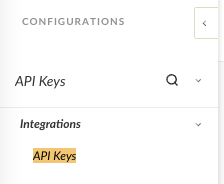
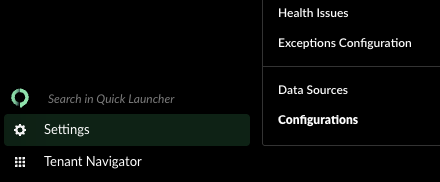
In the bottom left corner, navigate to Settings > Configurations

In the Search bar, input "API Keys," then click "API Keys"

In the upper right, click "+ New Key"

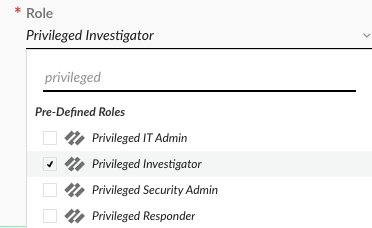
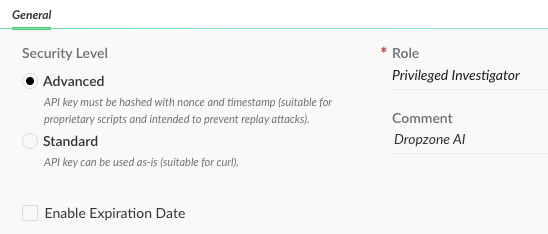
Under "Role," assign the API Key the Privileged Investigator role

Under "Comment," name the API key something memorable, such as "Dropzone AI"
Select your desired Security Level: Advanced or Standard
If you wish to assign the key an expiration date, check the box labeled "Enable Expiration Date" and input your desired expiration date

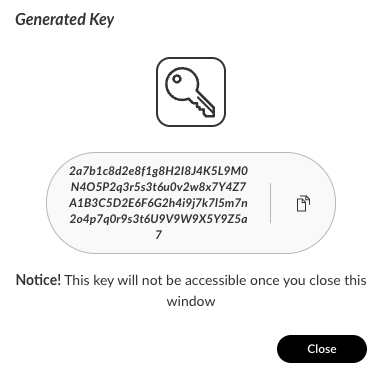
In the bottom left corner, click "Generate"

Copy the API Key shown for use later in the Dropzone UI where it is called "API Key"

In the API Keys table, locate the ID number for the newly generated API Key. Copy it for use later in the Dropzone UI where it is called "API Key ID"

In the top right hand corner, click "Copy API URL"

Save the URL for use later in the Dropzone UI where it is called "API FQDN"
Enable Palo Alto Cortex XDR/XSIAM
The Dropzone Data Source integration of XDR and XSIAM are the same. For the purpose of this documentation, steps for the XSIAM integration have been detailed; to integrate XDR, simply search for Palo Alto Cortex XDR and follow the same instructions.
To enable the Data Source integration, you will need the following information:
API FQDN
The API URL you copied earlier
API Key ID
The API key ID value you copied earlier
API Key
The API key value you generated earlier
Navigate to your Dropzone AI tenant home page e.g. https://mycompany.dropzone.app
In the bottom left hand corner, navigate to Settings > Integrations

Click "Available"

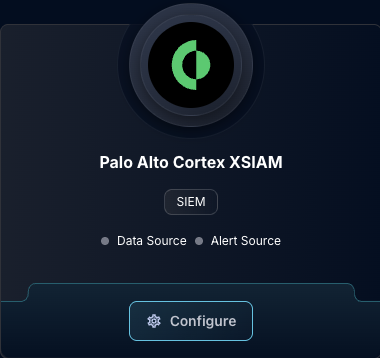
In the Search bar, search Palo Alto Cortex XSIAM, then click "Configure"

Under the Data Source heading, input the API FQDN, API Key ID, and API Key
Select your authentication method.
This must be the same as the security level you configured for the API key generated earlier.

Select your Dataset Configuration Mode. You may select Automatic, which allows Dropzone to scan all the datasets within your environment, or Manual, which only allows Dropzone access to the datasets you select
If you select Manual, under "Manual Dataset List," you must input the names of the Datasets you want Dropzone to scan. Each name must be added individually

If you wish, you may provide tips to Dropzone's AI to guide its dataset selections. To do so, in the "Global Dataset Selection Tips" section, click "Add Item" and write a suggestion for the AI

In the "Dataset Customizations" section, you may further customize Dropzone's behavior with specific datasets. To do so, do the following:
Under "Dataset Customization," input a Dataset name
In the "Dataset Selection Tips" section, you may input a tip to guide the AI's queries
Under "Query Examples," you may input an example query or an example question
In the "Query Generation Tips" section, you may write a suggestion for Dropzone to improve XQL query generation
Once done with a particular dataset, click "Add Item"
Continue adding datasets until done

Click "Test & Save" to finish

If you have any errors engage your Dropzone AI support representative.
Last updated
Was this helpful?