> For the complete documentation index, see [llms.txt](https://docs.dropzone.ai/llms.txt). Markdown versions of documentation pages are available by appending `.md` to page URLs; this page is available as [Markdown](https://docs.dropzone.ai/integrations/data/opensourcemalware.md).
# OpenSourceMalware
{% hint style="info" %}
OpenSourceMalware is a Threat Intelligence (TI) integration. TI Data Source integrations are used during investigations to improve analysis and in interactive chat to help answer questions. They are optional, but enabling more tooling integrations enhances Dropzone analysis.
{% endhint %}
The Dropzone AI Platform integrates with [OpenSourceMalware](https://opensourcemalware.com/), a community-driven platform where users share intel on malicious packages, repositories, and other forms of open-source malware.
## Create an API Key
OpenSourceMalware requires an API key to enable.
To obtain an API Key, do the following:
* If you do not already have an account, create a free account [here](https://opensourcemalware.com/auth)
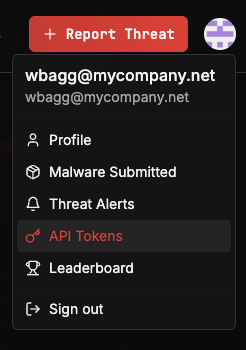
* Click your profile icon in the upper right, then click "API Tokens"
Navigate to API Tokens
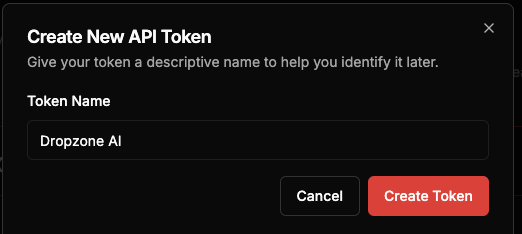
* Click "+ Create Token"
* Name the token something memorable such as Dropzone AI
* Click "Create Token"
Create the API Token
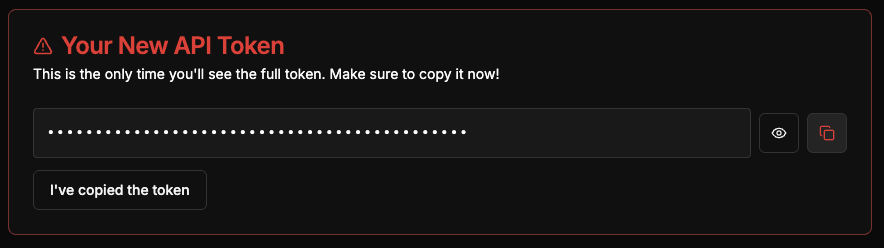
* Copy the API token for use later in the Dropzone UI where it is called "API token"
## Enable OpenSourceMalware
To enable the Data Source integration, do the following:
* Navigate to your Dropzone AI tenant home page e.g. https\://*mycompany*.dropzone.app
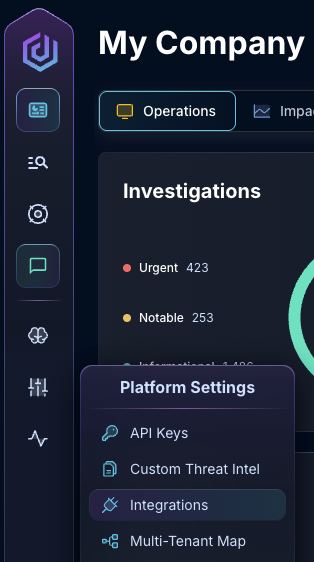
* In the left side bar, navigate to Platform Settings > Integrations
Integrations Dropdown
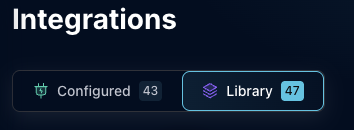
* Click "Library"
{% hint style="info" %}
If you have previously integrated this application, click "Configured"
{% endhint %}
Click Library
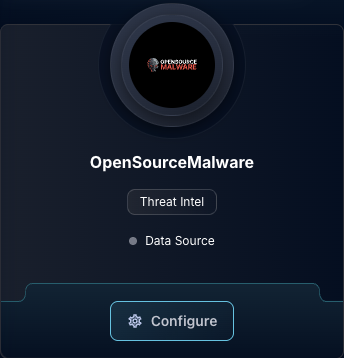
* In the Search bar, search OpenSourceMalware, then click "Configure"
The OpenSourceMalware Tile
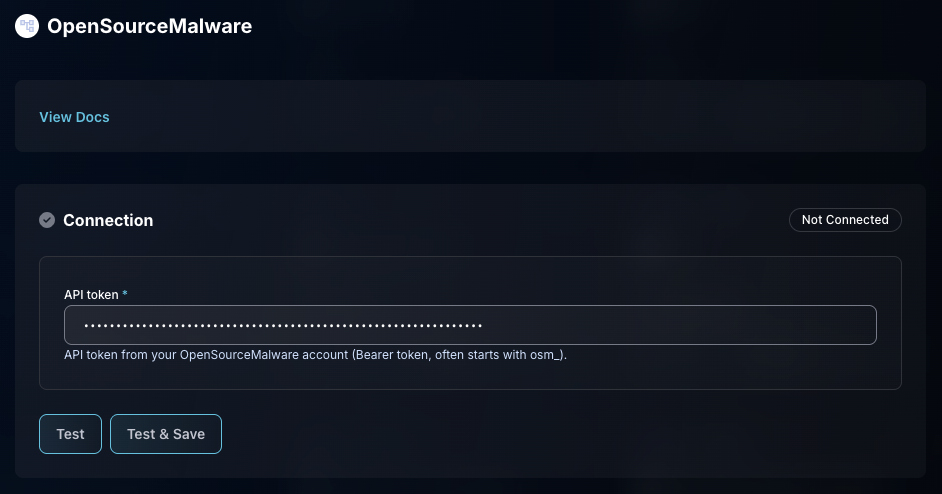
* Input the API key
* Click "Test & Save" to finish
The OpenSourceMalware Data Source Configuration
If you have any errors contact our Customer Success team.