# Microsoft 365 / Microsoft Defender

## Microsoft 365 / Microsoft Defender

{% hint style="success" %}
This is a combined document for enabling the Dropzone AI Data Source and Alert Source for Microsoft 365 / Microsoft Defender services.
{% endhint %}

The Dropzone AI platform integrates with Entra ID, Exchange Online, and Microsoft Defender via the Microsoft Graph API. This document describes how to set up API credentials and install them into the Dropzone platform.

### Integration Overview

To enable these integrations you will perform the following actions:

* Register a new application in Microsoft Entra Admin Center
* Locate your Client ID, Tenant ID, and create a Client Secret
* Enable Dropzone Certificate Credentials
* Assign necessary API permissions to the application
* Install the credentials into your Dropzone tenant (Data Source and Alert Source)
* Select integration parameters, such as which alert types to sync

See the [Microsoft Integrations](/integrations/data/ms_data.md) page for instructions on how to register a new application, locate your Client ID and Tenant ID, and create a Client Secret.

### Set Application Permissions

General instructions on how to assign API permissions to the application can be found in the [Microsoft Integrations](/integrations/data/ms_data.md) page.

MS 365/MS Defender can utilize the following APIs:

| API                                   | Purpose                                                                                                                                                              |
| ------------------------------------- | -------------------------------------------------------------------------------------------------------------------------------------------------------------------- |
| Microsoft Graph                       | Required for the integration to function                                                                                                                             |
| Microsoft Cloud Apps Security.        | Required to query investigations from Microsoft Cloud Apps. When enabled, Dropzone is able to analyze cloud apps events                                              |
| Windows Defender ATP - Live Response. | Required to extract quarantined files from Defender alerts. When enabled, Dropzone is able to independently analyze the files which will improve conclusion accuracy |
| Office 365 Exchange Online Management | Required to enable Office 365 Exchange Online Management, specifically to support retrieving quarantined emails during phishing analysis                             |

### Microsoft Graph Permissions

* In the API permissions page, click "Add a permission"
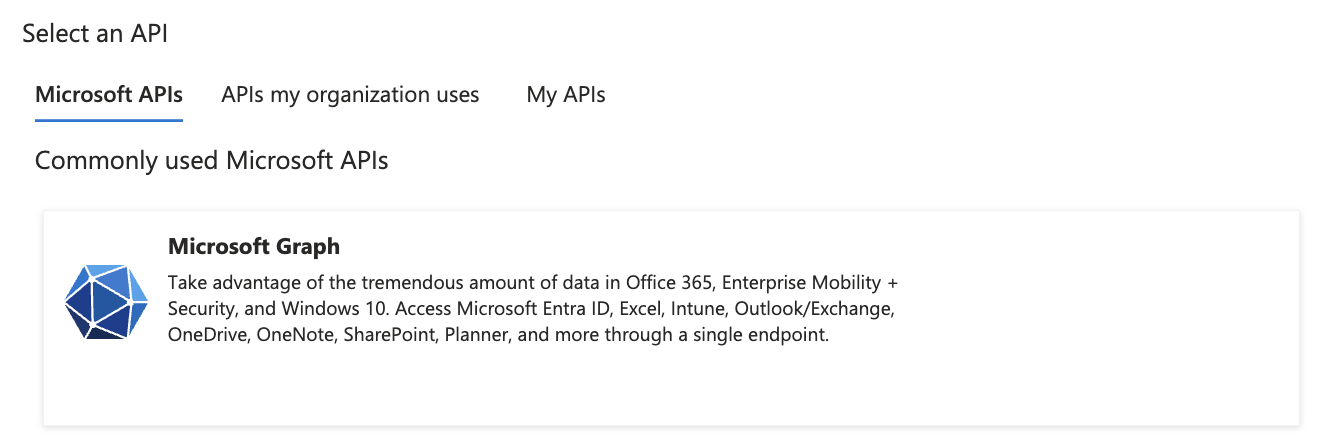
* Under the Microsoft API header, select "Microsoft Graph"

<figure><img src="/files/7ucvU7fOJt0pTZQNDMws" alt=""><figcaption><p>Select Microsoft Graph</p></figcaption></figure>

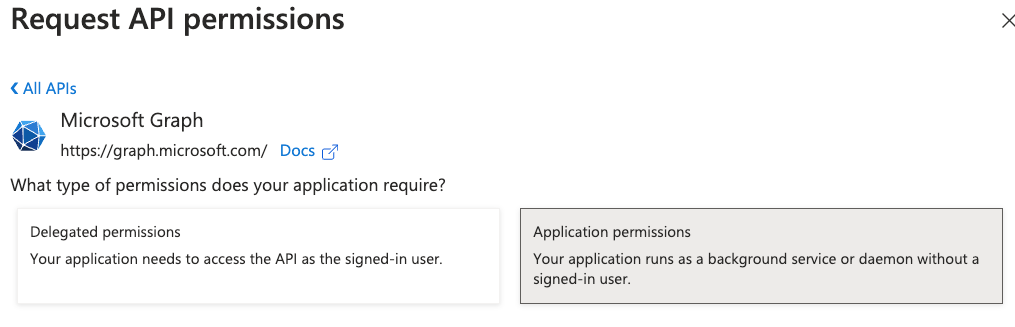
* Click "Application Permissions"

<figure><img src="/files/oSiXAegQZauD3wcHDF3q" alt=""><figcaption><p>Select Application Permissions</p></figcaption></figure>

Add the following permissions:

| Permission                    | Purpose                                                                                                                | Used By                                     |
| ----------------------------- | ---------------------------------------------------------------------------------------------------------------------- | ------------------------------------------- |
| AuditLog.Read.All             | Retrieve audit information such as user MFA and administrator access status, for alert investigation and chat          | Data Source Integration                     |
| Calendars.Read                | Allow access to Microsoft Calendar, for use in investigations to determine user OOO / travel status                    | Data Source Integration - Calendar Features |
| Calendars.ReadBasic.All       | Retrieve basic calendar information for use in investigations to determine user OOO / travel status                    | Data Source Integration - Calendar Features |
| MailboxSettings.Read          | Retrieve mailbox settings, such as OOO or vacation status                                                              | Data Source Integration - Calendar Features |
| Presence.Read.All             | Retrieves presence information, such as availability status, location, etc                                             | Data Source Integration - Calendar Features |
| Directory.Read.All            | Retrieve directory information such as users, group membership, directory roles, etc, for alert investigation and chat | Data Source Integration                     |
| Mail.Read                     | Retrieve phishing emails for analysis; retrieve phishing alerts in some configurations                                 | Alert Source and Data Source Integrations   |
| ThreatHunting.Read.All        | Investigating Microsoft Defender alerts                                                                                | Alert Source Integration                    |
| SecurityAlert.Read.All        | Pulling Microsoft Defender alerts                                                                                      | Alert Source Integration                    |
| SecurityIncident.Read.All     | Pulling Microsoft Defender alerts                                                                                      | Alert Source Integration                    |
| ThreatSubmission.Read.All     | Pulling Phishing Alerts                                                                                                | Alert Source Integration                    |
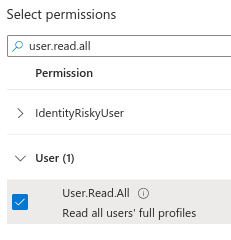
| User.Read.All                 | Allow Dropzone to read all user profile properties when investigating suspicious alerts                                | Remediator Integration                      |
| User.RevokeSessions.All       | Allow Dropzone to revoke user sessions of users indicated in suspicious alerts                                         | Remediator Integration                      |
| User.EnableDisableAccount.All | Allow Dropzone to suspend accounts indicated in suspicious alerts                                                      | Remediator Integration                      |
| Machine.Isolate               | Allow Dropzone to isolate machines that may potentially be compromised                                                 | Remediator Integration                      |

<figure><img src="/files/UpR006DSi2UIYDblppvh" alt=""><figcaption><p>Example - adding the "User.Read.All" permission</p></figcaption></figure>

* Once done selecting all the permissions, click "Add permissions"

{% hint style="info" %}
Some of these permissions are only necessary for the Alert Source and Remediator integrations. If you don't intend to perform those integration, you may ignore them.

Enabling Dropzone's Data Source Calendar Features is optional.
{% endhint %}

* Click "Grant admin consent for \[mycompany.net]"

<figure><img src="/files/nKTcgGobOtW8J851R42c" alt=""><figcaption><p>Grant admin consent</p></figcaption></figure>

* Click "Yes"

<figure><img src="/files/6t1bTqpO5FLj1cjlgnEu" alt=""><figcaption><p>Grant admin consent</p></figcaption></figure>

## Microsoft Cloud Apps Security Permissions

* In the API permissions page, click "Add a permission"
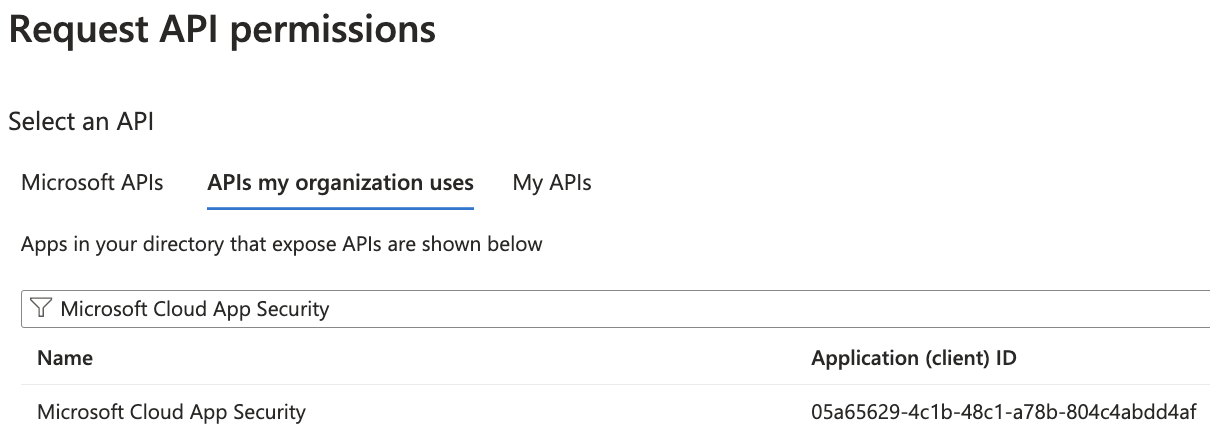
* Navigate to "APIs my organization uses"
* Type "Microsoft Cloud App Security" in the search bar

<figure><img src="/files/EnT5pdj0RtLd2YnFYkwQ" alt=""><figcaption><p>Microsoft Cloud App Security</p></figcaption></figure>

* Click "Microsoft Cloud App Security"
* Click "Application permissions"

Add the following permissions:

| Permission         | Purpose                       |
| ------------------ | ----------------------------- |
| investigation.read | Read Cloud App investigations |

* Once done selecting all the permissions, click "Add permissions"
* Click "Grant admin consent for \[mycompany.net]"
* Click "Yes"

## Windows Defender ATP - Live Response

* In the API permissions page, click "Add a permission"
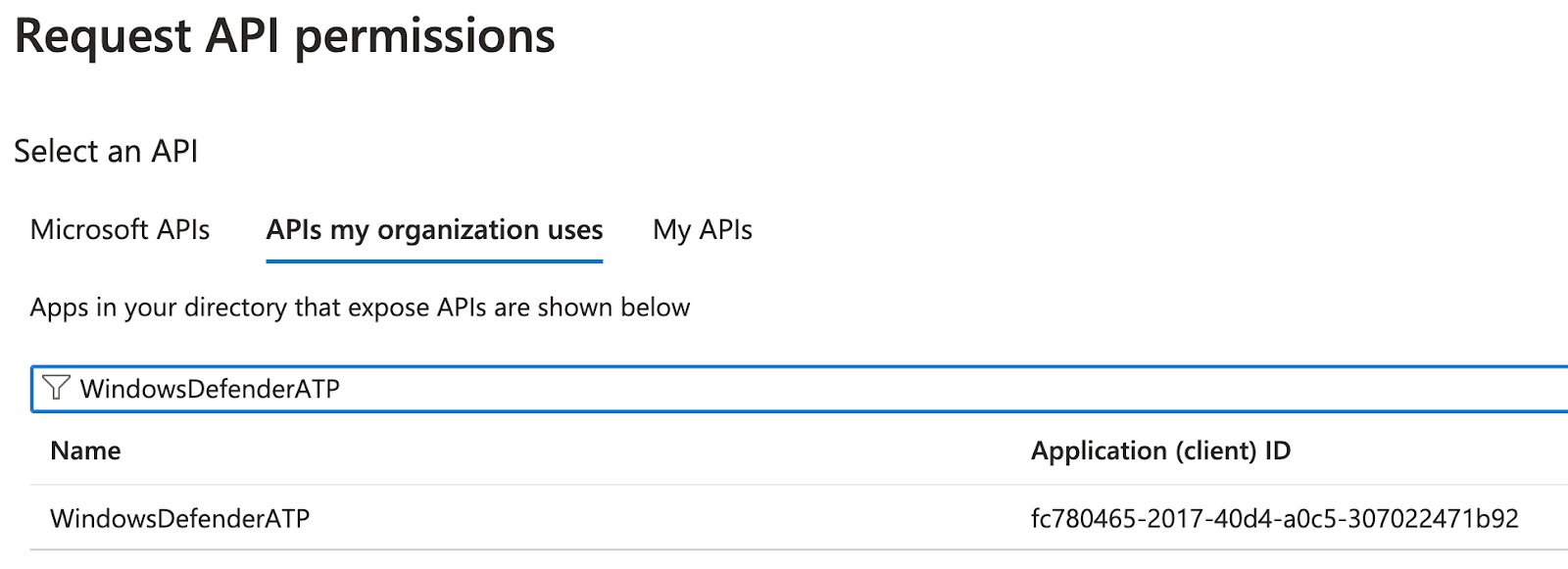
* Navigate to "APIs my organization uses"
* Type "WindowsDefenderATP" in the search bar

<figure><img src="/files/ZcYygS7l1OCdcoFjlbUz" alt=""><figcaption><p>WindowsDefenderATP</p></figcaption></figure>

* Click "WindowsDefenderATP"
* Click "Application permissions"

Add the following permissions:

| Permission           | Purpose                                                                             |
| -------------------- | ----------------------------------------------------------------------------------- |
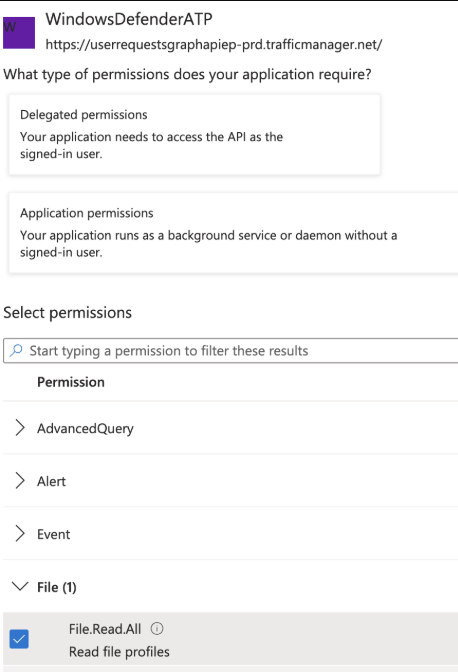
| File.Read.All        | Read file details. Note that this is different from the "Files.Read.All" permission |
| Library.Manage       | Extract quarantined files for analysis                                              |
| Machine.LiveResponse | Extract quarantined files for analysis                                              |
| Machine.Read.All     | Read machine details                                                                |

<figure><img src="/files/WKUEGs2SCUhLA1vBgjKt" alt=""><figcaption><p>Example - add the "File.Read.All" permission</p></figcaption></figure>

* Once done selecting all the permissions, click "Add permissions"
* Click "Grant admin consent for \[mycompany.net]"
* Click "Yes"

#### Locate Organization ID

* Sign into [Entra home](https://entra.microsoft.com/#home) as an administrator
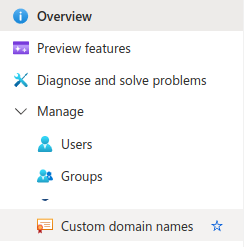
* In the left navigation, select Manage > Custom domain names

<figure><img src="/files/iF2UvM2aURIBqJNklUO3" alt=""><figcaption><p>Azure Custom Domain Names</p></figcaption></figure>

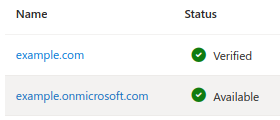
* In the domain list you'll find one that ends in `.onmicrosoft.com`. Record this domain for use later in the Dropzone UI where it is called "Organization ID"

<figure><img src="/files/aN2dMYKjVzxyicMq9XKi" alt=""><figcaption><p>Azure Custom Domain Names List</p></figcaption></figure>

### Locate Cloud Apps Information

* Go to <https://security.microsoft.com/>
* In the left navigation, select Settings
* Select Cloud Apps

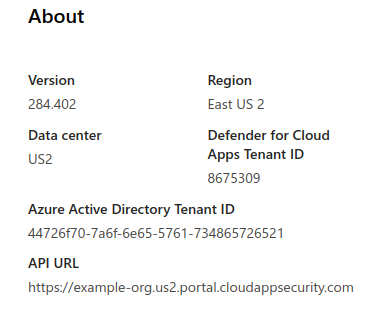
<figure><img src="/files/ejvXtOAeTtDaTNnN7BJk" alt=""><figcaption><p>Defender Cloud Apps API URL</p></figcaption></figure>

Record the "API URL" for use later in the Dropzone UI where it is called "Portal URL".

## Enable Microsoft 365 / Microsoft Defender

The Data source integration allows Dropzone AI to interact with Entra ID, Exchange Online, and Microsoft Defender to gather information for use in investigation analysis and interactive chat.

You'll need the following information:

| Dropzone Field | Source                                                      |
| -------------- | ----------------------------------------------------------- |
| Client ID      | The "Application (client) ID" from the Application Overview |
| Tenant ID      | The "Directory (tenant) ID" from the Application Overview   |
| Client Secret  | The client secret "value" from the client secret page       |
| Portal URL     | Defender Cloud Apps API URL                                 |

To enable the Data Source integration, do the following:

* Navigate to your Dropzone AI tenant home page e.g. https\://*mycompany*.dropzone.app
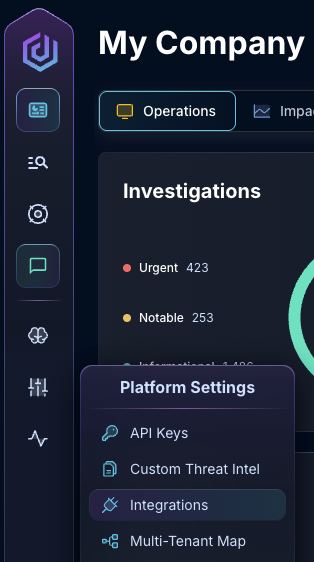
* In the bottom left hand corner, navigate to Settings > Integrations

<figure><img src="/files/zN02u3HObDaemUY8E1kD" alt=""><figcaption><p>Integrations Dropdown</p></figcaption></figure>

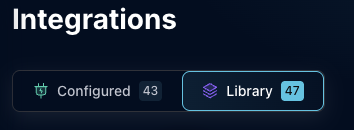
* Click "Available"

<figure><img src="/files/brI7n2Ux40Tk0jTwBCVh" alt=""><figcaption><p>Click Available</p></figcaption></figure>

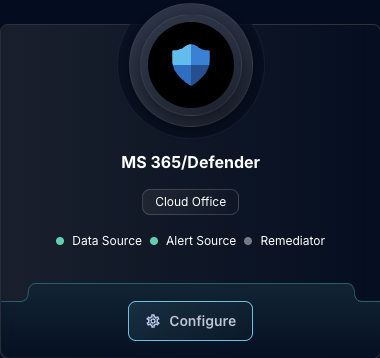
* In the Search bar, search MS 365/Defender, then click "Configure"

<figure><img src="/files/PPFAKUr9HhU3pWHSgJfh" alt=""><figcaption><p>The Microsoft 365/Defender Tile</p></figcaption></figure>

* Under the Data Source heading, input the Client ID, Tenant ID, and Client Secret
* Input your Cloud Apps Portal URL

<figure><img src="/files/NfE6JDKO5hpKLIeh1hrA" alt=""><figcaption><p>The Microsoft 365/Defender Data Configuration (pt 1)</p></figcaption></figure>

* If you wish, you may enable LiveResponse
* If your license does not support using [Advanced Hunting Query](https://learn.microsoft.com/en-us/defender-xdr/advanced-hunting-overview), check to disable

<figure><img src="/files/4QrwXT8iOEQGzjlUrZ18" alt=""><figcaption><p>The Microsoft 365/Defender Data Configuration (pt 2)</p></figcaption></figure>

* Under "Calendar Features," if you wish to enable Dropzone's AI analyst to determine user location (such as OOO or travel status) for use in investigations, check the box labeled "Enable Calendar, Presence & Mailbox Settings Access"

<figure><img src="/files/GD2d4daDXaQVrdkqcEMI" alt=""><figcaption><p>The Microsoft 365/Defender Data Configuration (pt 3)</p></figcaption></figure>

* Click "Test & Save" to finish

If you have any errors engage your Dropzone AI support representative.


---

# Agent Instructions: Querying This Documentation

If you need additional information that is not directly available in this page, you can query the documentation dynamically by asking a question.

Perform an HTTP GET request on the current page URL with the `ask` query parameter:

```
GET https://docs.dropzone.ai/integrations/data/ms_data/ms365_data.md?ask=<question>
```

The question should be specific, self-contained, and written in natural language.
The response will contain a direct answer to the question and relevant excerpts and sources from the documentation.

Use this mechanism when the answer is not explicitly present in the current page, you need clarification or additional context, or you want to retrieve related documentation sections.