
Microsoft Azure
The Dropzone platform integrates with Microsoft Azure to support investigations with Azure Log Analytics (KQL queries), Azure Activity Log when no Log Analytics workspace is configured, and Azure Resource Management for querying compute, network, container, and monitor resources. This integration is separate from Microsoft Sentinel and Microsoft 365/Defender; you may use both the Sentinel and Azure integrations concurrently.
During investigations, the integration uses the service principal to run KQL against your Log Analytics workspaces (e.g. sign-in logs, alerts, custom tables) and to read Azure Activity Log for configured subscriptions so the assistant can correlate who did what and when. It also calls Azure Resource Manager to list and describe VMs, resource groups, networks, AKS clusters, and other ARM resources. All access is read-only.
Integration Overview
To enable these integrations you will perform the following actions:
Register a new application in Microsoft Entra Admin Center
Locate your Client ID, Tenant ID, and create a Client Secret
Assign Azure RBAC roles
Locate your Subscription/Workspace IDs
Install the credentials into your Dropzone tenant
See the Microsoft Integrations page for instructions on how to register a new application, locate your Client ID and Tenant ID, and create a Client Secret.
When registering the application, set the "Supported account types" to "Accounts in this organizational directory only" and leave "Redirect URI" blank. No API permissions are required.
Assign Azure RBAC Roles
Your service principals must be configured so that Dropzone can query Log Analytics and list resources in your subscriptions. Dropzone AI can access both subscriptions and Log Analytic Workspaces, but each requires different role permissions.
For each Azure subscription you want Dropzone to be able to access, do the following:
As someone with Role-Based Action Control (e.g. as an Owner or User Access Administrator), navigate to your Azure portal
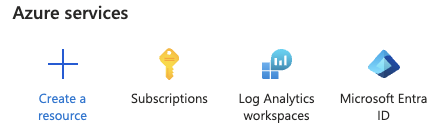
Under "Azure Services," click "Subscriptions"
Select the subscription you wish to analyze

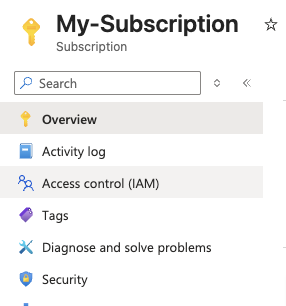
Navigate to Overview > Access control (IAM)

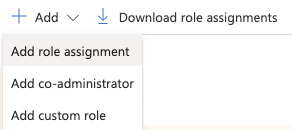
Select Add > Add role assignment

Select the Reader role
The Reader role will allow Dropzone to see all resource metadata, resource groups, and subscription-level Activity Log within the subscription. To limit access, you may use a dedicated app registration, scope Reader to specific resource groups where possible, or exclude highly sensitive subscriptions from the configured list.
Next to "Assign access to," select "User, group, or service principal"
Click "Select members"

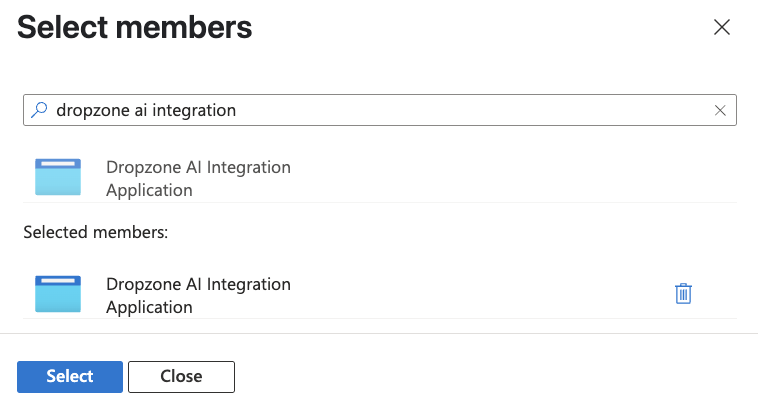
Search for your application (such as Dropzone AI Integration) and click "Select"

In the bottom left hand corner, click "Review + assign" twice

Repeat for each subscription.
For each Log Analytics workspace you want Dropzone to be able to access, do the following:
Navigate to your Azure portal
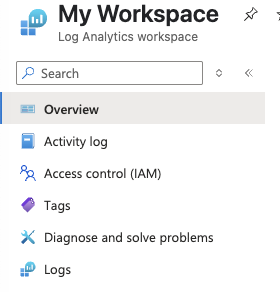
Under the "Azure Services" heading, navigate to Log Analytics Workspace
Select the Log Analytics Workspace you wish to analyze

Navigate to Overview > Access control (IAM)

Select Add > Add role assignment

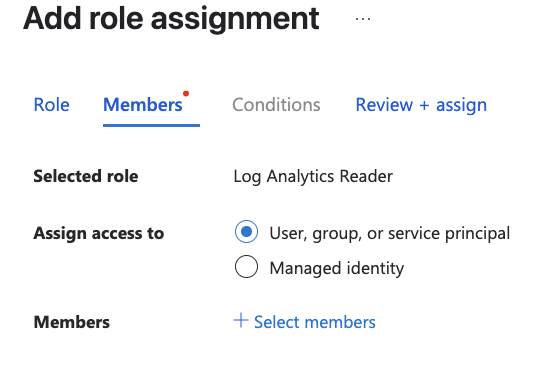
Select the Log Analytics Reader role

Click "Members"
Next to "Assign access to," select "User, group, or service principal"
Click "Select members"

Search for your application (such as Dropzone AI Integration) and click "Select"

In the bottom left hand corner, click "Review + assign" twice

Repeat for every Log Analytics workspace you will use.
Locate your Subscription IDs and Workspace IDs
The Dropzone integration requires Subscription and Workspace IDs to enable.
If you are using the [Dropzone Azure scanner], you will not need a Workspace ID, as it will automatically discover workspaces and table schemas for the configured subscriptions.
To obtain your Subscription ID, do the following:
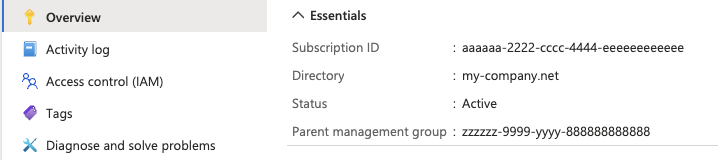
In the Azure portal, navigate to Subscriptions
Select the Subscription you want Dropzone to have access to
In the Overview page, under "Essentials", copy the Subscription ID for use later in the Dropzone UI where it is called "Subscription ID"
Repeat until all IDs have been copied
To obtain your Workspace ID, do the following:
In the Azure portal, navigate to Log Analytics Workspaces and select the workspace you wish to analyze
In the Overview page, under "Essentials," copy the Workspace ID (and optionally Customer ID) for use later in the Dropzone UI where it is called "Subscription ID"
Repeat until al IDs have been copied

Enable Microsoft Azure
To enable the Data Source integration, you will need the following information:
Tenant ID
The Directory ID copied earlier
Client ID
The Application ID copied earlier
Client Secret
The Client Secret Value copied earlier
Subscription ID
The Subscription/Workspace IDs copied earlier
To enable the Data Source integration, do the following:
Navigate to your Dropzone AI tenant home page e.g. https://mycompany.dropzone.app
In the bottom right corner, navigate to Settings > Integrations

Click "Available"

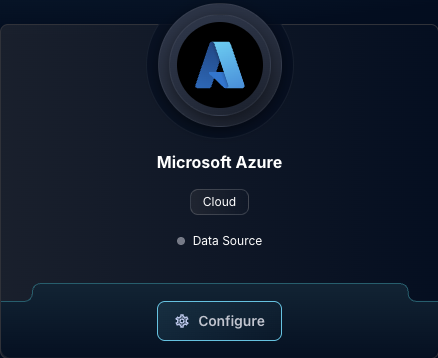
In the Search bar, search Microsoft Azure, then click "Configure"
Input the Client ID, Tenant ID, and Client Secret
Under Subscription IDs, click "Add Item" and input at least one subscription ID

Click "Test & Save" to finish
After saving, run the integration's test connection (or validation) to confirm credentials and permissions. If you use the Azure scanner, run the scanner for this integration so that workspaces and table schemas are discovered. The integration will then use those workspaces for Log Analytics queries.
If you have any errors, contact your Dropzone AI support representative.
Troubleshooting
"Credentials are incomplete" or auth errors
Verify Tenant ID, Client ID, and Client Secret; ensure the secret has not expired.
"Failed to list resource groups"
Ensure Reader is assigned on that subscription; role assignment can take a few minutes to propagate.
"Failed to query Azure Log Analytics" or 403 on workspace query
Ensure Log Analytics Reader is assigned on that specific workspace; confirm the workspace ID in config matches the workspace.
Activity log query fails
Ensure Reader is assigned on the subscription (subscription-level Activity Log is covered by Reader).
Last updated
Was this helpful?