> For the complete documentation index, see [llms.txt](https://docs.dropzone.ai/llms.txt). Markdown versions of documentation pages are available by appending `.md` to page URLs; this page is available as [Markdown](https://docs.dropzone.ai/integrations/data/jira_data.md).
# Jira
{% hint style="info" %}
Dropzone's integration is only with the Jira [Cloud](https://developer.atlassian.com/cloud/jira/platform/), however support for on-prem [Jira Data Center](https://www.atlassian.com/enterprise/data-center/jira) is on the roadmap.
{% endhint %}
The Dropzone platform supports [Jira](https://confluence.atlassian.com/jira), a project management and issue tracking tool from Atlassian.
## Create an API Key
Jira requires an API key to enable. The API key is associated with an account, so you may wish to create a dedicated service user rather than using your own.
To obtain an API Key, do the following:
* Log into your Jira account e.g. https\://*mycompany*.atlassian.net as the API user for Dropzone AI
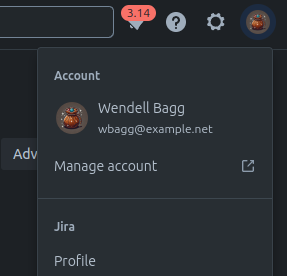
* Click on your user icon and click "Manage Account"
Go to "Manage Account"
* In the top banner, navigate to "Security"
Navigate to "Security"
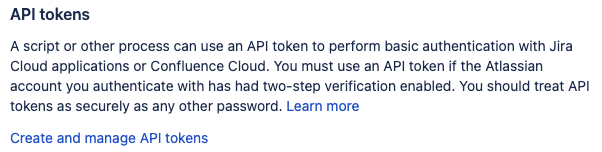
* Under "API tokens," click "Create and manage API tokens"
Click "Create and manage API tokens"
* Click "Create API token"
Create API token
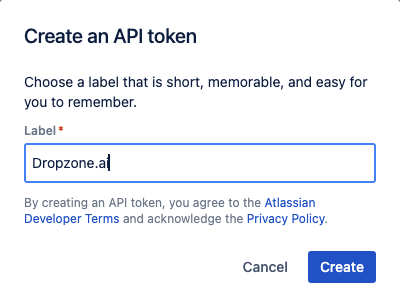
* Enter a name to identify the API key, such as Dropzone.ai, then click "Create"
Create API token
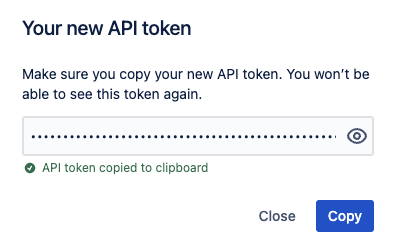
* Store the API token shown in a secure location for use later in the Dropzone UI where it is called "API Token"
Copy API token
## Enable Jira
The Data source integration allows Dropzone AI to interact with your Jira environment to learn about your specific environment through information found in Jira tickets as part of performing investigations.
You'll need the following information:
| Dropzone Field | Source |
| -------------- | ------------------------------------------------------------------------- |
| Server | The same as your company server url in Jira, eg *mycompany*.atlassian.net |
| Email/Username | The username or email of the account that created the API |
| API Token | The API token value you generated earlier |
To enable the Data Source integration, do the following:
* Navigate to your Dropzone AI tenant home page e.g. https\://*mycompany*.dropzone.app
* In the left side bar, navigate to Platform Settings > Integrations
Integrations Dropdown
* Click "Library"
{% hint style="info" %}
If you have previously integrated this application, click "Configured"
{% endhint %}
Click Library
* In the Search bar, search Jira, then click "Configure"
The Jira Tile
* Under the Data Source heading, input the Server, Username, and API Token
* Under "Jira Context", you may input a short blurb describing how your Jira instance is used. This helps Dropzone AI better search and utilize context from your tickets. Some examples:
* "We use Jira to track vulnerabilities, security findings, and remediation tasks."
* "Our engineering teams manage sprints, bugs, and feature development in Jira."
* "Jira contains our IT service requests, access workflows, and configuration changes."
* "We track cross-functional project progress, milestones, and dependencies in Jira."
* "Our DevOps team logs infrastructure updates, CI/CD changes, and incident follow-ups in Jira."
* "Jira holds our operational tasks, process improvements, and stakeholder deliverables."
The Jira Data Source configuration
* Click "Test & Save" to finish
If you have any errors contact our Customer Success team.