# Google SecOps

{% hint style="info" %}
Google SecOps is an SIEM integration. SIEM integrations are used to perform analysis of any SIEM generated alerts, and/or to use generated data as part of investigation analysis. They are optional, but enabling more integrations enhances Dropzone analysis.
{% endhint %}

Dropzone integrates with [Google SecOps](https://cloud.google.com/security/products/security-operations) to investigate different security alerts across many of Google's security products.

## Integration Overview

To enable these integrations you will perform the following actions:

* Identify your service account address
* Grant IAM access to the Dropzone service account
* Obtain your Google Account Details
* Enable the Alert and Data sources

## Identify your service account email address

To obtain the email address of your Dropzone service account, do the following:

* Navigate to your Dropzone AI tenant home page e.g. https\://*mycompany*.dropzone.app
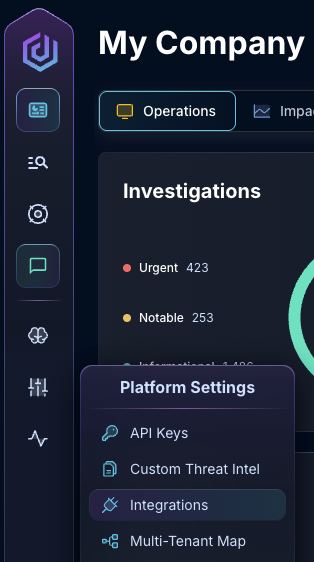
* In the bottom left hand corner, navigate to Settings > Integrations

<figure><img src="/files/zN02u3HObDaemUY8E1kD" alt=""><figcaption><p>Integrations Dropdown</p></figcaption></figure>

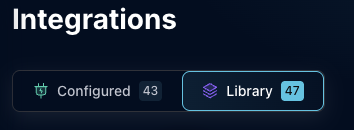
* Click "Available"

<figure><img src="/files/brI7n2Ux40Tk0jTwBCVh" alt=""><figcaption><p>Click Available</p></figcaption></figure>

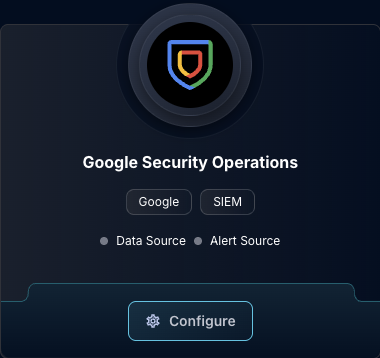
* In the Search bar, search Google SecOps, then click "Configure"

<figure><img src="/files/7KI64qtojWxIco9PVALt" alt=""><figcaption><p>The Google SecOps Tile</p></figcaption></figure>

* Copy the "SERVICE ACCOUNT EMAIL" field for use in the Google Console interface

<figure><img src="/files/zoqV89980XI4lPCjAj8a" alt="" width="320"><figcaption><p>Copy the service account email</p></figcaption></figure>

## Grant IAM Access to Dropzone AI

* Navigate to the Google Console page of the project your SecOps instance is in
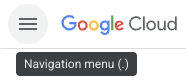
* In the upper left hand corner, open the navigation menu

<figure><img src="/files/MZxgKryMsfjPIGg0PrmC" alt=""><figcaption><p>Open the navigation menu</p></figcaption></figure>

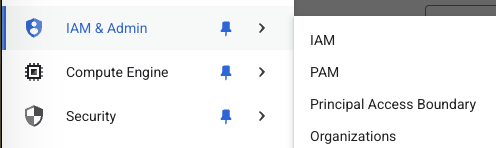
* Navigate to IAM & Admin > IAM

<figure><img src="/files/yuJsgHqdiasRnCFoCv7i" alt=""><figcaption><p>Navigate to IAM</p></figcaption></figure>

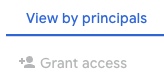
* Under "View by principals," click "Grant Access"

{% hint style="info" %}
To be able to complete this step, you will need the `resourcemanager.projects.setIamPolicy` permission.
{% endhint %}

<figure><img src="/files/7nUYn0CIHkWERBDtlwEx" alt=""><figcaption><p>Click "Grant Access"</p></figcaption></figure>

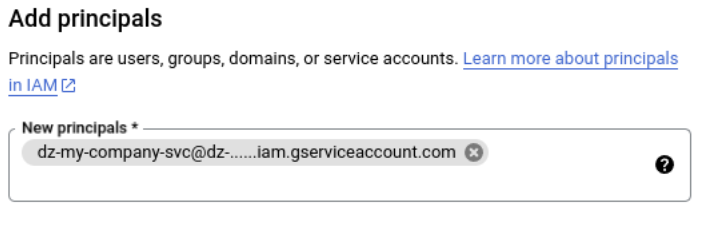
* Under "New principals," input the email address you copied earlier from the Dropzone UI "SERVICE ACCOUNT EMAIL"

<figure><img src="/files/JlwJAp89wkRDp0lTR5Px" alt=""><figcaption><p>Input the email address from the Dropzone UI Service Account Email</p></figcaption></figure>

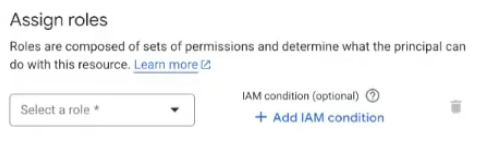
* Click "Select a role"

<figure><img src="/files/Dm12Cp9FGA3Wzs3J2cxi" alt=""><figcaption><p>Click "Select a role"</p></figcaption></figure>

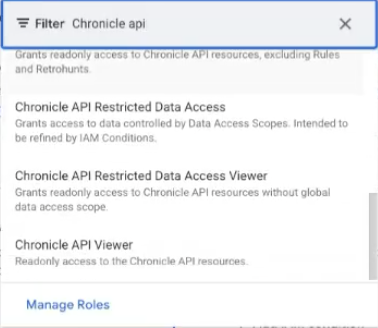
* Search the "Chronicle API Viewer" role, then click it

<figure><img src="/files/mrdamGFcavSuQNlU2BeV" alt=""><figcaption><p>Assign the Chronicle API Viewer role</p></figcaption></figure>

* Click "Save"

<figure><img src="/files/dU5laYUIPdTCDfv7cQAS" alt=""><figcaption><p>Click "Save"</p></figcaption></figure>

## Obtain Account Details

To obtain your Instance Name, do the following:

* Return to the Google Console page of the project your SecOps instance is in
* In the upper left hand corner, open the navigation menu

<figure><img src="/files/MZxgKryMsfjPIGg0PrmC" alt=""><figcaption><p>Open the navigation menu</p></figcaption></figure>

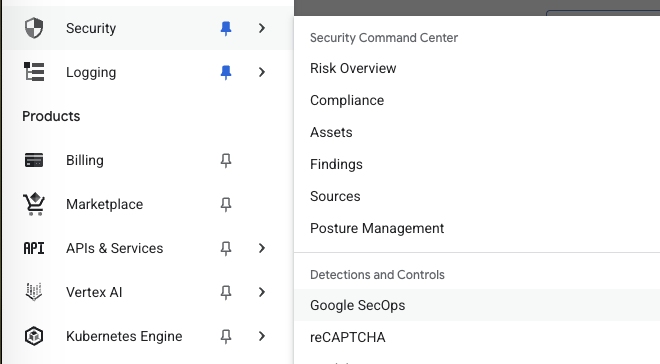
* Navigate to Security > Detection and Controls > Google SecOps

<figure><img src="/files/EmPtS8BzJwrtWZnJJt2S" alt=""><figcaption><p>Navigate to Google SecOps</p></figcaption></figure>

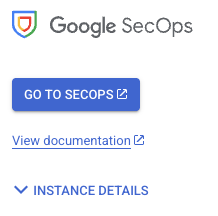
* In the Google SecOps page, click the carrot next to "Instance Details"

<figure><img src="/files/C38x9OwvTLi4WagL0qGS" alt=""><figcaption><p>Reveal the Instance Details</p></figcaption></figure>

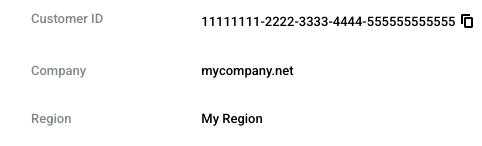
* Copy the Customer ID shown for use later in the Dropzone UI where it is called "Instance Name"

<figure><img src="/files/2LazT7IOChRmSPYeKTta" alt=""><figcaption><p>Copy the Instance Name</p></figcaption></figure>

To obtain your Project ID, do the following:

* In the upper left, click on the project icon

<figure><img src="/files/dXEF8882EAY40hffTpC9" alt=""><figcaption><p>Click the project icon</p></figcaption></figure>

* Using the search bar, locate the project your SecOps instance is in
* Under "ID," copy the ID value shown for use later in the Dropzone UI where it is called "Project ID"

<figure><img src="/files/GUYyeX9rnIkWFapXg0jG" alt=""><figcaption><p>Copy the Project ID</p></figcaption></figure>

## SOAR Details

If you want Dropzone to be able to investigate [cases](https://cloud.google.com/chronicle/docs/soar/investigate/working-with-cases/cases-overview), you will need to generate a SOAR API Key and locate your SOAR Instance Hostname

To generate your SOAR API Key, do the following:

* As an admin, log into your Google SecOps instance
* In the left sidebar, navigate to Settings > SOAR Settings

<figure><img src="/files/JPBpDHQ4aJH4L6DIC5F1" alt=""><figcaption><p>Navigate to SOAR Settings</p></figcaption></figure>

* Navigate to Advanced > API Keys

<figure><img src="/files/KhC8kSY9sHzpsA4mkeBk" alt=""><figcaption><p>Navigate to API Keys</p></figcaption></figure>

* In the upper right corner, click the `+` icon

<figure><img src="/files/gHMKlooukTQBc1tFvLxB" alt=""><figcaption><p>Add API Key</p></figcaption></figure>

* Name the API Key something memorable, such as Dropzone AI
* Next to "Permission Group," assign the API Key the Managed User permission

<figure><img src="/files/dsH5tcOQbqmc3fcxFozb" alt=""><figcaption><p>Select Managed User</p></figcaption></figure>

* In the SOC Role section, select your desired [SOC role](https://cloud.google.com/chronicle/docs/soar/admin-tasks/advanced/control-access-to-platform)
* Copy the API Key, then click "Save"

<figure><img src="/files/0eUCrVuhPf7XvqJRZ1ZU" alt=""><figcaption><p>Copy the API Key</p></figcaption></figure>

* Click "Yes"

<figure><img src="/files/6UVZi85y3sVQmHp97S5n" alt=""><figcaption><p>Copy the API Key</p></figcaption></figure>

To obtain your SOAR Instance Hostname, do the following:

* In the left sidebar, navigate to Ingestion > Webhook

<figure><img src="/files/v2zyCSmYJhMNxjhlUAb0" alt=""><figcaption><p>Navigate to Webhook</p></figcaption></figure>

* Click the `+` icon

<figure><img src="/files/iQHTShhAQRq856MeuqTI" alt=""><figcaption><p>Add new Webhook</p></figcaption></figure>

* Name the Webhook something memorable, such as Dropzone AI
* Click "Save"

<figure><img src="/files/tEu9uS8MWjlhHx1xzKXO" alt=""><figcaption><p>Click Save</p></figcaption></figure>

* Next to "Webhook URL," copy the SOAR Instance Hostname, eg https\://*my-hostname*/v1alpha/projects

<figure><img src="/files/xBI2XYPbyaKAoNHD2EzR" alt=""><figcaption><p>Copy the SOAR Instance Hostname</p></figcaption></figure>

## Enable Google SecOps

To enable the Data Source integration, you will need the following information:

| Dropzone Field | Source                                     |
| -------------- | ------------------------------------------ |
| Instance Name  | The "Customer ID" value you copied earlier |
| Project ID     | The "Project ID" value you copied earlier  |

To enable the Data Source integration, do the following:

* Navigate to your Dropzone AI tenant home page e.g. https\://*mycompany*.dropzone.app
* In the bottom left hand corner, navigate to Settings > Integrations

<figure><img src="/files/zN02u3HObDaemUY8E1kD" alt=""><figcaption><p>Integrations Dropdown</p></figcaption></figure>

* Click "Available"

<figure><img src="/files/brI7n2Ux40Tk0jTwBCVh" alt=""><figcaption><p>Click Available</p></figcaption></figure>

* In the Search bar, search Google SecOps, then click "Configure"

<figure><img src="/files/7KI64qtojWxIco9PVALt" alt=""><figcaption><p>The Google SecOps Tile</p></figcaption></figure>

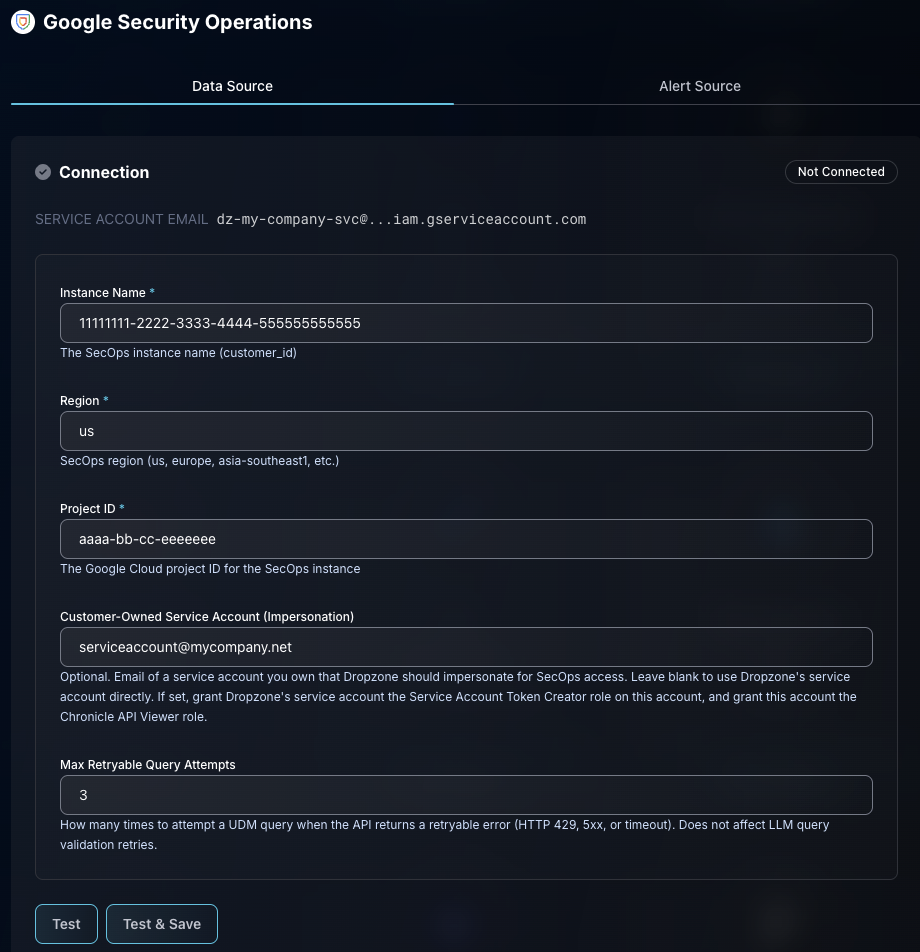
* Under the Data Source heading, input the Instance Name and Project ID

<figure><img src="/files/ZtBGtHBtbNlGhrAF2egh" alt=""><figcaption><p>The Google SecOps Data Source Configuration</p></figcaption></figure>

* Click "Test & Save" to finish

If you have any errors engage your Dropzone AI support representative.


---

# Agent Instructions: Querying This Documentation

If you need additional information that is not directly available in this page, you can query the documentation dynamically by asking a question.

Perform an HTTP GET request on the current page URL with the `ask` query parameter:

```
GET https://docs.dropzone.ai/integrations/data/googlesecops_data.md?ask=<question>
```

The question should be specific, self-contained, and written in natural language.
The response will contain a direct answer to the question and relevant excerpts and sources from the documentation.

Use this mechanism when the answer is not explicitly present in the current page, you need clarification or additional context, or you want to retrieve related documentation sections.