> For the complete documentation index, see [llms.txt](https://docs.dropzone.ai/llms.txt). Markdown versions of documentation pages are available by appending `.md` to page URLs; this page is available as [Markdown](https://docs.dropzone.ai/integrations/data/elasticsearch_data.md).

# Elasticsearch

{% hint style="info" %}
Elasticsearch is an SIEM integration. SIEM integrations are used to perform analysis of any SIEM generated alerts, and/or to use generated data as part of investigation analysis.
{% endhint %}

The Dropzone platform integrates with the [Elasticsearch](https://www.elastic.co/elasticsearch) security SIEM. Many customers ingest other alert sources into Elasticsearch (e.g. IDPs) and integrate Dropzone into Elasticsearch rather than the source systems.

## Integrations Overview

To enable these integrations you will perform the following actions:

* Create an API key with the necessary permissions
* Obtain your Elasticsearch Cloud ID
* Enable the Data source within your Dropzone tenant

{% hint style="info" %}
If you are using the Elasticsearch Serverless Projects-Based Model or an On-premise Elasticsearch using the Dropzone connector, you will not need to provide a Cloud ID.
{% endhint %}

## Create an API Key

Elasticsearch requires an API Key to enable.

To obtain a least-privilege API Key, do the following:

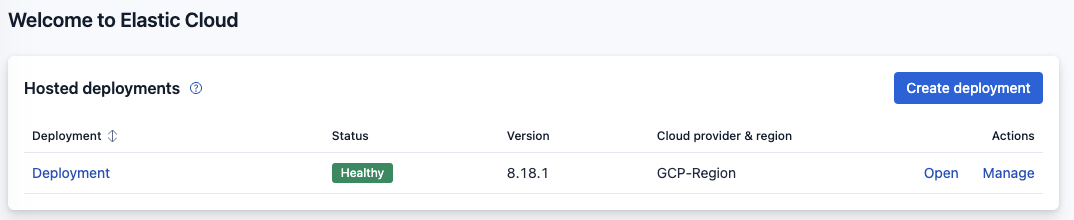
* Navigate to your [Elastic Cloud home page](https://cloud.elastic.co/home) or deployment
* Under the Hosted Deployments section, locate the deployment you want Dropzone.AI to be able to access
* Click "Open"

<figure><img src="https://435022081-files.gitbook.io/~/files/v0/b/gitbook-x-prod.appspot.com/o/spaces%2FmBVcKuiytGCsIDpL70BC%2Fuploads%2Fgit-blob-230243c7b84a5d28e70b5d92e8437a0e7ed8967e%2Felasticsearch-integration-1.png?alt=media" alt=""><figcaption><p>Click Manage</p></figcaption></figure>

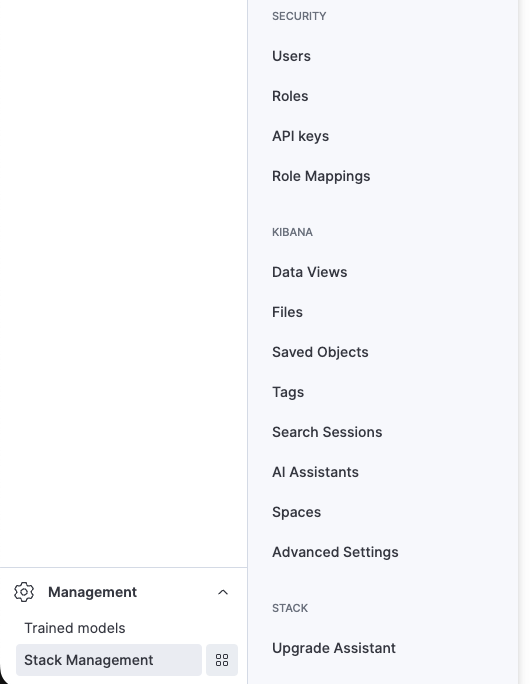
* In the Deployment overview page, click "Management" in the bottom left corner
* Click the icon next to Stack Management
* Navigate to API keys

<figure><img src="https://435022081-files.gitbook.io/~/files/v0/b/gitbook-x-prod.appspot.com/o/spaces%2FmBVcKuiytGCsIDpL70BC%2Fuploads%2Fgit-blob-ff91ae37481c0f30231ae5e78bd39726761b8eb6%2Felasticsearch-integration-3.png?alt=media" alt=""><figcaption><p>Navigate to API keys</p></figcaption></figure>

* Click "Create an API key"

<figure><img src="https://435022081-files.gitbook.io/~/files/v0/b/gitbook-x-prod.appspot.com/o/spaces%2FmBVcKuiytGCsIDpL70BC%2Fuploads%2Fgit-blob-3769fc924654c2fdea204ea59bd141a320080f88%2Felasticsearch-integration-4.png?alt=media" alt=""><figcaption><p>Click "Create an API key"</p></figcaption></figure>

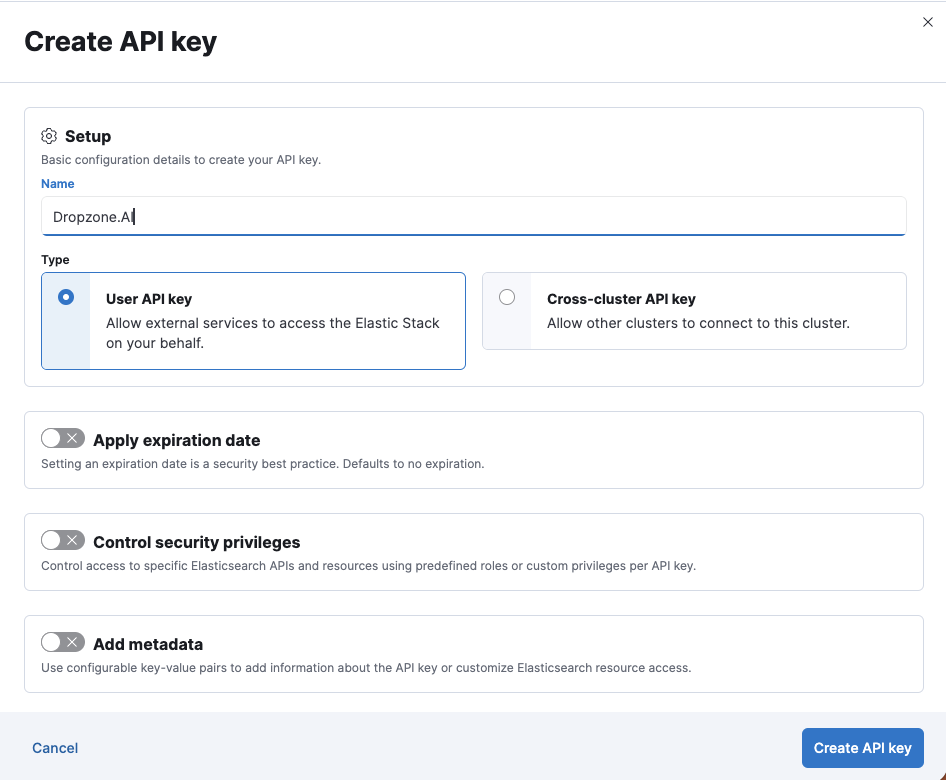
* Name the API key something memorable, such as Dropzone.AI
* Under type, select User API key

<figure><img src="https://435022081-files.gitbook.io/~/files/v0/b/gitbook-x-prod.appspot.com/o/spaces%2FmBVcKuiytGCsIDpL70BC%2Fuploads%2Fgit-blob-9c772cdaec72152ab4b22b3a2904515c134a3d1e%2Felasticsearch-integration-5.png?alt=media" alt=""><figcaption><p>Create an API key</p></figcaption></figure>

* Turn on "Control security privileges"

Dropzone requires the following security privileges across its Alert and Data Source integrations.

| Privilege             | Level   | Purpose                                           | Used In                   |
| --------------------- | ------- | ------------------------------------------------- | ------------------------- |
| `monitor`             | Cluster | Discovering index templates                       | Alert Source, Data Source |
| `read`                | Index   | Searching documents during investigations         | Alert Source, Data Source |
| `monitor`             | Index   | Listing indexes during scan (`_cat/indices`)      | Data Source               |
| `view_index_metadata` | Index   | Listing data streams during scan (`_data_stream`) | Data Source               |

{% hint style="info" %}
Cluster and index privileges are separate. Cluster `monitor` does not grant `monitor` on index
{% endhint %}

* Paste the following JSON into the privileges editor. Replace `"*"` in `names` with the index patterns Dropzone should use, such as `logs-*` or `winlogbeat-*`. The `*` pattern does not match hidden indexes (names that start with `.`).

```json
{
  "read-only-role": {
    "cluster": ["monitor"],
    "indices": [
      {
        "names": ["*"],
        "privileges": ["read", "monitor", "view_index_metadata"]
      }
    ]
  }
}
```

<figure><img src="https://435022081-files.gitbook.io/~/files/v0/b/gitbook-x-prod.appspot.com/o/spaces%2FmBVcKuiytGCsIDpL70BC%2Fuploads%2Fgit-blob-c93114d8247d65647c758bbeebc6f1ea2743a57d%2Felasticsearch-integration-8.png?alt=media" alt=""><figcaption><p>Enable Control security privileges and paste the required role</p></figcaption></figure>

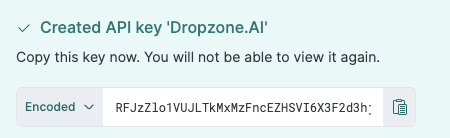
* Click "Create API Key"
* Copy the API key generated for use later in the Dropzone UI, where it is called "API Key"

<figure><img src="https://435022081-files.gitbook.io/~/files/v0/b/gitbook-x-prod.appspot.com/o/spaces%2FmBVcKuiytGCsIDpL70BC%2Fuploads%2Fgit-blob-4f30241dd8e6ad344de2f7c56daffe1428684b5c%2Felasticsearch-integration-6.png?alt=media" alt=""><figcaption><p>Copy the key</p></figcaption></figure>

## Obtain your Elasticsearch Cloud ID

To obtain your Cloud ID, do the following:

* Navigate to your [Elastic Cloud home page](https://cloud.elastic.co/home)
* Under the Hosted Deployments section, locate the deployment you wish Dropzone.AI to be able to access
* Click "Open"

<figure><img src="https://435022081-files.gitbook.io/~/files/v0/b/gitbook-x-prod.appspot.com/o/spaces%2FmBVcKuiytGCsIDpL70BC%2Fuploads%2Fgit-blob-230243c7b84a5d28e70b5d92e8437a0e7ed8967e%2Felasticsearch-integration-1.png?alt=media" alt=""><figcaption><p>Click Open</p></figcaption></figure>

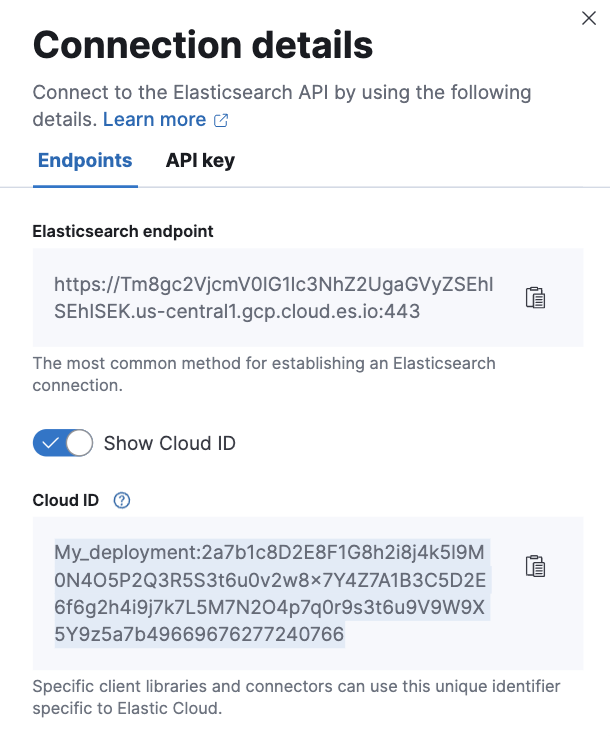
* In the upper right of the Overview page, click "Endpoint & API Keys"

<figure><img src="https://435022081-files.gitbook.io/~/files/v0/b/gitbook-x-prod.appspot.com/o/spaces%2FmBVcKuiytGCsIDpL70BC%2Fuploads%2Fgit-blob-f313815c41e39a075bade9c3f38a3ed66fb4f5ef%2Felasticsearch-integration-2.png?alt=media" alt=""><figcaption><p>Click Endpoint &#x26; API Keys</p></figcaption></figure>

* Check "Show Cloud ID"
* Copy the value shown for use later in the Dropzone UI, where it is called "Elasticsearch Cloud ID"

<figure><img src="https://435022081-files.gitbook.io/~/files/v0/b/gitbook-x-prod.appspot.com/o/spaces%2FmBVcKuiytGCsIDpL70BC%2Fuploads%2Fgit-blob-435be712939f0dfc3e1d75a386c14e50b34c74f9%2Felasticsearch-integration-7.png?alt=media" alt=""><figcaption><p>Copy the Elasticsearch Cloud ID</p></figcaption></figure>

## Enable Elasticsearch

To enable the Data Source integration, you will need the following information:

| Dropzone Field         | Source                                                                                              |
| ---------------------- | --------------------------------------------------------------------------------------------------- |
| Elasticsearch Cloud ID | The cloud ID value copied earlier. Only necessary if you have an Elastic Cloud Hosted deployment    |
| Elasticsearch Server   | The server for your Elasticsearch project, e.g. <https://my-project.es.us-west-2.aws.elastic.cloud> |
| API Token              | The API token value generated earlier                                                               |

To enable the Data Source integration, do the following:

* Navigate to your Dropzone AI tenant home page e.g. https\://*mycompany*.dropzone.app
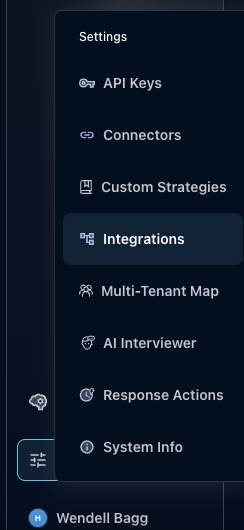
* In the bottom left hand corner, navigate to Settings > Integrations

<figure><img src="https://435022081-files.gitbook.io/~/files/v0/b/gitbook-x-prod.appspot.com/o/spaces%2FmBVcKuiytGCsIDpL70BC%2Fuploads%2Fgit-blob-8c77435ef341f8180540e049f505d3390a27bbf4%2Fui-integrations-dropdown.png?alt=media" alt=""><figcaption><p>Integrations Dropdown</p></figcaption></figure>

* Click "Library"

{% hint style="info" %}
If you have previously integrated this application, click "Configured"
{% endhint %}

<figure><img src="https://435022081-files.gitbook.io/~/files/v0/b/gitbook-x-prod.appspot.com/o/spaces%2FmBVcKuiytGCsIDpL70BC%2Fuploads%2Fgit-blob-7e038b4f51ee27d4cf4f1ac6f76c5ddae2bf29c5%2Fapp_system_integrations_library.png?alt=media" alt=""><figcaption><p>Click Library</p></figcaption></figure>

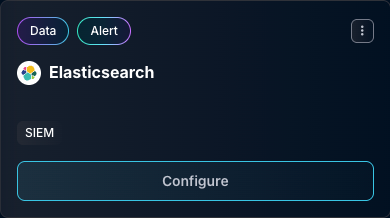
* In the Search bar, search Elasticsearch, then click "Configure"

<figure><img src="https://435022081-files.gitbook.io/~/files/v0/b/gitbook-x-prod.appspot.com/o/spaces%2FmBVcKuiytGCsIDpL70BC%2Fuploads%2Fgit-blob-0399af188723a0239e66845a1048e94aa9e9fae3%2Fapp_system_integrations_available_elasticsearch.png?alt=media" alt=""><figcaption><p>The Elasticsearch Tile</p></figcaption></figure>

* Under the Data Source heading, if your Elasticsearch integration is behind an [On-premise Dropzone Connector](https://docs.dropzone.ai/platform/settings/connector), select your connector from the dropdown
* If you have a Cloud deployment, check the box labeled "Connect with Elastic Cloud ID," then input the Elasticsearch Cloud ID and API Key

<figure><img src="https://435022081-files.gitbook.io/~/files/v0/b/gitbook-x-prod.appspot.com/o/spaces%2FmBVcKuiytGCsIDpL70BC%2Fuploads%2Fgit-blob-d0086cec855e7f78defff12fa1dbbb2f20ce78d8%2Fapp_system_integrations_available_elasticsearch_data_config_1.png?alt=media" alt=""><figcaption><p>The Elasticsearch Data Configuration (pt 1)</p></figcaption></figure>

* Otherwise, input the Elasticsearch Server, Port, and API Key

<figure><img src="https://435022081-files.gitbook.io/~/files/v0/b/gitbook-x-prod.appspot.com/o/spaces%2FmBVcKuiytGCsIDpL70BC%2Fuploads%2Fgit-blob-3a3ad755fcddebb6667a4ad21988e602892f0b79%2Fapp_system_integrations_available_elasticsearch_config_2.png?alt=media" alt=""><figcaption><p>The Elasticsearch Data Configuration (pt 2)</p></figcaption></figure>

* If you want Dropzone to only use [remote clusters](https://www.elastic.co/docs/deploy-manage/remote-clusters) when making queries, check the box labeled "Search Remote Indices"
* Under Index Pattern Allow List, add the Elasticsearch index patterns Dropzone may search, such as `logs-*` or `winlogbeat-*`
* This list is a Dropzone setting, not an Elasticsearch privilege grant
* If the list is empty, Dropzone defaults to `logs-*`
* In Elasticsearch, `.*` matches index names that start with `.`. It does not mean all indexes

<figure><img src="https://435022081-files.gitbook.io/~/files/v0/b/gitbook-x-prod.appspot.com/o/spaces%2FmBVcKuiytGCsIDpL70BC%2Fuploads%2Fgit-blob-7cbc59b1c9da5c0cb49ef9706ab92fcfc131fdd0%2Fapp_system_integrations_available_elasticsearch_data_config_2.png?alt=media" alt=""><figcaption><p>The Elasticsearch Data Configuration (pt 3)</p></figcaption></figure>

* Click "Test & Save" to finish

{% hint style="warning" %}
Test & Save only checks that Dropzone can reach the cluster. It does not verify index listing privileges. After you save, run a scan so Dropzone can catalog your indexes. If the catalog is empty, investigations fall back to `logs-*`.
{% endhint %}

If you have any errors engage your Dropzone AI support representative.