# Elasticsearch

{% hint style="info" %}
Elasticsearch is an SIEM integration. SIEM integrations are used to perform analysis of any SIEM generated alerts, and/or to use generated data as part of investigation analysis.
{% endhint %}

The Dropzone platform integrates with the [Elasticsearch](https://www.elastic.co/elasticsearch) security SIEM. Many customers ingest other alert sources into Elasticsearch (e.g. IDPs) and integrate Dropzone into Elasticsearch rather than the source systems.

## Create an API Key and Obtain a Cloud ID

Elasticsearch requires an API Key and an Elasticsearch Cloud ID to enable.

{% hint style="info" %}
If you are using the Elasticsearch Serverless Projects-Based Model or an On-premise Elasticsearch using the Dropzone connector, you will not need to provide a Cloud ID.
{% endhint %}

To obtain an API Key, do the following:

* Navigate to your [Elastic Cloud home page](https://cloud.elastic.co/home) or deployment
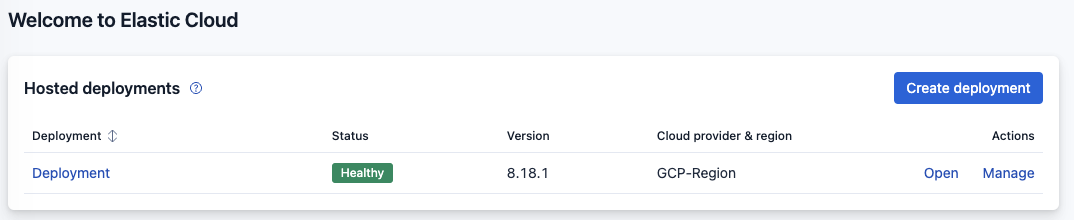
* Under the Hosted Deployments section, locate the deployment you wish Dropzone.AI to be able to access
* Click "Open"

<figure><img src="/files/PXmvCvibGBliQSYhnvdu" alt=""><figcaption><p>Click Manage</p></figcaption></figure>

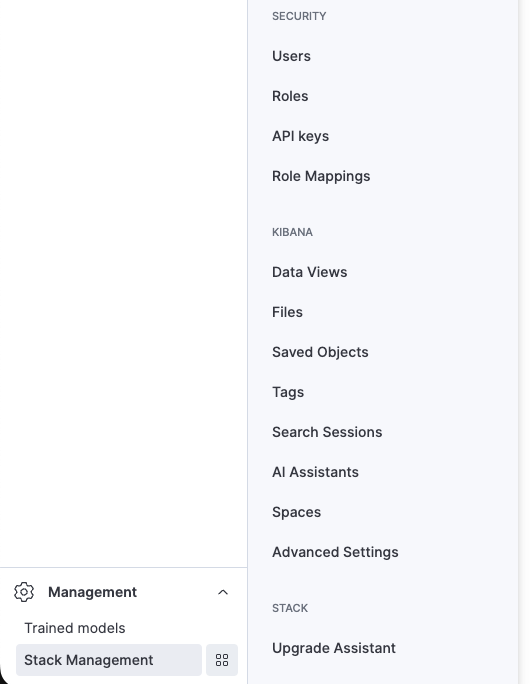
* In the Deployment overview page, click "Management" in the bottom left corner
* Click the icon next to Stack Management
* Navigate to API keys

<figure><img src="/files/XDgF81JGmBJWq5K88PpB" alt=""><figcaption><p>Navigate to API keys</p></figcaption></figure>

* Click "Create an API key"

<figure><img src="/files/DkUP31l4baq6F1LHnyCl" alt=""><figcaption><p>Click "Create an API key"</p></figcaption></figure>

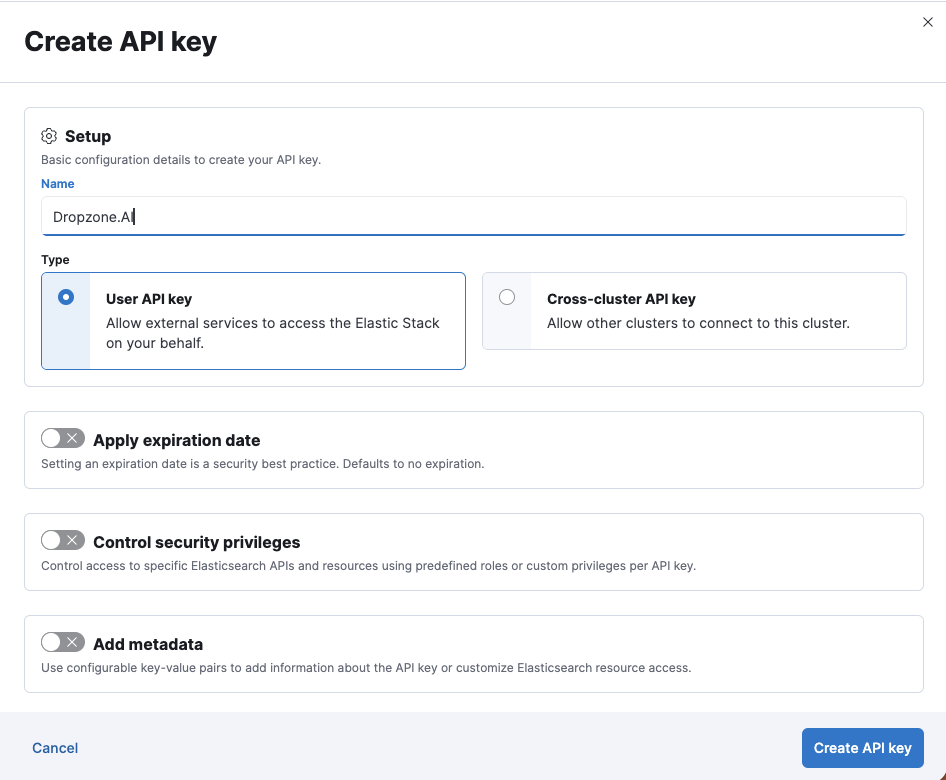
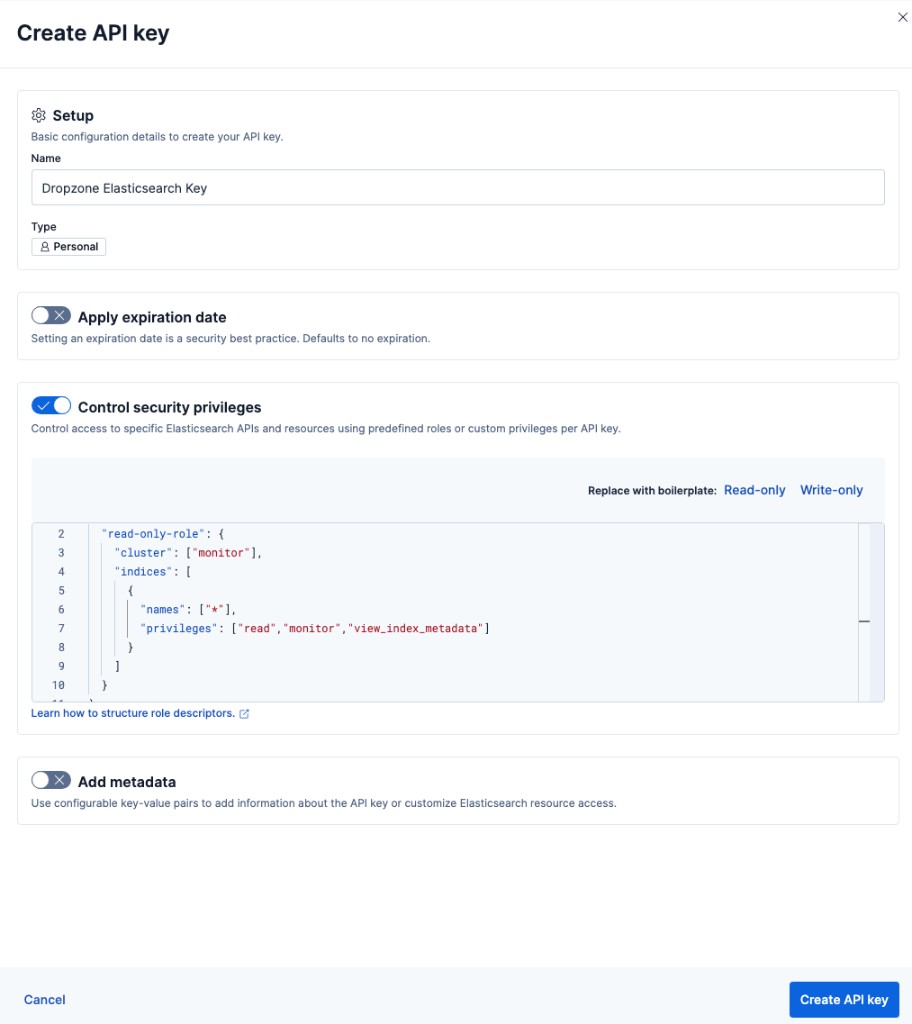
* Name the API key something memorable, such as Dropzone.AI
* Under type, select User API key
* Click "Create API Key"

<figure><img src="/files/shnCOTRV4rvtCqDjcAWT" alt=""><figcaption><p>Create an API key></p></figcaption></figure>

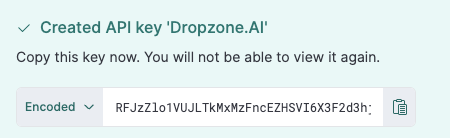
* Copy the API key generated for use later in the Dropzone UI, where it is called "API Key"

<figure><img src="/files/hwFibYrVZLnlbB9SXz4x" alt=""><figcaption><p>Copy the key</p></figcaption></figure>

To obtain your Elasticsearch Cloud ID, do the following:

* Navigate to your [Elastic Cloud home page](https://cloud.elastic.co/home)
* Under the Hosted Deployments section, locate the deployment you wish Dropzone.AI to be able to access
* Click "Open"

<figure><img src="/files/PXmvCvibGBliQSYhnvdu" alt=""><figcaption><p>Click Open</p></figcaption></figure>

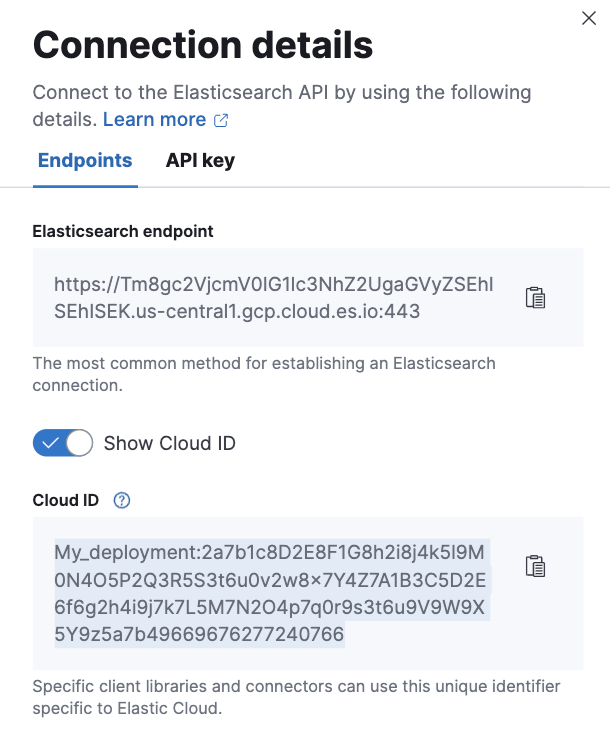
* In the upper right of the Overview page, click "Endpoint & API Keys"

<figure><img src="/files/uu9irhBm3AFwQYsItBEn" alt=""><figcaption><p>Click Endpoint &#x26; API Keys</p></figcaption></figure>

* Check "Show Cloud ID"
* Copy the value shown for use later in the Dropzone UI, where it is called "Elasticsearch Cloud ID"

<figure><img src="/files/sA1j5TvX0alpjBcTF2hU" alt=""><figcaption><p>Copy the Elasticsearch Cloud ID</p></figcaption></figure>

## Enable Elasticsearch

To enable the Data Source integration, you will need the following information:

| Dropzone Field         | Source                                                                                              |
| ---------------------- | --------------------------------------------------------------------------------------------------- |
| Elasticsearch Cloud ID | The cloud ID value copied earlier. Only necessary if you have an Elastic Cloud Hosted deployment    |
| Elasticsearch Server   | The server for your Elasticsearch project, e.g. <https://my-project.es.us-west-2.aws.elastic.cloud> |
| API Token              | The API token value generated earlier                                                               |

To enable the Data Source integration, do the following:

* Navigate to your Dropzone AI tenant home page e.g. https\://*mycompany*.dropzone.app
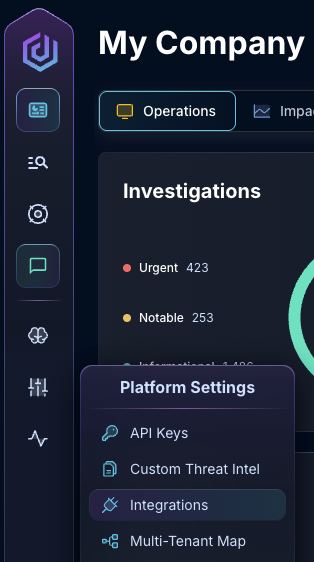
* In the bottom left hand corner, navigate to Settings > Integrations

<figure><img src="/files/zN02u3HObDaemUY8E1kD" alt=""><figcaption><p>Integrations Dropdown</p></figcaption></figure>

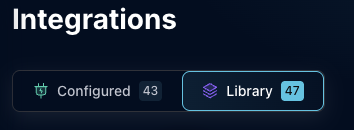
* Click "Available"

<figure><img src="/files/brI7n2Ux40Tk0jTwBCVh" alt=""><figcaption><p>Click Available</p></figcaption></figure>

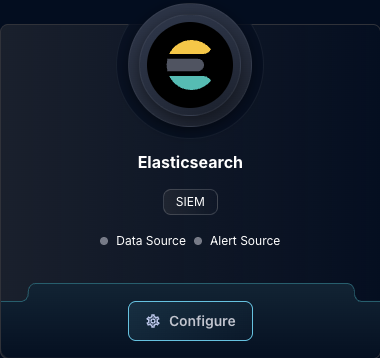
* In the Search bar, search Elasticsearch, then click "Configure"

<figure><img src="/files/H5iMmLXgqjwWRewbnduY" alt=""><figcaption><p>The Elasticsearch Tile</p></figcaption></figure>

* Under the Data Source heading, if your Elasticsearch integration is behind an [On-premise Dropzone Connector](https://docs.dropzone.ai/platform/settings/connector), select your connector from the dropdown
* If you have a Cloud deployment, check the box labeled "Connect with Elastic Cloud ID," then input the Elasticsearch Cloud ID and API Key

<figure><img src="/files/AJiq2VdcuLNcdhTrzYn5" alt=""><figcaption><p>The Elasticsearch Data Configuration (pt 1)</p></figcaption></figure>

* Otherwise, input the Elasticsearch Server, Port, and API Key

<figure><img src="/files/h7lcOHGYZ6OQyb4e1aAP" alt=""><figcaption><p>The Elasticsearch Data Configuration (pt 2)</p></figcaption></figure>

* If you want Dropzone to only use [remote clusters](https://www.elastic.co/docs/deploy-manage/remote-clusters) when making queries, check the box labeled "Search Remote Indices"
* Click "Test & Save" to finish

<figure><img src="/files/KZ0syh7eoVvYFbDBn8re" alt=""><figcaption><p>The Elasticsearch Data Configuration (pt 3)</p></figcaption></figure>

If you have any errors engage your Dropzone AI support representative.


---

# Agent Instructions: Querying This Documentation

If you need additional information that is not directly available in this page, you can query the documentation dynamically by asking a question.

Perform an HTTP GET request on the current page URL with the `ask` query parameter:

```
GET https://docs.dropzone.ai/integrations/data/elasticsearch_data.md?ask=<question>
```

The question should be specific, self-contained, and written in natural language.
The response will contain a direct answer to the question and relevant excerpts and sources from the documentation.

Use this mechanism when the answer is not explicitly present in the current page, you need clarification or additional context, or you want to retrieve related documentation sections.