Datadog is an SIEM integration. SIEM integrations are used to perform analysis of any SIEM generated alerts, and/or to use generated data as part of investigation analysis.
The Dropzone platform integrates with the Datadog security SIEM. Many customers ingest other alert sources into DataDog (e.g. IDPs) and integrate Dropzone into DataDog rather than the source systems.
Create an API Key and Application Key
Datadog requires both an API Key and an Application Key to enable.
To obtain an API Key, do the following:
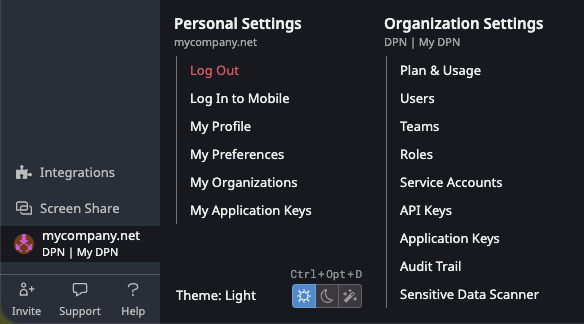
In the bottom left hand corner of your Datadog Dashboard, click on your organization icon
Navigate to Organization Settings > API Keys
Navigate to API Keys
Click "New Key"
Click "New Key"
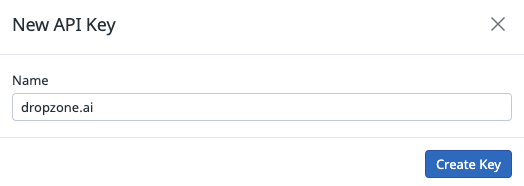
Name your token something memorable, such as "dropzone.ai," then click "Create Key"
Create Key
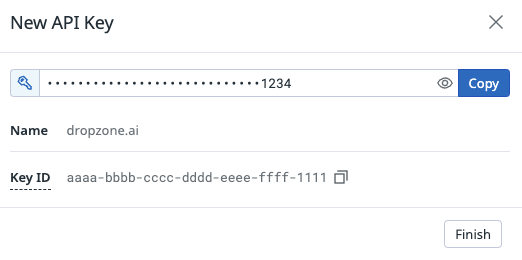
Copy the key generated for use later in the Dropzone UI where it is called "API Key," then click "Finish"
Copy the key
To obtain an Application Key, do the following:
In the bottom left hand corner of your Datadog Dashboard, click on your organization icon
Navigate to Organization Settings > Application Keys
Navigate to Application Keys
Click "New Key"
Click "New Key"
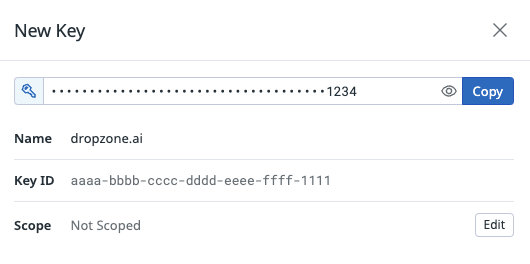
Name the key something memorable, such as "dropzone.ai," then click "Create Key"
Create Key
In the "Scope" section, select "Edit"
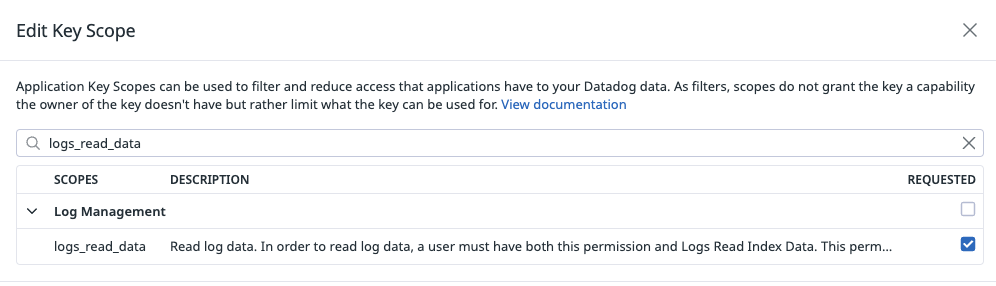
Edit Scopes
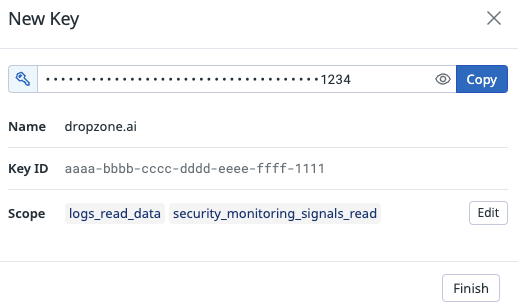
Assign the key the following scopes, then click "Save":
logs_read_data
security_monitoring_signals_read
Assign scopes
Copy the key generated for use later in the Dropzone UI where it is called "Application Key," then click "Finish"
Copy the key
Enable Datadog
To enable the Data Source integration, you will need the following information:
Dropzone Field
Source
API Key
The API key value you generated earlier
Application Key
The Application key value you generated earlier
Datadog site
The same as your url in Datadog, e.g. datadoghq.com, us3.datadoghq.com, etc
Navigate to your Dropzone AI tenant home page e.g. https://mycompany.dropzone.app
In the bottom left hand corner, navigate to Settings > Integrations
Integrations Dropdown
Click "Available"
Click Available
In the Search bar, search Datadog, then click "Configure"
The Datadog Tile
Under the Data Source heading, input the API Key, Application Key, and your Datadog site
If you wish to enable Datadog's Flex Logs, check the box labeled "Enabled" in the Flex Logs section
The Datadog Data Source Configuration
Click "Test & Save" to finish
If you have any errors engage your Dropzone AI support representative.