> For the complete documentation index, see [llms.txt](https://docs.dropzone.ai/llms.txt). Markdown versions of documentation pages are available by appending `.md` to page URLs; this page is available as [Markdown](https://docs.dropzone.ai/integrations/data/cato-networks_data.md).
# Cato Networks
## Cato Networks
The Dropzone platform integrates with [Cato Networks](https://www.catonetworks.com/), a cloud-native Secure Access Service Edge (SASE) platform that provides capabilities such as SD-WAN, secure web gateway (SWG), firewall-as-a-service (FWaaS), zero trust network access (ZTNA), and cloud access security broker (CASB).
By integrating with Cato Networks, Dropzone AI can leverage network and VPN telemetry to enhance security investigations by analyzing network traffic associated with alerts, identifying devices behind IP addresses, and correlating user and VPN activity across the environment.
### Integration Overview
To enable these integrations you will perform the following actions:
* Locate your Cato Networks Account ID
* Create an API Key
* Enable the Data source in your Dropzone tenant
## Obtain Account ID
To locate your Account ID, do the following:
* Log in to your Cato Networks account
* In the URL, locate the four-digit integer and copy it for use later in the Dropzone UI where it is called "Account ID"
The Account ID
## Create an API key
You will need access to an account administrator with the Editor privilege to generate keys.
To generate an API Key, do the following:
* In the upper banner of your Cato Networks homepage, click "Administration"
Navigate to "Administration"
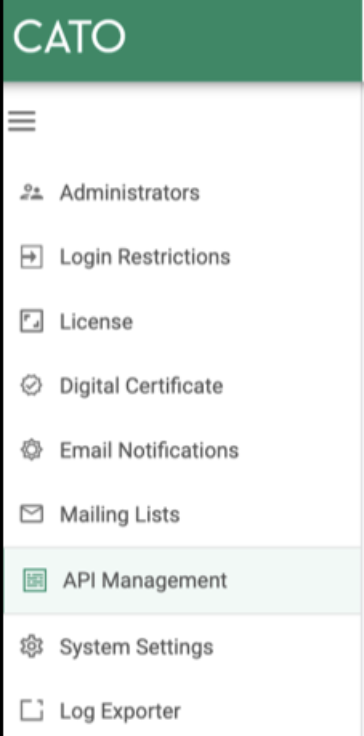
* In the right, click "API Management"
Click "API Management"
* Click "\* New"
Click New
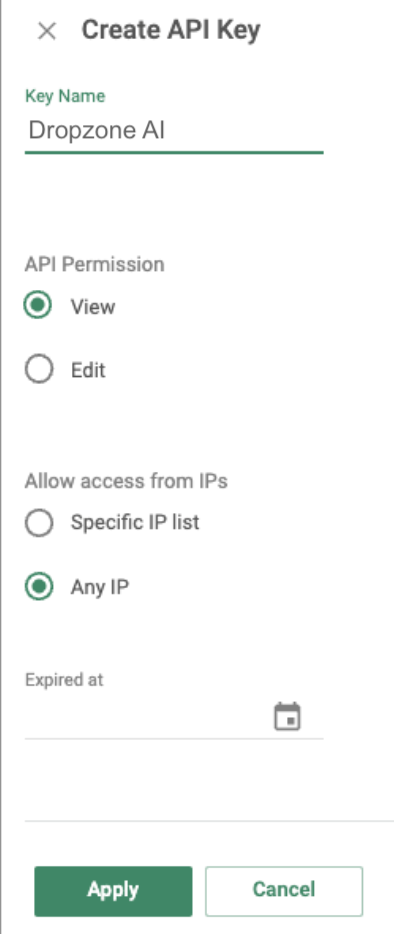
* Name the API key something memorable, such as Dropzone AI
* Under "API Permission," click "View"
* Under "Allow access from IPs," click "Any IP"
* If you wish, assign the API key an expiration date
* Click "Apply"
Create New API Key
* Copy the API key shown for use later in the Dropzone UI where it is called "API Key"
### Enable Cato Networks
To enable the Dara Source integration, you will need the following information:
| Dropzone Field | Source |
| -------------- | --------------------------------------- |
| Account ID | The Account ID value you copied earlier |
| API Key | The API key value you copied earlier |
* Navigate to your Dropzone AI tenant home page e.g. https\://*mycompany*.dropzone.app
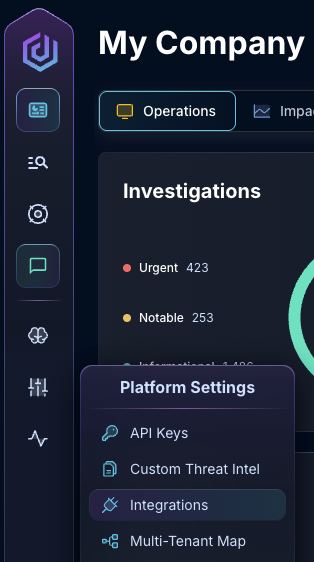
* In the left side bar, navigate to Platform Settings > Integrations
Integrations Dropdown
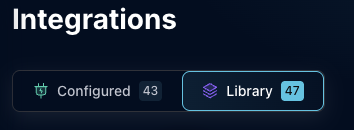
* Click "Library"
{% hint style="info" %}
If you have previously integrated this application, click "Configured"
{% endhint %}
Click Library
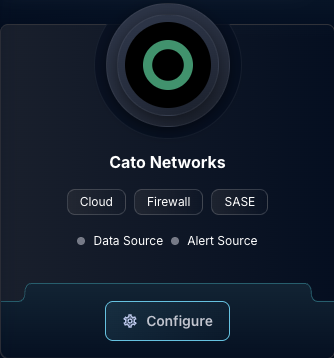
* In the Search bar, search Cato Networks, then click "Configure"
The Cato Networks tile
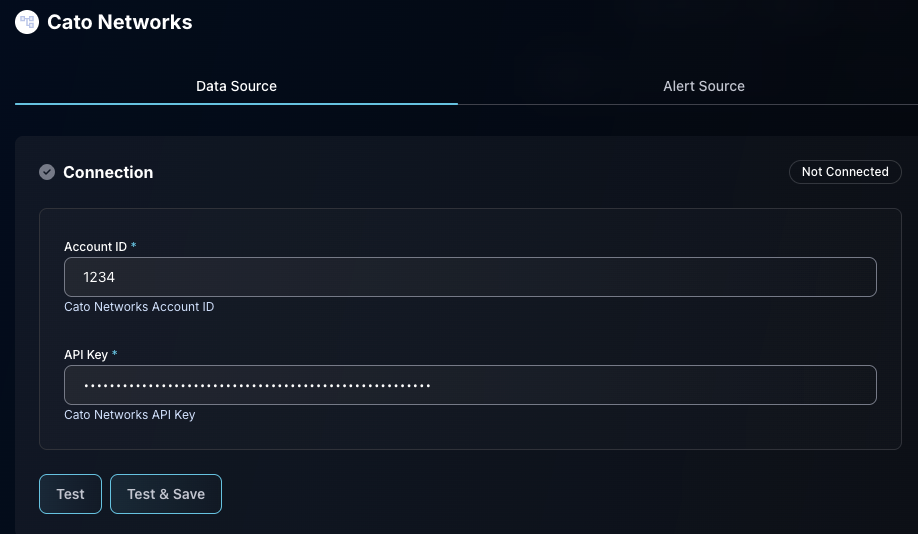
* Under the Data Source heading, input the Account ID and API Key
* Click "Test & Save" to finish
The Cato Networks Data Configuration
If you have any errors contact our Customer Success team.