# ZScaler (Beta)

{% hint style="warning" %}
This is integration is currently in Beta. At this point in its development, any attempts to integrate with it will return a success, regardless of whether the information entered is accurate or not. For more information about our beta integrations, engage your Dropzone support representative.
{% endhint %}

The Dropzone platform integrates with [ZScaler](https://www.zscaler.com/company/about-zscaler), a cloud-based security platform offering services such as cloud firewalls, data loss prevention, zero trust network access (ZTNA), and automated threat inspections.

## Create an API Key

ZScaler requires a ZScaler Posture Control API key to enable.

To obtain an API Key, do the following:

* Navigate to Administration > Authentication & Authorization > API Keys
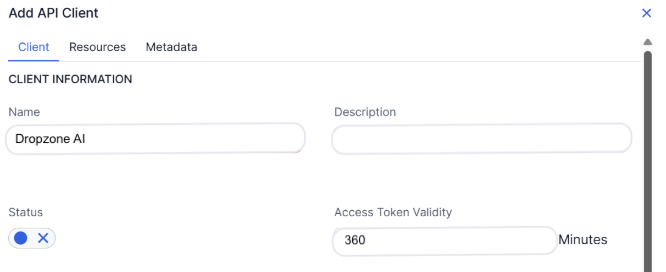
* Click "Create API Key"
* Name the key something memorable, such as "DropzoneAI"
* Assign the key the "SecOps" role
* Select a expiration date from the dropdown under "Revocation"

{% hint style="info" %}
To reduce the number of times you need to perform this integration, we recommend selecting Never or 3 Months
{% endhint %}

* Click "Create"

<figure><img src="https://435022081-files.gitbook.io/~/files/v0/b/gitbook-x-prod.appspot.com/o/spaces%2FmBVcKuiytGCsIDpL70BC%2Fuploads%2Fgit-blob-5f7569917074d64eaf99a51864a2083e683e0501%2Fzscaler-6.png?alt=media" alt=""><figcaption><p>Create the API Key</p></figcaption></figure>

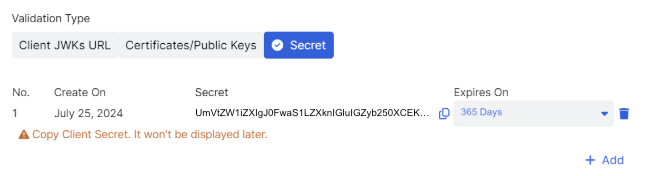
* Copy the API key for use later in the Dropzone UI where it is called "Client Secret," then close the window
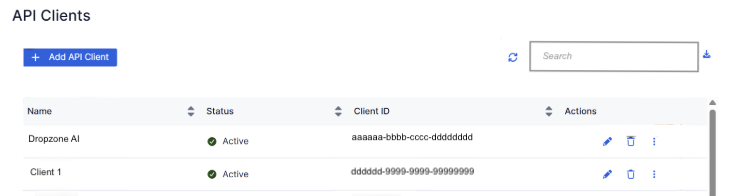
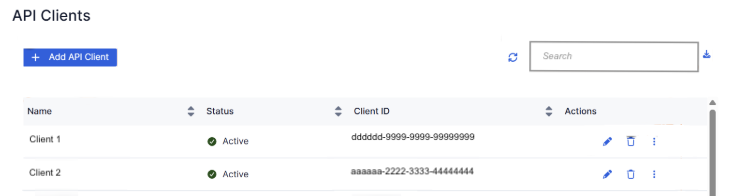
* In the table of API Keys, locate the key you just generated
* Copy the Client ID shown for use later in the Dropzone UI, where it is called "Client ID"

<figure><img src="https://435022081-files.gitbook.io/~/files/v0/b/gitbook-x-prod.appspot.com/o/spaces%2FmBVcKuiytGCsIDpL70BC%2Fuploads%2Fgit-blob-3977a81bf66e369ec509028e639dfa460ae0ca0f%2Fzscaler-5.png?alt=media" alt=""><figcaption><p>Copy the Client ID</p></figcaption></figure>

## Enable ZScaler

To enable the Alert Source integration, you will need the following information:

| Dropzone Field | Source                                                                          |
| -------------- | ------------------------------------------------------------------------------- |
| Client ID      | The Client ID value you generated earlier                                       |
| Client Secret  | The Client Secret value you generated earlier                                   |
| Vanity Domain  | The domain name of your organization, e.g. https\://\<your\_domain>.zslogin.net |
| Cloud          | Your Cloud environment, e.g. zscalerone, zscloud, etc                           |

* Navigate to your Dropzone AI tenant home page e.g. https\://*mycompany*.dropzone.app
* In the bottom left hand corner, navigate to Settings > Integrations

<figure><img src="https://435022081-files.gitbook.io/~/files/v0/b/gitbook-x-prod.appspot.com/o/spaces%2FmBVcKuiytGCsIDpL70BC%2Fuploads%2Fgit-blob-b3f07f902b1402dadc7abbd8bb62f9c204547390%2Fui-integrations-dropdown.png?alt=media" alt=""><figcaption><p>Integrations Dropdown</p></figcaption></figure>

* Click "Available"

<figure><img src="https://435022081-files.gitbook.io/~/files/v0/b/gitbook-x-prod.appspot.com/o/spaces%2FmBVcKuiytGCsIDpL70BC%2Fuploads%2Fgit-blob-434641ec6d4e45051842f86164f485d6bd289424%2Fapp_system_integrations_available.png?alt=media" alt=""><figcaption><p>Click Available</p></figcaption></figure>

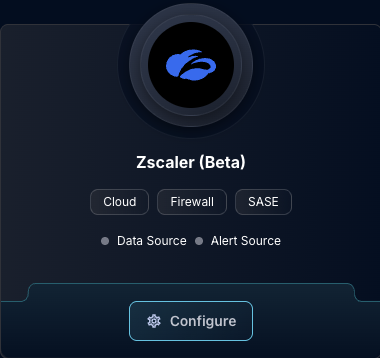
* In the Search bar, search ZScaler, then click "Configure"

<figure><img src="https://435022081-files.gitbook.io/~/files/v0/b/gitbook-x-prod.appspot.com/o/spaces%2FmBVcKuiytGCsIDpL70BC%2Fuploads%2Fgit-blob-b998967db5adf10ce0c7399e1faf17eff95426a0%2Fapp_system_integrations_available_zscaler.png?alt=media" alt=""><figcaption><p>The ZScaler Tile</p></figcaption></figure>

* Under the Alert Source header, input the Client ID, Client Secret, and Vanity Domain
* Select your cloud environment from the dropdown

<figure><img src="https://435022081-files.gitbook.io/~/files/v0/b/gitbook-x-prod.appspot.com/o/spaces%2FmBVcKuiytGCsIDpL70BC%2Fuploads%2Fgit-blob-23ca3e0c34be9a9b60021e601e5b2a039abda396%2Fapp_system_integrations_available_zscaler_alert_config.png?alt=media" alt=""><figcaption><p>The ZScaler Alert Source Configuration (pt 1)</p></figcaption></figure>

* If you wish, you may choose to filter alerts by [event name](https://help.zscaler.com/zpa/viewing-and-managing-events-diagnostics#eventTable). To do so, under "Event Filter Mode," select whether to include or exclude the names matching the filters. Click "Add Item" under "Event Name Regexes" section, then input a custom regex pattern to filter results.

<figure><img src="https://435022081-files.gitbook.io/~/files/v0/b/gitbook-x-prod.appspot.com/o/spaces%2FmBVcKuiytGCsIDpL70BC%2Fuploads%2Fgit-blob-9b4eaa840ddfe6adec267b296742253aff4592e7%2Fapp_system_integrations_available_zscaler_alert_config_1.png?alt=media" alt=""><figcaption><p>The ZScaler Alert Source Configuration (pt 2)</p></figcaption></figure>

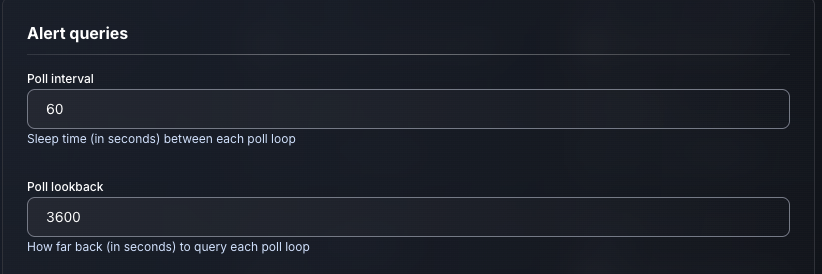
* Input your desired poll interval and lookback

<figure><img src="https://435022081-files.gitbook.io/~/files/v0/b/gitbook-x-prod.appspot.com/o/spaces%2FmBVcKuiytGCsIDpL70BC%2Fuploads%2Fgit-blob-a1c41361854faae97c3fb871ac6a1da72ef26174%2Fapp_system_integrations_available_zscaler_alert_config_2.png?alt=media" alt=""><figcaption><p>The ZScaler Alert Source Configuration (pt 3)</p></figcaption></figure>

* Click "Test & Save" to finish

If you have any errors engage your Dropzone AI support representative.


---

# Agent Instructions: Querying This Documentation

If you need additional information that is not directly available in this page, you can query the documentation dynamically by asking a question.

Perform an HTTP GET request on the current page URL with the `ask` query parameter:

```
GET https://docs.dropzone.ai/integrations/alert/zscaler_alert.md?ask=<question>
```

The question should be specific, self-contained, and written in natural language.
The response will contain a direct answer to the question and relevant excerpts and sources from the documentation.

Use this mechanism when the answer is not explicitly present in the current page, you need clarification or additional context, or you want to retrieve related documentation sections.