> For the complete documentation index, see [llms.txt](https://docs.dropzone.ai/llms.txt). Markdown versions of documentation pages are available by appending `.md` to page URLs; this page is available as [Markdown](https://docs.dropzone.ai/integrations/alert/mimecast.md).

# Mimecast

Dropzone AI integrates with [Mimecast 2.0](https://www.mimecast.com/), a secure email gateway that sits in front of an organization's email and filters emails, detecting threats such as malware, phishing and scams.

## Integration Overview

To enable these integrations you will perform the following actions:

* Create a Custom Administration Role for your application
* Create an API 2.0 application
* Select integration parameters, such as which alert types to sync

## Create a Custom Admin Role

To limit Dropzone's access to your data, you may choose to create a custom [administrator role](https://mimecastsupport.zendesk.com/hc/en-us/articles/34000745394963-Roles-Understanding-Administrator-Roles#h_01JA88CBVKZ961KRA66F67D34Q) for your API application. You may skip this step and use the `Full Administrator` role instead, though some advanced features of the integration will be unavailable to you.

* In your Mimecast homepage, click "Administration Console"

<figure><img src="/files/kPlMxZDXHMsMMDSsj6If" alt=""><figcaption><p>Click Administration Console</p></figcaption></figure>

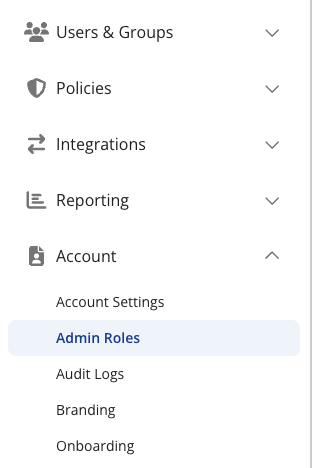
* In the left hand sidebar, navigate to Account > Admin Roles

<figure><img src="/files/UVnTZrQvQ39xhNfccQMA" alt=""><figcaption><p>Click "Admin Roles"</p></figcaption></figure>

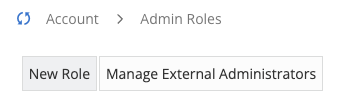
* Click "New Role"

<figure><img src="/files/1X898Ef2XmSOcu07nlo9" alt=""><figcaption></figcaption></figure>

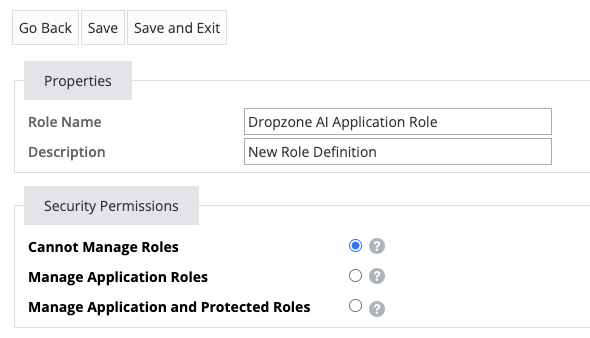
* Name the role something memorable, such as "Dropzone AI Application Role"

<figure><img src="/files/IoYyf6lhGlRK5O02saOO" alt=""><figcaption></figcaption></figure>

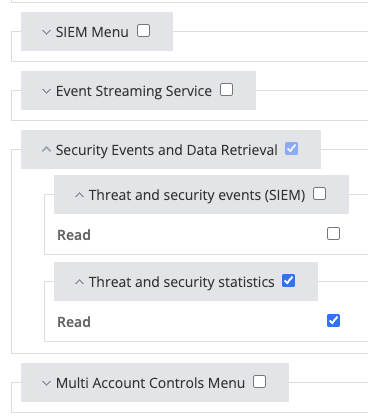
* Assign the role the following permissions:

| Permission                                                          | Scope        | Purpose                                                            |
| ------------------------------------------------------------------- | ------------ | ------------------------------------------------------------------ |
| Security Events and Data Retrieval - Threat and Security Statistics | Read         | Allows Dropzone to see flagged threats and alerts within Mimecast  |
| Gateway - Tracking                                                  | Read         | Allows Dropzone to search for and retrieve specific email messages |
| Archive - Search                                                    | Read         | Allows Dropzone to retrieve email body content                     |
| Archive - Search                                                    | Content View | Allows Dropzone to retrieve email body content                     |

{% hint style="info" %}
The Archive - Search `Content View` permission is only available to those with Superadmin privileges. Contact your Mimecast representative if you do not have it.

Only the `Security Events and Data Retrieval` permission is required for the basic function of the integration.
{% endhint %}

<figure><img src="/files/LQ0gOayvg37zzeLh0RWy" alt=""><figcaption><p>The "Security Events and Data Retrieval" permission section</p></figcaption></figure>

* At the top of the role, click "Save and Exit"

## Create an API Key

Mimecast requires an API key to enable. To create an API key, you must have a Security Permissions setting of "Manage Application Roles"

* In your Mimecast homepage, click "Administration Console"

<figure><img src="/files/kPlMxZDXHMsMMDSsj6If" alt=""><figcaption><p>Click Administration Console</p></figcaption></figure>

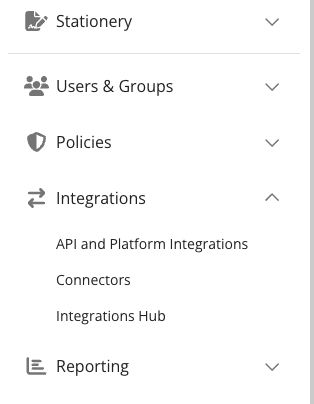
* In the left hand sidebar, navigate to Integrations > API and Platform Integrations

<figure><img src="/files/C6nNl5mtRXj07jsT7PAJ" alt=""><figcaption><p>Click "API and Platform Integrations"</p></figcaption></figure>

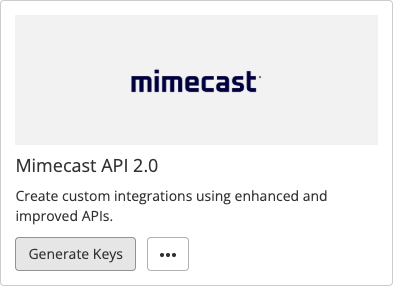
* Locate the Mimecast API 2.0 tile
* Click "Generate Keys"

<figure><img src="/files/tq2d76mzAO5y3mA4IsQP" alt=""><figcaption><p>Click "Generate Keys"</p></figcaption></figure>

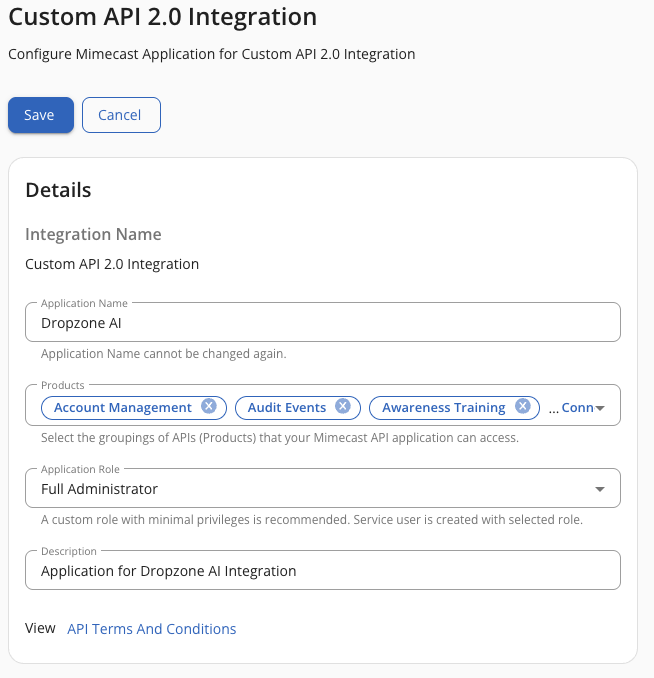
* Name the application something memorable, such as Dropzone AI
* Select the products you want Dropzone to have access to
* Assign the application a role (either the custom role you just created or the Full Administrator role)
* Input a memorable description for the application

<figure><img src="/files/r2AjgIcxYJqUUOu7DHBh" alt=""><figcaption><p>Input the application details</p></figcaption></figure>

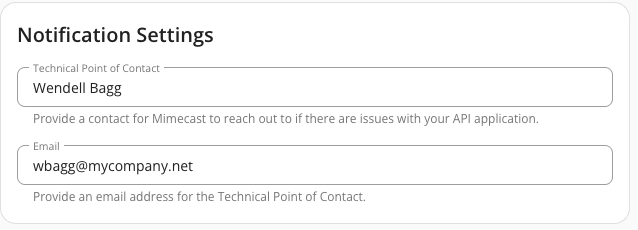
* Designate a Technical Point of Contact for the application

<figure><img src="/files/ccKl8VPf5TtEVKrHuEpJ" alt=""><figcaption><p>Input the Notification Settings</p></figcaption></figure>

* At the top of the application, click "Save"
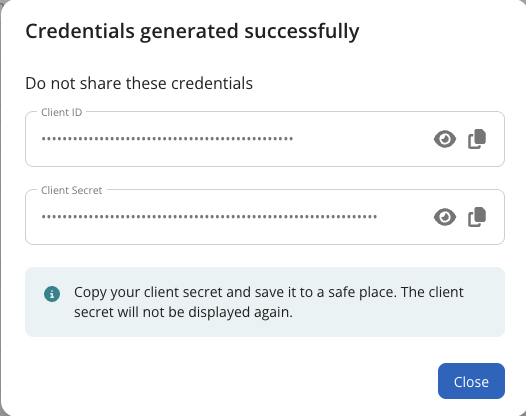
* Copy the credentials shown for use later in the Dropzone UI where they are called "Client ID" and "Client Secret" respectively

<figure><img src="/files/dwU6QwOFInH5SAmYhR60" alt=""><figcaption><p>Save the API Credentials</p></figcaption></figure>

## Enable Mimecast

To enable the Alert Source integration, you will need the following information:

| Dropzone Field | Source                                                                                                                                                                                                                          |
| -------------- | ------------------------------------------------------------------------------------------------------------------------------------------------------------------------------------------------------------------------------- |
| API URL        | The URL of your Mimecast 2.0 instance. If you do not know your API URL, see [here](https://developer.services.mimecast.com/api-overview#:~:text=with%20appropriate%20permissions.-,API,-Gateway%20Options) for more information |
| Client ID      | The Client ID value you generated earlier                                                                                                                                                                                       |
| Client Secret  | The Client Secret value you generated earlier                                                                                                                                                                                   |

To enable the Alert Source integration, do the following:

* Navigate to your Dropzone AI tenant home page e.g. https\://*mycompany*.dropzone.app
* In the bottom left hand corner, click Settings > Integrations

<figure><img src="/files/zN02u3HObDaemUY8E1kD" alt=""><figcaption><p>Integrations Dropdown</p></figcaption></figure>

* Click "Available"

<figure><img src="/files/brI7n2Ux40Tk0jTwBCVh" alt=""><figcaption><p>Click Available</p></figcaption></figure>

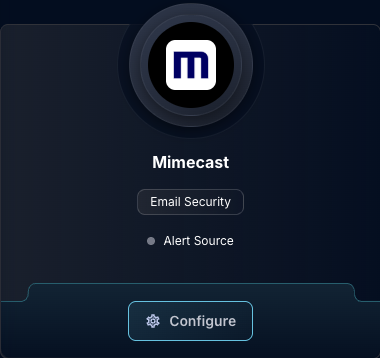
* In the Search bar, search Mimecast, then click "Configure"

<figure><img src="/files/ZjX4HE2vwlJXBFjyrEWI" alt=""><figcaption><p>The Mimecast Tile</p></figcaption></figure>

* Input the API URL, Client ID and Client Secret

<figure><img src="/files/U3iH6mRVmFN6o5MkU3PT" alt=""><figcaption><p>The Mimecast Alert Source Configuration (pt 1)</p></figcaption></figure>

* Select the [types](https://mimecastsupport.zendesk.com/hc/en-us/articles/34000509365651-Analysis-Response#h_01JED5RV0B0N5GXENM8PRVM6NG:~:text=Protection%20blocked%20clicks.-,Detection,-Categories) of threats you wish for Dropzone AI to investigate

<figure><img src="/files/bcc1Am4yWe1MSkRM7Low" alt=""><figcaption><p>The Mimecast Alert Source Configuration (pt 2)</p></figcaption></figure>

* Select the [statuses](https://mimecastsupport.zendesk.com/hc/en-us/sections/34523591340051-Message-Center) of threats you wish for Dropzone AI to investigate

<figure><img src="/files/fPRcNxJG7IFNxW5f7EGH" alt=""><figcaption><p>The Mimecast Alert Source Configuration (pt 3)</p></figcaption></figure>

* Select the threat sources you want Dropzone AI to ingest

<figure><img src="/files/xBxqQmz0YWrAglN0I5xL" alt=""><figcaption><p>The Mimecast Alert Source Configuration (pt 4)</p></figcaption></figure>

* Check the box labeled "Search Content View Enabled" to allow Dropzone to retrieve the content of emails for analysis

{% hint style="success" %}
Only do so if you have granted the application the necessary permissions.
{% endhint %}

<figure><img src="/files/LUiKBZor1gJ0SWNGxUgg" alt=""><figcaption><p>The Mimecast Alert Source Configuration (pt 5)</p></figcaption></figure>

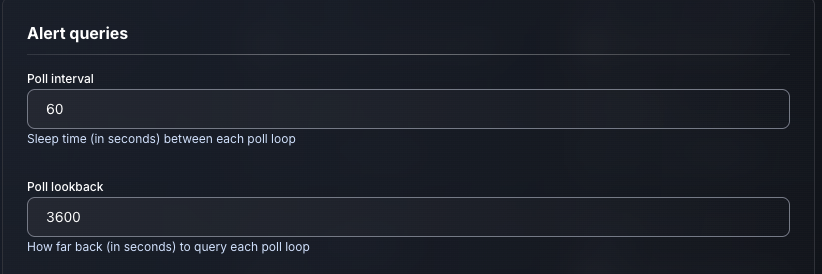
* Input your desired poll interval and lookback

<figure><img src="/files/EbxJMIbYnSnzbZd7V2Da" alt=""><figcaption><p>The Mimecast Alert Source Configuration (pt 5)</p></figcaption></figure>

* If you wish to further filter alerts using the Python [CEL](https://python-common-expression-language.readthedocs.io/en/stable/tutorials/cel-language-basics/) package, check the box labeled "Use advanced filtering"
* Input your CEL expression, then select whether to include or exclude alerts matching that filter. Add each filter individually using the "Add Item" button
* Contact your Dropzone AI support representative for more information about this feature

<figure><img src="/files/infLIQONnAkvK8XGXOi4" alt=""><figcaption><p>The Mimecast Alert Source Configuration (pt 6)</p></figcaption></figure>

* Click "Test & Save" to finish

If you have any errors or questions, engage your Dropzone AI support representative.


---

# Agent Instructions
This documentation is published with GitBook. GitBook is the documentation platform designed so that both humans and AI agents can read, navigate, and reason over technical content effectively. Learn more at gitbook.com.

## Querying This Documentation
If you need additional information that is not directly available in this page, you can query the documentation dynamically by asking a question.

Perform an HTTP GET request on the current page URL with the `ask` query parameter:

```
GET https://docs.dropzone.ai/integrations/alert/mimecast.md?ask=<question>
```

The question should be specific, self-contained, and written in natural language.
The response will contain a direct answer to the question and relevant excerpts and sources from the documentation.

Use this mechanism when the answer is not explicitly present in the current page, you need clarification or additional context, or you want to retrieve related documentation sections.