> For the complete documentation index, see [llms.txt](https://docs.dropzone.ai/llms.txt). Markdown versions of documentation pages are available by appending `.md` to page URLs; this page is available as [Markdown](https://docs.dropzone.ai/integrations/alert/extrahop_alert.md).

# ExtraHop

## ExtraHop

The Dropzone AI Platform integrates with [ExtraHop](https://www.extrahop.com/), a Network Detection and Response (NDR) platform that provides real-time, packet-level visibility across hybrid and multi-cloud environments.

### Integration Overview

To enable these integrations you will perform the following actions:

* Grant REST API Access
* Locate your RevealX 360 API Endpoint
* Generate RevealX 360 API Credentials
* Enable the Alert source in your Dropzone AI tenant

### Grant REST API Access

To grant REST API Access, do the following:

* As a user with system and access administration privileges, log in to ExtraHop RevealX 360
* In the top right of the page, navigate to System Settings > All Administration
* Click "API Access"
* In the Manage API Access section, click "Enable"

### Locate your API Endpoint

In the API Access page of your RevealX360 account, locate your endpoint in the "API Endpoint" section. The hostname does not include the /oauth2/token.

Copy the value shown for use later in the Dropzone UI, where it is called "Hostname."

### Create API Credentials

To create API Credentials, do the following:

* As a user with system and access administration privileges, log in to ExtraHop RevealX 360
* In the top right of the page, navigate to System Settings > All Administration
* Click "API Access"
* Click "Create Credentials"
* Name the credentials something memorable, such as "Dropzone AI"
* Grant the credentials the following privilege levels:
  * Full [NDR Module Access](https://docs.extrahop.com/26.3/users-overview/#extrahop-user-account-privileges:~:text=access%20module%20features.-,NDR%20Module%20Access,-Allows%20the%20user)
  * Full [NPM Module Access](https://docs.extrahop.com/26.3/users-overview/#extrahop-user-account-privileges:~:text=and%20threat%20briefings.-,NPM,-Module%20Access)
  * [Full Read-Only](https://docs.extrahop.com/26.3/users-overview/#extrahop-user-account-privileges)

{% hint style="info" %}
Full NPM Module Access is only required if you wish to ingest [performance detections](https://docs.extrahop.com/26.3/detections-overview/#:~:text=to%20take%20action.-,Modules,-and%20detections) as an alert source.
{% endhint %}

* In the "Packet Access" section, do not enable packet retrieval
* Click "Save"
* Copy and save the ID and Secret values shown for use later in the Dropzone UI, where they are called "ID" and "Secret" respectively
* Click "Done"

## Enable ExtraHop

To enable the Alert Source integration, you will need the following information:

| Dropzone Field | Source                                                                   |
| -------------- | ------------------------------------------------------------------------ |
| ID             | The ID value you copied earlier                                          |
| Secret         | The Secret value you copied earlier                                      |
| Hostname       | The hostname of your ExtraHop API, e.g. *example.api.cloud.extrahop.com* |

* Navigate to your Dropzone AI tenant home page e.g. https\://*mycompany*.dropzone.app
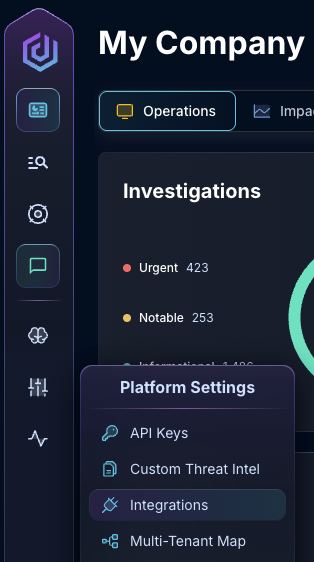
* In the bottom left hand corner, navigate to Settings > Integrations

<figure><img src="/files/zN02u3HObDaemUY8E1kD" alt=""><figcaption><p>Integrations Dropdown</p></figcaption></figure>

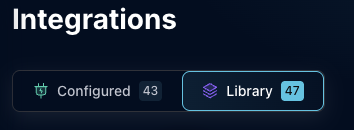
* Click "Library"

{% hint style="info" %}
If you have previously integrated this application, click "Configured"
{% endhint %}

<figure><img src="/files/QySQeLXXUC5SLjaXyamH" alt=""><figcaption><p>Click Library</p></figcaption></figure>

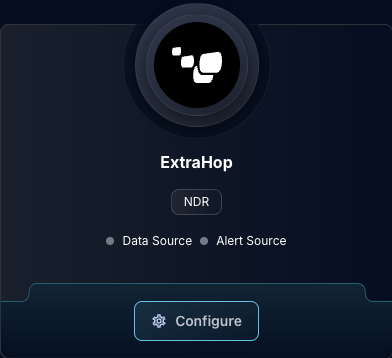
* In the Search bar, search ExtraHop, then click "Configure"

<figure><img src="/files/4hRZozdpBJlgnHajkuBJ" alt=""><figcaption><p>The ExtraHop tile</p></figcaption></figure>

* Under the Alert Source header, input the ID, Secret, and Hostname

<figure><img src="/files/496AoguxnokKgRLPrV6Q" alt=""><figcaption><p>The ExtraHop Alert Source Configuration (pt 1)</p></figcaption></figure>

* Under "Detection filters," select which [detection categories](https://docs.extrahop.com/26.3/detections-overview/#triage:~:text=tuning%20rules.-,Category,-You%20can%20filter) you want Dropzone to ingest. By default, all are selected
* Check the box labeled "Recommended for triage" to limit your detections to those [recommended for triage](https://docs.extrahop.com/26.3/detections-overview/#triage)
* Input your minimum [risk score severity](https://docs.extrahop.com/26.3/risk-scores-overview/#:~:text=to%20take%20action.-,Risk,-score%20severity)

<figure><img src="/files/kzU78r2UWkN8YPktq1Ax" alt=""><figcaption><p>The ExtraHop Alert Source Configuration (pt 2)</p></figcaption></figure>

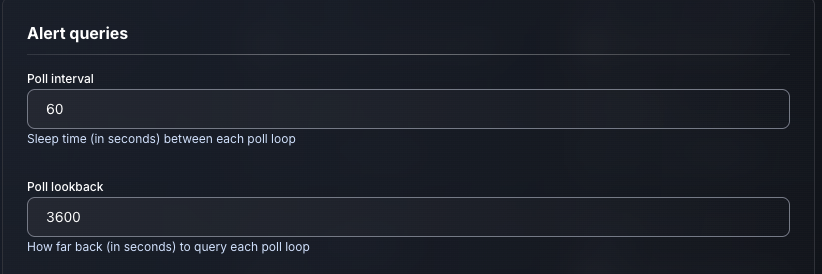
* Input your desired poll interval and lookback

<figure><img src="/files/EbxJMIbYnSnzbZd7V2Da" alt=""><figcaption><p>The ExtraHop Alert Source Configuration (pt 3)</p></figcaption></figure>

* If you wish to further filter alerts using the Python [CEL](https://python-common-expression-language.readthedocs.io/en/stable/tutorials/cel-language-basics/) package, check the box labeled "Use advanced filtering"
* Input your CEL expression, then select whether to include or exclude alerts matching that filter. Add each filter individually using the "Add Item" button
* Contact your Dropzone AI support representative for more information about this feature

<figure><img src="/files/infLIQONnAkvK8XGXOi4" alt=""><figcaption><p>The ExtraHop Alert Source Configuration (pt 4)</p></figcaption></figure>

* Click "Test & Save" to finish

If you have any errors engage your Dropzone AI support representative.