> For the complete documentation index, see [llms.txt](https://docs.dropzone.ai/llms.txt). Markdown versions of documentation pages are available by appending `.md` to page URLs; this page is available as [Markdown](https://docs.dropzone.ai/integrations/alert/abnormalai_alert.md).
# Abnormal AI (Beta)
{% hint style="warning" %}
This is integration is currently in Beta. At this point in its development, any attempts to integrate with it will return a success, regardless of whether the information entered is accurate or not. For more information about our beta integrations, engage our Customer Success team.
{% endhint %}
The Dropzone platform integrates with the [Abnormal AI](https://abnormal.ai/) security platform to detect the abnormal usage and behaviors of accounts, vendors, and applications associated with your organization.
## Create an API Key
Abnormal AI requires an API key to enable.
To obtain an API Key, do the following:
* Sign in to your [Abnormal Security portal](https://portal.abnormalsecurity.com/)
* Navigate to Settings > Integrations
* Scroll to the API Token Management section
* Click "+ Create New Token"
The API Token Management section
* Select "Rest API" as the integration type
* Click "Next"
* Select the "Tenant (Single Tenant)" token scope
* Select "Custom Access"
* Enable the following access levels:
| Scope | Access Level |
| --------------- | -------------------- |
| Abuse Campaigns | Read, Read Sensitive |
| Employees | Read, Read Sensitive |
| Messages | Read, Read Sensitive |
| Threats | Read, Read Sensitive |
| Vendors | Read, Read Sensitive |
| Cases | Read, Read Sensitive |
{% hint style="info" %}
The Cases scope is only recommended if you have an [Account Takeover Protection](https://abnormal.ai/platform/account-takeover-protection) license.
{% endhint %}
* Name the token something memorable, such as Dropzone AI
* Select an expiry date
{% hint style="info" %}
Your Dropzone integration will stop working when the client secret expires. For convenience's sake, we recommend picking a longer expiration date, to limit the number of times the access token must be updated.
Consider setting a calendar reminder to update the key prior to expiration. If you wish to receive email notifications before your token expires, you may configure the API token expiry event type in the [Abnormal Portal Notification Settings](https://abnormalsecurity.my.site.com/support/s/article/Abnormal-Portal-Notifications-Settings) page.
{% endhint %}
* In the "IP Safelist" section, input a IPv4 / IPv6 address or a CIDR block, then click "Add"
* Click "Create Token"
Create the API Token
* Copy the token shown for use later in the Dropzone UI, where it is called "Access Token"
Copy the Access Token
## Enable Abnormal AI
To enable the Alert Source integration, you will need the following information:
| Dropzone Field | Source |
| -------------- | -------------------------------------------- |
| Access Token | The Access Token value you generated earlier |
| Region | The tenant region of your Abnormal AI tenant |
* Navigate to your Dropzone AI tenant home page e.g. https\://*mycompany*.dropzone.app
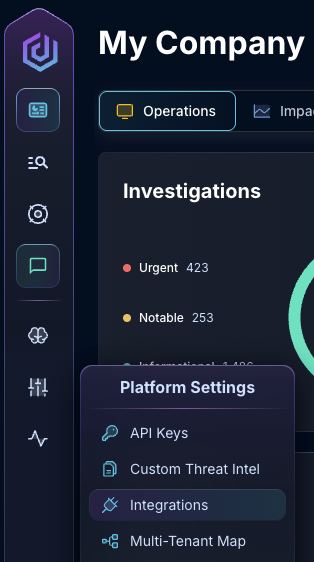
* In the left side bar, navigate to Platform Settings > Integrations
Integrations Dropdown
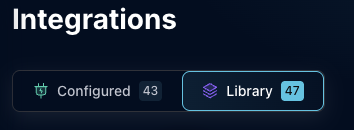
* Click "Library"
{% hint style="info" %}
If you have previously integrated this application, click "Configured"
{% endhint %}
Click Library
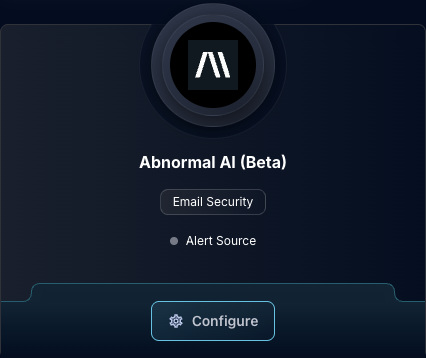
* In the Search bar, search Abnormal AI, then click "Configure"
The Abnormal AI Tile
* Input the Access Token and Region
The Abnormal AI Alert Source Configuration
* Click "Test & Save" to finish
If you have any errors contact our Customer Success team.