# Investigation Reviews Deep Dive

New to Dropzone? We recommend starting with our overview of **The Platform**, specifically the **Dashboard** and **Investigations** sections, to familiarize yourself with how alerts flow through the system.

Once you’re comfortable, you’re ready to begin reviewing investigations.

## Overview: Investigation Reviews

**Investigation Reviews** enable SOC analysts to validate AI-completed alert investigations for accuracy and completeness. This process ensures high-quality security analysis while creating feedback loops that continuously improve Dropzone’s automated investigation capabilities.

Reviews help:

* Confirm AI conclusions align with your SOPs
* Reduce false positives
* Capture institutional knowledge
* Improve future investigation accuracy

You may follow your existing **Standard Operating Procedures (SOPs)** or use Dropzone’s built-in **Quality Assurance checklist** when reviewing investigations.

***

## What You’ll See Here

* **Investigation Queue Management**\
  Efficient filtering and prioritization of completed investigations
* **Review Interface Navigation**\
  A walkthrough of all investigation review components
* **Feedback Systems**\
  Context Memory creation and Custom Strategy development
* **Quality Assurance Workflows**\
  Structured approaches to validating investigations
* **Outcome Management**\
  Conclusion changes and investigation status updates
* **Knowledge Base Integration**\
  Leveraging reviews for long-term organizational learning

***

## How Investigation Reviews Work

### Review Process Model

1. **Investigation Completion**\
   The AI completes an automated investigation of security alerts.
2. **Review Queue**\
   Completed investigations enter the review queue with an **In Review** status.
3. **Analyst Assessment**\
   Human analysts evaluate the AI’s conclusions, evidence, and reasoning.
4. **Feedback Integration**\
   Review outcomes improve AI performance through Context Memory and strategies.
5. **Status Updates**\
   Investigations move from **In Review** to **Reviewed**.

***

## Review Components

### Investigation Data

Each investigation review provides access to:

* **Complete Alert Context**\
  Original alert details, triggering rules, and metadata
* **AI Analysis Results**\
  Investigative findings, evidence, and reasoning
* **Supporting Evidence**\
  API calls, queries, and data sources used
* **Recommended Actions**\
  Suggested follow-up steps based on the investigation outcome

### Review Tools

* **Approval Workflows**\
  Single-click approval for accurate investigations
* **Conclusion Modification**\
  Ability to change investigation outcomes with justification
* **Context Memory Creation**\
  Add organizational knowledge for future AI reference
* **Custom Strategy Development**\
  Encode reusable investigation logic for alert patterns

***

## Quality Assurance Model

Investigation reviews support structured quality assurance across several dimensions:

* **Accuracy Validation**\
  Confirm AI conclusions match evidence and organizational context
* **Completeness Assessment**\
  Ensure all relevant investigative angles were explored
* **False Positive Reduction**\
  Identify and correct misclassified benign activity
* **Knowledge Transfer**\
  Capture institutional expertise to improve future investigations

***

## Accessing Investigations

### Login and Tenant Selection

* Navigate to your Dropzone AI tenant home page (for example, `https://mycompany.dropzone.app`)
* If you have multiple tenants, use the tenant tree to navigate between environments

### Investigation Queue Access

* In the left navigation menu, click **Investigations**
* Select investigations by **Priority**:
  * Urgent
  * Notable
  * Informational
* Use filters to refine results by:
  * Conclusion
  * Interview usage
  * Source
  * And more

***

## Reviewing Investigations

Each investigation contains multiple tabs, described below.

### Summary Tab

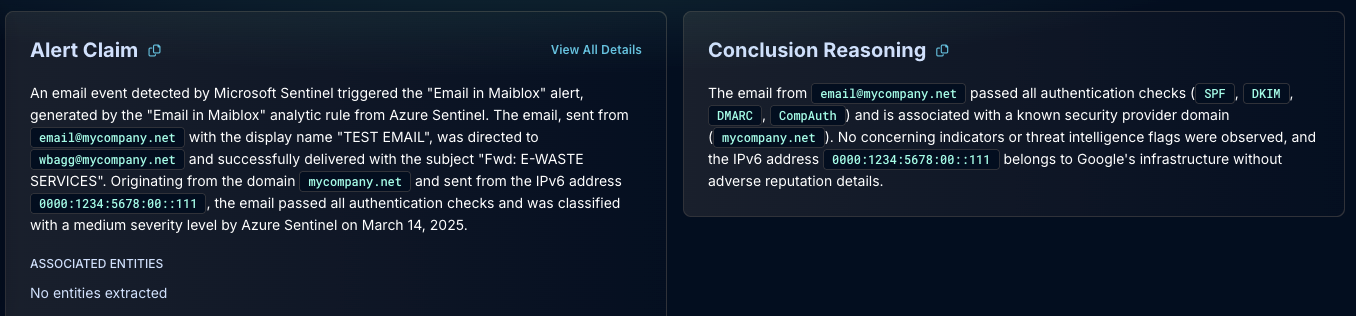
* **Alert Summary**\
  Overview of the triggering alert and detection rule
* **Top Findings**\
  The five most significant findings influencing the AI’s conclusion
* **Associated Entities**\
  Hosts, users, IP addresses, and other related entities
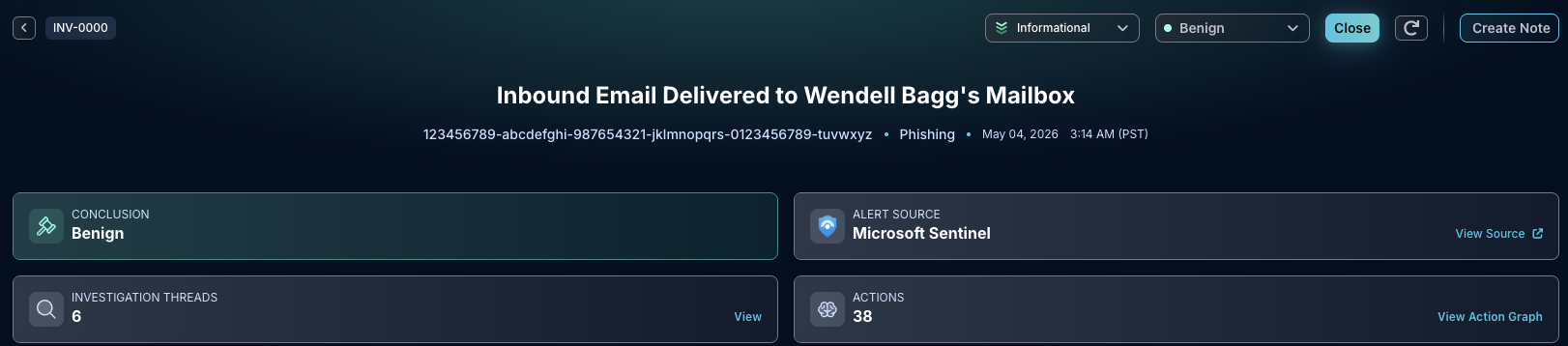
* **Final Conclusion**\
  AI-determined outcome with supporting context and confidence

### Interviews Tab

> *Only available if AI Interviewer is enabled*

* **Interview Details**\
  State, creation time, last update, and recipient
* **Interview Question and Context**\
  The question asked and why it was generated
* **Resulting Communications**\
  Full conversation if the recipient responds
* **Approval Button**\
  Available when auto-approval is not enabled

### Findings Tab

* **Investigative Questions**\
  AI-generated questions guiding the investigation
* **Evidence-Based Rationale**\
  Reasoning derived from Evidence Locker entries
* **Analysis Depth**\
  Detailed view of investigation methodology

### Evidence Locker Tab

* **API Call History**\
  All queries and lookups performed by the AI
* **Data Sources**\
  External systems accessed during the investigation
* **Response Data**\
  Raw and processed results from each source

### Notes Tab

* **Reviewer Commentary**\
  Space for analyst observations and feedback
* **Collaboration Space**\
  Team communication around the investigation

{% hint style="info" %}
Notes currently do not influence AI behavior directly.
{% endhint %}

### Remediations Tab

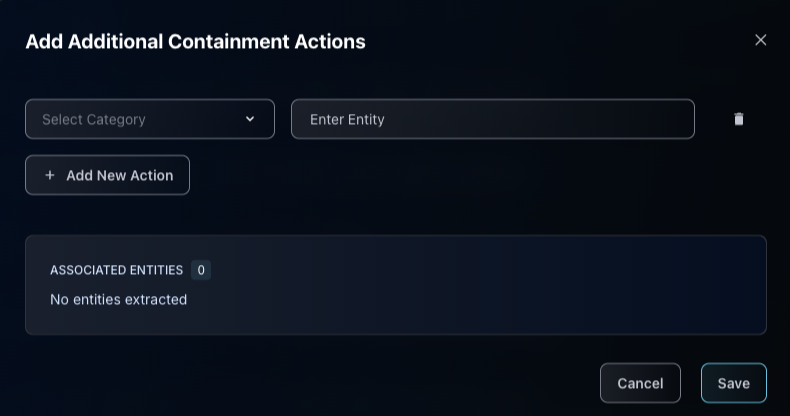
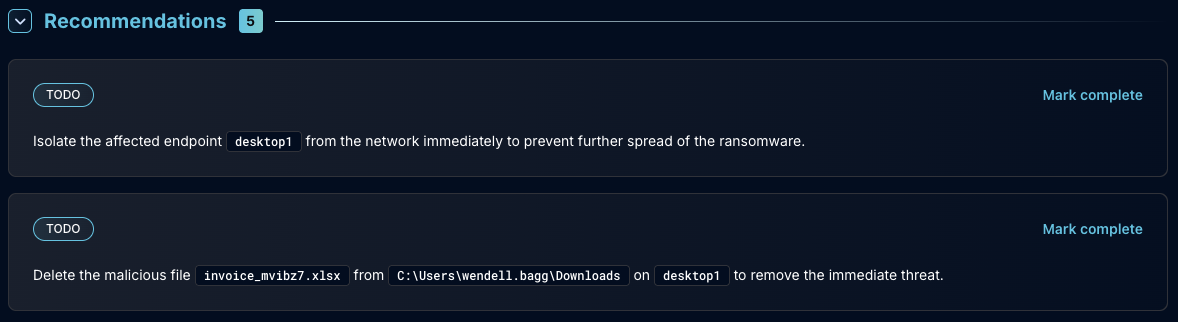
* **Suggested Actions**\
  Follow-up steps based on the investigation outcome
* **Automation Triggers**\
  Potential response automations for similar alerts

{% hint style="info" %}
Remediation recommendations are not shown for investigations concluded as **Benign**.
{% endhint %}

### Changelog Tab

* **Investigation Timeline**\
  Chronological record of investigation events
* **System Events**\
  Automated actions and status changes
* **Review History**\
  Prior review activity and modifications

***

## Standard Approval Process

### Investigation Review

* Verify the Conclusion aligns with your SOPs

### Approval Execution

* Select **Approve and Close** to keep the same Conclusion
* The investigation moves to **Reviewed**

***

## Conclusion Modification Workflow

### Investigation Review

* Verify the Conclusion aligns with your SOPs

### Change Conclusion State

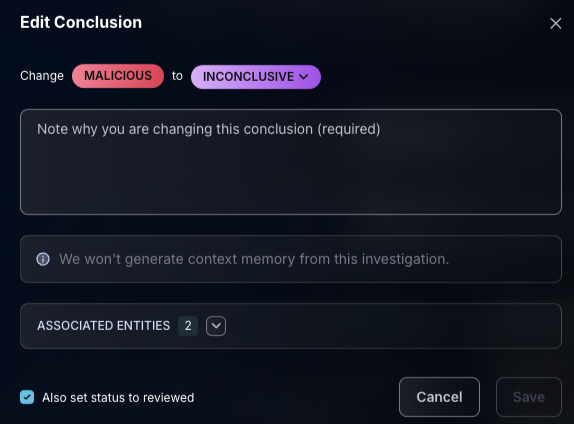
* Use the dropdowns in the top-right to update the Conclusion:
  * Malicious
  * Suspicious
  * Inconclusive
  * Benign

{% hint style="info" %}
Dropzone treats **Malicious** and **Benign** as final states, but teams may use statuses however best fits their workflow.
{% endhint %}

### Document Feedback

* Add notes explaining why the Conclusion was changed
* Adjust pre-set selections as appropriate
* Click **Save** to move the investigation to **Reviewed** (unless unchecked)

***

## Onboarding Recommendation

During onboarding, we recommend reviewing **10–15+ investigations per day** for the first few weeks, prioritizing:

* Urgent
* Malicious
* Suspicious

This accelerates alignment with your internal SOPs and helps tune Dropzone quickly.

***

## What’s Next?

Once you’re comfortable reviewing investigations, explore our **Best Practice guides** for:

* Building Custom Strategies
* Setting up Response Actions
* Leveraging Context Memory

{% hint style="warning" %}
Some advanced features are available to **Admins only**.
{% endhint %}


---

# Agent Instructions: Querying This Documentation

If you need additional information that is not directly available in this page, you can query the documentation dynamically by asking a question.

Perform an HTTP GET request on the current page URL with the `ask` query parameter:

```
GET https://docs.dropzone.ai/best-practices/deep-dive-into-investigation-reviews.md?ask=<question>
```

The question should be specific, self-contained, and written in natural language.
The response will contain a direct answer to the question and relevant excerpts and sources from the documentation.

Use this mechanism when the answer is not explicitly present in the current page, you need clarification or additional context, or you want to retrieve related documentation sections.